1
3
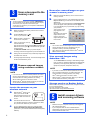
Scan a document to the
memory card
NOTE
•
a
b
c
d
e
f
To scan a document using your computer (TWAIN Mode),
you must install scanner drivers and software (see step 5)
and connect your computer to the scanner (see
Connecting your scanner to your computer in TWAIN Mode
in the User’s Guide).
Browse for scanned images on your
scanner’s memory card
a
b
Make sure that the SD Memory Card is in the scanner’s
memory card slot.
Press the Power button
to turn on your scanner.
a
Make sure that SD appears on
the scanner’s LCD panel.
Insert your document, face up,
into the feeder slot.
Align the document with the left edge b of the feeder slot.
Slide the document guide c until it touches the right side
of the document.
For DSmobile 920DW: When you perform duplex
scanning, insert the first page face up into the feeder slot.
Gently push the document until you feel its top edge touch
the inside of the scanner.
Scanning begins automatically. The scanned image will be
saved on the SD Memory Card.
4
Browse scanned images
using a wireless network
•
You can also view scanned images stored on the memory
card by inserting the memory card directly into your
computer’s memory card slot (if applicable).
•
After viewing the scanned data, slide the Wi-Fi® switch to
OFF to save the battery.
View scanned images using
AndroidTM / iOS
To use ScanHubTM for browsing or downloading images
from your scanner, install the application from Google Play
(AndroidTM) or the App Store (iOS) onto your wireless
equipment (computer, smartphone, tablet, etc.).
NOTE
•
If you have not set a Wi-Fi® network password, be sure to
set up a network password in your web browser first. For
more information on setting password, see Setting
Without a Wi-Fi® network password, data on your SD card
can be viewed and stolen by a third party.
Locate the scanner on your
wireless network
a
b
•
c
2
Brother Online can provide you the document management service
for your scanned images.
For more information, visit to check
http://www.brother.com/product/brotheronline/.
5
®
On your wireless device, select your scanner’s SSID,
Brother DS-820W-xxxx (Brother DS-920DW-xxxx).
(where xxxx = your scanner’s Media Access Control (MAC)
address)
Without a Wi-Fi® network password, data on your SD card
can be viewed and stolen by a third party.
Storage service on Brother Online
Slide the Wi-Fi® switch on the
end of your scanner to ON.
Wait for about 40 seconds, until
the Wi-Fi® LED turns from red
to blue.
Activate the Wi-Fi function of
your wireless equipment (computer, smartphone, tablet,
etc.) so that it can search for your scanner.
If you have not set a Wi-Fi® network password, be sure to
set up a network password in your web browser first. For
more information on setting password, see Setting
Wi-Fi® network password in the User’s Guide.
Wi-Fi® network password in the User’s Guide.
•
Launch a web browser on your wireless device and type
http://10.10.100.1 (your scanner’s HTTP address) in the
address bar.
When you first view scanned images, the Password Setup
screen will appear. Set a password and click Apply.
If you have already set your password, log in by entering
your password.
Your scanner’s home
page appears in the
browser.
When there are scanned
images saved on the
memory card, these
images will appear in the
home screen.
NOTE
NOTE
•
Make sure that the SD Memory Card is in the scanner’s
memory card slot.
Install scanner drivers
and scanning software
NOTE
•
•
Make sure that your computer is ON and you are logged on
with Administrator rights.
If your computer does not have a DVD-ROM drive,
download the scanner driver from Brother Solutions Center
at http://solutions.brother.com/.