1
AXIS 7100 User’s Guide
Using the AXIS 7100
Paper Orientation on WORKiO Copiers
To receive an upright image, the setting should be “Portrait” and the paper
should be placed with the short-edge in the feeding direction in the ADF
(Automatic Document Feeder) or in the A4-R position on the flatbed inside the
WORKiO copier. The PDF rotation option can be used to enable the same
feeder orientation as when copying i.e long-edge first. For more information
on PDF rotation please refer to the AXIS 7100 User’s Manual which is
available from the Axis web site at www.axis.com or from the AXIS Product
CD.
Using a standard PC Keyboard
Connecting a standard keyboard to your AXIS 7100 will allow you to quickly
search for any destination names within the resident list. You can do this by
simply typing in the first couple of characters of the destination name you
wish to search. The AXIS 7100 message display will automatically show the
destination that best matches the keyboard input.
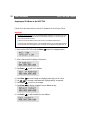
Adding E-mail Destinations
The e-mail list resident within the AXIS 7100 is initially created by your
administrator. If you want to send a document to an e-mail destination that is
not featured in the list, you can add a temporary e-mail destination using
either:
• a standard PC keyboard
• a standard Web browser
See below for details.
Note:
The RightFax destination cannot be added as a temporary destination, it must be set up by the
administrator. Refer to the AXIS 7100 User’s Manual for more information.
25