1
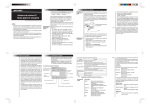
2.Expense Summaries
Expense Mode
The Expense function is an easy-to-use method of tracking personal and
business expense information. The expense summaries allow you to see
the total expenses for a single day or for a certain period.
Expense summaries are a collection of records stored in Expense mode.
You can recall them for a specific day or a certain period.
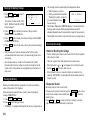
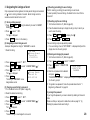
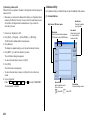
(1) Summarizing an expense report for a specific day
<Example> Specify the date, April 5, 2001.
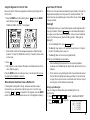
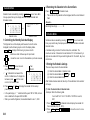
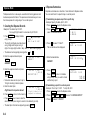
1.Creating the Expense Records
1. Press
<Example> The date is April 5, 2001.
You bought flight tickets for a business trip for $1,200.
2. Press MENU NEXT NEXT
select “2: EXPENSE REPORT”.
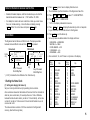
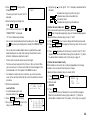
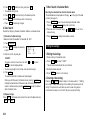
1. Press EXPENSE to display the date
entry prompt.
EXPENSE
DATE ?
M/D/Y= 4/12/2001
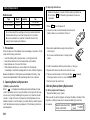
• The month and the day must be entered
using 2 digits and the year using 4
digits. For single digit months or days, enter “0” before the single digit.
• The date can be changed by pressing either
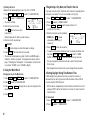
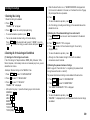
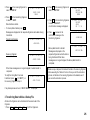
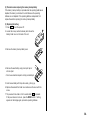
2. Enter the expense date and press
ENTER .
04052001
ENTER
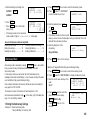
4. Enter the description.
Flight tickets for inspection abroad
ENTER to store it in the memory.
THU APR
AMOUNT ?
5,2001
to
<
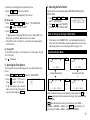
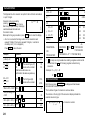
EXPENSE REPORT
1:DAILY
2:PERIOD
>
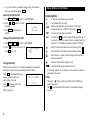
–DAILY–
DATE: 4/12/2001
to select “1: DAILY”.
• The current date will be displayed.
–DAILY–
DATE: 04/05/2001
4. Enter the desired date.
04052001
THU APR 5,2001
1,200.00
DESCRIPTION ?
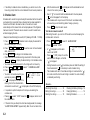
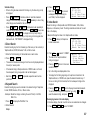
5. Press ENTER .
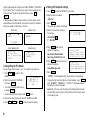
–DAILY–
DATE:APR
• Press ENTER to return to the date
entry prompt, when you wish to check
another daily report.
THU APR
5,2001
1,200.00
Flight tickets for
inspection abroad –
• Press C•CE once or twice to clear the
description, and press it again to return to the date entry prompt.
• The description field can be skipped by pressing
14
2
.
• Numerical values can be input in up to
10 digits including 2 decimal places.
5. Press
1
to enter the Expense mode.
ENTER
3. Enter the expense amount and press
ENTER .
1200
or
3. Press
EXPENSE
ENTER
.
5,2001
1,200.00
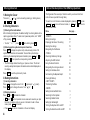
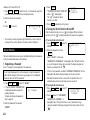
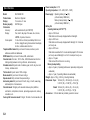
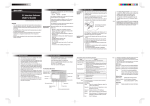
(2) Summarizing a report for a certain period
<Example> From: April 1, 2001 To: April 30, 2001
1. Press EXPENSE to enter the Expense mode.
2. Press
MENU
3. Press
2
NEXT
NEXT
to select “2: PERIOD”.
2
to select “2: EXPENSE REPORT”.