1
2.3 Illegal Moves/Wrong Moves
Your chess computer never accepts illegal moves. If
you attempt such a move, the computer sounds a low
double beep, and the board lights and display indicate the
square the piece came from. Since the computer will not
allow you to move to an illegal square, it will completely
disregard that square and wait for a legal entry. Either
move that same piece to another square, or press the
piece back down on its original from square and move a
different piece.
If you do not execute a computer move correctly, you
will also hear an error beep and see an error message.
This indicates that you are either trying to move the
wrong piece, or are moving the computer’s piece to the
wrong square. If the computer wants to move its pawn
from d7 to d5, for example, and you press down on d7
and then d6, the display shows Er:D5 briefly, pointing
out your error. The display then returns to showing the
move again (D7-D5), and the computer expects you to
press down on d5 to complete its move.
If you press down on a piece and the from square
appears in the display, but you decide not to make that
move, simply press down on that same square again to
cancel the input. Now make another move of your choice.
If you change your mind after entering your whole move,
you must take the move back as described in Section 1.
5
Game Over? Try Another Game!
Whenever you finish a game (or if you decide to abort
your current game) you may reset the computer to start
another game by pressing the CLEAR and ENTER keys
simultaneously. A series of beeps signifies that the
computer is ready for another game, using the currently
set level.
IMPORTANT: Resetting the computer for a new game
clears the current game from the computer’s memory—be
careful not to press these keys by mistake.
6
Too Easy/Hard? Change the Level!
When the computer is first turned on, it is set to Level
4 (five seconds a move). You may, however, choose any
of the 64 playing levels. For a detailed description of all
the levels and how to change levels, see Section 3.
2. ADDITIONAL FEATURES
2.1 Indication of the Side to Move
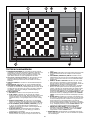
When the computer plays Black, it flashes a black
square in the display while it is thinking. After it has
moved, a white square is displayed steadily to show that
it is now White’s turn to move. This feature allows you to
tell at a glance whether or not the computer is currently
thinking, and which side is to move.
2.4 Check, Mate and Draw
When a King is in check, the computer first displays
the move as usual. After the move is made, CHECK
flashes in the display for a few seconds, along with the
checking move. The display then reverts back to showing
the clock.
If the computer discovers a forced mate against its
opponent, it first displays its move as usual. After the
move has been made on the board, the computer flashes
a mate announcement along with the move for several
seconds (e.g., =in:2 for a mate in two moves). The
display then goes back to showing the clock.
Whenever a game ends in checkmate, the computer
beeps, and the display flashes MAtE (along with the
mating move or clock display) for a brief time after the
move has been made. The display then goes back to
showing the clock.
The computer recognizes draws by stalemate, threefold repetition, and the 50-move rule. If you are unfamiliar
with these draws, see the Chess Rules at the back of the
manual. After a draw has occurred, the display flashes
End for stalemate or draw by insufficient material,
End:3 for three-fold repetition, and End:50 for a draw
by the 50-move rule for several seconds together with the
move or clock display.
Note: Although the computer knows the rules of chess,
it will not display CHECK, MATE, or DRAW messages in
Two Players Mode, nor will it announce CHECK or MATE
on the computer’s turn.
2.2 Capturing and Special Moves
To capture, press down on the piece you want to
move, remove the captured piece from the board, and
press your piece down on the square of the captured
piece. Captures are displayed as in G6xH5.
En Passant
In an en passant capture, the computer reminds you to
remove the captured pawn by using two board lights to
indicate that square. You must press down on the captured pawn before removing it from the board.
Castling
The computer automatically recognizes castling maneuvers after the King is moved. After you have pressed
the King down on its from and to squares, the computer
uses board lights to remind you to move the Rook. Press
down on the Rook’s from and to squares to complete the
move.
Note: A Kingside castling is displayed as 0-0, and a
Queenside castling as 0-0-0.
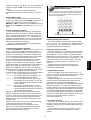
Pawn Promotion
When you promote a pawn, first press your pawn down
on its from square, as usual. To promote to a Queen,
press down on the to square, and then press the QUEEN
key. The computer will automatically change your pawn to
a Queen.
To underpromote (to a Rook, Bishop, or Knight), follow
the same basic procedure. First, press your pawn down
on its from square, then press down on the to square.
Next, press the corresponding PIECE SYMBOL KEY for
2.5 Terminating the Computer’s Search
To interrupt the computer while it is thinking, press
ENTER. This forces the computer to play the best move it
has found so far. This feature can be very useful on the
5
ENGLISH
your desired promotion piece to enter that choice into the
computer. The computer recognizes your new piece
immediately, and begins thinking about its next move.
The computer can also promote and underpromote.
When it promotes, the display shows both the pawn and
the promoted piece. Remember to change the piece on
the board after a pawn promotion.
take back up to about 200 individual moves. To resume
play at any point, simply press CLEAR and make another
move on the board.
Note: After taking back a capture, the computer reminds you to put the captured piece back on the board—
the piece and its square are displayed, and the board
lights for that square are turned on. Put the indicated
piece back on the board and press down on that square
to complete the take back.