1
Appendix C: DeltaV Ready
Reference Manual
00809-0200-4420, Rev HB
January 2015
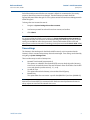
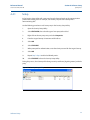
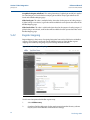
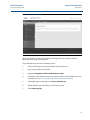
Assign wireless device tags using the following procedure:
1.
Drag and drop WirelessHART device from the Unassigned Wireless HART Devices: list to
the Channels: list.
2.
Repeat this process for each wireless device until all have been assigned.
3.
Select OK to continue.
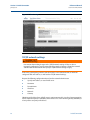
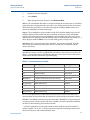
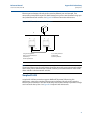
Next the Gateway will need to be assigned to a DeltaV Controller and download all. Assign and
download the Gateway using the following procedure:
1.
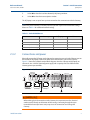
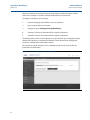
Right click on the Gateway and select Assign…
2.
Use the browse window and select the desired controller.
3.
Select OK to close the assignment window.
4.
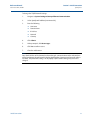
Right click on the Gateway and select Download.
5.
Follow the download dialog.
6.
Select OK to close the download window.
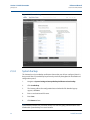
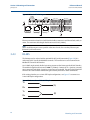
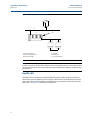
Figure C-4. Gateway Context Menu (Right Click)
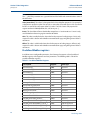
Now the Gateway and wireless devices are fully commissioned and available to use in other
DeltaV applications. When new devices are added to the wireless network, they will need to be
assigned to DeltaV channels through the reconcile process (right click on Gateway and select
configure IO).
Note
Logging in to the Gateway is not possible using the default TCP/IP network setting. If the
Gateway is decommissioned, use an IP address 10.5.255.254. If the Gateway is commissioned,
right click on the Gateway in DeltaV Explore and select Wireless Gateway Web Interface.
66