1
DriveRack
®
Appendix
A.6 - Tips,Tricks and Troubleshooting
Speaker Tunings
Various “Speaker Tunings” are available for some of the different DriveRack units; on the
DriveRack 480 units speaker tunings can be downloaded from the website, whereas on the
DriveRack 260 the speaker tunings are found in the Wizard function. Since they are not all
available for the same platforms there is a mechanism to replicate these tunings from one
DriveRack type to the next. Open the platform that has the speaker tuning. Open a second
DriveWare window and insert the DriveRack unit that will be your final platform; for example
if you want to create JBL AE tunings for the DriveRack 480 series, open a DriveWare window
with a 260 in it, and one with the 480. Download or use the Wizard function to get the correct tunings on the first DriveRack unit. Since the AE tunings are available for the DriveRack
260, you would go through the Wizard function to create the appropriate tuning for the 260.
Create the correct configuration for the destination unit and then Copy and Paste parameters
where available and otherwise copy the parameters from one unit to the next. For our example you would create the correct configuration for the DriveRack 480 and then Copy and Paste
parameters that can be pasted, and manually copy and enter the parameters from the 260 into
the 480. Since the DriveRack devices use the same algorithms there will be very little difference between them.
DriveWare Communication
If you are having difficulty connecting your DriveRack device with your computer there
are a few things that can be done to find the source of the problem and correct it
HotSync Manager
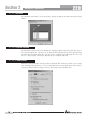
If you use a Palm® computing device, the HotSync Manager generally takes control of
your COM port; you must disable your HotSync Manager to get DriveWare to connect
to your DriveRack unit. This can be done by right clicking on the HotSync Manager
icon down on the toolbar. You can then select Exit; this will allow DriveWare to use
your COM port. The HotSync Manager will return when you reboot your computer.
COM port Selection
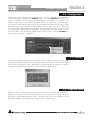
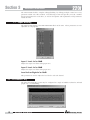
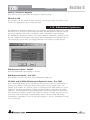
If you are using anything other than your first COM port, you will need to go into
Preferences and select the correct COM port. Preferences are found under File on the
DriveWare Menu Bar.
®
DriveRack® User Manual
45