1
Controls and Functions
2.3
DHD Controller Front
Panel
1
2
EL
IM
IN
A
R
Y
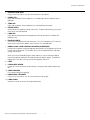
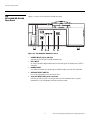
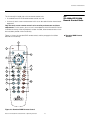
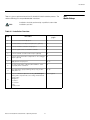
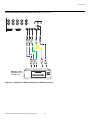
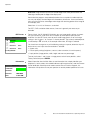
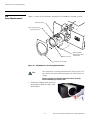
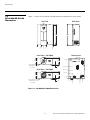
Figure 2-4 shows the controls and indicators on the DHD Controller front panel; the
paragraphs that follow describe them.
3
4
5
6
7
8
Figure 2-4. DHD Controller Front Panel
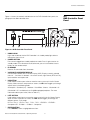
1. RUNCO ICON
Lights red to indicate that the DHD Controller is in standby mode; lights blue to
indicate that the unit is on.
2. POWER BUTTON
Press once to toggle from standby mode to on mode. Press it again to return to
standby mode. For a discrete on or off command, you can use the direct access
buttons on the remote control.
PR
3. IR SENSOR
Receives IR commands from the remote.
4. VACUUM FLUORESCENT DISPLAY
Can be used instead of the On-Screen Display (OSD). Displays currently-selected
menu or -- if no menu is selected -- the current source, signal format (NTSC or PAL),
input resolution and aspect ratio.
5. UP BUTTON
Used to direct select aspect ratios or move the menu cursor up in the On-Screen
Display. When no menus are present on-screen, the UP button toggles you through
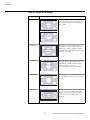
aspect ratios in the following order:
Anamorphic - Standard (4:3) - Letterbox - VirtualWide - Cinema - Virtualwide 2.35
(Virtualwide 2.35 is available only on CineWide-equipped projectors. For more
information about aspect ratios, refer to Table 4-1.)
6. LEFT BUTTON
Used to direct select inputs or move the menu cursor left in the On-Screen Display.
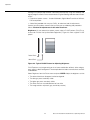
When no menu is present on-screen, the LEFT button toggles you through the
different sources, in this order:
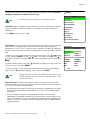
HD Pass Thru 2 - HD Pass Thru 1 - DVI 2 - DVI 1 - HD/RGB 2 - HD/RGB1 Component SD - S-Video 2 - S-Video 1 - Composite
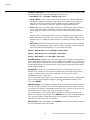
7. ENTER BUTTON
Press ENTER to select a highlighted menu item.
Runco VX-4000d/VX-5000d Owner’s Operating Manual
9
9
10