1
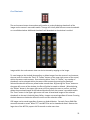
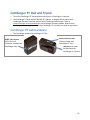
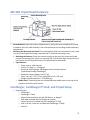
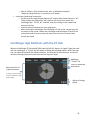
By selecting the appropriate network and pressing the “Connect” button, the Android device will connect to the CamRanger network. One can also access the CamRanger network from within the Settings on the Android device. The SSID will be CamRanger-‐###, with the last three characters matching the last 3 characters of the CamRanger’s serial number. The password is the full 8 characters of the CamRanger’s serial number. The password MUST BE ENTERED IN ALL CAPS. The keyboard on most Android devices can be put into caps lock by double tapping the shift key. Once the Android device is connected to the CamRanger network, connect the CamRanger to the camera using the provided black USB cable. The male A end is inserted into the USB port at the end of the CamRanger, and the other end is connected to the USB port of the camera. Then ensure the camera is turned on. When the camera is connected and turned on the green light closest to the edge of the CamRanger device will light. Launch the CamRanger Android app. The application will connect to the CamRanger and the user will be able to control the camera. Ensure that your camera and CamRanger battery are charged when starting your CamRanger session. For common problems with setup and connection refer to the Troubleshooting section of this manual on page 30. 7