1
press the same button again or if you stop turning the knob for
eight seconds.
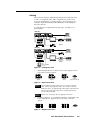
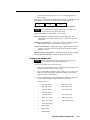
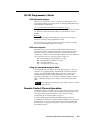
If an image control reaches its minimum, maximum, or default level, the
LCD displays a screen similar to the screens shown in figure 13.
COLOR
Min
COLOR
Default
COLOR
Max
Figure 13 — Minimum, maximum, and default value screens
If input 4 (RGB pass-through) of the DVS 150 is selected, you
cannot adjust the image through the scaler.
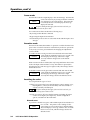
Color control button — Adjusts the color intensity.
Tint control button — Adjusts the amount of tint displayed. This
adjustment is not available if the input is component video, PAL,
or SECAM.
Brightness control button — Adjusts the amount or intensity of video
light produced on the screen, without regard to color.
Contrast control button — Adjusts the range of light and dark values in
a picture, or the ratio between the maximum and the minimum
brightness values.
Horizontal shift control button — Shifts the image to the left and right.
Vertical shift control button — Shifts the image up and down.
Choosing the output rate
If input 4 (RGB pass-through) of the DVS 150 is selected, you
cannot change the output rate through the scaler.
To choose the output rate, do the following:
1.
Refer to the documentation that accompanied the display device to
determine its native mode (or sweet spot).
2.
Press and hold the rate button on the scaler for two seconds. The
LED above the button lights, and the LCD displays the current
output resolution and frequency.
3.
Turn the adjustment knob until the desired output rate appears in
the LCD and the image is displayed at the correct rate.
Available rates are:
•
640 x 480, 60 Hz
•
640 x 480, 75 Hz
•
800 x 600, 60 Hz
•
800 x 600, 75 Hz
•
832 x 624, 60 Hz
•
832 x 624, 75 Hz
•
848 x 480, 60 Hz
•
852 x 480, 60 Hz
•
852 x 480, 75 Hz
•
1024 x 768, 60 Hz
•
1024 x 768, 75 Hz
•
1280 x 768, 56 Hz
•
1280 x 1024, 60 Hz
•
1360 x 765, 60 Hz
•
HDTV 480p
•
HDTV 720p
•
HDTV 1080p
DVS 100 and DVS 150 Operation
3-3