1
CUSTOMIZING THE PEN
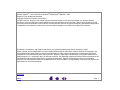
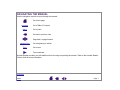
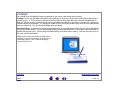
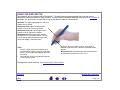
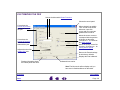
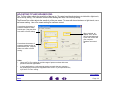
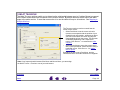
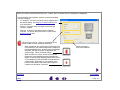
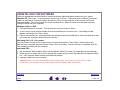
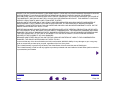
Selects the side switch Button Functions.
Closes the control panel.
Customizes the
amount of pressure
needed to erase with
the pen.
When checked, an audible
“click” sound will be heard
whenever a pen click
occurs and your computer
speakers are turned on.
Moves the screen cursor to
correspond with the position
of the pen on the tablet.
Click DETAILS... to customize
the tablet mapping.
Customizes the
amount of pressure
needed to click or
draw with the pen.
Moves the screen cursor like
a mouse. Click DETAILS... for
Setting Mouse Speed.
Adjusts the size of the
double-click area.
Returns the PEN tab settings
to their factory defaults.
Displays this User’s Manual.
Displays information about
the control panel and driver.
Software driver version.
Note: The MOUSE tab will not display until you
have used a Cordless Mouse on the tablet.
CONTENTS
INDEX
CUSTOMIZING
Page 29