1
Navigating the Application
Throughout Field Force Manager, you will see the commands listed at the bottom of the screens. These commands
correspond to the soft keys directly below them on your mobile phone. To select a button, press the soft key below the
name of the command you want.
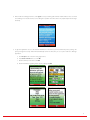
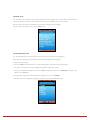
For example, in the image below, the Back button or the CLR button will return you to the previous screen. The OK
button will bring you to the current selection.
yy When instructed to select a particular line of display on the screen, use your mobile phone’s up and down scroll buttons
to scroll vertically through the lists.
yy Alternatively, you may also navigate quickly to an item by pressing its number, as displayed to the left of its name, on
your mobile phone’s keypad.
yy In instances where more data exists than can be displayed vertically on the screen, scroll-arrow indicators will appear on
the right-hand side of the screen. These scroll arrows provide a visual cue when additional information exists that is not
being displayed on the screen.
yy Two additional buttons are also mentioned in the documentation: the Red Phone button and the Green Phone button.
The Red Phone button is used for temporarily suspending Field Force Manager operation and for terminating voice
connections. The Green Phone button is used to place a phone call.
Take a Phone Call
When someone calls you, Field Force Manager automatically goes into Suspend mode so you can take your call as if
Field Force Manager wasn’t even running.
Make a Phone Call
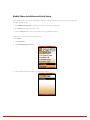
To place a phone call from within the application:
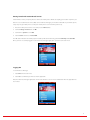
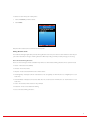
1. Select Call from the main menu.
2. Enter the phone number you would like to call and press the Green Phone button. You can also press Recent to
access recently called phone numbers.
12