1
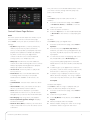
Movies
Security System
Use Movies to watch movies or videos. Watch your
Use Security System to manage your security
favorite movies from a VCR, DVD, Disc Changer, or
system. View and use the Device Controls or
Media Player.
presets for your security system. Refer to your
manufacturer’s instructions for settings.
Note: Your or your Installer must scan your
movies first. See the Control4 System User
Comfort
Guide for details.
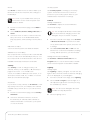
Manage Temperature
Use Comfort to adjust the Control4 Wireless
1
From the Control4 Home page, select Watch >
Thermostat settings.
Movies.
2
3
Select All Movies, Genres, Ratings, Directors, or
Tip: You can adjust all Wireless Thermostats
Actors.
in the home without changing rooms in the
Select the movie or video to view from the list.
Navigator. They're now all in one place!
Use your remote or the Media Dashboard to
play, stop, pause, rewind, change volume, and so
1
From the Control4 Home page, select Comfort
> Wireless Thermostat. If you have more than
on.
one (1) thermostat in the system, select the one
Edit DVDs or Videos
See the Control4 System User Guide for details.
to change.
2
Select Cool, Heat, Auto, Off, or Fan from the
sub-menu to control the temperature, heating/
cooling, and fan power for your Thermostats.
Add Movies to Your Library
Use Composer ME or Composer HE to scan and add
movies or videos from a Media Player, NAS, etc. See
Manage Thermostat Scheduling
the Composer ME or HE User Guides or the device’s
Use Comfort > Wireless Thermostat and the
installation and setup instructions for details.
Program button to set the thermostat’s schedule.
See the Control4 System User Guide for details.
Security
Use Security to view or change security or IP
Lighting
cameras, where you can add up to 10 cameras per
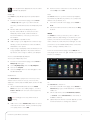
Manage Lights
page for the new 5” or 7” In-Wall Touch
Use Lighting to adjust your lights. You can view the
Screen, 7" Portable or Tabletop Touch Screen, or on
lights in all rooms and on all floors without changing
an iPod, iPod Touch, iPad, PC, or Tablet. TV screens
the room displayed on your Navigator.
allow up to 18 cameras per page.
1
From the Control4 Home Page, select Lighting.
2
Select a room and light to turn the light on or
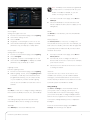
IP Camera
off. Adjust the light level in a room by moving
If you have a security camera, use IP Camera to view
the scrollbars up or down.
any activity in front of it, for example, an IP Camera
installed near your front door so you can see who’s
Note: The On-Screen Navigator also has a
there.
scrollbar for easy adjustments.
1
From the Control4 Home page, select Security >
IP Camera.
2
3
Select a Lighting Scene.
Select the camera from which to view the
live feeds: any IP cameras, traffic cameras or
weather information connected to your system
or over the Internet.
Control4 System Quick Start Guide
8