1
Introduction
Welcome to the Control4® world of home
automation! This Control4® System Quick Start
Guide gives you quick information about how to
start enjoying your Control4 system for Operating
System (OS) 2.1.
Your Control4® Dealer or Installer may have given
you this guide after installing your system. If so, is
the system working the way you expected it to?
After reading through this guide and the Control4
System User Guide (available on the Control4 web
site) and learning how your system works, if you
still have questions don’t hesitate to contact your
Control4 Dealer. Your Dealer may have some great
suggestions to make your system perform even
better!
In this guide, you’ll learn some basics about how to:
• Set up your account and register your system.
• Customize your system your way.
• Use your Navigators to manage your lights,
music, videos, security, heating and cooling, and
more.
• Use 4Store to set up a 4Store account, purchase
applications, and then use Apps to store
or your Navigators.
• Monitor and adjust your Control4 system
remotely. Use this guide along with the Control4
System User Guide to learn about managing
your Control4 system when away.
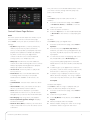
• Room-based system. The Navigators (Touch
Screens, On-Screen Navigator, MyHome, or
LCD Keypad) let you control one room at a
time or the whole house. If your Navigator isn’t
controlling the room you want, quickly change
rooms (see “Change Rooms”).
• The Control4 system can manage up to eight
(8) devices per room. In the Navigator, devices
attached to the system in a room appear
brighter than devices that are not. For example,
if you have a TV attached to the system in your
Family room, the Watch icon is brighter on the
Touch Screens and On-Screen Navigator for that
room.
• Use the Intercom system between the new
5” and 7” In-Wall Touch Screens.
Check out the Control4 System User Guide, Rev. J
(OS 2.1) in PDF or web help on the Control4 web site
at www.control4.com (or see “Resources” later).
Account Setup
purchased applications on your Navigators.
• Learn about Composer HE (sold separately)
Your Control4® Dealer or Installer may have already
or Composer ME if you want to do more to
set up your personal account and 4Store for you.
manage your system.
If so, you can skip this section. If not, you’ll need to
• Get some answers.
do the following things right away; otherwise, your
system will not be fully functional.
Your Control4 system lets you automate many of the
daily electronic and motorized tasks and comforts
Note: Control4 requires that you create a
in your home, making your living environment more
my.control4.com account and register your
satisfying.
Controller.
• Control all your lights from one keypad button.
Register Your System
• Control your video, movies, music, lights and
window shades in the home theater using
Go to my.control4.com on the web to register your
your System Remote Control, Touch Screens,
Controller and set up your Control4 account. An
MyHome, etc.
account is required so your Control4 system can
• Play music in every room with Media Zones.
access and download information about movies,
• Control heating, air conditioning, the alarm
music, TV channels, software updates, 4Store, etc.,
system, sprinklers, garage door opener, fireplace,
and it also gives your Dealer access to that your
swimming pool, and much more from a keypad
account. You and your Dealer may need to use this
Control4 System Quick Start Guide
1