1
QuadroCS Manual II: Administrator's Guide
QuadroCS's Graphical Interface
QuadroCS's Graphical Interface
Administrator’s Main Page
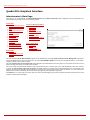
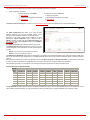
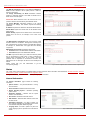
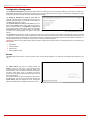
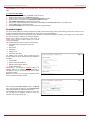
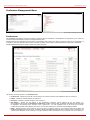
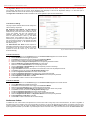
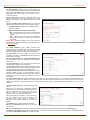
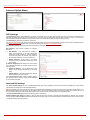
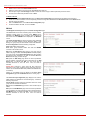
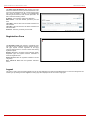
After logging in as an administrator, the QuadroCS Management with the Active Conferences table is displayed. Here the administrator may
access the following settings and perform the following actions:
System Menu
• System Configuration Wizard
• Internet Configuration Wizard
• Status
• Configuration Management
• Events
• Time/Date Settings
• Mail Settings
• Firmware Update
• Networking Tools
• Diagnostics
• Automatic Provisioning
• Upload Language Pack
• User Rights Management
Conference Management Menu
• Conferences
• SIP Settings
• RTP Settings
• NAT Traversal Settings
• Statistics
• Call Routing Table
• Recording Common Settings
• Mail Default Settings
Internet Uplink Menu
• PPP Settings
• Firewall
• Filtering Rules
• Dynamic DNS Settings
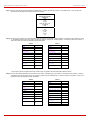
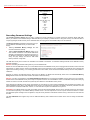
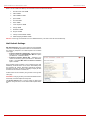
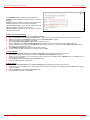
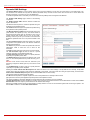
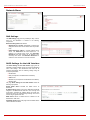
Fig. II-1: Quadro Conference Server Administrator’s page
Network Menu
• DNS Settings
• DHCP Settings for the LAN
Interface
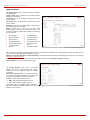
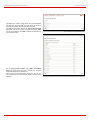
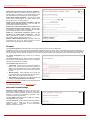
The functional button Renew Wan IP Address appears on the administrator’s main page Quadro Conference Server Management if the Quadro
Conference Server acts as a client to a DHCP server. The button Renew WAN IP Address is used to get a new WAN IP address, i.e., the Quadro
Conference Server moves to another network.
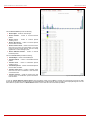
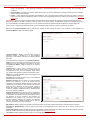
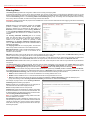
The button Please Check Your Pending Events will be displayed on the administrator’s main menu page if any new system events exist. The link
leads to the page where these new system events are listed.
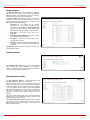
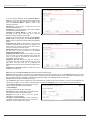
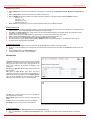
The current version of the QuadroCS's firmware and of its boot loader is shown in the lower right corner of the administrator’s main menu, followed
by the list of Users currently logged into the system. Information about the IP address users accessed QuadroCS from, the username of the
logged-in user and the time until the next automatic logout is provided here. The idle session timeout is set to 20 minutes. If no action is performed
during that time, the user automatically will be moved to the login page and will be requested to login again.
The Refresh link is on some pages in the lower right corner next to the field displaying the number of seconds left until the next refresh and is used
to perform a manual reload of the page.
QuadroCS (SW Version 3.1.x)
5