1
Cisco TelePresence System Profile-series, C-series codecs, Quick Set C20, SX20 Quick Set
Contents
Getting
Getting started
started
Making calls
Phone book usage
User guide
In-call features
Scheduled meetings
Inserting your own wallpaper
System information
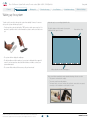
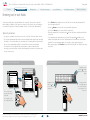
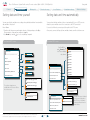
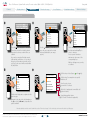
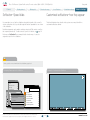
The system lets you upload and use your own wallpaper (for example your logo) on
your screen. This custom wallpaper picture can be any size up to 1920×1200 pixels.
System information can be listed.
Advanced settings
Do as follows:
The custom wallpaper is uploaded by means of the system’s web interface. See the
Appendices section of the Administrator Guide for your system for further details
about the web interface.
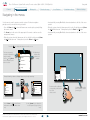
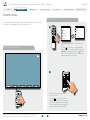
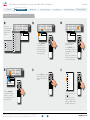
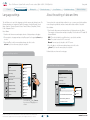
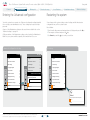
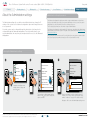
1.Start from the Home menu and navigate down to Settings and press the
2.Then navigate to System information and press the
3.To exit this screen, press the Home key (
Do as follows:
key.
key again.
).
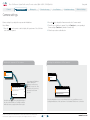
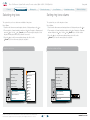
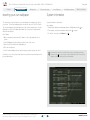
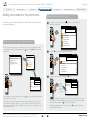
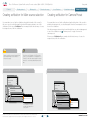
1.Open a web browser and enter the IP address of the codec/endpoint of your
system.
2.Select Wallpaper from the menu bar on the left side of the screen.
3.Browse for the file and click the Upload button.
4.Close the web browser.
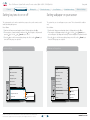
5.Select Custom wallpaper (see the previous page) to put the change into effect.
A shortcut to this function is available. Make sure the system displays the Home
menu (press the key on the remote control to display this menu). Then press the
rightmost softbutton to display the System information.
Note that access to the system’s web interface may have been password protected
by your administrator.
D14852.04 User guide Cisco TelePresence Profile, C-series codecs, Quick Set C20, SX20 Quick Set.
All contents are copyright © 2010–2013 Cisco Systems, Inc. All rights reserved. TC 6.1 06.2013
21
www.cisco.com