1
2
Setting up the WFT-E1A on Windows XP Home or Professional – Ad Hoc Wireless Mode
This document will take you through the process of setting up the WFT-E1A wireless file transmitter in
conjunction with a PC running Windows XP Home or Professional Edition.
In this example we have used the following test specifications:
Canon Eos 1DS Mk II Camera Body
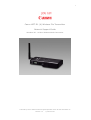
Canon WFT-E1A Wireless File Transmitter
D-Link DWL-122 USB Wireless Transmitter
Pentium III 1Ghz PC with 512MB Ram
Windows XP Home or Professional Edition
Filezilla FTP Server Version 0.9.11
Three Stages to Complete Setup
There are three stages to setting up the WFT-E1A with your PC.
1. Setting up your Wireless Network on your computer
2. Setting up your FTP Server on your computer
3. Setting up your WFT-E1A to talk to your Wireless Network and FTP Server
Stage 1 – Setting up your Wireless Network on your computer
Stage 1 will involve installing a wireless transmitter on your PC. Most transmitters come in the form of a
USB “dongle” that is inserted into a spare USB port on your PC. The “dongle” should come with a
manufacturer’s installation disk that installs the necessary drivers for the “dongle”. Once your “dongle”
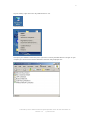
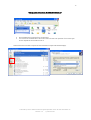
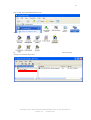
has installed correctly you should see an entry in Window’s “My Network Places” called “Wireless
Network Connection”.
If you experience difficulties installing your wireless transmitter on your PC you should contact your
manufacturer for assistance with its installation.
We will start the network set up with the assumption that you have installed your PC’s wireless
transmitter (dongle) and it is working correctly.
Authored by Simon Adams Product Support Specialist Canon UK RCC December 05
Revision 1.2
© Canon 2006