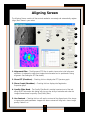
1
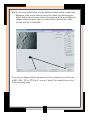
is done with one of the re-sampling filters and you can choose it directly in the Resize
window. Also you can go back to the original input image scale by pressing "original".
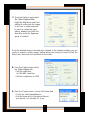
The Resize window has an easy system to resize by %'s 25, 50, 75, 100, 150 and 200
are pre-programmed settings
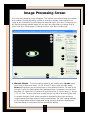
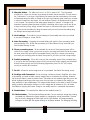
11. Process button – When auto-processing is off, you can process the images at will by
pressing this button.
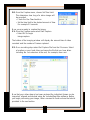
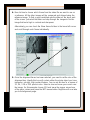
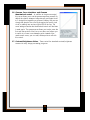
12. Show wavelet filter
(under options panel) – this opens the
heart of the wavelet processing system. When
checked you will be presented with a window
that allows you to set the filter-values used
during construction of the wavelet layers.
When for instance you set these to equal
values (load the evenly 5x5.rsf filter), you have
created a 5x5 unsharp mask. The values in the
wavelet-filter are in use after you press the
“set”-button. Now you can also load and save these filters to a simple textfile (*.rsf)
for later usage and sharing with other users. Experimenting with these filters is
recommended and can be very helpful to get the most out of your images.
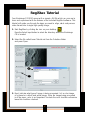
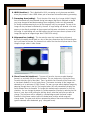
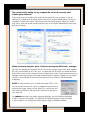
13. Set RGB shift (options panel) – This control is
useful when processing images of objects that are
low to the horizon. The atmospheric dispersion in
these cases will lead to the red and blue channels
shifted away from the green-channel. This control
allows automatic (Estimate button) de-shifting and
also allows you to move the R & B channel vs the
green-channel manually. The ShowRed, ShowGreen
and ShowBlue (not available when using LRGB)
make manual alignment easier. You can also
reposition the RGB alignment area by setting the set-alignment-area and then moving the
mouse over the image until you find a zone with chromatic effects and then left-click.
Often a brighter part or an edge of a planet will be the best to get a good estimate.
When you have repositioned press “estimate” once more. Also be aware that this is an
estimate of the RGB shift and often fine tuning by hand will result in even better
alignment of RGB. Also this command cannot compensate for chromatic aberration
where the images in the channels are of unequal size.
26