1
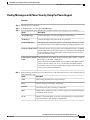
Changing Your Addressing Priority List by Using the Phone Keypad
Changing Your Addressing Priority List
Changing Your Addressing Priority List by Using the Phone Keypad
Procedure
Step 1
Step 2
Step 3
Call and sign in to Connection.
At the Main menu, select the option Setup Options, then Message Settings, and Addressing Priority List.
Follow the prompts to add and review or remove members from your addressing priority list. When you
review names on the list, Connection presents the names alphabetically by last name (for users and contacts)
or display name (for distribution lists).
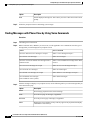
Changing Your Addressing Priority List by Using Voice Commands
Procedure
Step 1
Step 2
Call and sign in to Connection.
When Connection asks, "What do you want to do," say:
"Setup Options." (Connection temporarily switches to the phone keypad.)
Step 3
Step 4
On the phone keypad, select the option Message Settings, then Addressing Priority List.
Follow the prompts to add and review or remove members from your addressing priority list. When you
review names on the list, Connection presents the names alphabetically by last name (for users and contacts)
or display name (for distribution lists).
Tip
To switch back to using voice commands, keep pressing * until you hear the "Voice Command
Conversation" prompt.
User Guide for the Cisco Unity Connection Phone Interface (Release 8.x)
54
OL-21232-01