1
Connecting to the internet
The docking cradle charges your monitor as well as provides an internet connec
tion. When you are connected to the internet, live video will continue to display on
the monitor, but monitor's touch operation will become limited.
Monitor's touch operation will resume normal after disconnecting from the internet
by select Charge Only option from the pop up menu, or remove monitor from the
docking cradle.
1. Connect the AC adapter to the docking cradle.
2. Connect the RJ45 (Ethernet) cable from the back of the cradle to your primary
router (from your internet service provider).
3. Insert the monitor into the cradle. A screen asks if you want to connect to the
internet or only charge the monitor.
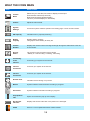
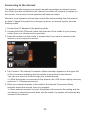
4. Tap Connect. The Internet Connection Status Indicator appears on the upper left
of the Live screen indicating that the system is connected to the internet.
You can now view live video through your mobile devices.
>> While the system is connected to the internet, the LIVE screen display rate may
reduce to 2 - 3 frames per second.
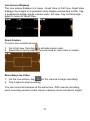
5. When you connect remotely to the monitor, the Internet Connection Status
Indicator shows that remote view is in progress.
>> Once internet connectivity is set, the system will memorize the setting and the
next time you place the monitor back into the cradle, the system will automatically
connect to the internet."
35