1
EAW Smaart 6 Operation Manual
Analysis Modes and Display Types
3.11
Smaart 6 Screen Capture
3.11.1
Windows
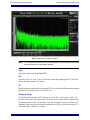
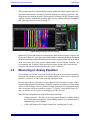
Windows has a built-in feature that allows capturing a bitmap image of the entire
screen, or more usefully, the active window. This is an easy method to include Smaart
6 data displays as illustrations in reports and other documents.
Press the PrtScn key to capture the entire screen as a bitmap image. Press Alt+PrtScn
to capture the active window only. This image can be pasted directly into some applications. If it does not, open a photo-editing program, such as Adobe Photoshop or
Windows Paint, paste the image into a blank file and save in the most convenient format
for the intended application.
If printing to a black and white printer, select the high contrast graph color scheme before
making a screen capture.
3.11.2
Mac OSX
You can take a picture of an entire window using Grab:
1.
Open Grab (located in /Applications/Utilities).
2.
Choose Capture -> Window.
3.
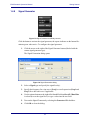
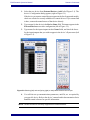
When the Window Grab dialog opens, make any changes to the window you
want to take a picture of, then click Choose Window.
4.
Click the window you want to capture.
Grab captures the window within a few seconds. A new window appears with the image
of the window.
If you do not need a picture of your entire screen, you can use Grab to capture just part
of the screen:
1.
Open Grab (located in /Applications/Utilities).
2.
Choose Capture -> Selection.
3.
Move the pointer to a corner of the area you want to capture.
4.
Drag the pointer across the desired area and release the mouse button.
Grab captures the part you selected within a few seconds. A new window appears with
the image of the selected area.
69