1
Configuring the Trusted Network
the computer an IP address. A factory default Firebox has the DHCP
Server option for the trusted interface enabled.
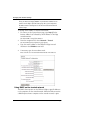
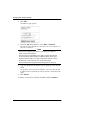
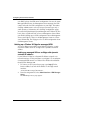
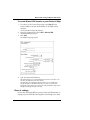
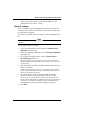
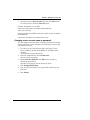
To use DHCP on the trusted network:
1
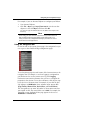
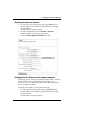
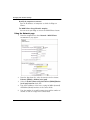
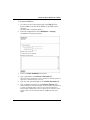
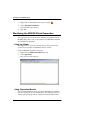
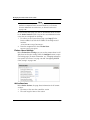
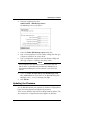
Use your browser to connect to the System Status page. From
the navigation bar, select Network > Trusted.
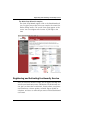
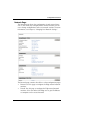
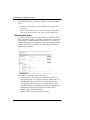
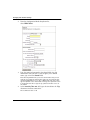
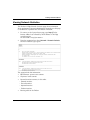
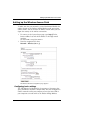
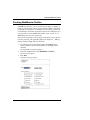
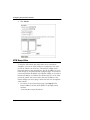
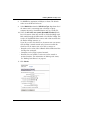
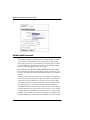
The Trusted Network Configuration page appears.
2
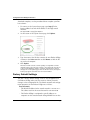
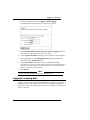
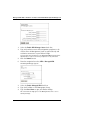
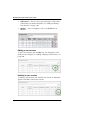
Select the Enable DHCP Server on the Trusted Network check
box.
3
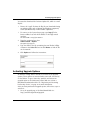
Type the first available IP address for the trusted network. Type
the last IP address.
The IP addresses must be on the same network as the trusted IP address.
For example, if your trusted IP address is 192.168.200.1, the IP addresses
can be from 192.168.200.2 to 192.168.200.254.
4
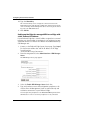
Type the WINS Server Address, DNS Server Primary Address,
DNS Server Secondary Address, and DNS Domain Suffix in the
correct text boxes.
Use these fields if you have a WINS or DNS server. If you do not enter a
value, the Firebox uses the same values as those used for the external
network.
5
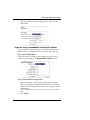
Click Submit.
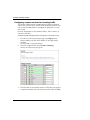
Setting trusted network DHCP address reservations
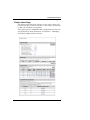
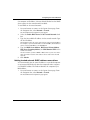
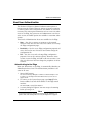
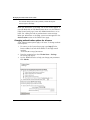
You can manually give the same IP address to a specified computer
on your trusted network each time that computer makes a request
for a DHCP IP address. The Firebox identifies the computer by its
MAC address.
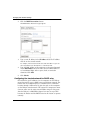
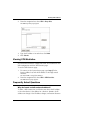
1
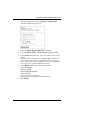
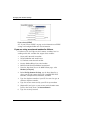
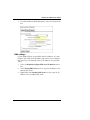
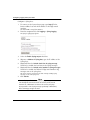
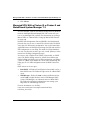
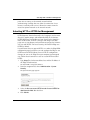
Use your browser to connect to the System Status page. From
the navigation bar, select Network > Trusted.
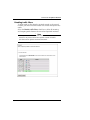
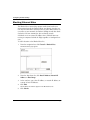
The Trusted Network Configuration page appears.
User Guide
55