1
Step 3:
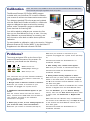
Unlock Scanner
A. Remove the yellow “Step 3” sticker from your scanner.
B.
With the scanner power off, tilt the front right corner of
the scanner to see the locking screw at the bottom.
C. Using a screwdriver, push and turn the locking screw
counterclockwise to the unlock position. When
successfully unlocked, the screw will push out a little,
protruding slightly from the bottom of the scanner.
NOTE: To lock the scanner (for shipping and other reasons), refer to
the ArtixScan F2 Supplement in the Microtek software CD/DVD.
Step 4:
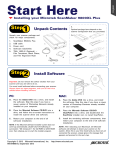
Connect Scanner
To the power adapter
A. Remove the yellow “Step 4” sticker from your scanner.
B.
Connect the power cord to the back of the scanner.
C. Plug the power cord into a power source.
To the Hi-Speed USB cable
D. Connect one end of the cable to your computer.
E.
Connect the other end of the cable to the scanner.
F.
Press the power button at
the front panel of your
scanner, and wait for the
lights to stop blinking and
stay on steady.
D
The system will detect
your scanner
automatically.
E
Power button
B
C
F
2