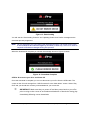
1
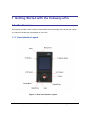
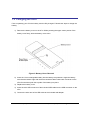
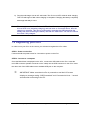
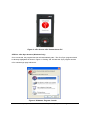
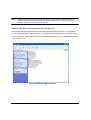
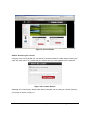
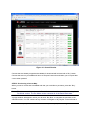
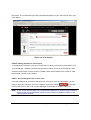
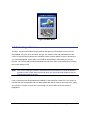
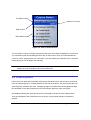
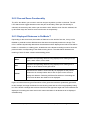
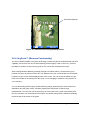
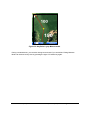
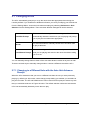
™ Callaway uPro Golf GPS User Guide (v1.3) ©2009 Callaway Golf Company Table of Contents 1 2 3 4 GETTING STARTED WITH THE CALLAWAY UPRO.................................................................3 1.1 UPRO OVERVIEW ..................................................................................................................3 1.2 SYSTEM REQUIREMENTS .......................................................................................................5 1.3 CHARGING THE UPRO ............................................................................................................6 1.4 REGISTERING YOUR UPRO .....................................................................................................7 1.5 WATCHING THE INTRODUCTORY VIDEO .................................................................................12 1.6 DOWNLOADING COURSES ....................................................................................................13 PLAYING GOLF WITH YOUR CALLAWAY UPRO...................................................................19 2.1 POWERING ON/OFF ............................................................................................................19 2.2 MAIN MENU ........................................................................................................................19 2.3 SELECTING A COURSE .........................................................................................................20 2.4 VIDEO FLYOVERS................................................................................................................21 2.5 BASIC MODE ......................................................................................................................22 2.6 PROMODE™......................................................................................................................25 2.7 CHANGING HOLES...............................................................................................................29 SETTINGS MENU ...................................................................................................................32 3.1 DEVICE SETTINGS ...............................................................................................................32 3.2 PREFERENCES ...................................................................................................................37 3.3 MODE SELECTION ...............................................................................................................38 3.4 INFO SCREEN .....................................................................................................................39 3.5 EXITING THE SETTINGS MENU DURING PLAY ..........................................................................39 PREVIEW MODE.....................................................................................................................40 4.1 ENABLING PREVIEW MODE ..................................................................................................40 4.2 SIMULATING USER LOCATION CHANGES ................................................................................40 uPro User Guide (v1.3) ©2009 Callaway Golf Company Page 2 of 40 1 Getting Started with the Callaway uPro 1.1 uPro Overview This section provides a brief overview of the location and functionality of the inputs and outputs you will use to enable the full capability of your uPro. 1.1.1 User Interface Layout Figure 1: uPro User Interface Layout uPro User Guide (v1.2) ©2009 uPlay, LLC Page 3 of 40 1.1.2 Button Descriptions Power/Menu Button - This button is used is used to power on and off the device when held for a number of seconds. It is also used to get to the settings menu while playing a hole. While in any of the menus, this button can be used to move to a menu above the current menu level. Directional Buttons - The uPro has four directional buttons (left, right, up and down). Select/Enter Button - The center select/enter button is used to select or choose from a menu. Left and Right LCD Select Buttons - The left and right LCD select buttons perform the function listed just above the buttons on the display. ProMode™ Button - The ProMode button takes you in and out of ProMode during play. VR Button - The VR button is currently only used while in Preview Mode. In this mode, pressing the VR button changes the current simulated user location to the next demo user location for that hole when simulating play. 1.1.3 Other Inputs and Outputs LEDs - The uPro has two LEDs, red and blue, that are used to provide status indications. The blue LED flashes when the uPro is in normal operation. The red LED indicates that the device is charging. A flashing red LED indicates that charging is complete. Note: The red LED will not flash when charging is complete if the uPro is powered on. Mini-USB Connector - The USB connector is used to connect the device to the uPro website for course downloads and updates. It is also used to charge the battery within the device. Headphone Jack - The uPro contains a small, 2.5mm headphone jack that allows connection of stereo or mono headphones. Microphone - The uPro contains a microphone that will allow expanded features in the future. uPro User Guide (v1.3) ©2009 Callaway Golf Company Page 4 of 40 1.2 System Requirements Prior to registering your uPro via the internet, please verify that your computer system meets the following requirements: - Operating System: Windows 2000/XP/Vista or Mac OS 10.4 and above - Browser: Internet Explorer 6.0 or greater, Firefox 1.5 or greater, Safari 3.0.4 or greater - USB 1.1 or 2.0 Port - System Memory: 512 MB of RAM - Hard Disk Space: 1GB of free space - Internet Connection: DSL, Cable, Satellite or faster uPro User Guide (v1.2) ©2009 uPlay, LLC Page 5 of 40 1.3 Charging the uPro Prior to operating your uPro the battery must be fully charged. Follow these steps to charge the battery: 1) Remove the battery cover on the uPro. While pressing the upper center portion of the battery cover firmly, slide the battery cover down. Figure 2: Battery Cover Removal 2) Insert the Li-Ion rechargeable battery into the battery compartment. Angle the battery such that the bottom edge with the three contacts makes contact with connector on the uPro first and then push the top side of the battery into place. 3) Replace the battery cover. 4) Insert the mini-USB connector of the included USB cable into the USB connector on the uPro. 5) Connect the other end of the USB cable to the included wall adapter. uPro User Guide (v1.3) ©2009 Callaway Golf Company Page 6 of 40 6) Plug the wall charger into an AC wall outlet. The uPro’s red LED will be lit while charging. This LED will begin to flash when charging is completed. Charging the battery completely takes approximately 3 hours. Note: There are times when the uPro’s red LED will not flash when charging is complete. If this red LED is on (indicating charging) and has been on for several hours, then the charging is complete. This can be confirmed by removing the USB cable then the battery and then reinserting the battery and then the USB cable. The red LED should then flash if fully charged. 1.4 Registering your uPro In order to use your uPro on the course, you will need to register the uPro online. STEP 1: Power on the uPro Press and hold the power button for 3 seconds to power on the uPro. STEP 2: Connect to a computer Once the Main Menu is displayed on the uPro, connect the USB cable to the uPro. Insert the mini-USB connector (smaller connector on the cable) into the USB connector on the uPro. Insert the other end of the USB cable into an available USB port on the computer. IMPORTANT: Make sure that the uPro is powered on and the LCD screen displays a message stating “USB Connected” and “Connected to Host…” several seconds after connecting to the PC. uPro User Guide (v1.2) ©2009 uPlay, LLC Page 7 of 40 Figure 3: uPro Screen after Connection to PC STEP 3a: uPro Sync Autorun (Windows Only) Once connected, the program launcher will automatically start. The uPro Sync program should be already highlighted as shown in Figure 4. Clicking “OK” will start the Sync program and the uPro website login page will launch. Figure 4: Windows Program Launch uPro User Guide (v1.3) ©2009 Callaway Golf Company Page 8 of 40 Note: Windows Vista users may be given the option to “scan and fix” their uPro device. Continue with the scanning process using the default options, until the program launcher starts and you see the uPro icon. STEP 3b: uPro Sync Launch (Windows XP and Vista Only) If the program launcher and website do not launch upon insertion of the uPro, you can launch the sync program directly from the device. PC users need to navigate to “My Computer” on the PC, double click the uPro device to open it, and then double click the “uPro” application from the “sync” folder to run it. Figure 5: Windows "My Computer" uPro User Guide (v1.2) ©2009 uPlay, LLC Page 9 of 40 STEP 3c: uPro Sync Launch (Windows 2000 Only) Windows 2000 will not automatically run the Sync program upon insertion of the uPro. You can launch the sync program directly from the device. Windows 2000 users need to navigate to “My Computer” on the PC, double click the “Removable Disk” to open the uPro, and then double click the “uPro” application from the “sync” folder to run it. STEP 3d: uPro Sync Launch (Macintosh Only) Macintosh users will double click to open the uPro device once it appears on the Desktop, and then run the “MacSync” program located on the uPro. uPro User Guide (v1.3) ©2009 Callaway Golf Company Page 10 of 40 STEP 4: uPro Sync Running Once the Sync program has started a dialog box as shown in Figure 6 will appear. It will begin by stating “Initializing”. Figure 6: Sync Program Initializing STEP 5: uPro Registration Page Once the application is started it will launch the uPro website and bring you to the registration screen. From here you will create a user account. When your account is created, you will be able to login and start downloading courses. Figure 7: uPro Registration uPro User Guide (v1.2) ©2009 uPlay, LLC Page 11 of 40 STEP 6: Registration Complete Once you have completed the registration process you will see the screen shown in Figure 8. At this point you can use your selected username and password to login and being downloading courses. Figure 8: Registration Complete If you are having trouble registering your uPro or need assistance, please visit our Support page at www.uprogps.com/support or contact one of our technical support representatives, 888-3585788. 1.5 Watching the Introductory Video The uPro contains an introductory video that demonstrates the basic functionality of the device in audio and video form on the device itself. The video can be viewed by following the steps listed below: STEP 1: Power on the uPro Press and hold the power button for 3 seconds to power on the uPro. uPro User Guide (v1.3) ©2009 Callaway Golf Company Page 12 of 40 STEP 2: Connect the Headphone Find the supplied mono headphone and connect it to the uPro by inserting its 2.5mm plug into the female headphone jack on the uPro. STEP 3: Start the Video To access the introductory video from the Main Menu, select Settings and then select Mode. From the Mode menu select Play Introductory Video. The video is broken into different segments. Press the Select/Enter button on the first chapter and the video will begin. If this is your first time watching the introductory video, we recommend you watch it in its entirety. The video will stop at the end of each chapter simply press enter on the selected chapter to begin watching. Pressing the right LCD select key during playback exits the playback of that chapter. 1.6 Downloading Courses Once your uPro has been registered you will have the ability to purchase and download courses. Each and every course on the uPro website has been professionally mapped by uPlay personnel. There are a variety of course download purchase packages which allow uPro owners to save on the purchase of multiple courses at a time. You can search the database of thousands of courses by using the Course Finder feature on the website. Courses that are purchased are maintained on our servers such that you can download or update them from nearly any computer. The website, www.uprogps.com, will give you basic instructions on building on your uPro “Playlist” from the courses you have purchased. You can purchase courses without having your uPro connected. However, you must have your uPro connected to the PC to be able to download courses. The following section gives step by step instructions on the process of downloading courses. uPro User Guide (v1.2) ©2009 uPlay, LLC Page 13 of 40 STEP 1: Login to Your uPro Account If you have just finished registering your uPro you should see the screen shown in Figure 8. Otherwise, follow steps 1-4 of Registering your uPro to get to the login screen. IMPORTANT: Make sure that the uPro website is brought up in a web browser by the Sync program otherwise you will not be able to download courses to your uPro. STEP 2: Choose Your Home Course (First Login Only) After logging in you will see a list of courses in your area based on the address that you provided during registration. Choose the course that you consider to be your “home course” or the course that you play most often. You will only be asked to do this upon your initial login. Note: Selecting your home course only sets your home course as a preference in your profile; it doesn’t add the course to your play list. You will still need to buy, download, and sync your home course to your uPro. STEP 3: Start the Course Finder Go to the course finder by clicking on one of the following from your “User Home” page: Course Finder You will be taken to the course finder screen as shown in Figure 9. uPro User Guide (v1.3) ©2009 Callaway Golf Company Page 14 of 40 Figure 9: Course Finder STEP 4: Searching for Courses Using the uPro Course Finder you can search for courses based on a wide variety of terms (city, state, zip code, name, etc.). Notice that the “Search near my Home address” box is selected. Figure 10: Location Search Selecting the “Find Courses” button within this box will take you to a listing of courses closest to your home as shown in Figure 11. uPro User Guide (v1.2) ©2009 uPlay, LLC Page 15 of 40 Figure 11: Search Results Courses that are already mapped and available for download will be listed with a “Buy” button. Courses that are not yet available will show a “Request” button that will allow you to request that course when pressed. STEP 5: Purchasing a Course Map When you see a course that is available and that you would like to purchase, press the “Buy” button. Note: There is no need to purchase the Basic Mode version of a course if purchasing the Pro Mode version. The Pro Mode version contains all of the Basic Mode data. A popup window will appear in which you will click “Buy Now” to complete the purchase of the selected course. You can continue to buy courses or navigate to “My Playlist” on the left side of uPro User Guide (v1.3) ©2009 Callaway Golf Company Page 16 of 40 the screen. The courses that you have purchased will appear on your “All Courses” list in your “My Playlist”. Figure 12: uPro Playlist STEP 6: Adding Courses to Your Playlist To download the courses to your uPro you will have to add the courses you purchased to your “Current Playlist”. Select the courses that you want to add to your uPro by clicking the “Add” check box next to each course. Click the “Update” button at the bottom of the screen to “Add” the selected courses to your playlist. STEP 7: Downloading Courses to Your uPro Once the courses that you wish to load onto your uPro are in your “Current Playlist” you are ready to Sync the courses to your uPro. Click the “Sync uPro” button in the right hand corner of the screen. Your courses will begin to download as shown in Figure 13. Note: If you do not see the “Sync uPro” button and instead see a yellow triangle indicating that the uPro is not connected, simply click the “Relaunch Website” button on the Sync program window. uPro User Guide (v1.2) ©2009 uPlay, LLC Page 17 of 40 Figure 13: Downloading You will see the “Downloading Courses” and “Updating Online User Profile” messages as the download process progresses. Note: Do not disconnect your uPro during the download process. It is normal for the uPro to be unidentified and identified again by Windows (or Mac OS). There is no need to respond to Windows messages during this process. When the download is complete you will see the message shown in Figure 14 below. Figure 14: Download Complete STEP 8: Disconnect your uPro and Power Off Once the download is complete you can now disconnect your uPro from the USB cable. The screen on the uPro will change from “USB Connected” to the “Main Menu” screen. Select “Play Golf” and you should see courses you downloaded in your course list. IMPORTANT: Make sure that you power off and then power back on your uPro prior to using on the course to avoid abnormal behavior of the device during play immediately following course downloads. uPro User Guide (v1.3) ©2009 Callaway Golf Company Page 18 of 40 2 Playing Golf with Your Callaway uPro 2.1 Powering On/Off The uPro’s Power/Menu button is used to power the device on and off. Turn on the uPro by pressing the power button for three seconds while the device is powered off. The uPro can be powered off with three different methods: Soft Power Off - Holding down the power button for approximately 3-4 seconds will bring up the power off confirmation screen. Answering yes by pressing the Select/Enter key will power off the uPro. Mandatory Power Off - Holding down the power button for approximately 8 seconds will force the device to power off without any confirmation. Auto Power Off - The uPro has a device setting that allows the device to be automatically powered down if the device is not used for 90 minutes. This can be enabled through the Device Settings menu. 2.2 Main Menu After powering on, the uPro will display the Main Menu screen as shown in Figure 15. From this menu you can choose the Settings option or Play Golf. The Settings option will be explained in later sections as it allows you to view or modify various settings on your uPro. Choosing the Play Golf option from the Main Menu will take you to your list of downloaded courses. If no courses are present on your uPro the course list will not be displayed. uPro User Guide (v1.2) ©2009 uPlay, LLC Page 19 of 40 Figure 15: Main Menu 2.3 Selecting a Course The uPro course list provides three provides several pieces of information for every course downloaded onto your uPro, the name, the type, the version of the map and distance to the course. If the GPS has acquired your position the list of courses will be in order of proximity to you. When highlighted, next to each course will be the distance in miles from your current location. The courses will be listed in alphabetical order if the GPS is not locked when entering the Course Select screen. Note: The uPro’s electronics provide unmatched GPS performance. Position acquisition typically occurs in less than one minute when you are positioned outdoors with an unobstructed view of the sky. Every course that was downloaded with ProMode™ data will have a small “Pro” icon next to it. Courses that are downloaded with only Basic Mode data will not have an icon next to the name. The version or revision of each uPro course map can also be seen when the course is highlighted. uPro User Guide (v1.3) ©2009 Callaway Golf Company Page 20 of 40 Pro Mode Course Distance to Course Map Version Basic Mode Course Figure 16: Course Select Screen You can select a course by simply using the up and down arrow keys to highlight the course that you would like to play and pressing the Enter key on that course. Once you have selected the course, the uPro will go directly to the first hole. If you are starting on a different hole or using the driving range you can change holes manually. Note: Courses that were not properly received on the device or contain invalid data will display an error message in the Course Select list. 2.4 Video Flyovers Each hole in Pro Mode has a stunning video flyover that allows you to see the layout of the hole from an aerial perspective. Yardage markers for the 200 yards (blue), 150 yards (white) and 100 yards (red) are overlaid in the video. Pressing the right LCD select button during playback skips the remainder of the video while the left LCD select button starts the video over again. Immediately following the video flyover the uPro proceeds to the Green View in Basic Mode. This can be altered in the Preferences such that your uPro proceeds directly to ProMode if desired. uPro User Guide (v1.2) ©2009 uPlay, LLC Page 21 of 40 2.5 Basic Mode The uPro contains a less informative mode called Basic Mode that gives distances to the green center, front and back as well as all hazards. Basic Mode consists of two views, the Green View and the Hazard View. 2.5.1 Green View As shown in Figure 17 below, the Green View displays distances to the front, center and back of the green. Figure 17: Basic Mode Screens 2.5.2 Hazard View The Hazard View displays distances to each hazard as well as the distance to clear each hazard or object on the course. There is no limit to the number of hazards that can be displayed in the Hazard View and the hazards are displayed in order of proximity to your current location. When more than four hazards or objects are present on an individual hole an arrow will be shown at the bottom of the screen between the Green and Mark soft buttons indicating uPro User Guide (v1.3) ©2009 Callaway Golf Company Page 22 of 40 additional hazards remain. The up and down directional buttons can be used to scroll through the list of hazards. The currently selected hazard is shown with red text. TIP: Pressing the Select/Enter button in the Hazard View will take you into Pro Mode to view that hazard and its surrounding area. 2.5.3 Shot Measuring (Mark Function) Distances of your individual shots can be measured by using the Mark function from either screen in Basic Mode. Start a measurement by pressing the Mark menu button. As shown in Figure 18, the mark button will turn red and start displaying a running total of the distance traveled since pressing the Mark button. Pressing the mark button again ends the measurement, and displays the final distance of the previous shot. Figure 18: Mark Feature (During Measurement and After Measurement) 2.5.4 On-Screen Indicators In Basic Mode, there are several indicators that provide status during play. These indicators provide the time, battery level and satellite signal strength as shown below in Figure 19. uPro User Guide (v1.2) ©2009 uPlay, LLC Page 23 of 40 Time Battery Level Signal Strength Figure 19: Basic Mode Indicators The first two indicators are self explanatory. The satellite strength indicator provides status on the state of the GPS. When the GPS is locked (obtained a position fix) then this indicator will show between one and five bars. If the GPS has not obtained a lock then another set of red graphics with the letters “SAT” will be displayed until a lock has been achieved. TIP: The satellite signal strength indicator provides an indication that you are in Preview Mode during simulated play. This indicator will be oscillating between one and five bars repeatedly while in Preview Mode. To obtain actual distances on the course you must be in Play Mode. Switching between Preview Mode and Play Mode can be accomplished through the Mode selection option of the Settings menu. uPro User Guide (v1.3) ©2009 Callaway Golf Company Page 24 of 40 2.6 ProMode™ The uPro’s patent-pending ProMode encompasses a variety of features that allow you to get the best information for each shot in the most intuitive way in the shortest amount of time. The most common method for entering ProMode from Basic Mode is by simply pressing the ProMode button on the right side of the device (labeled “Pro”). Pressing this button at anytime will toggle back and forth between ProMode and Basic Mode. 2.6.1 SmartView Technology Upon entering ProMode, the uPro dynamically generates the most appropriate view of the course for your next shot. This patent-pending technology allows you to cycle through additional two additional views with press of the Enter button. Based on your location on the course and the layout of the hole, three different SmartViews are dynamically generated. An example of one of these views is shown in the Figure below. Figure 20: SmartView The distances are constantly updating while in ProMode as your position changes. Additionally, the uPro identifies your current position on the image of the course by displaying a red diamond character. As your position changes, the uPro will continually update your position on the image as well, provided that your current location is within the range of the area being viewed. uPro User Guide (v1.2) ©2009 uPlay, LLC Page 25 of 40 2.6.2 Pan and Zoom Functionality The uPro also allows you to zoom in and out and pan anywhere you like on the hole. The left LCD select button toggles between zoom and pan functionality. When pan functionality is selected, the arrow keys are used to pan around the hole. With the zoom function selected, the up and down keys are used for zoom in and zoom out respectively. 2.6.3 Displayed Distances in ProMode™ Depending on the zoom level, the number of features in view and the font size, it may not be feasible or practical to show all distances at the same time superimposed on the image. The uPro’s software dynamically determines what distances will be displayed and which ones will be hidden. A colored dot, or reading point, located next to the distance reading is used to show the precise location corresponding to the distance being shown. The table below illustrates the meaning of each of these colored coded reading points: White Red Indicates corresponding distance being displayed is a reading from the green, either center, front or back. Indicates corresponding distance being displayed is a reading from a bunker or other feature on the golf course. Indicates that a distance would normally be displayed for this precise Yellow location but is currently hidden due to lack of space on the screen to display this distance. Selecting a different SmartView or increasing the zoom level will allow the distance to be displayed. Figure 21 below shows a typical SmartView of the green that would be dynamically generated. In this example, the larger ProMode font size is being used and the uPro is appropriately hiding two of the bunker readings that are less critical from this approach angle and would otherwise be displayed. Increasing the zoom level in this case would allow for all distances to be displayed simultaneously. uPro User Guide (v1.3) ©2009 Callaway Golf Company Page 26 of 40 Excluded Distances Figure 21: SmartView Illustrating Reading Points 2.6.4 AnyPoint™ (Measure Functionality) The uPro’s Measure Mode or AnyPoint technology contains a hybrid of traditional laser and GPS capability, and much more. Due to the extremely precise imagery used on the uPro, you have the ability to measure to and from any point on the course with exceptional accuracy. After entering Measure Mode by pressing the right LCD select button, use the arrow keys to position the cursor anywhere on the hole. The distance from your current location to the location pointed to by the cursor will be displayed next to the cursor. You can check the distance to get back in the middle of the fairway from the rough, cut off a dogleg or measure to any location of your choosing. You can also easily perform layup measurements by simply positioning the cursor at the final destination, like the green center, and then pressing the enter button to start a layup measurement. You can now use the arrow keys to move back to the center of the fairway and the uPro will show you the distance to that spot in the fairway along with the distance remaining from that spot to the center of the green. uPro User Guide (v1.2) ©2009 uPlay, LLC Page 27 of 40 Figure 22: AnyPoint Layup Measurement During a measurement, you can also change zoom levels if you would like. Exiting Measure Mode can be done at any time by pressing the right LCD select key again. uPro User Guide (v1.3) ©2009 Callaway Golf Company Page 28 of 40 2.7 Changing Holes The uPro automatically prompts you to go the next hole at the appropriate times during the round by default. If you would like to disable this feature you can by modifying your Preferences from the Settings Menu. Access the hole advance settings by selecting Preferences→Hole Advance from the Settings Menu. There are three different settings that can be selected: This is the default setting. Under this setting, the uPro will Auto With Prompt automatically determine which hole you are playing and prompt you to play the next hole when appropriate. Manual For users that want to manually choose when and which hole to play at all times. Under this setting, the uPro will automatically determine which Auto Without Prompt hole you are playing and switch to the next hole without asking you to do so. You can manually change holes in either of the Auto hole advance modes at any time as well. There are several ways to manually change holes or choose a different hole with the uPro. 2.7.1 Changing to a Different Hole with the Auto Hole Advance Prompt When the uPro determines that you are on a different hole than the one you were previously playing, by default you will receive a hole change prompt asking you whether you would like to play the next hole. The UP and DOWN arrows can be used from this prompt to select any hole that you would like as shown in Figure 23 below. The default selection will be the hole that the uPro has automatically detected you are about to play. uPro User Guide (v1.2) ©2009 uPlay, LLC Page 29 of 40 Figure 23: Hole Advance With Prompt 2.7.2 Green View Manual Hole Advance From the Green View in Basic Mode, pressing the up or down arrow key changes to the next hole or the previous hole respectively. You can repeatedly press the up and down arrows to change to any hole on the course. 2.7.3 Hole Change Menu From nearly all screens, the Hole Change menu item can be used. The following steps can be taken to use this option. STEP 1 - While in Pro or Basic Mode simply press the Menu button. This will display the Settings Menu as shown in Figure 25 shown later in the document. STEP 2 - Use the arrow keys to highlight the “Change Hole” option and press the Enter key to select this menu item. uPro User Guide (v1.3) ©2009 Callaway Golf Company Page 30 of 40 STEP 3 - At the Change Hole screen highlight the hole that you would like to play and press the Enter key. Figure 24: Change Hole Menu uPro User Guide (v1.2) ©2009 uPlay, LLC Page 31 of 40 3 Settings Menu The uPro has several settings that can be configured for your uPro uniquely. All of these options are enabled through the Settings Menu as pictured in Figure 25 below. Figure 25: Settings Menu By selecting Device Settings from the Settings Menu, you have the ability to alter these configurations. One of these options is the option for configuring the time zone where you are located. This is done by selecting the Time Offset option and then choosing the appropriate time zone. Once selected, the time read from the satellites will be adjusted accordingly. There are other device settings such as the backlight intensity that can be set from Device Settings menu. Please see the full User’s Manual for more information on all of these settings. 3.1 Device Settings Selecting Device Settings from the Settings Menu gives you the ability to alter some of the functionality of the uPro and to enable additional functionality. uPro User Guide (v1.3) ©2009 Callaway Golf Company Page 32 of 40 3.1.1 Backlight Selecting this option allows you to alter the nominal intensity of the backlight. The backlight is normally adjusted dynamically based on the amount of ambient light present to give you the best viewability possible. The default backlight setting is 70%. Warning: Setting the backlight to a high level has a large impact on battery life. It is important to note that increasing the backlight in direct sunlight does not increase visibility. The uPro is designed with a very high resolution, transflective LCD screen that brightens up when the sun shines into the display. 3.1.2 Power Conservation This option allows you to choose a more aggressive or more conservative approach to power conservation. Under this menu there are four options as detailed in the table below: This setting reduces battery life below normal levels by Low Battery Life increasing the amount of time it takes to go into the power save (sleep) mode. Normal This is the default setting. This setting increases battery life above normal levels by High Battery Life decreasing the amount of time it takes to go into the power save (sleep) mode. This setting disables the power save mode completely. This Disable Power Save setting is not recommended for normal play. Battery life is greatly diminished in this mode of operation. TIP: Battery life can be improved significantly by reducing the backlight setting below the default of 70%. 3.1.3 Reset GPS This option simply resets the GPS. There is no reason to use the menu option in normal operation. uPro User Guide (v1.2) ©2009 uPlay, LLC Page 33 of 40 3.1.4 GPS Calibration The uPro contains a patent-pending software feature that allows you to optimize accuracy by eliminating several local and environmental variables associated with using GPS. When selected, this feature shows you a zoomed in view of your current location and surrounding area. By using an on screen cursor to select the precise location that you are currently standing, you can eliminate any offsets that may be present. Warning: The mapping of uPro courses has been optimized for accuracy. Using this feature incorrectly could introduce offset in readings. Should this occur, resetting the calibration will remove the previous calibration. There are three basic operations that can be performed from the GPS Calibration menu as described in the table below. All of these menu options require that the uPro is in Play mode and that a course has already been selected from the “Play Golf” menu. This option can only be used with the GPS locked and Calibrate GPS adequate signal strength while a course is selected. As explained below, selecting “Calibrate GPS” allows you to fine tune the accuracy of readings on the currently selected course. Selecting this option after selecting a course from the “Play Use Stored Calibration Golf” menu allows you to use the result of a previous calibration performed for the course that is currently being played. Selecting this option deletes the previously stored calibration Reset Calibration for the course that is currently being played. The distances received on the uPro for this course will revert back to the original mapping. Note: Due to the inherent accuracy of uPro mapped course downloads and the state of the art electronics in the uPro, the increased accuracy obtained by using the Calibrate GPS option is neither necessary nor useful for most users. The following steps should be followed to perform a GPS Calibration on the uPro: 1) Ensure that the uPro is in Play Mode. uPro User Guide (v1.3) ©2009 Callaway Golf Company Page 34 of 40 2) Select “Play Golf” from the Main Menu and choose the course that you are playing if this hasn’t already been done. 3) Change holes to the current hole that you are playing. You must be physically located on this hole for the calibration to work correctly. 4) Stand next to a visible landmark on the hole. Examples of good landmarks are a fork in the cart path, a well defined point or edge of a bunker or water hazard, or any other feature which is not likely to change based on conditions of the golf course. Examples of a landmark which SHOULD NOT BE USED are the edge of a tee box, trees, or the edge of the fairway since these can change based on course maintenance or other factors. 5) Press the “Menu” button to get to the Settings menu. 6) Select Device Settings→GPS Calbration. 7) From the GPS Calibration menu select Calibrate GPS. 8) At this point, you will be shown a zoomed in view of your current location and the surrounding area. Also on the image will be a small red cursor that can be moved on the image using the four directional arrow keys. An example of this is shown in Figure 26. Actual location Figure 26: Calibration Example. 9) Move the red cursor to the location on the image where you are actually located. In the example of Figure 26, the user’s actual location is at the very edge of the bunker as shown. The user would move the red cursor to the edge of the bunker, approximately one yard from where the cursor is shown, and then press the Select button. uPro User Guide (v1.2) ©2009 uPlay, LLC Page 35 of 40 10) Once you have the cursor located at your precise location, press the Select or Enter button. 11) A prompt will appear stating “Save Calibration?”. Answer “Yes” and stay in your current location while the uPro counts down to stabilize the calibration reading. 12) The calibration is now finished. Press the right LCD select button (Exit) from the GPS Calibration menu to return to playing golf. If you have questions about using this feature please contact our customer support team. 3.1.5 Auto Shutdown This menu option allows you to enable the uPro to automatically shut itself off if there is no activity for 90 minutes. By default, this option is disabled. 3.1.6 Power LED Selecting this option allows you to disable the flashing blue LED during normal operation. 3.1.7 Time Offset The uPro obtains the current time of day through the GPS satellites. This option allows you to properly set the time zone of your current location. 3.1.8 Voice Recognition This advanced functionality is currently disabled but will be an option in the first quarter of 2009 by purchasing a software download through your uPro online account. The charge for this download will be small and will enable your uPro to respond to voice commands for menu navigation and other advanced features. 3.1.9 Format microSD Selecting this option completely reformats the expansion memory within your uPro. Warning: Exercising this menu option will delete all course data content on your uPro as well as all other software on the expansion memory. DO NOT use this option unless requested by a customer support representative. uPro User Guide (v1.3) ©2009 Callaway Golf Company Page 36 of 40 If you are instructed to format the microSD card on your uPro, you will be required to hold down the left arrow button for 5 seconds at the warning screen. This will allow you to proceed to the next prompt before formatting occurs. 3.1.10 Factory Defaults This menu option simply returns your uPro’s Device Settings and Preferences back to its factory defaults. 3.2 Preferences Selecting Preferences from the Settings Menu gives you the ability to customize the way the uPro operates to suit your game. Units - This option lets you choose between yards and meters for the display of distances. ProMode Videos - Video flyovers can be disabled with this menu option. ProMode Font - This menu option allows you to choose a larger font to be used for all distances displayed in ProMode. Figure 27 illustrates the effect of changing the font. Figure 27: Normal and Large Pro Mode Fonts uPro User Guide (v1.2) ©2009 uPlay, LLC Page 37 of 40 Hole Advance - Disabling of the automatic hole advance functionality can be achieved through this menu item. Hole Entry Mode - Normally, the uPro transitions to Basic Mode immediately following the Video Flyover for each hole. This option allows you to alter this functionality such that ProMode is entered immediately following the Video Flyover. Green Outline - Enabling of this option places an outline around the green when viewed in Pro Mode as shown in Figure 28. Figure 28: Pro Mode With and Without Green Outline 3.3 Mode Selection Choosing the Mode option from the Settings Menu provides the ability to change modes between Play Mode and Preview Mode, a mode of operation described later in this document. In addition, the Mode menu allows you the option of viewing the Introductory Video. uPro User Guide (v1.3) ©2009 Callaway Golf Company Page 38 of 40 3.4 Info Screen Choosing the Information option from the Settings Menu allows you to view information about your uPro. This information includes the serial number, firmware revision, etc. 3.5 Exiting the Settings Menu during Play At times it is necessary to access the Settings menu while during a round of golf. This is done by simply pressing the Menu button while in ProMode or Basic Mode. Returning from the Settings Menu is achieved by pressing the Right LCD Select button. When in one of the Settings menus during a round of golf you will see the label “Exit” in the bottom right corner of the display. uPro User Guide (v1.2) ©2009 uPlay, LLC Page 39 of 40 4 Preview Mode The uPro contains a patent-pending mode of operation that allows you to simulate playing any downloaded golf course while away from the course. This mode enables all of the functionality within Basic Mode and ProMode. 4.1 Enabling Preview Mode The uPro’s Preview Mode is enabled by selecting the Play/Preview option from the Mode Select menu under the Setting Menu. Once in the Play/Preview selection, choose Preview to enable this mode of operation. If a course has already been selected you can return to playing golf by selecting “Exit” with the Right LCD Select button. Otherwise, simply press the Menu button repeatedly until you return to the Main Menu. 4.2 Simulating User Location Changes While in Preview Mode, the VR button (left side of the device) can be used to cycle through two to four pre-programmed demo points on each hole. These points let you move your simulated location on the hole allowing you to experience the hole as it would be played. TIP: The satellite signal strength indicator provides an indication that you are in Preview Mode during simulated play. This indicator will be oscillating between one and five bars repeatedly while in Preview Mode. uPro User Guide (v1.3) ©2009 Callaway Golf Company Page 40 of 40