1
++/)
%
1
Insert the QMS magicolor 2 DeskLaser Documentation and Software
CD-ROM in the CD-ROM drive of your computer.
2
From the Start menu, choose Settings.
3
From the Settings menu, choose Printers.
4
In the Printers window click the right mouse button to display the Print Servers Properties dialog box.
5
In the Print Servers Properties dialog box select the Ports tab.
6
Choose the Add Port button.
7
Choose the Printer Ports button.
8
Choose the New Monitors button.
9
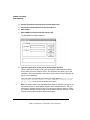
Type the path where the MONITOR.INF file is located (for example d:\software\winnt495\monitor\i386).
10 Press ↵ or choose OK to display the Select Port Monitor dialog box.
11 Press ↵ or double-click QMS Port under Port Monitor.
If the monitor is not located in the source directory that displays, edit the path and
choose OK. The monitor installation dialog box displays briefly, informing you that
the setup program is copying files.
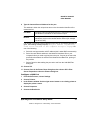
12 Choose OK to display the Add the QMS Port dialog box.
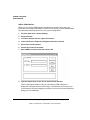
13 Refer to “Add a Print Device” on page 42 to add a QMS port.
—
Use this procedure when upgrading to a different version of the QMS Network Print
Monitor.
»
&
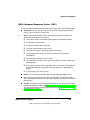
Note: You must be logged on as a member of the Administrator group to install the
QMS Network Print Monitor. Also, the TCP/IP network software must be installed.
1
Insert the QMS magicolor 2 DeskLaser Documentation and Software
CD-ROM in the CD-ROM drive of your computer.
2
From the Start menu choose Settings.
3
From the Settings menu choose Printer.
4
In the Printers window click the right mouse button to display the Print
Servers Properties dialog box.
EDNord - Istedgade 37A - 9000 Aalborg - telefon 96333500