1
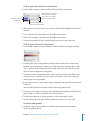
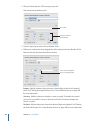
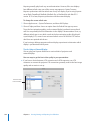
mm To paste the content and fill of a cell into one or more cells in the same row or column,
select two or more adjacent cells and choose one of the following.
Format > Table > Fill > Fill Right: Assigns selected cells the value that resides in the
leftmost selected cell.
Format > Table > Fill Left: Assigns selected cells the value that resides in the
rightmost selected cell.
Format > Table > Fill Up: Assigns selected cells the value that resides in the
bottommost selected cell.
Format > Table > Fill Down: Assigns selected cells the value that resides in the
topmost selected cell.
Any data, cell format, formula, or fills associated with the selected cell are pasted. If any
target cell contains data, autofilling overwrites that data with the value you're repeating.
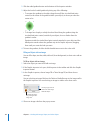
mm You can also add values to cells based on value patterns. For example, if a cell contains
a day of the week or a month, you can select the cell and then drag to the right or
down to add the next day of the week or month to the adjacent cell, using the fill
options described above.
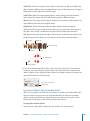
To create new values based on numeric patterns, select two or more cells before
dragging. For example, if two selected cells contain 1 and 2, the values 3 and 4 are
added when you drag through the adjacent two cells. And if two selected cells contain
1 and 4, the values 7 and 10 are added when you drag through the adjacent two cells
(values are incremented by 3).
Autofilling doesn't set up an ongoing relationship among cells in the group. After
autofilling, you can change the cells independently of each other.
To learn about the suite of functions and formulas available in iWork, and how to use
them, see the iWork Formulas and Functions User Guide or help (choose Help > “iWork
Formulas and Functions Help”).
Editing Table Cell Contents
You can change, delete, copy, swap, and move the content in cells.
Here are ways to edit values:
mm To replace specific content already in the cell, select the cell and then select what you
want to replace by double-clicking; hold down the Shift key and select more content if
you want to replace more. Type to replace the selected content.
mm To replace everything in the cell, select the cell and then begin typing.
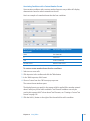
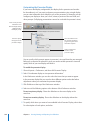
If "Return key moves to next cell" isn't selected in the Table inspector, you can also
select the cell and then press Return or Enter, which selects everything in the cell, and
then start typing.
166
Chapter 10    Using Tables