1
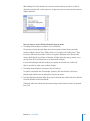
mm To deselect objects in a group of selected objects, hold down the Command key and
then click objects you want to deselect.
Copying or Duplicating Objects
The technique you use to copy an object depends on where you want to place the
copy. When the copy will be placed far from the original or in another document,
copying and pasting is generally easier. When you’re working with an object that will
be placed near the original, duplicating is generally easier.
Here are ways to copy objects:
mm To copy and paste an object, select it, and then choose Edit > Copy. Click where you
want the copy to appear. Choose Edit > Paste.
mm To duplicate an object on a slide, hold down the Option key while you drag the object.
You can also select the object and choose Edit > Duplicate. The copy appears on top of
the original, slightly offset. Drag the copy to the desired location.
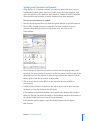
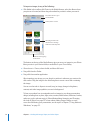
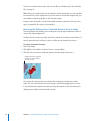
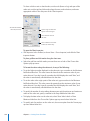
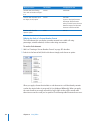
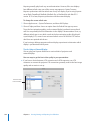
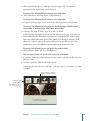
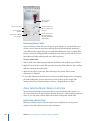
mm To copy an image between Keynote documents, select the image and drag its icon
from the File Info field in the Metrics inspector to a slide in the other Keynote file.
Deleting Objects
Deleting objects is quick and easy.
To delete objects:
mm Select the object or objects and press the Delete key.
If you accidentally delete an object, choose Edit > Undo Delete.
Moving Objects and Positioning Them on the Slide Canvas
Keynote provides several tools to help you arrange items on your slide canvas with
great precision, including customizable alignment guides and gridlines to help you
keep object positions even on slides and consistent between slides. Objects can be
grouped together, making it easier to manipulate sets of objects, and locked into
position to prevent them from being moved while you work. In addition, objects on a
slide can be layered (overlapped) to create the effect of depth on the slide.
Here are ways to manipulate objects directly:
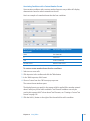
mm To move an object to a new location on the slide, drag it. Avoid dragging the object by
its selection handles because you may inadvertently resize it.
To precisely align objects as you drag them around, you can use alignment guides and
gridlines. See “Using Alignment and Relative Spacing Guides” on page 90 and “Using
Master Gridlines” on page 92 for details.
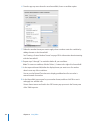
mm To constrain the object’s motion to horizontal, vertical, or a 45-degree angle, start
dragging the object while holding down the Shift key.
88
Chapter 5    Working with Images, Shapes, and Other Objects