1
Wall Mount 2-Way RF Compact Color Touchpanel
SCREEN SETTINGS BRIGHTNESS
Crestron STX-1700CW
Brightness
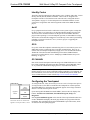
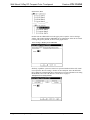
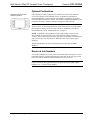
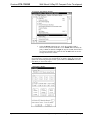
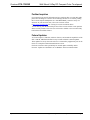
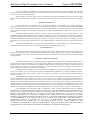
From the SETUP MENU, press the Brightness button to open the SCREEN
SETTINGS – BRIGHTNESS screen. The UP and DOWN buttons increase and
decrease screen brightness, respectively. The area to the right of the buttons shows
the relative brightness from 0% to 100%.
Select the Return button to return to the SETUP MENU.
Startup Preference
STARTUP PREFERENCE
NOTE: This feature applies only to units with the optional pushbuttons installed.
Refer to “Appendix B: Installation of Optional Pushbuttons” for details.
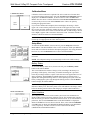
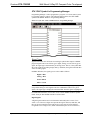
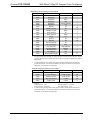
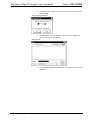
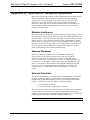
The Startup Preference feature allows (when the touchpanel is off or in standby) the
display to come on or stay off when a “quick” pushbutton is pressed. From the
SETUP MENU, press the Startup Preference button to open the STARTUP
PREFERENCE screen.
When pressed, the DISPLAY ON FROM HARDKEY button toggles between
ENABLED and DISABLED. With ENABLED selected, the display comes on when
one of the “quick” pushbuttons is pressed. With DISABLED selected, the display
stays off when a “quick” pushbutton is pressed (if touchpanel was off, it goes to
standby). The default is DISABLED.
Select the Return button to return to the SETUP MENU.
POWER MANAGEMENT TIMEOUT
SETTINGS
10
30
Power Management Timeout Settings
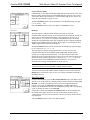
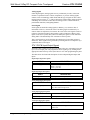
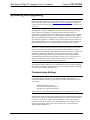
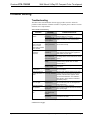
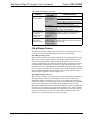
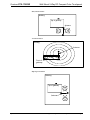
The Power Management feature is intended to conserve energy, and to extend the
service life of the battery. From the STARTUP screen, press the Power
Management button to display the POWER MANAGEMENT TIMEOUT
SETTINGS screen. Use the STANDBY and POWER DOWN UP and DOWN
buttons to set the respective timeouts from 0 through 120 minutes, where 0 disables
the timeout. Adjusts in one-minute increments from 1 to 10, in ten-minute
increments from 20-120.
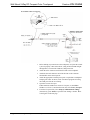
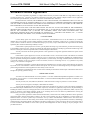
Use the Standby Now and Power Down Now buttons to immediately enter the
respective mode.
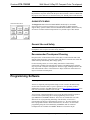
STANDBY timeout turns the display and backlight off when the touchpanel is
inactive for the specified time. When the touchpanel is reactivated, the last screen to
be displayed reappears. The specified time is displayed in minutes. The default
STANDBY timeout is 10 minutes.
POWER DOWN timeout turns off all power when the touchpanel is inactive for the
specified time. When the touchpanel is activated, the first page of the project appears.
The specified time is displayed in minutes. The default POWER DOWN timeout is 30
minutes. Adjusts in one-minute increments from 1 to 10, in ten-minute increments
from 20-120.
NOTE: Power Down Timeout should be set low to maximize battery life. However,
Power Down Timeout should be set greater than Standby Timeout. Otherwise, the
Standby Timeout is meaningless.
NOTE: When the panel is powered down, it will take about 1.5 seconds to power up
and respond to a button press. There is no delay from Standby mode.
14 • Wall Mount 2-Way RF Compact Color Touchpanel: STX-1700CW
Operations Guide – DOC. 6228A