1
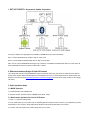
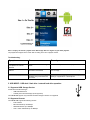
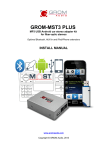
4. To change Folders/Playlists use Disc buttons on the stereo. 4. USB MODE - Android Operation 4.1 Android Device Setup and Operation The GROM-MST3P adapter when in USB mode allows you to connect your Android device directly to the GROM-MST3P USB port. You will need the GROM AALinQ app available on the Google Play store / Android marketplace at https://play.google.com/store/apps/details?id=com.gromaudio.aalinq . Once you have AALinQ installed on your Android device, you can connect your Android to the USB port using your own or provided USB Android connector cable. If the version of your Android software is 2.3 and newer, you will need to have USB Debugging enabled to allow AALinQ to communicate between your Android and the GROM-MST3P. The USB port will also charge most Android devices (not all supported). Note that if your Android is older than 2.3, you will need to disable USB Debugging function. 1. To enable USB Debugging, on Android device go to Settings Applications Development 2. Once you connect your Android device to GROM-MST3P and the GROM unit is in USB playback mode, AALinQ should automatically start playing a song from your Android device. 3. Android and USB stick functionality is essentially identical. Playlists on AALinQ will be mapped to Discs on the stereo. Skip tracks, change disc, fast forward, random, scan controls are identical to USB controls. Text of current song is displayed.