1
Common to both protocols is the ability to send samples between any two devices in a commonly recognized format. See the “Sampler and File Format Reference” online document for details.
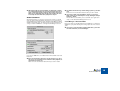
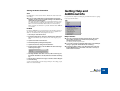
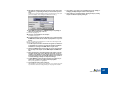
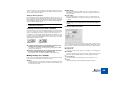
D MIDI settings.
If the selected sampler uses a MIDI connection, you will find settings for
MIDI In/Out ports and SysEx ID. To change these settings, use the respective pop-up menu.
Adding an Ensoniq Sampler
D SCSI settings.
If the selected sampler uses a SCSI connection, you will find settings for
SCSI Bus and SCSI ID. To change these settings, use the respective popup menu.
For technical reasons, Ensoniq (and other sampler models in some cases - see
page 30) samplers cannot be automatically “found” by ReCycle. This means you
have to add Ensoniq samplers manually, without “finding” them (by clicking OK
in the Add Sampler dialog as described above), and then adjust the MIDI settings in the Sampler Settings dialog.
!
Make sure the Ensoniq sampler isn’t in “Load Mode”, as this will
disable MIDI communication!
!
If you change the MIDI or SCSI settings manually this way, you
should always use the Verify function to check that the sampler is
on-line.
Read the Sampler Information!
Verifying the Connection with a Sampler
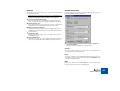
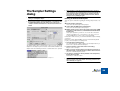
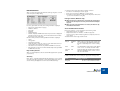
Near the lower left corner of the Sampler Settings dialog, you will find a small
icon next to a “Verify” button. The icon indicates whether the currently selected
sampler on the Sampler pop-up menu is properly connected (on-line) or not.
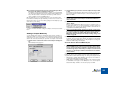
For example, if you add a sampler manually without using the “Find” function, the
icon will be a red cross, indicating that the sampler isn’t on-line. If the selected
sampler is found automatically by ReCycle, the icon will be a green check mark,
indicating that the sampler is on-line.
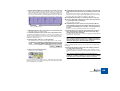
Sampler on-line.
Sampler not on-line.
D To update the status of the icon and check the connection to the
currently selected sampler, click the “Verify” button.
For example, you may want to do this after having changed SCSI or MIDI
settings, as described below.
D Each time you launch ReCycle, the program automatically Verifies
the connection with all samplers on the Sampler list.
If a sampler isn’t on-line, it will not be available on the Sampler menu.
Making Settings for a Sampler
In the area to the left in the Sampler Settings dialog, you can adjust the settings
of the currently selected sampler. There are three sections:
D Name.
This shows the name of the sampler as it will appear on the Sampler menu in
the main ReCycle window. If you wish to rename it, click the “Rename...” button and enter a new name.
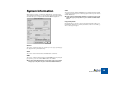
When a sampler is selected (on the Sampler pop-up menu), you will see an image of its front panel displayed to the right in the Sampler Settings dialog, along
with model and connection information. Below the image, you will also find the
following information:
D Required OS.
This is the operating system required for the sampler to work with ReCycle.
D Found OS.
This is the operating system currently used by the sampler. If this is an older
OS version than the “Required OS”, you need to upgrade the sampler.
D Stereo Support
This tells you whether the sampler supports stereo audio files or not.
D Notes.
Under this heading you may find additional important information.
SAMPLER SETTINGS
32