1
OPERATING INSTRUCTIONS FOR GAMBIT DAC2 24Bit / 192kHz D/A CONVERTER
Software installation
Perform the following installation procedure before connecting the DAC2 to the computer. The
necessary files are supplied on the enclosed
drivers CD.
Windows:
0. Do not connect the device.
OPERATION
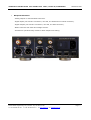
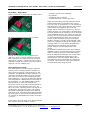
After installing the drivers, connect the DAC2 to
the computer and connect the power cord to the
DAC2.
The DAC2 should now be recognized automatically. In Windows tell the installation window
that you do not want to check the Microsoft
website for drivers and then let the drivers be
installed automatically. Ignore warnings concerning “Windows Logo Test” and continue the
installation until completed. There will be two
passes of installation, which is normal.
1. Double click "WeissFirewireInstaller.exe"
2. Click "Next"
3. Select the directory where you'd like to install
the tools. Usually you can use the default values
and click "Next"
4. Select if you'd like to create a desktop icon.
"Next"
5. Click "Install"
6. You will be asked if you'd like to continue the
installation because the driver/software didn't
pass the Windows-Logo-Test. Select "Continue".
7. Select "Yes, restart the computer now" and
click "Finish"
Mac:
0. Mount the WeissFirewire.dmg diskimage by
double clicking it
1. From the mounted drive double click WeissFirewire-3.3.1.2228.pkg (the version numbers
can be different of course)
2. Click "Continue"
3. Select the drive (usually you leave it at the
defaults)
4. Click "Continue"
5. Click "Upgrade" or "Install"
6. You'll be asked to login as administrator
7. Confirm "Continue Installation" when warned
that the computer requires a reboot after install.
8. Click Restart
Daniel Weiss Engineering Ltd., Florastr. 42, CH-8610 Uster
+41 44 940 20 06
+41 44 940 22 14
www.weiss.ch
Page 7
[email protected]