1
This is the second page of the Setup Guide. Start on the opposite side first.
SR600EX
High Power Wireless-N 600mW Pro Range Extender / Smart Repeater
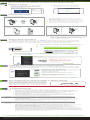
How to Connect your Wireless Computer to the Range Extender
Windows 7 & Vista
A. Click on the Wireless icon to see available
wireless networks (For Vista, click Start >
Connect To). Select the "Amped_Pro_SR"
network and click Connect.
B. When prompted, enter the wireless
security key "wireless" and click OK.
Amped_Pro_SR
Mounting Instructions
WALL MOUNTING
a
a
Place the SR600EX against the wall, use a pencil
and mark two pilot locations through the mounting
hole on the wall.
b
Remove the SR600EX and securely drill two screws
where you have marked on the pilot location’s wall.
c
Now, mount the unit onto the secured screws.
c
b
DESKTOP MOUNTING
POLE MOUNTING
b
a
a
b
a
Place the stand in an optimum location.
a
Place the SR600EX against the pole.
b
Secure the SR600EX onto the desktop mount.
b
Use the included hose clamp or plastic tie and secure
the SR600EX to the pole by inserting one side of the
clamp through the smaller hole located on the bottom
of the mounting bracket. If using the metal hose clamp,
use a screw driver to fasten the clamp until the
adapter is securely mounted.
Using an External Antenna
For additional range and coverage, the SR600EX comes with the option of using external
antennas instead of the high power internal antenna. To use the external antenna, attach
the antenna and log on to the web menu to activate the external antenna port:
Remove the lid covering the external antenna port and
attach external antenna to the Pro Range Extender.
Enter the setup web address into your web browser:
http://setup.ampedwireless.com
If the URL fails to open, then try: http://192.168.1.240
Click on More Settings,
Settings. Select Antenna Settings
Settings and then select Wireless Settings
from the drop down menu. Check External Antenna to activate the external
antenna and click Apply
Apply.
Using the Smart Features on the Pro Range Extender
The Pro Range Extender is equipped with many powerful security features which can be
accessed through the web menu under Smart Features on the left side of the web menu:
12:26
Wireless Access Scheduling
Control when your WiFi is on/off
Menu Location: More Settings > Smart Features > Access Schedule
?
User Access Control
Restrict network access to specific users
Menu Location: More Settings > Smart Features > User Access
Wireless Coverage Control
Adjust the distance of your wireless network
Menu Location: More Settings > Smart Features > Wireless Coverage
Web Menu (Left Side)
If you are unfamiliar or want more information on how to set up Smart Features, please refer
to the User’s Guide on the included CD.
How to Reset the Pro Range Extender to Default Settings
The Pro Range Extender can be reset to default
settings by holding down the Reset button on the
Power over Ethernet (PoE) Adapter for 5-10 seconds. To simply reboot the Pro Range Extender,
press the Reset button for 1 second and release.
Reset
Note: Pro Range Extender must be connected to the PoE adapter for the Reset button to function.
Troubleshooting Tips
PROBLEM:
SOLUTIONS:
PROBLEM:
SOLUTIONS:
PROBLEM:
SOLUTIONS:
I entered setup.ampedwireless.com and it failed to open the web menu.
a. Make sure your computer is connected to the Pro Range Extender using the included Ethernet cable.
Do not try to connect with a wireless connection. Ensure that the power on the Pro Range Extender is on.
b. Check that your computer IS NOT connected to any wireless networks. If it is, disable your Wi-Fi connection
disconnect from all wireless networks, power the Pro Range Extender on and off, and try again.
c. Close your current web browser and reopen it. Try the web address again.
d. Try to use a different web browser. We recommend the Google Chrome web browser.
e. Try to open your web browser to the default IP address by putting this number into your web browser
instead: 192.168.1.240
f. Power off (unplug the power adapter) the Pro Range Extender and power it back on. Try again.
g. Reset your Pro Range Extender to default settings by holding the Reset Button (located on the back
panel of the PoE Adapter) for ten (10) seconds and try again.
I cannot connect to my Home Network. I received an error when running the Smart Setup Wizard.
a. Your Home Network may be secured. Double check that you have the correct security key to connect to
the Home Network.
b. Try adjusting the channel number of your Home Network’s router to channel 5 thru 11. Then attempt the
Smart Setup Wizard again.
c. Reboot your Home Network router and try to connect again using the Smart Setup Wizard.
d. Check to see that your Home Network router’s DHCP server is enabled. The Pro Range Extender needs to
obtain an IP from your Home Network router.
My Pro Range Extender was working fine previously but now I can no longer access the Internet
through the Pro Range Extender. My Internet connection is intermittent and unstable.
a. The connection to your Home Network has been dropped or the settings to your router have changed.
This can be caused by several events to your home wireless connection, such as a power outage to your router.
When this occurs, connect to the Pro Range Extender and access the setup menu using the
web address: setup.ampedwireless.com
Run through the Smart Setup Wizard to reconnect the Pro Range Extender to your network.
b. If you cannot access the setup menu, check to see that your Pro Range Extender is still on. Reboot
the Pro Range Extender by unplugging the power adapter and plugging it back in. Check to see if
your connection has been reestablished by viewing a website. If you do not have a connection, logon to
http://setup.ampedwireless.com and configure a new Home Network connection.
c. Using the setup menu (setup.ampedwireless.com) check to see that the signal strength between the Pro Range
Extender and your home network is above 75%. The Pro Range Extender may be too far from your home router.
To find the signal strength between the router and the Pro Range Extender you may check the Management >
Repeater Status page on the web menu. On the bottom of the Home Wireless Network Settings section there will
be a Signal Strength readout. This Signal Strength must be above 75%. If it is below, move the Pro Range Extender
closer to your router, or reposition the Pro Range Extender.
If you continue to have issues setting up the Pro Range Extender, give us a call — we’re here to help: 888-573-8820
Visit our website for more support information and answers to frequently asked questions: www.ampedwireless.com/support
Amped Wireless
A Division of Newo Corporation
Copyright © 2012 Amped Wireless / Newo Corporation. All rights reserved.
Amped Wireless, Newo Corporation, the Amped Wireless Logo are registered trademarks or trademarks of Newo Corporation.