1
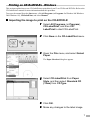
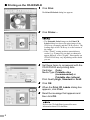
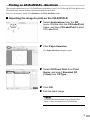
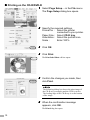
Printing on CD-Rs/DVD-Rs - Windows This section explains how to use CD-LabelPrint to print directly on 12 cm CD-Rs and DVD-Rs. Refer to the CD-LabelPrint’s manual for more information about this procedure. To access the manual from the Start menu, click All Programs (or Programs for Windows Me/Windows 2000/Windows 98), CD-LabelPrint, and select Manual. Importing the image to print on the CD-R/DVD-R 1 Select All Programs (or Program), CD-LabelPrint, and then CDLabelPrint to start CD-LabelPrint. 2 Click New on the CD-LabelPrint menu. 3 Open the File menu, and select Select Paper. The Paper Selection dialog box appears. 4 Select CD-LabelPrint from Paper Style, and then select Standard CD (12cm) from CD Type. 5 Click OK. 6 Make any changes to the label image. 7