1
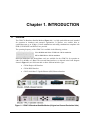
CDM-710 Broadcast Satellite Modem
Flash Upgrading
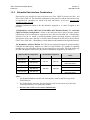
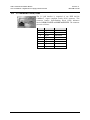
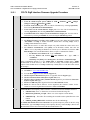
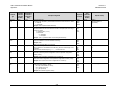
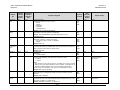
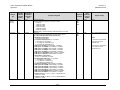
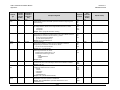
About Firmware Numbers, File Versions, and Formats: The flashable files on the
download server are organized by product prefix (i.e., FW – Firmware).
The base modem bulk firmware for the CDM-710 is FW12437x_V### (where ‘x’ denotes the
revision letter of the bulk modem firmware, and V### represents the firmware version),
applicable for units with the Rev A. or later chassis (FW Ver 2.1.1 or later); for initiallyreleased chassis (with the membrane overly switch assembly, FW Ver. 1.1.3 or earlier), the
based modem bulk firmware number is FW12050x_V###.
The current version firmware release is provided. If applicable, one version prior to the
current release is also available. Be sure to identify and download the desired version.
The downloadable files are stored in two formats: *.exe (self-extracting) and *.zip
(compressed). Some firewalls will not allow the downloading of *.exe files. In this case,
download the *.zip file instead. For additional help with "zipped" file types, refer to PKZIP
for Windows, WinZip, or ZipCentral help files. PKZIP for DOS is not supported due to file
naming conventions.
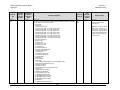
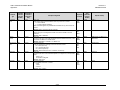
3
(cont)
4
Revision 11
MN/CDM710.IOM
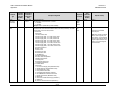
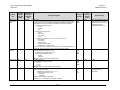
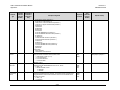
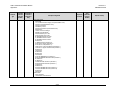
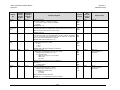
Extract the files to the temporary folder on the PC.
A minimum of two files should be extracted:
1.
FW12437x.bin, where "x" denotes the revision letter for the bulk image file.
2.
ReleaseNotes_CDM710_v###.pdf, where “###” denotes the firmware release version
number .
5
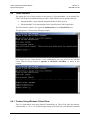
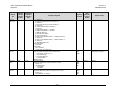
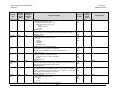
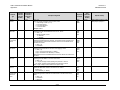
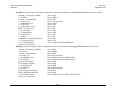
Confirm that the files have been extracted to the specified temporary folder on the PC. Using
Command-line, type cd c:\temp to change to the temporary directory created in Step 2, then use the
dir command to list the files extracted from the downloaded archive file.
6
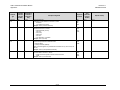
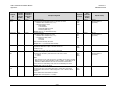
Connect the client PC to the CDM-710’s 10/100 Ethernet M&C via a hub or a switch, or directly to
the PC with a crossover cable.
IMPORTANT
7
BASE MODEM firmware can only be loaded via the Ethernet M&C port; do not
use the Ethernet Traffic port.
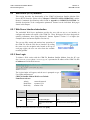
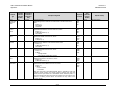
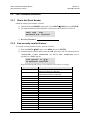
Send a “ping” command to the modem to verify the connection and communication.
First, determine the IP address of the modem remotely or by using the modem front panel:
•
Via Remote Control , use the <000/IPA? query.
•
Via the modem front panel:
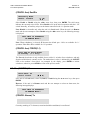
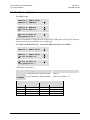
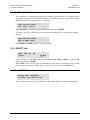
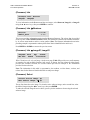
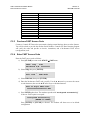
SELECT: CONFIG Æ Remote Æ Remote Æ Ethernet menu.
Then, using Command-line to “ping” the modem – at the prompt, type “ping www.xxx.yyy.zzz”
(where ‘www.xxx.yyy.zzz’ is the IP address of the modem). The results should confirm whether or
not the modem is connected and communicating.
8
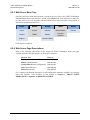
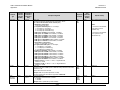
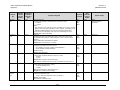
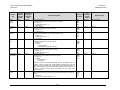
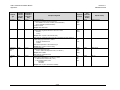
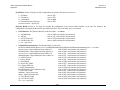
Initiate an FTP session with the modem. Using Command-line:
a) From the PC, at the prompt type "ftp www.xxx.yyy.zzz" where "www.xxx.yyy.zzz" is the IP
address of the base modem.
b) Enter the Admin User Name (there will be no prompt for a password) to complete login.
c) Verify the FTP transfer is binary by typing "bin".
d) Type "prompt", then type "hash" to facilitate the file transfers.
9
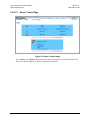
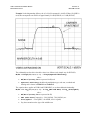
Transfer the files from the temporary folder on the PC:
Type "put FW12437x.bin bulk:” to begin the file transfer. The destination “bulk:” must be all
lower-case.
4–4