1
Quadro6L/4L/2x2 Manual I: Installation Guide
Step 2-B: Using Key System Emulation
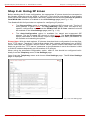
Password - the registration password on the SIP server.
SIP Server - the IP address or the host name of the SIP server.
SIP Port - the port of the SIP server.
Authentication User Name - an identification parameter to reach the SIP
server. It should be provided by the SIP service provider and can be requested for some SIP servers only. For others, the field should be left empty.
Outbound Proxy Host Address and Port - the IP address or the host
name and the port number of the outbound proxy SIP server.
o
Use SLA Settings - choose this selection to use the SIP settings of another
SLA line. This selection is also used to allow multiple line appearances on
the same ITSP provider. The SLA drop down list is used to select the SLA
line whose SIP settings will be used for the corresponding SLA line. The
DID text field requires an optional identification number used by some ITSP
providers to differentiate between the call appearances on the selected line.
The Use DID for outgoing calls indicates whether the specified DID number should be included in the Caller ID of calls initiated from the SLA. If this
checkbox is enabled, the DID number will be sent along with the SIP username. This checkbox should be enabled if the IP-PSTN provider authorizes
the users by their DIDs.
For this configuration scenario, choose the SIP option with Custom Settings. Provide all
required information of the SIP server. Save the settings.
Now your SLA line will be handling calls through the defined SIP server. The IP phone can
be called by the SIP username of its SLA line. All incoming calls from that SIP server will be
blinking on the corresponding programmable key of the IP phone, as described in the previous chapter. For outgoing calls through the defined SIP server, the user should simply
push the programmable key assigned to the corresponding SLA line, and dial the SIP number of the called user.
Please Note: Quadro can also be configured in a mixed Key System Emulation mode, i.e.
having one SLA lines assigned to the SIP servers will still make possible to have others assigned to the available PSTN lines.
How to disable the Key System Emulation
In the default configuration of the Quadro6L/4L, the Key System Emulation is activated.
The 6 FXO lines of the Quadro6L device are correspondingly attached to the first 6 SLA
lines (SLA 7 and SLA 8 are inactive) and the 4 FXO lines of the Quadro4L device are correspondingly attached to the first 4 SLA lines (SLA5, SLA6, SLA7 and SLA8 are inactive).
As indicated above, this causes some limitations in using the FXO lines on the Quadro.
If you wish to move back to the regular FXO lines usage on the Quadro6L/4L, you can
achieve it by disconnecting the FXO line from the SLA by inactivating the SLA or by changing the SLA assignment to a SIP server. To do that, go to the Key System Emulation
page from the Telephony menu, push the SLA line to which the corresponding FXO
(PSTN) line is assigned, choose the Inactive or SIP option and save the selection (in case
of SIP, additional information should be provided as described above). Perform the same
steps for other SLA lines, as needed. Now your FXO lines are available to be used through
the Auto Attendant and Call Routing.
Quadro6L/4L/2x2; (SW Version 5.3.x and higher)
40