1
Chapter 3: On-Board Web Interface 27 EDID information can then be pushed out to any available transmitter. If the transmitter and receiver are running the same resolution, establishing a video connection will be faster because the receiver will not have to change resolution and the monitor will not have to resynchronize with the resolution change.
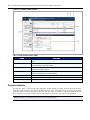
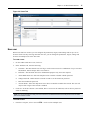
The name of the peripherals and the description can be changed by selecting the monitor and editing the Attributes tab. The manufacturer ID and product code are read only fields.
The Monitors list is pre-populated with two read-only entries: the Avocent Default VGA EDID and Avocent Default DVI EDID. These are the factory default monitor attributes (EDIDs) that are presented to an attached target by the VGA and DVI transmitters, respectively. These entries provide a way to get back to the default EDID if you push a different EDID to a transmitter.
To pull monitor attributes:
1. On the sidebar under Pull Monitor, click Pull.
2. Select a receiver from the list and click Pull. The monitor will be added to the list in the Peripherals pane.
To push the monitor attributes:
1. On the sidebar under Push Monitor, click Push.
2. Select one or more transmitters from the list and click Push. The monitor attributes will be pushed to the selected transmitter(s).
To delete a monitor:
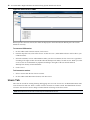
1. Select one or more monitors from the Peripherals pane.
2. On the sidebar under Delete Monitor, click Delete.
3. Click Delete to confirm.
System Settings Tab
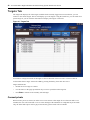
The System Settings tab is where the OBWI settings and default settings are configured. All of the settings for a system can be saved or reloaded from the system settings tab.
Save settings to file
The save settings to file option allows you to store the system settings as a backup. The settings can be reloaded later to restore the system back to a previous state.
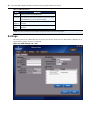
To save the system settings:
1. On the sidebar under Save Settings to File, click Save.
2. Enter a password if you wish to encrypt the file. Because the settings file includes potentially sensitive user authentication information, it is highly recommended that you provide a secure password to be used to encrypt the file.
3. Click Next.
4. Click the link in the dialog box to download the file.