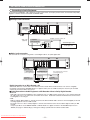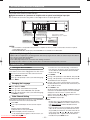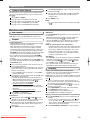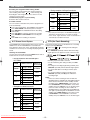
1
VCR/DVD COMBINATION
MODEL
DV-NC100X
OPERATION MANUAL
Please read this Operation Manual carefully before using
your VCR/DVD COMBINATION.
DV-NC100
OPERATE
OPEN/CLOSE
PULL OPEN
REW
FF
STOP/
EJECT
OUTPUT
PLAY
REC TIMER
CH
VCR
DVD
STOP
PLAY
(TRACKING)
4
The region number for this
VCR/DVD is 4.
Downloaded From Disc-Player.com Sharp Manuals
PAL
SAFETY INFORMATION
WARNING:
FOR YOUR SAFETY (in Australia):
Install any external aerial to AS 1417.1
TO REDUCE THE RISK OF FIRE OR ELECTRIC
SHOCK, DO NOT EXPOSE THIS EQUIPMENT TO
RAIN OR MOISTURE.
NOTE:
This VCR/DVD can be used only where the power supply
is AC 220V-240V, 50Hz. It cannot be used elsewhere.
TO REDUCE THE RISK OF FIRE OR ELECTRIC
SHOCK, AND ANNOYING INTERFERENCE, USE
THE RECOMMENDED ACCESSORIES ONLY.
CAUTION:
USE OF CONTROLS OR ADJUSTMENTS OR
PERFORMANCE OF PROCEDURES OTHER
THAN THOSE SPECIFIED HEREIN MAY RESULT
IN HAZARDOUS RADIATION EXPOSURE.
AS THE LASER BEAM USED IN THIS VCR/DVD IS
HARMFUL TO THE EYES, DO NOT ATTEMPT TO
DISASSEMBLE THE CABINET. REFER SERVICING TO QUALIFIED PERSONNEL ONLY.
TO PREVENT FIRE OR SHOCK HAZARD, DO
NOT EXPOSE THIS APPARATUS TO DRIPPING
OR SPLASHING, NO OBJECTS FILLED WITH
LIQUIDS, SUCH AS VASES, SHOULD BE PLACED
ON THE APPARATUS.
Laser Diode Properties
Material: GaAs
Wave length: DVD: 655 nm
CD: 790 nm
Emission Duration: Continuous
Laser output: Max. 0.8 mW
Power Cord Protection
To avoid any malfunctions of the VCR/DVD, and to protect
against electric shock, fire or personal injury, please observe
the following.
• Hold the plug firmly when connecting or disconnecting the
AC power cord.
• Keep the AC power cord away from heating appliances.
• Never put any heavy object on the AC power cord.
• Do not attempt to repair or reconstruct the AC power cord
in any way.
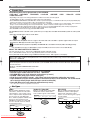
• This VCR/DVD is classified as a CLASS 1 LASER product.
• The CLASS 1 LASER PRODUCT marking is embossed on
the rear cover.
• This product contains a low power laser device. To ensure
continued safety, do not remove any cover or attempt to
gain access to the inside of the product. Refer all servicing
to qualified personnel.
CLASS 1 LASER PRODUCT
KLASSE 1 LASER PRODUKT
KLASS 1 LASER APPARAT
CLASSE 1 PRODUIT LASER
DVD
DIGITAL
AUDIO OUT
AUDIO
OUT
S-VIDEO
OUT
COMPONENT
VIDEO OUT
Y
DVD/VCR
VCR
AUDIO OUT
AUDIO IN
L
AERIAL
L
L
CB
OPTICAL
COAXIAL
R
VIDEO OUT
R
R
RF OUT
VIDEO IN
CR
Downloaded From Disc-Player.com Sharp Manuals
–2–
EN
SAFETY INFORMATION
Location and Handling
• Do not cover or place the VCR/DVD in enclosed spaces to
prevent excessive temperature build up.
• Do not place the VCR/DVD in direct sunlight, or near heat
sources.
• Keep the VCR/DVD away from strong magnetic objects.
• Do not place any object containing water or other liquids on
the VCR/DVD. In the event that liquid should enter the cabinet, unplug the VCR/DVD immediately and contact the
retailer or service centre approved by SHARP immediately.
• Do not remove the VCR/DVD cabinet. Touching parts inside
the cabinet could result in electric shock and/ or damage to
the VCR/DVD. For service and adjustment inside the cabinet, call a qualified dealer or service centre approved by
SHARP.
• Depending on the use environment, the temperature of the
VCR/DVD may increase slightly. This is not a malfunction.
NOTES:
• Remember to read the instructions along with the video
head cleaner before use.
• Clean video heads only when problems occur.
If there is Noise Interference on the TV While a
Broadcast is being Received
Depending on the reception condition of the TV, interference
may appear on the TV monitor while you watch a TV broadcast and the VCR/DVD is left on. This is not a malfunction of
the VCR/DVD or the TV. To watch a TV broadcast, turn off
the VCR/DVD.
Service
Do not attempt to service this VCR/DVD yourself. Please
refer any service to the nearest service centre approved by
SHARP.
Copyright
When the VCR/DVD is not being used, switch the VCR/DVD
to the Standby mode.
When left unused for a long period of time, the VCR/DVD
should be unplugged from the household AC outlet.
Copyright may exist in material you with to record.
Copying such material without permission of the relevant
licensee(s) or owner(s) of the copyright is prohibited by law.
SHARP is not in a position to authorize the recording of
copyright works and nothing in this manual should be read or
implied as giving that authority.
No Fingers or Other Objects Inside
Copy Protection
Do not put your fingers or objects on the disc tray or the cassette compartment.
This VCR/DVD supports Macrovision copy protection. On
DVDs that include a copy protection code, if the contents of
the DVD are copied using a VCR, the copy protection code
prevents the videotape copy from playing normally.
Nonuse Periods
Stacking
Place the VCR/DVD in a horizontal position, and do not place
anything heavy on it.
Condensation
Moisture may form inside the VCR/DVD under the following
conditions:
• immediately after a heater has been turned on.
• in a steamy or very humid room.
• when the VCR/DVD is suddenly moved from a cold environment to a warm one.
If moisture forms inside this VCR/DVD, it may not operate
properly or damage the video cassette.
In this case, turn on the power and wait for more than two
hours for the moisture to evaporate.
Cleaning
Unplug your VCR/DVD before cleaning. Use a damp cloth for
cleaning. Do not use cleaning fluids or aerosols which could
enter the VCR/DVD and cause damage, fire, or electrical
shock. These substances may also deteriorate the finish of
your VCR/DVD.
Auto Head Cleaning
• Automatically cleans video heads as you insert or remove a
cassette, so you can see a clear picture.
• Playback picture may become blurred or interrupted while
the TV program reception is clear. Dirt accumulated on the
video heads after a long period of use, or the usage of
rental or worn tapes can cause this problem. If a streaky or
snowy picture appears during playback, the video heads in
your VCR/DVD may need to be cleaned.
Apparatus Claims of U.S.Patent Nos. 4,631,603,
4,577,216, 4,819,098 and 4,907,093 licensed for limited
viewing uses only.
This product incorporates copyright protection technology
that is protected by method claims of certain U.S. patents
and other intellectual property rights owned by Macrovision
Corporation and other rights owners. Use of this copyright
protection technology must be authorised by Macrovision
Corporation, and is intended for home and other limited
viewing uses only unless otherwise authorised by
Macrovision Corporation. Reverse engineering or disassembly is prohibited.
Recommended Measures for Optimum Picture
Excellence
The VCR/DVD is a precision device that is constructed using
extremely accurate technology.
Soiling or friction affecting the pickup lens or disc drive can
impair the image quality. At the worst, neither video nor audio
will be played back. Contact your authorized Sharp supplier
for details.
Do not attempt to clean the pickup lens yourself.
1. Please visit your local Audio/Video store and purchase a
good quality VHS Video Head Cleaner.
2. If a Video Head Cleaner does not solve the problem, please
refer any service to the nearest service centre approved by
SHARP.
Downloaded From Disc-Player.com Sharp Manuals
–3–
EN
FEATURES
¡Search
DVD
Chapter search / Title search / Track search / Time search
¡Dolby Digital sound
¡Repeat
This VCR/DVD can handle Dolby Digital surround sound
having 5.1 channels when connected to a Dolby Digital
decoder.
Chapter / Title / Track / Group / All / A-B
¡Zoom
¡Marker
¡Still/fast/slow/step playback
¡Rapid Play
The part designated by user can be called back.
Playback in slightly faster/ slower speed while keeping the
sound quality as in the normal playback.
Rapid Play is available only on discs recorded in the Dolby
Digital format.
¡Random playback for audio CD, MP3, JPEG and
Kodak Picture CD
¡Programme playback for audio CD, MP3, JPEG
¡Resume Play
¡Virtual Surround
¡Component Video Out Jacks
Jacks located on the back of the VCR/DVD which are used
to send high-quality video to a TV via Component Video In
Jacks.
¡Bit rate indication
¡DRC (Dynamic range control)
and Kodak Picture CD
¡DVD menus in a desired language
¡Screen saver
You can control the range of sound volume.
The screen saver programme starts when there is no input
from the VCR/DVD for 5 minutes in the stop mode.
¡Subtitles in a desired language
¡Selecting a camera angle
¡Choices for audio language and sound mode
¡Parental lock
¡Automatic detection of discs
¡Digital Gamma Setting
¡Video Out
When playing an NTSC disc, select either PAL or
AUTO(NTSC) correspondingly to your TV system.
VCR
¡Auto Head Cleaner
¡6 Head Hi-Fi Stereo
¡On screen Display
¡Auto power on system
This VCR/DVD automatically detects if a loaded disc is
DVD, audio CD, video CD, MP3 and JPEG on disc or
Kodak Picture CD.
Automatically turns the VCR on when you insert the cassette.
¡Playing an MP3 disc
¡Displaying a JPEG picture
Kodak Picture CDs can be played. Still images stored in
JPEG format on CD-RW/R can also be played.
¡Direct Search
¡DTS (Digital Theater System)
You can enjoy 5.1 channel surround sound system developed by Digital Theater System, Inc. which reproduces the
original sound as truthfully as possible.
External decoder is required.
¡Digital Auto Tracking (DTR)
¡Auto Repeat
¡Index Search
¡Time Search
¡NTSC Playback
¡1 Year, 8 events (including Daily and Weekly
Timer Recording)
¡OTR (One Touch Recording)
¡On-screen display
Information about the current operation can be displayed
on a TV screen, allowing you to confirm the currently
active functions (such as programme playback), on the TV
screen using the remote control.
¡MPEG audio
This VCR/DVD can handle a disc that supports MPEG
audio when it is connected to a MPEG decoder.
“Kodak Picture CD COMPATIBLE” is a trademark
of Eastman Kodak Company.
INTRODUCTION
Symbols Used in this Manual
The following symbols appear below in some headings and
notes in this manual, with the following meanings:
DVD-RW
VR mode
DVD
: Description refers to playback of DVD video discs. (including DVD-RW/R and DVD+RW/R discs (Video mode only))
CD
: Description refers to playback of audio CDs.
VCD / VCD
: Description refers to playback of the VR mode (Video
Recording format).
*The VR mode (Video Recording format) is a recording
mode to enjoy editing the programme or “manual mode”
for recording in desired resolution and time.
JPEG
: Description refers to viewing of JPEG discs.
(QUICK)
without PBC function
: Description refers to playback of video CDs.
MP3
: Basic setup can be performed more quickly by selecting
(QUICK setup menu).
: Description refers to playback of MP3 discs.
Downloaded From Disc-Player.com Sharp Manuals
–4–
INTRODUCTION
Supplied Accessories
• Remote control
• Two “AA” size (R-6) batteries
• Operation manual
• Round coaxial cable
• Video cable
• Audio cable
Manufactured under license from Dolby Laboratories.
“Dolby” and the double-D symbol are trademarks of
Dolby Laboratories.
“DTS” and “DTS Digital Out” are trademarks of Digital
Theater Systems, Inc.
TABLE OF CONTENTS
■ SAFETY INFORMATION. . . . . . . . . . . . . . . . . . . . . . . . 2
■ FEATURES . . . . . . . . . . . . . . . . . . . . . . . . . . . . . . . . . . 4
■ INTRODUCTION . . . . . . . . . . . . . . . . . . . . . . . . . . . . . . 4
Symbols Used in this Manual. . . . . . . . . . . . . . . . . . . . . 4
Supplied Accessories . . . . . . . . . . . . . . . . . . . . . . . . . . 5
■ ABOUT THE DISCS . . . . . . . . . . . . . . . . . . . . . . . . . . . 6
Playable Discs . . . . . . . . . . . . . . . . . . . . . . . . . . . . . . . . 6
Disc Types. . . . . . . . . . . . . . . . . . . . . . . . . . . . . . . . . . . 6
■ FUNCTIONAL OVERVIEW . . . . . . . . . . . . . . . . . . . . . . 7
FRONT PANEL . . . . . . . . . . . . . . . . . . . . . . . . . . . . . 7
REAR VIEW . . . . . . . . . . . . . . . . . . . . . . . . . . . . . . . 7
REMOTE CONTROL . . . . . . . . . . . . . . . . . . . . . . . . . 8
Display . . . . . . . . . . . . . . . . . . . . . . . . . . . . . . . . . . . . . 9
Displays During Operation . . . . . . . . . . . . . . . . . . . . . . . 9
Loading the Batteries. . . . . . . . . . . . . . . . . . . . . . . . . . . 9
■ SETTING UP YOUR VCR/DVD COMBINATION . . . . . . 10
Basic TV connection . . . . . . . . . . . . . . . . . . . . . . . . . . 10
Connecting to a TV . . . . . . . . . . . . . . . . . . . . . . . . . . . 10
Connecting to Audio Equipment . . . . . . . . . . . . . . . . . . 11
Playing 2 channel audio . . . . . . . . . . . . . . . . . . . . . . 11
Playing Dolby Digital (5.1 channel), DTS
or MPEG audio . . . . . . . . . . . . . . . . . . . . . . . . . . . . 12
■ VCR/DVD SET UP. . . . . . . . . . . . . . . . . . . . . . . . . . . . 12
Tuning on Your VCR/DVD . . . . . . . . . . . . . . . . . . . . . . . 12
Changing the Language. . . . . . . . . . . . . . . . . . . . . . . . 12
Video Channel Setting . . . . . . . . . . . . . . . . . . . . . . . . . 12
Setting the Clock . . . . . . . . . . . . . . . . . . . . . . . . . . . . . 13
Channel Presetting . . . . . . . . . . . . . . . . . . . . . . . . . . . 13
Automatic Channel Preset . . . . . . . . . . . . . . . . . . . . . . 13
Manual Channel Preset . . . . . . . . . . . . . . . . . . . . . . . . 13
To Skip a Preset Channel . . . . . . . . . . . . . . . . . . . . . . 14
■ VCR OPERATION . . . . . . . . . . . . . . . . . . . . . . . . . . . . 14
VCR Features . . . . . . . . . . . . . . . . . . . . . . . . . . . . . . . 14
Playback . . . . . . . . . . . . . . . . . . . . . . . . . . . . . . . . . . . 14
Recording . . . . . . . . . . . . . . . . . . . . . . . . . . . . . . . . . . 14
Hi-Fi Stereo Sound System . . . . . . . . . . . . . . . . . . . . . 15
OTR (One Touch Recording) . . . . . . . . . . . . . . . . . . . . 15
Auto Repeat Playback . . . . . . . . . . . . . . . . . . . . . . . . . 16
Picture Select . . . . . . . . . . . . . . . . . . . . . . . . . . . . . . . 16
Automatic Operation . . . . . . . . . . . . . . . . . . . . . . . . . . 16
Real Time Tape Counter . . . . . . . . . . . . . . . . . . . . . . . 16
Timer Recording . . . . . . . . . . . . . . . . . . . . . . . . . . . . . 16
Index Search . . . . . . . . . . . . . . . . . . . . . . . . . . . . . . . . 17
Time Search . . . . . . . . . . . . . . . . . . . . . . . . . . . . . . . . 17
Recording from DVD to VCR . . . . . . . . . . . . . . . . . . . . 18
Copying a Video Tape . . . . . . . . . . . . . . . . . . . . . . . . . 18
Status Display . . . . . . . . . . . . . . . . . . . . . . . . . . . . . . . 18
Video Cassette Tape . . . . . . . . . . . . . . . . . . . . . . . . . . 18
Two Different Tape Speeds . . . . . . . . . . . . . . . . . . . . 18
TV Colour System . . . . . . . . . . . . . . . . . . . . . . . . . . . . 18
■ PLAYING A DISC . . . . . . . . . . . . . . . . . . . . . .
Basic Playback . . . . . . . . . . . . . . . . . . . . . . . .
General Features. . . . . . . . . . . . . . . . . . . . . . .
Pause . . . . . . . . . . . . . . . . . . . . . . . . . . . . . . .
Disc Menus . . . . . . . . . . . . . . . . . . . . . . . . . . .
Title Menu . . . . . . . . . . . . . . . . . . . . . . . . . . . .
Step by Step Playback. . . . . . . . . . . . . . . . . . .
Rapid Play. . . . . . . . . . . . . . . . . . . . . . . . . . . .
Resume. . . . . . . . . . . . . . . . . . . . . . . . . . . . . .
Playing the disc recorded in VR mode
(Video Recording format) . . . . . . . . . . . . . . . . .
Fast Forward / Reverse Search . . . . . . . . . . . .
Slow Forward / Reverse . . . . . . . . . . . . . . . . . .
Zoom. . . . . . . . . . . . . . . . . . . . . . . . . . . . . . . .
Track Search . . . . . . . . . . . . . . . . . . . . . . . . . .
Title / Chapter Search . . . . . . . . . . . . . . . . . . .
Time Search . . . . . . . . . . . . . . . . . . . . . . . . . .
Repeat . . . . . . . . . . . . . . . . . . . . . . . . . . . . . .
A-B REPEAT . . . . . . . . . . . . . . . . . . . . . . . .
Programme (CD) . . . . . . . . . . . . . . . . . . . . . . .
Random Playback (CD) . . . . . . . . . . . . . . . . . .
MP3 / JPEG Playback . . . . . . . . . . . . . . . . . . .
Kodak Picture CD . . . . . . . . . . . . . . . . . . . .
Slide Show Mode. . . . . . . . . . . . . . . . . . . . . . .
Programme (MP3/JPEG) . . . . . . . . . . . . . . . . .
Random Playback (MP3/JPEG) . . . . . . . . . . . .
Stereo Sound Mode. . . . . . . . . . . . . . . . . . . . .
Audio Language . . . . . . . . . . . . . . . . . . . . . . .
Subtitle Language . . . . . . . . . . . . . . . . . . . . . .
Camera Angle . . . . . . . . . . . . . . . . . . . . . . . . .
Changing the On-Screen Display . . . . . . . . . . .
Marker Setup Screen. . . . . . . . . . . . . . . . . . . .
Digital Gamma Setting . . . . . . . . . . . . . . . . . . .
Virtual Surround . . . . . . . . . . . . . . . . . . . . . . .
■ DVD SETUP . . . . . . . . . . . . . . . . . . . . . . . . . .
Audio Setting . . . . . . . . . . . . . . . . . . . . . . . . . .
Parental Control. . . . . . . . . . . . . . . . . . . . . . . .
PARENTAL LEVEL. . . . . . . . . . . . . . . . . . . .
IF YOU FORGET THE PASSWORD . . . . . . .
PARENTAL CONTROL LEVELS. . . . . . . . . .
Display Setting. . . . . . . . . . . . . . . . . . . . . . . . .
Language Setting . . . . . . . . . . . . . . . . . . . . . .
Returning all selections of SETUP
(except for PARENTAL) to their default settings
Language Code List . . . . . . . . . . . . . . . . . . . .
■ TROUBLESHOOTING GUIDE. . . . . . . . . . . . .
■ SPECIFICATIONS . . . . . . . . . . . . . . . . . . . . . .
■ MAINTENANCE . . . . . . . . . . . . . . . . . . . . . . .
.
.
.
.
.
.
.
.
.
.
.
.
.
.
.
.
.
.
.
.
.
.
.
.
.
.
.
.
.
.
.
.
.
.
.
.
.
.
.
.
.
.
.
.
.
.
.
.
.
.
.
.
.
.
19
19
19
19
19
20
20
20
20
.
.
.
.
.
.
.
.
.
.
.
.
.
.
.
.
.
.
.
.
.
.
.
.
.
.
.
.
.
.
.
.
.
.
.
.
.
.
.
.
.
.
.
.
.
.
.
.
.
.
.
.
.
.
.
.
.
.
.
.
.
.
.
.
.
.
.
.
.
.
.
.
.
.
.
.
.
.
.
.
.
.
.
.
.
.
.
.
.
.
.
.
.
.
.
.
.
.
.
.
.
.
.
.
.
.
.
.
.
.
.
.
.
.
.
.
.
.
.
.
.
.
.
.
.
.
.
.
.
.
.
.
.
.
.
.
.
.
.
.
.
.
.
.
.
.
.
.
.
.
.
.
.
.
.
.
.
.
.
.
.
.
.
.
.
.
.
.
.
.
.
.
.
.
.
.
.
.
.
.
.
.
.
.
.
.
.
.
.
.
.
.
20
21
21
21
21
21
22
22
22
22
23
23
23
24
24
24
24
24
25
25
25
26
26
26
27
27
27
27
27
27
28
28
.
.
.
.
.
.
.
.
.
.
.
.
.
.
.
.
.
.
.
.
.
.
.
.
.
.
.
.
.
.
28
29
30
31
31
Downloaded From Disc-Player.com Sharp Manuals
–5–
EN
ABOUT THE DISCS
Playable Discs
The following discs can be played back on this VCR/DVD.
¡DVD video ¡DVD-RW/R* ¡DVD+RW/R* ¡Audio CD
¡Kodak Picture CD
¡CD-RW/R*
¡MP3*
¡Video CD
¡JPEG*
* Depending on the types or the writing method of the medium some discs cannot be played.
For DVD+RW/R, only discs recorded in the Video mode can be played back.
• Some DVD-RW/R, DVD+RW/R or CD-RW/R discs made on personal computers, or on DVD recorders may not be played back properly due to the factors such as scratches, dirt or special properties of the disc.
• Discs made on personal computers may not playback properly due to compatibility or settings in the recording software. We recommend
always to use the standard settings and correctly formatted discs. (Please contact the software supplier for more details.)
• You can play back discs which bear the marks on page 31. If you use nonstandardized discs, this unit may not play them
back. Even if they are played back, the sound or video quality will be compromised.
• This VCR/DVD cannot record a copy protected DVD and CD!
This VCR/DVD conforms to the PAL colour system. Also you can play discs recorded with the NTSC system via a PAL system
TV set.
• Some discs include region codes as shown below.
4
• The number inside the symbol refers to a region of the world, and a disc encoded in a specific region format can only be
played back on DVD players with the same region code.
:This label indicates playback compatibility with DVD-RW discs recorded in VR mode (Video Recording Format).
NOTE
• This VCR/DVD cannot play the DVD-RW that supports CPRM (Contents Protection for Recordable Media).
ABOUT THE PBC FUNCTION OF VIDEO CD
This unit conforms to ver.1.1 and ver.2.0 of VIDEO CD standard, with PBC function.
Ver.1.1 (without PBC function): You can enjoy playback picture as well as music CD.
Ver.2.0 (with PBC function): When using a VIDEO CD with PBC function, “PBC” appears on the display.
What is PBC? “PBC” stands for the PlayBack Control. You can play interactive software using a menu screens. Refer to
instructions of VIDEO CD.
For Customer Use:
Read carefully the information located at the bottom of your VCR/DVD and enter below the Serial No.Retain this information
for future reference.
Model No.: VCR/DVD COMBINATION: DV-NC100X
Serial No.: __________________________
The following discs cannot be played back on this VCR/DVD:
¡DVD with region codes other than 4 or ALL. ¡DVD-ROM
¡DVD-RAM (Never play back, otherwise malfunction may result.)
¡CD-ROM ¡CDV (Only plays back the audio part.)
¡CD-G (Only plays back the sound.) ¡CD-I (Never play back, otherwise malfunction may result.)
¡Super Audio CD (Only the sound recorded on the normal CD layer can be delivered. The sound recorded on the high density Super Audio CD layer cannot be delivered.)
¡Photo CD (Never play back, otherwise malfunction may result.)
Any other discs without compatibility indications.
Disc Types
[DVD]
[Audio CD / Video CD]
[MP3/JPEG]
Data on a DVD is divided into sections
called “titles”, and then into subsections
called “chapters”, each of which is given
a title or chapter number. Playback conditions are preset on some DVD video
discs, and these playback conditions take
priority over user operations on this
VCR/DVD. If a function you selected do
not run as desired, refer to the manual
accompanying the disc.
Data on an audio CD or a video CD is
divided into sections called “tracks”,
each of which is given a track number.
Data on an MP3 and JPEG discs are
divided into sections called “groups”,
and then into subsections called
“tracks”, each of which is given a group
or track number.
Example
Track 1
Track 2
Track 3
Track 4
Track 5
Track 6
Example
Group 1
Track 1
Track 2
Track 3
Group 2
Track 4
Track 5
Track 6
Example
Title 1
Title 2
Chapter 1 Chapter 2 Chapter 3 Chapter 4 Chapter 1 Chapter 2
Downloaded From Disc-Player.com Sharp Manuals
–6–
EN
FUNCTIONAL OVERVIEW
FRONT PANEL
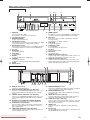
2
1
4 5
3
6
DV-NC100
OPERATE
OPEN/CLOSE
PULL OPEN
REW
FF
STOP/
EJECT
OUTPUT
PLAY
REC TIMER
CH
VCR
DVD
STOP
PLAY
(TRACKING)
20
19
18 17 16 15 14 13 12
10
11
player, video disc player, etc.) here.
28
DVD
DIGITAL
AUDIO OUT
AUDIO
OUT
S-VIDEO
OUT
COMPONENT
VIDEO OUT
8 7
13. TIMER indicator
The indicator is on when the VCR/DVD is in standby mode
for a timer recording or during a One Touch Recording.
14. REC (VCR)
Press once to start recording or repeatedly to start One
Touch Recording.
The indicator is on during recording.
15. PLAY (VCR)
To begin tape playback
16. STOP/EJECT (VCR)
To stop playback.
To eject the tape in the Stop mode.
17. FF (VCR)
To fast forward the tape.
18. REW (VCR)
To rewind the tape.
19. AUDIO IN Jacks (AV2 / VCR only)
Connect audio cables coming from the audio out jacks of a
camcorder, another VCR, or an audio source here.
20. VIDEO IN Jack (AV2 / VCR only)
Connect a cable coming from the video out jack of a camcorder, another VCR or an audio-visual source (laser disc
1. OPERATE
To turn the unit ON or OFF.
The indicator is on when this unit is turned on.
2. Cassette Compartment
3. OPEN/CLOSE (DVD)
To open or close the disc tray.
4. VCR OUTPUT indicator
The indicator is on when this unit is in the VCR mode. Make
sure that this indicator is on before VCR operation.
5. DVD OUTPUT indicator
The indicator is on when this unit is in the DVD mode. Make
sure that this indicator is on before using the DVD player.
6. Disc tray
7. PLAY (DVD)
To begin disc playback.
8. STOP (DVD)
To stop playback.
9. OUTPUT
To select the DVD mode or VCR mode.
10. CHANNEL
To change TV channels.
To adjust the tracking manually during VCR playback
11. Display
12. Remote Sensor
REAR VIEW
9
30
DVD/VCR
VCR
AUDIO OUT
AUDIO IN
31
AERIAL
Y
L
L
CB
R
R
L
OPTICAL
COAXIAL
VIDEO OUT
R
RF OUT
VIDEO IN
CR
21
22 2324
25 26
27
29
21. MAIN (AC Power Cord)
Connect to a standard AC plug.
22. OPTICAL DIGITAL AUDIO OUT Jack (DVD Only)
Connect to a compatible Dolby Digital receiver. Use to connect to a Dolby Digital decoder, DTS decoder or MPEG
decoder.
23. COAXIAL DIGITAL AUDIO OUT Jack (DVD Only)
Connect to a compatible Dolby Digital receiver. Use to connect to a Dolby Digital decoder, DTS decoder or MPEG
decoder.
24. AUDIO OUT Jacks (ANALOG Left/Right) (DVD Only)
Connect to the Audio input jacks of A/V-compatible TV
25. S-VIDEO OUT Jack (DVD Only)
Use the S-Video cable to connect this jack to the S-Video
jack on your A/V-compatible TV or wide screen TV for a
higher quality picture.
26. COMPONENT VIDEO OUT Jacks (DVD Only)
Connect optional component video cables here and to the
component Video jacks of TV.
32
27. DVD/VCR AUDIO OUT Jacks
Connect the supplied audio cables here and to the Audio In
Jacks of a television or other audio equipment.
28. DVD/VCR VIDEO OUT Jack
Connect the yellow video cable (supplied) here snd to the
TV’s Video jack.
29. AUDIO IN Jacks (AV1 / VCR only)
Connect audio cables coming from the audio out jacks of
camcorder, another VCR, or an audio source here.
30. VIDEO IN Jack (AV1 / VCR only)
Connect cable coming from the video out jack of camcorder,
another VCR, or an audio-visual source (laser disc player,
video disc player, etc) here.
31. AERIAL Jack
Connect your antenna, Cable Box, or Direct Broadcast
System.
32. RF OUT Jack
Use the supplied round coaxial cable to connect this jack to
the ANTENNA IN Jack on your TV.
Downloaded From Disc-Player.com Sharp Manuals
–7–
EN
FUNCTIONAL OVERVIEW
REMOTE CONTROL
1
35
OPERATE
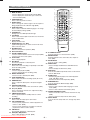
1. DISPLAY Button
• Press to display the current playback mode.(DVD)
• Press to display the current time, tape counter and
channel number.(VCR)
2. OPERATE Button
Press to turn the power on and off.
3. ANGLE Button
Press to change the camera angle to see the sequence
being played back from a different angle.(DVD)
4. SUBTITLE Button
Press to select a desired subtitle language or to change
the Panel Display settings. (DVD)
5. ZOOM Button
Enlarges part of a DVD-reproduced image.
6. VCR Button
Press to select VCR output mode and to use the remote
control in VCR mode.
7. TITLE Button
Displays the title menu.
8. ARROW Buttons (o p s B)
(up/down/left/right) Press to select an item in the menu
and to move the cursor.
9. RETURN Button
Returns to the previous operation. (DVD)
10. Numerical Buttons
11. CLEAR/C-RESET Button
• Press to clear the markers or the incorrect input. (DVD)
• Press to reset the counter. (VCR)
12. PLAY Button
Press to begin playback.
13. REV Button
Fast reverse playback to a desired point.
14. REC/OTR Button
Press once to start recording or repeatedly to start One
Touch Recording. (VCR)
15. STOP Button
• Press to stop playback. (DVD)
• Press to stop playback or recording. (VCR)
16. DIRECT SKIP Button
• Press to locate a desired point. (DVD)
17. TAPE SPEED Button
Press to select the VCR’s recording speed. (SP or LP)
18. GAMMA Button
Press to adjust the black parts of the picture brighter.
(DVD)
19. SEARCH MODE Button
Press to call up the index or time search menu. (VCR)
20. CH (o/p) Button
Press to change TV channels or to adjust the tracking
manual on the VCR.
21. TIMER ON/OFF Button
Press to put the VCR into standby mode for a timer
recording.
22. SLOW Button
Press to view the video tape in slow motion.
23. STILL/PAUSE Button
• Press to pause playback or to advance playback one
frame at a time. (DVD)
• Press to pause playback or recording or to advance
playback one frame at a time. (VCR)
24. FWD Button
Fast forwards playback to a desired point.
25. SKIP (G / H) Buttons
Press to skip Chapters or Tracks. (DVD)
2
3
4
5
6
7
8
9
DISPLAY SETUP
SUBTITLE
ANGLE
ZOOM
VCR
OPEN/CLOSE
EJECT
AUDIO MARKER
DVD
34
33
32
MODE
TITLE
MENU
30
31
29
ENTER
RETURN
28
REPEAT
1
2
3
4
5
6
7
8
9
0
+10
27
A-B REPEAT
10
26
SKIP
CLEAR/C-RESET
11
12
REV
13
FWD
16
18
24
PLAY
REC/OTR
14
25
STILL/PAUSE
23
STOP
15
17
DIRECT TAPE
TIMER
SKIP
SPEED ON/OFF SLOW
GAMMA SEARCH MODE
CH
19
21
22
20
VCR/DVD COMBINATION
NA527AD
26. A-B REPEAT Button
Repeats playback of a selected section. (DVD)
27. REPEAT Button
Repeats playback of the current disc, title, chapter or
track. (DVD)
28. ENTER Button
Press to accept a setting. (DVD)
29. MENU Button
• Press to display the DVD menus and MP3 file lists.
(DVD)
• Press to display the VCR menu. (VCR)
30. DVD Button
Press to select DVD output mode and to use the remote
control in DVD mode
31. MODE Button
• Activates programme playback or random playback
mode. (CD/ MP3/ JPEG)
• Activates the 3D sound or Rapid Play. (DVD)
32. MARKER Button
Press to call back the Marker display. (DVD)
33. AUDIO Button
• Press to select a desired audio language or sound
mode. (DVD)
• Press to select a desired sound mode. (VCR)
34. OPEN/CLOSE/EJECT Button
• Press to insert discs into or remove them from the tray.
(DVD)
• Press to remove the tape from the VCR. (VCR)
35. SETUP Button
Press to enter the setup mode or to change setup items.
(DVD)
Downloaded From Disc-Player.com Sharp Manuals
–8–
EN
FUNCTIONAL OVERVIEW
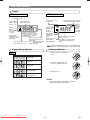
Display
VCR output mode
DVD output mode
Lights up when the
A-B repeat function is on.
Lights up when
the ALL repeat
function is on.
GROUP
Lights up
when the
inserted
disc comes
to a pause.
*Lights up when the timer recording
or an OTR recording has been set.
*Lights up when a tape
is inserted.
Lights up when the
repeat function is on.
REC
DVD
VCD
Displays the elapsed time of
the title or track. The number of
a new title, chapter, or track is
Lights up when
displayed when a chapter or
playing back in
track is switched.
slow mode. (DVD or
Displays a type of the disc
Video CD)
which is inserted on the tray.
• DVD : DVD
Lights up when the inserted • CD : Audio CD, MP3, JPEG,
Kodak Picture CD
disc is being played back.
• VCD : Video CD
Lights up during
playback when
the repeat
function is on.
Lights up when
the playback is
in still or slow
mode.
Lights up when the
inserted tape is
being played back.
*
Displays During Operation
*Lights up
during a
recording.
Flashes
when a
recording
is paused.
Works as a tape counter (hour,
minute, second).
Also displays a channel number,
tape speed, remaining time for
OTR
, and REC mark will disappear when you set VCR/DVD in DVD
mode. However, the function indicated by each mark is still working.
Loading the Batteries
DVD
1. Open the battery compartment
cover.
No disc inserted or
cannot read
Tray open
2. Insert two R-6 batteries, with
each one oriented correctly.
Tray closed
Loading the Disc
3. Close the cover.
Lights up when the playback
control is activated.
NOTES:
• Do not mix alkaline and manganese batteries.
• Do not mix old and new batteries.
Downloaded From Disc-Player.com Sharp Manuals
–9–
EN
SETTING UP YOUR VCR/DVD COMBINATION
CAUTION:
• Be sure to turn off the VCR/DVD and equipment to be connected before connecting.
• Read through the operation manual for the equipment to be connected.
• Be sure to keep the VCR/DVD connection cables separate from the TV antenna cable when you install the VCR/DVD,
because it may cause electrical interference when you are watching television programmes.
• DTS audio cannot be produced with an analogue connection.
Basic TV connection
from Antenna
DVD
DIGITAL
AUDIO OUT
AUDIO
OUT
S-VIDEO
OUT
COMPONENT
VIDEO OUT
DVD/VCR
VCR
AUDIO OUT
AUDIO IN
L
Y
CAUTION:
• Connect the VCR/DVD directly to
the TV. Do not connect the
VCR/DVD to a VCR, then connect
the VCR to the TV. Copyright protection in the VCR could distort the
picture playing on the VCR/DVD.
AERIAL
L
L
R
CB
OPTICAL
COAXIAL
VIDEO OUT
R
RF OUT
R
VIDEO IN
CR
To RF OUT
jack
VCR/DVD
Round coaxial cable
(supplied)
VCR
(TV)
TV
To AERIAL
jack
Connecting to a TV
Basic Audio
TV
Method 1
AUDIO IN
L
R
Good picture
Method 2
Method 3
DVD only
DVD only
Better picture
Best picture
COMPONENT
VIDEO IN
Y
S-VIDEO IN
VIDEO IN
Audio cable
(supplied)
Y
PB
CB
or
PR
DVD/VCR
DVD/VCR
AUDIO OUT
DIGITAL
AUDIO OUT
DVD
AUDIO
OUT
DVD/VCR
S-VIDEO
OUT
AUDIO OUT
AUDIO IN
Y
L
L
CB
R
L
R
VCR
COMPONENT
VIDEO OUT
ANT-IN
L
OPTICAL COAXIAL
L
R
S-Video
cable
(commercially
available)
Video
cable
(supplied)
VCR
AUDIO IN
R
R
VIDEO OUT
VIDEO IN
ANT-OUT
CR
VIDEO OUT
VIDEO IN
DVD/VCR
AUDIO OUT
or
DIGITAL
AUDIO OUT
DVD
AUDIO
OUT
L
S-VIDEO
OUT
DIGITAL
AUDIO OUT
Y
DVD
AUDIO
OUT
S-VIDEO
OUT
COMPONENT
VIDEO OUT
Component
Video cables
(commercially
available)
Y
L
COMPONENT
VIDEO OUT
L
OPTICAL COAXIAL
VCR
AUDIO IN
L
R
VIDEO OUT
CB
R
COAXIAL
VIDEO IN
CB/
PB
DIGITAL
AUDIO OUT
R
DVD
AUDIO
OUT
S-VIDEO
OUT
COMPONENT
VIDEO OUT
Y
CR
R
L
CR/
PR
(Analog) AUDIO OUT
CR
VIDEO OUT
S-VIDEO OUT
COAXIAL
CB
R
CR
DVD only
COMPONENT VIDEO OUT
• Method 1 DVD/VCR + TV with Video Input Jack
• Method 2 DVD/VCR + TV with S-Video Input Jack
• Method 3 DVD/VCR + TV with Component Video Jacks
• When the VCR/DVD is connected to a TV using both a VIDEO cable and an S-VIDEO cable, only the S-VIDEO connection
is enabled (the VIDEO connection is disabled).
• You will not be able to hear all of the sound being output by the VCR/DVD if you use the VIDEO/AUDIO cable (supplied) to a
monaural TV that has only one AUDIO input jack.
NOTES:
• Be sure that the colours of the jacks and plugs match up when connecting the cable.
• Connect the VCR/DVD directly to the TV. If you attempt to view video on a TV connected via a VCR, the copy protection
function will scramble the picture.
• If you want Sharp
to listen
to the audio through audio equipment, connect only the S-VIDEO or VIDEO cable to the TV.
Downloaded From Disc-Player.com
Manuals
– 10 –
EN
SETTING UP YOUR VCR/DVD COMBINATION
Connecting to Audio Equipment
Connecting the VCR/DVD to audio equipment provides normal stereo sound, plus powerful stereo sound enhanced by Dolby
Digital 5.1 channel surround sound, DTS, and MPEG Audio.
Playing 2 channel audio
C Analogue audio connection
DVD
DIGITAL
AUDIO OUT
To AUDIO
OUT jacks
AUDIO
OUT
(White)
OPTICAL
S-VIDEO
OUT
COMPONENT
VIDEO OUT
DVD/VCR
VCR
AUDIO OUT
AUDIO IN
AERIAL
Y
L
L
CB
R
R
L
COAXIAL
RF OUT
VIDEO IN
VIDEO OUT
R
CR
(Red)
Amplifier of stereo system, etc.
Audio cable
(supplied)
To amplifier
audio input jacks
ANALOG INPUT
(White)
Jack and Plug Colours
Audio Left: White
Audio Right: Red
L
R
(Red)
C Digital audio connection
You can make this connection using either a coaxial digital cable or an optical digital cable.
DVD
DIGITAL
AUDIO OUT
AUDIO
OUT
S-VIDEO
OUT
COMPONENT
VIDEO OUT
Y
DVD/VCR
VCR
AUDIO OUT
AUDIO IN
L
AERIAL
L
L
CB
OPTICAL
COAXIAL
R
VIDEO OUT
R
RF OUT
R
VIDEO IN
CR
To OPTICAL
DIGITAL OUT jack
Optical digital cable
(commercially available)
To COAXIAL
DIGITAL OUT jack
Coaxial digital cable
(commercially available)
Audio equipment with coaxial and
optical digital input jack
DIGITAL IN
To OPTICAL
DIGITAL input jack
To COAXIAL
DIGITAL input jack
OPTICAL COAXIAL
Digital Connection to an MD to Record a CD
Some Audio CDs have a short silent section between musical tracks. When sound from discs such as these is digitally
recorded by connecting the VCR/DVD directly to a digital recorder (such as an MD recorder), the music may be recorded
continuously and track numbers may be lost.
C Digital Connection to Audio Equipment or MD Recorder without a Dolby Digital Decoder
• Audio CD
Audio CDs can be transferred digitally to other equipment such as an MD recorder, play the disc as you would normally with
the audio mode set to “L+R” and use the connection shown above. Audio CDs recorded in the DTS format cannot be transferred digitally or via analogue.
• DVD
DVDs recorded in Dolby Digital 5.1 channel surround sound, DTS or MPEG Audio cannot be connected digitally to external
recording equipment such as an MD recorder.
The audio source on a disc in a Dolby Digital 5.1 channel surround format cannot be recorded as digital sound by an MD
recorder.
It may be possible to record “DOLBY DIGITAL” or MPEG Audio via a digital connection if the VCR/DVD output is set to
“DPCM” (see page 27 “Audio Settings”). Analogue recording is possible but not for DTS recorded audio.
Downloaded From Disc-Player.com Sharp Manuals
– 11 –
EN
SETTING UP YOUR VCR/DVD COMBINATION
Playing Dolby Digital (5.1 channel), DTS or MPEG audio
Connecting an amplifier with a Dolby Digital/ DTS/ MPEG Audio digital surround processor to your VCR/DVD’s coaxial digital
jack provides richer and more powerful audio play.
C Digital connection to a processor or amplifier with an optical/ coaxial digital input jack
You can make this connection using either a coaxial digital cable or an optical digital cable.
DVD
DIGITAL
AUDIO OUT
AUDIO
OUT
S-VIDEO
OUT
COMPONENT
VIDEO OUT
DVD/VCR
VCR
AUDIO OUT
AUDIO IN
Y
AERIAL
L
L
L
CB
OPTICAL
COAXIAL
R
VIDEO OUT
R
RF OUT
R
VIDEO IN
CR
To OPTICAL
DIGITAL OUT jack
Optical digital cable
(commercially available)
To COAXIAL
DIGITAL OUT jack
Coaxial digital cable
(commercially available)
Dolby Digital (5.1 ch)/DTS/
MPEG Audio processor or amplifier
DIGITAL IN
To OPTICAL
DIGITAL input jack
To COAXIAL
DIGITAL input jack
OPTICAL COAXIAL
NOTES:
• This connection is not possible if the processor or amplifier to which you want to connect does not have an optical/
coaxial digital input jack.
• ANALOG AUDIO OUT and AV (TV) of the VCR/DVD are not available on the DTS audio.
Optical cable (not supplied)
• Optical cable (not supplied) may be damaged when bent at sharp angles. Ensure cables are coiled in loops with a diameter of 15 cm or more when storing them.
• Use a cable which is 3m or shorter.
• Insert cable plugs firmly into the connectors when making connections.
• If a plug has minor scratches or is dirty, clean it with a soft cloth before inserting it into a connector.
VCR/DVD SET UP
Turning on Your VCR/DVD
The following steps should only be performed if there is a
power failure or if this unit is unplugged for more than 1 hour.
1 Turn on the TV and select the video channel on the TV.
2 Press OPERATE, then VCR.
3 Press K or L repeatedly to select your desired language.
4 Press MENU.
7
Changing the Language
1
2
3
4
Press VCR, then MENU.
Press K or L to select INITIAL, then press B.
Press K or L to select LANGUAGE, then press B.
Press K or L repeatedly to select your desired language,
and MENU to confirm.
Video Channel Setting
8
9
Video Channel setting will be necessary, if your VCR/DVD is
connected to the TV via the round coaxial cable.
1 Press VCR.
2 Insert a pre-recorded tape into the cassette compartment.
Playback will start automatically.
If playback does not start, press PLAY.
3 Select and adjust your TV to channel 37.
• If the playback picture appears on the TV screen, continue with step 9 .
Downloaded From Disc-Player.com Sharp Manuals
4
5
6
• If channel 37 is set for broadcasting, or interference
lines appear on the picture, the RF converter must be
set to a different channel between CH28 and CH69.
Continue with step 4
Press MENU.
Press K or L repeatedly to select INITIAL, then press B.
Press K or L repeatedly to select RF OUT, then press B.
The RF OUT CH menu will appear.
Press K or L to select a channel which is not used for
broadcasted between channel 28 and channel 69 in your
area, and B to confirm.
Press MENU to exit.
Set the TV channel to the RF OUT CHANNEL which was
selected on the VCR/DVD. A picture from the VCR/DVD
will appear on the TV screen. If a picture does not
appear, repeat steps 4 to 8 using a different channel
which is not used for broadcasting.
Press STOP to stop the tape.
NOTES:
• You may also access the RF OUT CH menu by pressing and holding MENU on the remote control for 3 seconds during power off until the RF OUT CH menu
appears.
• If this unit and your TV are connected using a SCART
cable, the RF converter may be switched off to avoid
any possibility of interference. To switch off the RF converter, follow steps 1 and 4 to 6 above and press
L repeatedly until “--” appears next to RF OUT CH.
Press B, then press MENU to exit.
– 12 –
EN
VCR/DVD SET UP
Setting the Clock
This VCR/DVD incorporates a 24-hour clock. The clock must
be set for the Timer Recording function to operate correctly.
1 Press VCR, then MENU.
2 Press K or L to select INITIAL, then press B.
3 Press K or L to select CLOCK, then press B.
4 Press K or L until the relevant year appears, then press B.
5 Press K or L until the relevant month appears, then
press B.
6 Press K or L until the relevant day appears, then press B.
7 Press K or L until the relevant hour appears, then press B.
8 Press K or L until the relevant minute appears.
9 Press MENU to start the clock.
NOTES:
• Press s to go one step back from the current step
during steps 4 to 8 .
• Although seconds are not displayed, they begin counting from 00 when you exit by pressing the MENU. Use
this feature to synchronise the clock with the correct
time.
• If this unit is unplugged or if there is a power failure for
more than 1 hour, you may have to reset the clock.
Channel Presetting
Tuning of broadcast channels not already preset in the
VCR/DVD can be performed in two ways.
Automatic Channel Preset
• By “AUTOMATICALLY” tuning channels and placing them
in sequential order in the VCR/DVD’s memory i.e. the first
channel found will be memorised into the VCR/DVD’s
channel position 1, the second channel found will be memorised into the VCR/DVD’s channel position 2 and so on.
• Execution of the “Automatic” Channel presetting cancels all
the preset channels. DO NOT use this feature if you intend
to use some of the pre-tuned channels. Use the “Manual”
channel presetting function to tune in the additional channels you require.
• Enter a channel numbers as a two-digit number for the
quickest results. For example, to select channel 6, press 0
and 6. If you only press 6, channel 6 will be selected after a
brief delay.
• You can only select channels 1–99.
Manual Channel Preset
1
2
3
4
5
Press VCR, then MENU.
Press K or L to select INITIAL, then press B.
Press K or L to select CH TUNING, then press B.
Press K or L to select MANUAL, then press B.
Press K or L to select POSITION, then press B.
• When a weak signal is received in Manual Tuning
mode, you can change the background to solid blue or
the static screen by pressing the CLEAR/C-RESET.
6 Press the numerical buttons, K or L to select your desired
position number, then press B.
• You can select position number 01-99.
• If ON appears on the right side of SKIP, press K or L
to point to SKIP. Then press B to select OFF.
7 Press K or L to select “P
PPPPPPPPPP”.
Press Bor s. The VCR/DVD tuner will begin to search
up or down automatically. When a channel is found, the
VCR/DVD will stop searching and the picture will appear
on the TV Screen.
8 Press MENU to exit.
NOTE:
• To confirm that a channel has been added, press CH
o/p
p).
(o
Manual Channel Preset
Each channel is tuned manually and individually. Follow the
steps laid out in the “Manual Channel Preset”.
Before you preset Channel...
• It is necessary to set the video channel if your VCR/DVD is
connected to the TV via the round coaxial cable, and TV
channel 37 is set for broadcasting, or interference lines
appear on the picture. Please refer to “Video Channel
Setting”.
Automatic Channel Preset
You can programme the tuner to scan all the channels you
can receive in your area.
1 Turn on the TV and select the TV channel to the video
channel on the TV.
2 Press VCR, then MENU.
3 Press K or L to select INITIAL, then press B.
4 Press K or L to select CH TUNING, then press B.
5 Press K or L to select AUTO, then press B.
• The tuner scans and memorises all the active channels
in your area. After scanning, the tuner stops on the
lowest memorised channel.
To select a desired channel
o/p
p), or
You can select a desired channel by using CH (o
directly pressing the numerical buttons on the remote control.
Downloaded From Disc-Player.com Sharp Manuals
– 13 –
EN
VCR/DVD SET UP
6 Press numerical buttons, K or L to select relevant position
number, then press B.
7 Press K or L to select SKIP, then press B to select ON.
• To memorise the channel again, press B. ON will
change to OFF.
8 Press MENU to exit.
To Skip a Preset Channel
The channels you can no longer receive or seldom watch
can be set to be skipped when you access channels with
o/p
p).
CH (o
1 Press VCR, then MENU.
2 Press K or L to select INITIAL, then press B.
3 Press K or L to select CH TUNING, then press B.
4 Press K or L to select MANUAL, then press B.
5 Press K or L to select POSITION, then press B.
NOTE:
• To confirm that a channel has been deleted, press CH
o/p
p).
(o
VCR OPERATION
VCR Features
Ensure that all VCR setting begins in VCR mode by pressing
VCR. (Make sure that the VCR OUTPUT indicator is lit.)
Playback
Tracking Adjustment
• Tracking adjustment will be activated automatically (Digital
Tracking function) when you start playback.
• When playing pre-recorded tapes or tapes recorded on
units other than your own, noise lines (black and white
streaks) may appear on the playback picture. If this occurs,
you can adjust the tracking control manually by pressing
o/p
p) until the streaks disappear. To return to the DTR
CH (o
function, stop the tape once and start playback again.
o/p
p) in
• You can reduce the noise lines by pressing CH (o
Slow mode, too. Slow tracking adjustment is not set automatically.
o/p
p) until
• In the Still mode, press SLOW, and press CH (o
the streaks disappear. To return to the Still mode, press the
STILL/PAUSE again.
1 Turn on the TV and select the video channel on the TV.
2 Insert a prerecorded tape.
The VCR/DVD will turn on automatically. If the erase-protection tab has been removed, the VCR mode will start
playback automatically.
• If the VCR/DVD power was already on, press VCR to
switch to VCR mode.
3 If playback does not start automatically, press VCR, then
press PLAY to begin playback.
• Tracking adjustment will be activated automatically
(Digital Tracking function) when you start playback. To
o/p
p).
adjust the tracking manually, press CH (o
<If a tape is already in the VCR/DVD...>
• Using the buttons on the VCR/DVD
Just press PLAY on the VCR/DVD. Power will automatically turn on and playback will start. (Direct Button
Operation)
• Using the buttons on the remote control
Press OPERATE to turn on, and then press PLAY.
4 Press STOP to stop playback.
• To remove the tape, press EJECT.
Speed Search
1 During playback, press FWD D or REV E to view a
videotape at a high speed in either a forward or reverse
direction. In this mode, the sound will be muted.
2 Press the button again, the VCR/DVD will now search in
super high speed. (This function will not operate for a
NTSC tape.)
3 Press PLAY to return to normal playback.
Still Picture
Press STILL/PAUSE during playback to view a still picture on
the TV screen.
• When the picture begins to vibrate vertically, stabilise the
o/p
p) in the Still mode.
picture by pressing the CH (o
• After the VCR/DVD has been in Still mode for 5 minutes, it
will stop automatically to protect the tape and the video
head.
NOTE (for “Speed Search” and “Still Picture”):
• Usually there will be video “noise” lines (black and white
streaks or dots) on the screen. This is normal.The still
picture will, in addition to containing the “noise” lines,
be black and white.This is not a fault of the machine
but merely a by-product of the technology involved in
producing a VCR with LP mode.
Slow Motion
• Press SLOW to reduce the playback speed. The VCR/DVD
mutes the sound during slow motion. You can control the
speed by pressing FWD D (faster) or REV E (slower).
Press PLAY to return to normal playback.
• If it is left in the Slow mode for more than 5 minutes, the
VCR/DVD will automatically switch to the Stop mode.
Recording
Viewing and Recording the Same Programme
• A NTSC 3.58 system is automatically distinguished by the
VCR in case of using external input mode.
NOTE: When you copy a tape recorded a NTSC 3.58 system
using external input mode, you cannot select the LP mode at
step 3
1 Insert a cassette tape with its erase-prevention tab in
place. (If necessary, rewind or fast forward the tape to the
point at which you want to begin recording.)
2 Press the numerical buttons or CH (o
o/p
p) to select the
channel to be recorded.
3 Press TAPE SPEED to select the tape speed (SP/LP).
4 Press REC/OTR to begin recording.
• The REC indicator on the display comes on.
5 Press STOP when recording is completed.
Skipping unwanted Programme Material during Recording
1 Press STILL/PAUSE when you want to temporarily halt
recording.
• You can check the remaining pause time with marks
on the TV screen. Each mark represents 1 minute.
After 5 minutes, the VCR will automatically switch to the
Stop mode to prevent tape damage.
2 Press STILL/PAUSE or REC/OTR to resume recording.
Downloaded From Disc-Player.com Sharp Manuals
– 14 –
EN
VCR OPERATION
Recording one Programme while viewing another
You can record one programme while viewing another. To
start recording, follow steps 1 to 4 under “Viewing and
Recording the same Programme”. Then, set the TV to the
channel you want to watch.
To monitor the progress of your recording
Select the video channel on the TV.
Assemble Function
You can record in continuation from previous programme on
a pre-recorded tape.
1 Insert a pre-recorded tape. Press PLAY to start playback.
2 Press STILL/PAUSE at the desired point on the tape.
3 Press REC/OTR. The VCR/DVD will be the Recording
Pause mode.
4 Press CH (o
o/p
p) to select the channel to be recorded .
5 Press REC/OTR or STILL/PAUSE. The recording will
begin.
6 Press STOP when recording is completed.
• During reception of bilingual broadcasts:
Mode
MAIN
SUB
MAIN
SUB
• During playback of the recorded tape in
Hi-Fi mode:
Stereo
L
R
Normal
L
R
L
R
L
R
Display on
the TV screen
Hi Fi L Audio
Hi Fi R Audio
Hi Fi L Audio
Hi Fi L Audio
Hi Fi R Audio
Hi Fi R Audio
L Normal Audio
R Normal Audio
STEREO
LEFT
RIGHT
- None -
• Reception of stereo broadcasts:
Mode
Stereo
L
R
Monaural
Display on
AUDIO OUTPUT the TV screen
L
R
L
R
L
R
L
R
L Audio
R Audio
L Audio
L Audio
R Audio
R Audio
L+R Audio
L+R Audio
Main Audio
Main Audio
Sub Audio
Sub Audio
Main Audio
Sub Audio
MAIN
SUB
MAIN
SUB
OTR (One Touch Recording)
This VCR/DVD will record and playback Hi-Fi stereo sound. In
addition it has an A2 and NICAM stereo sound decoder.
This equipment will receive stereo and bilingual broadcasts
and there are several ways of recording and playing back the
sound.
Selecting the Sound Mode
You can select each mode by pressing AUDIO. Each mode is
indicated on the TV screen as following.
AUDIO OUTPUT
L
R
L
R
L
R
Display on
the TV screen
NOTES:
• If you play non-Hi-Fi tapes, the VCR/DVD will play automatically in monaural even if you select any mode.
• If the stereo signal becomes weak, the broadcast is
automatically recorded in monaural.
Hi-Fi Stereo Sound System
Mode
AUDIO OUTPUT
STEREO
This function enables you to set the duration of a recording
simply by pressing REC/OTR.
1 Follow steps 1 to 3 in “Viewing and Recording the
same Programme”.
2 Press REC/OTR repeatedly until the desired recording
length appears in the upper left corner of the TV screen.
Recording stops when 0:00 is reached.
• To check remaining time during an OTR, press DISPLAY.
• To change the recording length during an OTR, press
REC/OTR repeatedly until the desired length appears.
• To stop an OTR before recording is finished, press
STOP.
• To cancel the OTR but continue recording, press
REC/OTR repeatedly until I appears without the
recording length.
NOTE:
• If there is no timer recording set after an OTR, the
VCR/DVD switches to DVD mode and TIMER indicator
flashes because the VCR is still on standby for timer
recordings. Press TIMER ON/OFF on the remote control or STOP/EJECT on the VCR/DVD to cancel timer
standby, then press VCR button to use the VCR again.
If there is a timer recording set after an OTR, the
VCR/DVD switches to the DVD mode and TIMER indicator lights up, indicating that the VCR/DVD is on timer
standby. Press TIMER ON/OFF on the remote control
or STOP/EJECT on the VCR/DVD to cancel timer
standby, then press VCR button to use the VCR again.
LEFT
RIGHT
- None -
Downloaded From Disc-Player.com Sharp Manuals
– 15 –
EN
VCR OPERATION
Auto Repeat Playback
Timer Recording
The VCR/DVD has an auto repeat function that allows you to
repeat a tape indefinitely without touching PLAY.
1 Insert a pre-recorded tape and press VCR, then MENU.
2 Press K or L to select SET UP, then press B.
3 Press K or L to select AUTO REPEAT.
4 Press B so that ON appears next to AUTO REPEAT on
the TV screen.
When in Stop mode, Auto Repeat mode will start automatically. If the on-screen menu still remains, press MENU to
exit, then press PLAY.
NOTE:
• Once you select the Auto Repeat mode, it stays in effect
even after you turn off the VCR/DVD.
To stop playback
Press STOP.
To exit the Auto Repeat mode
Repeat steps 1 to 3 .Then, press B.
OFF will appear next to AUTO REPEAT on the TV screen.
Press MENU to exit.
Picture Select
This function enables you to select the picture quality of a
tape.
1 Press VCR, then MENU.
2 Press K or L to select SET UP, then press B.
3 Press K or L to select PICTURE.
4 Press B until the desired mode (NORMAL, SOFT, or
SHARP) is indicated on the TV screen.
5 Press MENU to exit.
NOTE:
• Once you select the Picture Select mode, it stays in
effect even after you turn off the VCR/DVD.
Automatic Operation
Automatic Rewind, Eject, Off
When the end of a tape is reached during recording, playback or fast-forward, the tape will automatically rewind to the
beginning. After that, the VCR/DVD will eject the tape.
• The tape will not auto-rewind during timer recording or One
Touch Recording.
Tape Eject
A tape can be ejected with the VCR/DVD power on or off
(but the VCR/DVD must be plugged in).
• If a timer recording is set, press STOP/EJECT twice to
eject a tape.
Real Time Tape Counter
• This shows the elapsed recording or playback time in
hours, minutes and seconds on screen. (Nothing is shown
in the case of blank portion)
• The “ – ” indication will appear when the tape is rewound
further than the tape counter position “0:00:00”.
• To reset tape counter, press CLEAR/C-RESET.
You may programme the VCR/DVD to start and end a recording while you are away. You can set 8 programmes to record
on specific days, daily or weekly within a 1-year period.
• Insert a tape with its erase-prevention tab in place. (If necessary, rewind or fast forward the tape to the point at which
you want to begin recording.)
1 Press VCR, then MENU.
2 Press K or L to select TIMER, then press B.
NOTES:
• If you have not set the clock yet, CLOCK setting menu
appears. If so, follow the steps outlined in the “Setting
the Clock”. Then, set the timer.
• When you press B after pressing K or L during steps
3 to 9 ,the input mode will move to the next step.
• If you do not press B within 5 seconds of setting an
item, the input mode will move to the next step.
• Press s to go back one step from the current setting
during steps 4 to 9 . If s is pressed when the
TIMER NUMBER is flashing, the entire programme
contents will be erased.
3 Programme number flashes. Press K or L repeatedly
until the desired programme number appears. Then,
press B.
4
• For once-only recording : Press K or L repeatedly
until the relevant month appears.
• For daily recording : To record a TV programme at the
same time on the same channel from Monday through
Friday. While the month digit is flashing, press K or L
repeatedly to select MO-FR.
• For everyday recording : To record a TV programme at
the same time on the same channel every day. While the
month digit is flashing, press K or L repeatedly to select
MO-SU.
• For weekly recording : To record a TV programme at
the same time on the same channel every week. While
the month digit is flashing, press K or L repeatedly to
select W-MO (Example: every monday).
5 For once-only recording only : Press K or Lrepeatedly
until your desired day appears.
6 Press K or L repeatedly until the relevant start hour
appears. Next, enter the minute digit.
7 Press K or L repeatedly until the relevant end hour
appears. Next, enter the minute digit.
8 Press K or L repeatedly until the relevant channel number appears.
9 Press K or L repeatedly until your the desired tape
speed appears.
10 Press B. Programme 1 is now completed.
• To set another timer programme, repeat steps 3 to 10 .
11 Press MENU to exit.
12 Press TIMER ON/OFF to activate the timer.
The TIMER indicator on the VCR/DVD comes on.
Downloaded From Disc-Player.com Sharp Manuals
– 16 –
EN
VCR OPERATION
To stop a Timer Programme which has already started
Press STOP/EJECT on the VCR/DVD.
NOTE: STOP on the remote control will not function in the
“Timer Recording” mode.
To correct timer programmes
If you want to correct an automatic timer after you finished
setting programme,
1 Repeat steps 1 to 3 in the “Timer Recording” section.
2 Select the setting you want to change using s or B.
3 Enter the correct numbers using K or L, then press B.
4 Press MENU to exit.
5 Press TIMER ON/OFF to return to timer stand-by mode.
To cancel or check the start/end time
1 Repeat steps 1 to 2 in the “Timer Recording”.
2 Select a programme number you want to check using K
or L. The details of selected programme appears on the
TV screen. You may cancel the entire programme by
pressing s.
3 Press MENU button to exit.
To avoid overlap of TIMER programmes ...
A timer programme will not work while another programme is
under execution.
Index Search
• The index mark will be made automatically when
REC/OTR is pressed. It will also be marked at the starting
point of Timer recording and OTR.
• The index mark is not recorded if STILL/PAUSE is
pressed and released during recording.
• The time gap between index marks on the tape should be
greater than 1 minute for SP recording and 2 minutes for
LP recording.
1 Press VCR, then SEARCH MODE.
2 Press K or L repeatedly until the number of programmes that you want to skip appears.
3 Press s or B.
The VCR/DVD begins rewinding or fast forwarding to the
beginning of desired programme.
• When the preset programme is reached, the VCR/DVD
will start playback automatically.
NOTES:
• Index Search can be set up to 20.
• This function will not operate in the Recording mode.
• Operations must be followed up within 30 seconds,
from steps 2 to 3 . Otherwise the Index Search
mode will be cancelled.
• To exit the Index Search mode, press MENU in step
2 . Or press STOP after step 3 .
Programme 1
Programme 2
Time Search
Programme 3
9:00
10:00
11:00
Hints for Timer Recording
• If there is a power failure or the VCR/DVD is unplugged for
more than 1 hour, clock and all timer settings will be lost.
• If a tape runs out before a timer recording is finished, the
unit ejects the tape and switches into DVD mode automatically. Press TIMER ON/OFF to active VCR function.
• Once the unit goes into Timer-standby mode, no VCR functions are available until TIMER ON/OFF is pressed. (OUT
PUT on the front panel and VCR on the remote control will
not function.)
• Press TIMER ON/OFF to activate VCR functions after your
timer recording is finished.
• DVD functions are available during Timer-standby mode and
Timer recording. You don’t have to stop your timer recording.
• If the DVD does not be used after you set the VCR/DVD in
Timer-standby mode by pressing TIMER ON/OFF, press
OPERATE to turn off the VCR/DVD.
If a tape includes both programmes recorded in the PAL system and ones recorded in the NTSC system, this function
may not be operated correctly.
1 Press VCR, then SEARCH MODE twice.
2 Press K or L repeatedly until the desired time appears.
3 Press s or B.
The VCR/DVD begins rewinding or fast forwarding to the
specified point.
When 0:00 is reached, the VCR/DVD will start playback automatically.
NOTES:
• Time Search can be set up to 9 hours 59 minutes
(9:59).
• This function will not operate in the Recording mode.
• Operations must be followed up within 30 seconds,
from steps 2 to 3 . Otherwise the Time Search mode
will be cancelled.
• To exit the Time Search mode, press MENU in step 2 .
Or press STOP after step 3 .
Downloaded From Disc-Player.com Sharp Manuals
– 17 –
EN
VCR OPERATION
Recording from DVD to VCR
Status Display
1 To activate DVD function, press DVD.
2 Insert a non-copyright-protection DVD, then press PAUSE
at the point where you want to start recording.
3 Press VCR, then insert a tape with its erase-prevention
tab in place. Make sure the VCR function is in Stop mode
after you find your recording point.
4 Press TAPE SPEED to choose your recording speed.
SP or LP appears on the front panel display.
5 Press 0, 0, 3, with the numerical buttons, then “disc”
briefly appears on the front panel display.
6 Press REC/OTR.
• The recording of the DVD’s paused image selected at
step 2 starts.
7 Press DVD, then press PLAY.
• The recording of the DVD’s moving image starts.
8 To stop recording, press VCR, then STOP.
• To check the Counter, or Clock & Channel number,
press DISPLAY. Each time you press DISPLAY, TV screen
will change as illustrated:
When you select the channel using the numerical
buttons, select the desired channel (position number).
■
SP
You can make copies of videotapes made by friends or relatives for your own enjoyment.
WARNING: Unauthorised recordings of copyrighted
video tapes may be an infringement of copyright laws.
Connect the recording VCR/DVD (this unit), playing VCR
(another VCR) and your TV as outline in the following diagram.
[Source (Playing) VCR <Monaural>]
(another VCR)
Press once.
NOTE: If the display shows an abnormal reading or no reading, press RESET button on the bottom of the
VCR/DVD.
R
VIDEO OUT
DVD
DIGITAL
AUDIO OUT
AUDIO
OUT
S-VIDEO
OUT
COMPONENT
VIDEO OUT
Y
DVD/VCR
VCR
AUDIO OUT
AUDIO IN
L
AERIAL
L
L
CB
R
VIDEO OUT
R
Video Cassette Tape
This VCR/DVD will operate with any cassette that bears the
VHS mark. For best results, we recommend the use of highquality tapes. Do not use poor quality or damaged tapes.
• You can prevent accidental erasing of
a recording by breaking off the eraseprevention tab on the back edge of the
cassette.
• If you decide to record on the tape
Tab
again, cover the hole with plastic tape.
Two Different Tape Speeds
to aerial
jack
L
R
17:40
P02
Press once.
0:12:34
[TV set]
(Use for monitoring)
AUDIO OUT
■
SP
Press once.
NOTE: You cannot record properly from the DVD disc recorded in the NTSC system.
Copying a Video Tape
<CLOCK and CHANNEL
NUMBER mode>
<COUNTER mode>
<OFF mode>
Round coaxial
cable
(supplied)
Before recording, select the tape speed : SP mode (Standard
Play) or LP mode (Long Play).
The table below shows the maximum recording/playback
time using E-60, E-120, E-180 or E-240 tapes in each mode.
TYPE
RF OUT
VIDEO IN
to RF OUT
[Editing (Recording) VCR/DVD]
(this unit)
1 Insert a pre-recorded tape into the playing VCR.
2 Insert a tape with its erase prevention tab in place into
the cassette compartment of the recording VCR/DVD.
3 Press TAPE SPEED to select the desired recording
speed (SP/LP).
4 Select “AV1” position on the recording VCR/DVD.
5 Press REC/OTR on the recording VCR/DVD.
6 Begin playback of the tape in the playback VCR.
7 To stop recording, press STOP/EJECT on the recording
VCR/DVD, then stop playback of the tape in the playing
VCR.
NOTES:
• For best results during dubbing, use the VCR/DVD’s
front panel controls whenever possible. The remote
control might affect the playback VCR’s operation.
• If video or colour fades in and out, you may be copying
a copy guarded video tape.
• Unauthorised recording of copyrighted materials may
infringe on the rights of copyright owners, violate copyright laws and may not record clearly.
To monitor the recording
Turn on the TV and select the video channel on the TV.
OF TAPE
TAPE SPEED
E-60
E-120
E-180
E-240
CR
RECORDING/PLAYBACK TIME
SP MODE
LP MODE
1 HOUR
2 HOURS
2 HOURS
4 HOURS
3 HOURS
6 HOURS
4 HOURS
8 HOURS
TV Colour System
Different countries use different television colour systems.
Tapes recorded in the PAL or NTSC system can be played
back on this unit. Usually, the picture on the TV screen will
be in black and white when you play back a tape that is
recorded in a different colour system.
Tapes recorded in the NTSC system can be played back on
this unit and a PAL system TV set. This feature is only available in the SP mode. When playing back such tapes, the
picture may roll up or down, shrink vertically and black bars
may appear both at the top and bottom of the screen. Adjust
the vertical hold control on your TV, if the TV features this
control.
NOTE: When playing an NTSC tape playback picture may
become blurred or picture noise may appear during
speed search, slow motion or still mode. This is not a
malfunction.
Downloaded From Disc-Player.com Sharp Manuals
– 18 –
EN
PLAYING A DISC
Basic Playback
DVD
CD
General Features
MP3
DVD-RW
VCD
VR mode
JPEG
Getting started
• Turn on the power of the TV, amplifier and any other components which are connected to the VCR/DVD.
• Make sure the TV and audio receiver (commercially available) are set to the correct channel.
• When you play NTSC recorded discs, the default setting
converts this to a modified PAL (Refer to page 28 “Display
Setting”).
1 Press OPERATE, then DVD.
2 Press OPEN/CLOSE to open disc
loading tray.
3 Place the chosen disc on the tray, with
the label facing up.
4 Press PLAY.
• The tray will close automatically, and playback will then
start from the first chapter or track of the disc. If the
playback does not start automatically, press PLAY.
• When you playback the DVD which a title menu is
recorded, it may appear on the screen. In this case,
refer to “TITLE MENU”.
5 Press STOP to stop playback.
NOTES:
• A “prohibited icon” may appear at the top-right
on the TV screen during operation, warning
that a prohibited operation has been encountered by the VCR/DVD or the disc.
• With DVDs that use some titles for playback programme signals, playback may start from the second
title, or it may skip these titles.
• During the playback of two layered disc, pictures may
stop for a moment. This happens when the 1st layer
switches to the 2nd layer. This is not a malfunction.
• A DVD-RW disc recorded in the VR mode may freeze
momentarily during playback depending on how the
playlist was made and edited (deleted titles, repeated
recording).
DVDs or Video CDs may contain menus to navigate the disc
and access special features. Enter an appropriate number or
use Arrow ( K/L/ s / B ) to highlight your selection in the
DVD main menu and press ENTER to confirm.
NOTE:
• Unless stated, all operations described are based on
remote control use.
Cancelling PBC* (for playback of a Video CD)
1 Insert a Video CD. (Playback will start automatically.)
2 Press STOP.
3 Enter track number of your choice with the numerical
buttons.
4 PBC is now cancelled and the playback of the Video CD
will start.
*What is PBC?
“PBC” stands for the PlayBack Control. You can play interactive software using a menu screens. Refer to instructions of
Video CD.
Pause
DVD
CD
MP3
DVD-RW
VCD
VR mode
1 During playback, press STILL/PAUSE.
• Playback will pause and sound will be muted.
2 To continue playback, press PLAY.
NOTE:
• Set STILL MODE to FIELD on the Display menu if pictures in the pause mode are blurred. (Refer to page 28.)
Disc Menus
DVD
1 Press MENU.
• The DVD main menu will appear.
2 If the feature is not available,
symbol may appear
on the TV screen.
3 If disc menu is available on the disc, audio language,
subtitle options, chapters for the title and other options
will appear for selection.
4 Press Arrow ( K/L/ s / B ) to select an item, and
ENTER to confirm selection.
Downloaded From Disc-Player.com Sharp Manuals
– 19 –
EN
PLAYING A DISC
Title Menu
Resume
DVD
1 Press TITLE.
• The title menu will appear.
2 If the feature is not available,
symbol may appear
on the TV screen.
3 Press Arrow ( K/L/ s / B ) to select an item, and
ENTER to confirm selection.
• Playback will begin at the selected Title.
To call up a menu screen during playback
• Press MENU to call up the DVD main menu.
• Press TITLE to call up the title menu.
VCD
DVD
DVD-RW
VR mode
NOTE:
• For MP3 and JPEG, playback will resume from the
beginning of the current track.
Playing the disc recorded in
VR mode (Video Recording format)
DVD-RW
VR mode
NOTE:
• Contents of menus and corresponding menu operations may vary between discs. Refer to the manual
accompanying the disc for details.
Step by Step Playback
DVD-RW
VCD
without PBC function
1 During playback, press STOP.
• Resume message will appear on the TV screen.
2 Press PLAY, playback will resume from the point at
which playback was stopped.
• To cancel resume, press STOP again.
• To stop playback, press STOP twice from playback
mode.
1 Insert a Video CD.
• The title menu will appear.
2 Press the numerical buttons to select the menu.
Playback will start.
DVD
CD
VCD
DVDs recorded in VR mode can have a PLAYLIST assigned
to alter the order or content to be played. If a PLAYLIST has
been created, you can choose the ORIGINAL or PLAYLIST
option.
1 Press MENU in stop mode.
• The current setting screen will appear.
• Pressing MENU during playback is not valid.
VR mode
1 During playback, press STILL/PAUSE.
• Playback will pause and sound will be muted.
2 The disc goes forward by one frame each time
STILL/PAUSE is pressed.
3 To exit step by step playback, press PLAY.
ORIGINAL
PLAYLIST
1 PLAYLIST1
2 PLAYLIST2
3 PLAYLIST3
4 PLAYLIST4
5 PLAYLIST5
NOTE:
• Set STILL MODE to FIELD on the Display menu if pictures during step by step playback are blurred. (Refer
to page 28.)
Rapid Play
DVD
Available only on discs recorded in the Dolby Digital format,
Rapid Play plays back in slightly faster/ slower speed while
keeping the sound quality as in the normal playback.
1 Press MODE during playback.
OFF
• The current setting appears.
2 Press s or B to switch among
(x1.3), (x0.8) and OFF.
: Plays back approximately at 0.8 times of normal
playback.
: Plays back approximately at 1.3 times of normal
playback.
3 To return to normal playback, press PLAY.
2 Press s or B to select ORIGINAL or PLAYLIST.
• PLAYLIST will not be displayed when it has not been
made.
• Resume playback will not be possible if you change the
setting.
3 Press K or L to select a title, then press ENTER.
• Playback will start.
NOTE:
• [ORIGINAL]: A list of titles which are recorded with a
DVD recorder.
[PLAYLIST]: A list of titles which is made based on the
ORIGINAL edited list.
NOTES:
• Audio (language) setting cannot be changed while
using this mode.
• Virtual Surround and Digital Gamma settings cannot be
changed while using this mode.
• Virtual Surround does not function while using this
mode.
• This feature may not work at some point in a disc.
• When using digital audio connection (COAXIAL/ OPTICAL), the PCM sound will be output.
Downloaded From Disc-Player.com Sharp Manuals
– 20 –
EN
PLAYING A DISC
Fast Forward / Reverse Search
DVD
CD
MP3
DVD-RW
Track Search
VCD
CD
MP3
VR mode
1 During playback, press FWD g or REV h repeatedly
to select the required forward or reverse speed.
• For DVDs, fast forward or reverse search speed is different depending on the disc. Approximate speed is 1
(x2), 2(x8), 3 (x50), and 4 (x100).
• For Video CDs, fast forward or reverse search speed is
different depending on the disc. Approximate speed is
1(x2), 2(x8), 3(x30).
• For audio CDs, the approximate speed is x16.
• For MP3, the approximate speed is x8.
• If you are using FF g or REW h on the front
panel, press and hold it for more than 1.5 seconds.
When you reach the desired speed, release the button.
2 To return to normal playback, press PLAY.
Slow Forward / Reverse
DVD
DVD-RW
VCD
VR mode
1 During playback, press STILL/PAUSE.
2 Press FWD g or REV h.
• Slow motion playback will begin and sound will be
muted.
3 Press FWDg or REVh repeatedly to select the
required speed.
• Slow forward or reverse speed is different depending
on the disc. Approximate speed is 1 (1/16), 2 (1/8), and
3 (1/2).
• If you are using FF g or REW h on the front
panel, press and hold it for more than 1.5 seconds.
When you reach the desired speed, release the button.
4 To return to normal playback, press PLAY.
NOTES:
• Set STILL MODE to FIELD on the Display menu if pictures in the slow playback mode are blurred. (Refer to
page 28.)
• You cannot play Video CDs in reverse slow motion.
Zoom
DVD
DVD-RW
VCD
VCD
JPEG
without PBC function
JPEG
VR mode
The Zoom function allows you to enlarge the video image
and to pan through the enlarged image.
1 Press ZOOM during playback.
• Playback will continue.
2 Press ZOOM repeatedly to select the required zoom factor: x2, x4 or OFF.
3 Use Arrow ( K/L/ s / B ) to move the zoomed picture
across the screen.
4 To exit zoom mode, press ZOOM to OFF.
There are three ways to begin playback on an Audio CD,
Video CD, MP3 or JPEG disc at a specific Track.
Using Numerical buttons
1 Press numerical buttons to enter the desired Track
number.
• Playback will start at the selected track.
• For single digit tracks (1-9), press a single number
(eg. track 3, press 3).
• To play track 26, press +10, 2, 6 on numerical
buttons.
Using DIRECT SKIP.
1 Press DIRECT SKIP.
• The track search display appears.
2 Within 30 seconds, select a desired track number using
numerical buttons. For single digits press “0” first.
• Playback will start at the selected track.
Using SKIP H G
During playback, press SKIP G to move to the next track.
Press it quickly and repeatedly to skip subsequent tracks.
Press SKIP H to go back to the beginning of the current
track. Press it repeatedly to go to the previous tracks.
• Track number will appear briefly on the VCR/DVD display panel.
• If SKIP is pressed while the playback is paused, the
playback will be paused again after skipping to the next
track.
NOTE:
• SKIP H G are not available when playback is
stopped.
Title / Chapter Search
DVD
DVD-RW
VR mode
1 During playback, press DIRECT
/2
SKIP repeatedly until the
Chapter Search or the Title
Search screen appears.
2 Enter the desired chapter/title number using the numerical buttons.
NOTE:
• Depending on the disc being played, this function can
also be performed by directly entering the desired
chapter number using numerical buttons. Refer to the
manual accompanying the disc.
NOTES:
• Zooming function does not work while disc menu is
shown.
• x4 zoom is not available on some discs.
• Only x2 zoom is available on Video CDs and JPEG.
• You may not be able to move zoomed JPEG pictures.
Downloaded From Disc-Player.com Sharp Manuals
– 21 –
EN
PLAYING A DISC
Time Search
A-B REPEAT
DVD
CD
DVD-RW
VCD
VR mode
without PBC function
1 During playback, press DIRECT SKIP repeatedly until the
Time Search screen appears.
2 Within 30 seconds, enter a desired disc time using
numerical buttons.
• Playback will start at the specified time.
• When there is no need to enter a number, “0” appears
automatically. For example, “0:0_:_ _” appears in the
Time Search display if the total time of the disc is less
than 10 minutes.
NOTE:
• Press CLEAR/C-RESET to erase the incorrect input.
Repeat
DVD
CD
DVD-RW
VCD
VR mode
1 Press A-B REPEAT at your chosen starting point.
•
A- appears briefly on the TV screen.
2 Press A-B REPEAT again at your chosen end point.
•
A-B appears briefly on the TV screen, and the repeat
sequence begins.
3 To exit the sequence, press A-B REPEAT.
NOTES:
• The A-B REPEAT section can only be set within the
current title (for DVDs), or current track (for audio CDs).
• A-B REPEAT is not available with some scenes in DVD.
• To cancel the A point which was set, press CLEAR/CRESET.
• A-B REPEAT playback does not function during title,
chapter, track or all repeat playback.
• REPEAT are available only during playback.
Programme (CD)
DVD
To activate the repeat function, press REPEAT during playback.
• The repeat mode changes as described below every time
you press the button.
CHAPTER
(current chapter repeat)
TITLE
(current title repeat)
OFF
(repeat off)
DVD-RW
VR mode
CHAPTER
TITLE
ALL
OFF
(current chapter repeat) (current title repeat) (entire disc repeat) (repeat off)
NOTES:
• Repeat Title/Chapter is not available with some scenes.
• The REPEAT setting will be cleared when moving to
other title or chapter.
CD
VCD
without PBC function
To activate the repeat function, press REPEAT during playback.
• The repeat mode changes as described below every time
you press the button.
TRACK
(current track repeat)
ALL
(entire disc repeat)
OFF
(repeat off)
NOTES:
• The REPEAT setting will be cleared when moving to
other track.
• Repeat playback does not function during A-B REPEAT
playback.
MP3
TRACK
GROUP
ALL
CD
You may determine the order in which tracks will play.
1 Press MODE (playback
must first be stopped).
• The PROGRAM screen
will appear.
2 Press ▲ or ▼ to select a
track, then press ENTER.
• Press CLEAR/C-RESET
to erase the most
recently entered programme.
3 Press PLAY to play the programmed tracks.
0:03:30
NOTES:
• While the programme is being played back, the STOP
works as follows.
• Press STOP once and then PLAY again, playback will
restart from the point where STOP was pressed.
(Programme continued)
• Press STOP twice and then PLAY. Playback starts
from the track in the original order. However, the programme can be called back when you follow the above
steps. Your programmes will be stored unless either the
disc tray is opened or power is turned off.
• Up to 99 programmes can be entered.
• To erase all tracks in the programme at once, select
ALL CLEAR at the bottom of the list at step 2 .
• To repeat the current track in the programme, press
REPEAT repeatedly until
TRACK appears during
playback. If you like to repeat the entire programme
press REPEAT repeatedly until
ALL appears during
playback.
• Refer to page 24 for programme playback of MP3 and
JPEG.
JPEG
OFF
(current track repeat) (current group repeat) (entire disc repeat) (repeat off)
Downloaded From Disc-Player.com Sharp Manuals
– 22 –
EN
PLAYING A DISC
Random Playback (CD)
Information on MP3 and JPEG files
CD
This shuffles the playing order
of tracks instead of playback in
the sequence.
1 In stop mode, press MODE
repeatedly until the RANDOM screen appears.
2 Press PLAY to start random
playback.
NOTES:
• To repeat the current track in the random selection,
press REPEAT repeatedly until
TRACK appears
during playback. To repeat the entire random selection
press REPEAT repeatedly until
ALL appears during
playback.
• Refer to page 24 for random playback of MP3 and
JPEG.
MP3/JPEG Playback
MP3
JPEG
When a CD with MP3 or JPEG files is inserted in the
VCR/DVD and MENU is pressed, the FILE LIST will appear
on display. The number of tracks is also displayed on the
front panel.
1 Press K or L to select the desired group (folder) or track.
• If a group (folder) is
selected, press B or
ENTER to go on to the
track selection screen.
folder name 1
JPEG
folder name 2
folder name 3
Press K or L to choose a
folder name 4
file name 1
file name 2
track, then press PLAY
file name 3
or ENTER.
folder name 1
• If a track is selected,
press PLAY or ENTER to
start playing tracks. Starting from the one that has been
chosen and the subsequent tracks will be played.
• Press TITLE to return to the first item.
2 Press STOP to stop playback.
NOTES:
• Folders are known as Groups; files are known as Tracks.
• Folders are accompanied by
icon.
• MP3 files are accompanied by
icon.
• JPEG files are accompanied by
icon.
• Maximum of 255 folders can be recognised.
• Maximum of 512 files can be recognised.
• Up to 8 hierarchies can be created.
This VCR/DVD recommends the use of files recorded at the
below specifications:
• Sampling frequency: 44.1kHz or 48kHz
• Constant bit rate: 112kbps ~ 320kbps.
Applicable JPEG file
Upper limit:
Size of
6300x5100 dots
image
Lower limit:
32x32 dots
Remarks
A JPEG image that extends
beyond the screen is
reduced so that it will be
displayed within the screen.
• This VCR/DVD can play back images and sounds from
data recorded in MP3 and JPEG formats on CD-R and
CD-RW discs.
• A file with an extension of “.mp3 (MP3)” is called an “MP3
file”.
• A file with an extension of “.jpg (JPG)” or “.jpeg (JPEG)”
is called a “JPEG file”.
The VCR/DVD can run an image file conforming to the
Exif specification. Exif is a file format, Exchangeable
Image File format established by Japanese Electronic
Industry Development Association (JEIDA).
• Files whose extension is other than “.mp3 (MP3)”, “.jpg
(JPG)” and “.jpeg (JPEG)” will not be listed in the MP3 or
JPEG menu.
• If the file is not recorded in MP3 or JPEG format, noise
may be produced even if the file extension is either “.mp3
(MP3)”, “.jpg (JPG)” or “.jpeg (JPEG)”.
• The name of group and track can be displayed in up to
25 characters. Unrecognisable characters will be
replaced with asterisks. The ninth and deeper hierarchies
cannot be displayed.
• Unplayable groups or tracks may be displayed depending
on the recording conditions.
• If TITLE is pressed when a file list is displayed, the first
item will be highlighted.
Kodak Picture CD
The VCR/DVD can also run JPEG files stored on Kodak
Picture CDs. The Picture CD is a service to convert photographs taken by a conventional film camera into digital data
and write the data on a CD. The user can enjoy picture
images on the television set by playing back the Picture CDs.
For details of Kodak Picture CD, contact a shop that deals
with developing service of Kodak Inc.
1 Press MENU. Kodak Picture
CD menu appears.
Picture 1
Picture 2
Picture 3
• If all menu items cannot be
displayed in the screen
Picture 4
Picture 5
Picture 6
scope, G appears at the
right bottom of the screen,
1/32
indicating that the user can
view remaining items on the
Current track number /
the number of total tracks
next page. H appears, it
indicates that the user can view other items on the previous page. The track number of the currently highlighted item and the total tracks are shown at the centre
bottom of the screen.
• If G is shown at the right bottom, use SKIP G to
view the next page. If H is shown at the left bottom,
use SKIP H to view the previous page.
• It may take some time until all menu items are displayed on the menu screen.
2 Press Arrow ( K/L/ s / B ), select a desired track to be
played, then press PLAY or ENTER.
• If a Kodak Picture CD file is selected, an image will be
played back from the selected track and go to the next
one in turn.
3 Press STOP to stop playback.
NOTES on JPEG and Kodak Picture CD playback
• A track is displayed for 5 seconds and then the next
track is displayed.
Downloaded From Disc-Player.com Sharp Manuals
– 23 –
EN
PLAYING A DISC
• Every press on B will turn the image clockwise by 90
degrees when an image is displayed. A press on s will
turn the image counterclockwise by 90 degrees.
• If a group is selected, press K or L to select a desired
group, then press B, PLAY or ENTER to select a track.
Slide Show Mode
JPEG
You can switch to the slide show mode during playback.
1 Press MODE during playback.
• The slide show mode screen will appear.
• The slide show mode cannot be switched when it is
stopped, or from the file list screen or the Picture CD
menu screen.
2 Press ENTER.
• The slide show mode will change.
CUT IN/OUT: The entire image appears in one time.
FADE IN/OUT: The image appears gradually and then
disappears.
3 Press MODE to exit.
Programme (MP3/JPEG)
MP3
JPEG
This feature allows you to programme an MP3 or JPEG disc
to play in a desired sequence.
1 Press MODE (playback must first be stopped).
• The PROGRAM screen will appear.
2 Press K or L to select a track, then press ENTER, to
save it in a programme.
• Press CLEAR/C-RESET to erase the incorrect input.
3 Press PLAY to start programmed playback.
Audio Language
DVD
DVD-RW
VR mode
The VCR/DVD allows you to select a language during DVD
disc (if multi language available) playback.
1 Press AUDIO during playback.
2 Press AUDIO repeatedly to select your desired language.
NOTES:
• The sound mode cannot be changed during playback
of discs not recorded in double sound.
• Audio language selection cannot be made during Rapid
Play. (Refer to page 20.)
• Pressing AUDIO may not work on some DVDs with multiple audio languages (e.g. DVDs which allow audio language setting on the disc menu).
NOTES (for VR mode only):
• Pressing AUDIO cycles the sound mode through MAIN,
SUB, MAIN + SUB.
• With discs recorded in VR mode, changing the audio
(MAIN, SUB or MAIN+SUB) is effective only when
using an analogue connection. Although you may be
able to change the settings of the on-screen display, it
will not affect the sound when using a digital connection.
• DVD-RW discs recorded in double sound (two languages ) can be played back in either sound mode of
MAIN, SUB or MAIN + SUB.
NOTES:
• To erase all tracks in the programme at once, select ALL
CLEAR at the bottom of the list at step 2 .
• Press STOP once and then PLAY again, playback will
restart from the beginning of the track at which STOP
was pressed.
• Press STOP twice and then PLAY. Playback starts
from the track in the original order. However, the programme can be called back when you follow the above
steps. Your programmes will be stored unless either the
disc tray is opened or power is turned off.
Mode
MAIN
SUB
MAIN
SUB
AUDIO OUTPUT
L
R
L
R
L
R
Main Audio
Main Audio
Sub Audio
Sub Audio
Main Audio
Sub Audio
Display on
the TV screen
MAIN
SUB
MAIN+
SUB
Random Playback (MP3/JPEG)
MP3
JPEG
1 In stop mode, press MODE repeatedly until the RANDOM screen appears.
2 Press PLAY to play the tracks in random order.
Stereo Sound Mode
CD
VCD
1 Press AUDIO repeatedly during playback to select
between STEREO, L-CH or R-CH.
STEREO - both right and left channels are active (stereo)
L-CH - only left channel is active
R-CH - only right channel is active
NOTES:
• If the Virtual Surround setting is ON, the sound mode will
be fixed to STEREO, and cannot be changed.
• Stereo sound mode will not be changed when playing
DTS CD. Sharp Manuals
Downloaded From Disc-Player.com
– 24 –
EN
PLAYING A DISC
Subtitle Language
Changing the On-Screen Display
DVD
DVD
DVD-RW
DVD-RW
VR mode
VR mode
The VCR/DVD allows you to select a language for subtitle
during DVD disc (if available) playback.
1 Press SUBTITLE during playback.
2 Press SUBTITLE repeatedly to select your desired subtitle language.
• The selected language will be displayed on the display
bar at the top of the screen.
3 To turn off subtitles, press SUBTITLE repeatedly until
OFF appears.
NOTES:
• Some discs allow audio language setting/subtitle language setting on the disc menu. (Operation varies
between discs, so refer to the manual accompanying the
disc.)
• If the desired language is not shown after pressing SUBTITLE several times, the disc does not have subtitles in
that language.
• If you choose a Language that has a 3 letter language
code, the code will be displayed every time you change
the Subtitle language setting. If you choose any other
languages, ‘---’ will be displayed instead. (Refer to page
29.)
• Pressing SUBTITLE may not work on some DVDs with
multiple subtitle languages (e.g. DVDs which allow subtitle language setting on the disc menu).
Camera Angle
DVD
Some DVDs contain scenes which have been shot simultaneously from various angles. You can change the camera
angle when the ( ) icon appears on the screen. If the
ANGLE ICON setting is OFF in the Display setting, the ( )
icon will not appear. (Refer to page 28.)
1 Press ANGLE during playback.
• The selected angle will be displayed on the display bar
at the top of the screen.
2 Press ANGLE repeatedly to select your desired angle.
You can check information about the current disc by pressing
DISPLAY on the remote control.
1 Press DISPLAY during playback to show current Chapter.
• The elapsed and remaining playing time of the current
chapter will be displayed.
2 Press DISPLAY again to show current Title.
• The elapsed and remaining playing time of the current
title will be displayed.
3 Press DISPLAY again.
9/49
0:00:00 -0:00:00
• The BIT RATE and the current repeat setting will be displayed.
• If you are playing a dual layered disc, the layer number
will also be displayed (L0: Layer 0 is playing. L1: Layer
1 is playing).
If you are playing a DVD-RW
T
ORG
IIII
with the PLAYLIST, the following
will also be displayed.
ORG: Playing the ORIGINAL.
PL: Playing the PLAYLIST.
4 Press DISPLAY the fourth time to remove the display.
CD
VCD
without PBC function
1 Press DISPLAY during playback, the current Track will be
displayed on the TV screen.
• The elapsed and remaining playing time of the current
track will be displayed.
2 Press DISPLAY again to show current Total Track.
• The elapsed and remaining playing time of the current
total track will be displayed.
3 Press DISPLAY again to remove the display.
MP3
JPEG
1 Press DISPLAY during playback of an MP3 or JPEG
disc.
• The name of the file currently in play will be displayed.
2 Press DISPLAY again to show the track number, the
elapsed time (for MP3 only), the repeat status, and the
playback status at the top of the screen.
•
will be displayed when the repeat play has been
selected.
T- indicates Track repeat
G- indicates Group (folder) repeat
A- indicates All (disc) repeat
3 Press DISPLAY again to exit.
Downloaded From Disc-Player.com Sharp Manuals
– 25 –
EN
PLAYING A DISC
Virtual Surround
Marker Setup Screen
DVD
CD
DVD-RW
VCD
VR mode
without PBC function
Use markers to memorise your favourite places on a disc.
1 Press MARKER during playback.
• The display screen and Markers will appear on the TV
screen.
2 Press s or B to select a Marker (1 ~ 10), and ensure
that “- : - - : - -” appears in the display.
3 When it reaches the desired point, press ENTER.
• Selected number will turn to
and the point will be
marked.
• The Title or Track and elapsed playing time will appear
in the TV screen.
4 To return to the Marker later, press MARKER during
playback and s or B to choose the desired marker (one
of the
mark), then press ENTER.
NOTES:
• Opening the disc tray or turning off the power or select AC
(All Clear) at step 2 and press ENTER will erase all
Markers.
• To clear a marker, using s or B, position the cursor on to
the marker number to be cleared and press CLEAR/CRESET.
• You can mark up to 10 points.
5 Press MARKER or RETURN to exit.
DVD
CD
MP3
DVD-RW
VCD
VR mode
You can enjoy surround sound effect over two speakers.
1 Press MODE repeatedly until the
Virtual Surround screen appears.
2 Press ENTER to set it to 1
OFF
(Natural effect), 2 (Emphasised
effect) or OFF.
3 Press MODE or RETURN to exit.
NOTES:
• The setting will be saved even if the VCR/DVD is
turned off.
• The setting will not be effective unless the sound mode
is set to STEREO. (for CDs or Video CDs only)
• Turn down the level or turn it OFF if the sound is distorted.
• This function cannot be used during Rapid Play. (Refer
to page 20.)
Digital Gamma Setting
DVD
DVD-RW
VCD
VR mode
DIGITAL GAMMA is a digital image quality enhancement
function that gives a richer image by brightening the darker
and more obscure portions of the image without altering the
brightness of the brighter portions thereby making the entire
image easier to see. Three digital gamma settings are available to allow for differences in the images played and in
brightness of the room.
1 Press GAMMA during playback.
• The current setting appears.
1
2 Press ENTER to switch 1,2,3,OFF.
1,2,3 : Makes the dark parts
brighter.
OFF : Shows the original picture as recorded.
3 Press GAMMA or RETURN to exit.
NOTES:
• The setting will be saved even if the VCR/DVD is
turned off.
• This function cannot be used during Rapid Play. (Refer
to page 20.)
Downloaded From Disc-Player.com Sharp Manuals
– 26 –
EN
DVD SETUP
Parental Control
Audio Setting
Choose appropriate settings for best sound reproduction
dependent on your externally connected equipment. These
settings only affect DVD playback.
Parental Control prevents disc being viewed that exceed the
set limit, unless a password is used.
This feature allows you to prevent discs with unsuitable
scenes from being played by your children.
1 Press SETUP in STOP mode.
2 Press s or B to select
(CUSTOM), then press ENTER.
• On screen menu will appear.
3 Press s or B to select
(AUDIO), then ENTER to confirm.
4 Press K or L to select the items below, then press
ENTER.
QUICK SETUP
PLAYER MENU
TV ASPECT
DOLBY DIGITAL
DTS
MPEG
DRC (Dynamic Range Control) :
• Choose ON to compress the
range of sound volume.
• The default setting is ON.
• DRC function is available only on
the discs recorded in the Dolby Digital format.
AUDIO
DRC
DOWN SAMPLING
DOLBY DIGITAL
DTS
MPEG
PARENTAL LEVEL
Parental Level allows you to set the rating level of your DVDs.
Playback will stop if the disc’s ratings exceed the level you
set.
1 Press SETUP in STOP mode.
ENGLISH
4:3 LETTER BOX
BITSTREAM
OFF
DPCM
PARENTAL
PARENTAL LEVEL ALL
ON
ON
BITSTREAM
OFF
DPCM
DOWN SAMPLING :
• Choose ON to set down sampling to 48kHz.
• Choose OFF when outputting in the original sound.
• The default setting is ON.
• When playing a disc with copyright protection, the
sound will be down sampled at 48kHz even if you set it
to OFF.
• DOWN SAMPLING function is available only on digital
output of a disc recorded in 96kHz, and when the unit is
connected to another source using the digital out jack.
• DOWN SAMPLING function is available only on the
discs recorded in the Dolby Digital format.
DOLBY DIGITAL :
Set to BITSTREAM when the VCR/DVD is connected to
Dolby Digital Decoder.
(BITSTREAM : Output by Dolby Digital)
(DPCM : Convert the Dolby Digital to PCM)
• The default setting is BITSTREAM.
• You can also adjust the setting from
(QUICK) setup
menu.
DTS :
Set to BITSTREAM when the VCR/DVD is connected to
DTS Decoder.
(BITSTREAM : Output by DTS)
• The default setting is OFF.
• You can also adjust the setting from
(QUICK setup
menu).
MPEG :
Set to BITSTREAM when the VCR/DVD is connected to
MPEG Decoder.
(BITSTREAM : Output by MPEG)
(DPCM : Convert the MPEG to PCM)
• The default setting is DPCM.
• You can also adjust the setting from
(QUICK)
setup menu.
5 Press SETUP to exit.
2 Press s or B to select
(CUSTOM), then press ENTER.
3 Press s or B to select
(PARENTAL), then press ENTER.
4 Enter your four-digit password then press ENTER.
5 Press K or L to select PARENTAL LEVEL, then press
ENTER.
6 Press K or L to select the desired level (ALL to LEVEL1),
then press ENTER.
• The rating levels continue on two menu screens. Press K
or L to move to the next or previous screen to find the
rating level.
7 Press SETUP to exit.
NOTES:
• When doing this for the first time, enter any 4 digits
(except for 4737). This number will be used as the
password from the second time onward.
• To change the password, press K or L to select
CHANGE at step 5 , then press ENTER. Enter the
four-digit password, then press ENTER.
• With some DVDs, it may be difficult to find if they are
compatible with parental lock. Be sure to check if the
parental lock function operates in the way that you have
set.
• Record the password in case you forget it.
IF YOU FORGET THE PASSWORD
1 Press 4, 7, 3, 7 at step 4 in the PARENTAL LEVEL section.
• Password will be cleared and parental level will be set
to ALL.
2 Proceed the steps 4 - 7 again to set parental level.
PARENTAL CONTROL LEVELS
• ALL
All parental lock is cancelled.
• Level 8
DVD software of any grade (adult/general/children) can
be played back.
• Levels 7 to 2
Only DVD software intended for general use and children
can be played back.
• Level 1
Only DVD software intended for children can be played
back, with those intended for adult and general use prohibited.
Downloaded From Disc-Player.com Sharp Manuals
– 27 –
EN
DVD SETUP
Language Setting
Display Setting
Language options are not available with some discs.
You can change certain aspects of the DVD display screens,
on-screen messages and the display panel on the front of the
VCR/DVD.
1 Press SETUP in STOP mode.
2 Press s or B to select
(CUSTOM), then press
ENTER.
• On screen menu will appear.
3 Press s or B to select
(DISPLAY), then ENTER to confirm.
4 Press K or L to select the below
items, then press ENTER.
DISPLAY
TV ASPECT
STILL MODE
ANGLE ICON
VIDEO OUT
LANGUAGE
AUDIO
SUBTITLE
DISC MENU
PLAYER MENU
4:3 LETTER BOX
AUTO
ON
PAL
TV ASPECT :
• Press K or L for an item
selection, then press ENTER.
• Select 4:3 LETTER BOX, black bars will appear at top
and bottom of the screen.
• Select 4:3 PAN & SCAN for a full height picture with
both sides trimmed.
PAN & SCAN is only available on DVDs recorded with
this option, if not LETTER BOX mode will be used.
• Select 16:9 WIDE if a wide-screen TV is connected to
the VCR/DVD.
• The default setting is 4:3 LETTER BOX.
• You can also adjust the setting from
(QUICK) setup
menu.
STILL MODE :
• Press K or L for item selection (AUTO, FIELD or
FRAME), then press ENTER.
• This adjusts the resolution of pictures while in the STILL
(PAUSE) mode.
• AUTO is normally selected (default).
• If you select FIELD, pictures in the STILL mode will be
stabilised although they will be coarse due to little
amount of data.
• If you select FRAME, pictures in the STILL mode will be
highly defined although they will be blurred due to output of two fields at the same time.
ANGLE ICON :
• Press ENTER repeatedly to turn Angle icon ON or OFF.
• The default setting is ON.
VIDEO OUT:
• Press ENTER repeatedly to turn video out PAL or AUTO.
• The default setting is PAL.
When playing an NTSC disc
• If you have a PAL TV, select PAL; the modified PAL
signal will be output.
• If you have an NTSC TV or Multi system TV, select
AUTO; the NTSC signal will be output.
5 Press SETUP to exit.
1 Press SETUP in STOP mode.
2 Press s or B to select
(CUSTOM), then press
ENTER.
• On screen menu will appear.
3 Press s or B to select
(LANGUAGE), then press ENTER to
confirm.
4 Press K or L to select the below
items, then press ENTER.
AUDIO :
• Sets the audio language.
SUBTITLE :
• Sets the subtitle language.
DISC MENU :
• Sets the language for DVD Menu.
ORIGINAL
OFF
ENGLISH
ENGLISH
PLAYER MENU :
• Sets the language for the On-Screen display.
• You can also adjust the setting from
(QUICK)
setup menu.
5 Press K or L to select a setting, then press ENTER.
• If OTHER is selected in the AUDIO, SUBTITLE or DISC
MENU screen, press four-digit number to enter the
code for the desired language. (Refer to the “language
code list” on the next page.)
• Only the languages supported by the disc can be
selected.
6 Press SETUP to exit.
NOTE:
• Language Setting for Audio and Subtitle is not available
with some discs. Then use AUDIO and SUBTITLE.
(Refer to pages 24 and 25.)
Returning all selections of SETUP (except
for PARENTAL) to their default settings
This allows you to return all selections of SETUP (except for
PARENTAL) to their default settings.
1 Press SETUP in STOP mode.
2 Press s or B to select
(INITIALIZE), then press ENTER.
3 Select YES, then press ENTER to
confirm.
4 Press SETUP to exit.
NOTE:
• When you cancel to initialize at
step 3 , select NO.
QUICK SETUP
PLAYER MENU
TV ASPECT
DOLBY DIGITAL
DTS
MPEG
ENGLISH
4:3 LETTER BOX
BITSTREAM
OFF
DPCM
INITIALIZE
NOTE:
• Be sure to press SETUP, or the setting will not work.
Initialize?
NO
YES
Downloaded From Disc-Player.com Sharp Manuals
– 28 –
EN
DVD SETUP
Language Code List
Language
Code
A-B
Abkhazian
Afar
Afrikaans
Albanian
Amharic
Arabic
Armenian
Assamese
Aymara
Azerbaijani
Bashkir
Basque
Bengali;Bangla
Bhutani
Bihari
Bislama
Breton
Bulgarian
Burmese
Byelorussian
C-E
Cambodian
Catalan
Chinese [CHI]
Corsican
Croatian
Czech
Danish [DAN]
Dutch [DUT]
English [ENG]
Esperanto
Estonian
F-H
Faroese
Fiji
Finnish [FIN]
French [FRE]
Frisian
4748
4747
4752
6563
4759
4764
5471
4765
4771
4772
4847
5167
4860
5072
4854
4855
4864
4853
5971
4851
5759
4947
7254
4961
5464
4965
5047
6058
5160
5161
5166
5261
5256
5255
5264
5271
Language
Galician
Georgian
German [GER]
Greek [GRE]
Greenlandic
Guarani
Gujarati
Hausa
Hebrew
Hindi
Hungarian [HUN]
I-K
Icelandic [ICE]
Indonesian
Interlingua
Interlingue
Inupiak
Irish [IRI]
Italian [ITA]
Japanese [JPN]
Javanese
Kannada
Kashmiri
Kazakh
Kinyarwanda
Kirghiz
Kirundi
Korean [KOR]
Kurdish
L-N
Laothian
Latin
Latvian;Lettish
Lingala
Lithuanian
Macedonian
Malagasy
Malay
Malayalam
Code
5358
5747
5051
5158
5758
5360
5367
5447
5569
5455
5467
5565
5560
5547
5551
5557
5347
5566
5647
5669
5760
5765
5757
6469
5771
6460
5761
5767
5861
5847
5868
5860
5866
5957
5953
5965
5958
Language
Maltese
Maori
Marathi
Moldavian
Mongolian
Nauru
Nepali
Norwegian [NOR]
O-R
Occitan
Oriya
Oromo(Afan)
Panjabi
Pashto;Pushto
Persian
Polish
Portuguese [POR]
Quechua
Rhaeto-Romance
Romanian [RUM]
Russian [RUS]
S
Samoan
Sangho
Sanskrit
Scots Gaelic
Serbian
Serbo-Croatian
Sesotho
Setswana
Shona
Sindhi
Singhalese
Siswat
Slovak
Slovenian
Somali
Spanish [SPA]
Sundanese
Code
5966
5955
5964
5961
5960
6047
6051
6061
6149
6164
6159
6247
6265
5247
6258
6266
6367
6459
6461
6467
6559
6553
6547
5350
6564
6554
6566
6660
6560
6550
6555
6565
6557
6558
6561
5165
6567
Language
Swahili
Swedish [SWE]
T
Tagalog
Tajik
Tamil
Tatar
Telugu
Thai
Tibetan
Tigrinya
Tonga
Tsonga
Turkish [TUR]
Turkmen
Twi
U-Z
Ukrainian
Urdu
Uzbek
Vietnamese
Volapuk
Welsh
Wolof
Xhosa
Yiddish
Yoruba
Zulu
Code
6569
6568
6658
6653
6647
6666
6651
6654
4861
6655
6661
6665
6664
6657
6669
6757
6764
6772
6855
6861
4971
6961
7054
5655
7161
7267
If you choose a Language that has a 3 letter language code, the code will be displayed every time you change
the Audio or Subtitle language setting on pages 24 and 25. If you choose any other languages, ‘---’ will be displayed instead. (3 letter language code is written in bracket.)
Downloaded From Disc-Player.com Sharp Manuals
– 29 –
EN
TROUBLESHOOTING GUIDE
If the VCR/DVD does not perform properly when operated as instructed in this Operation Manual, check the VCR/DVD, consulting the following checklist.
Problem
No power
No picture
Solution
–Check if the AC power cord is properly connected.
–Check if the TV is switched on.
–Check if the cable is connected to the correct device.
(See “Connecting to a TV or a stereo TV”)
Distorted picture
–Sometimes a small amount of picture distortion may appear.
This is not a malfunction.
Completely distorted picture or
–Connect VCR/DVD directly to the TV.
black/white picture with DVD
–Make sure the disc is compatible with the VCR/DVD.
No sound or distorted sound
–Adjust the volume.
–Check that the speakers are connected correctly.
–Check if the cable is connected to the correct device.
(See “Connecting to a TV or a stereo TV”)
No audio at digital output
–Check the digital connections.
–Check if the audio format of the selected audio language matches
your receiver capabilities.
No DTS audio at analogue output.
–Use a COAXIAL or OPTICAL DIGITAL AUDIO OUT jack when
outputting the DTS audio.
Picture freezes momentarily
–Check the disc for fingerprints/scratches and
during playback
clean with a soft cloth wiping from centre to edge.
Disc cannot be played
–Ensure the disc label is facing up.
–Check if the disc is defective by trying another disc.
–Handle a disc with special care so that it does not have fingerprints,
scratches or dusts on its surface.
No return to start-up screen when disc is removed –Reset the VCR/DVD by switching the VCR/DVD off, then on again.
The VCR/DVD does not respond to
–Aim the remote control directly at the sensor on the front of the
the remote control
VCR/DVD.
–Reduce the distance to the VCR/DVD.
–Replace the batteries in the remote control.
–Re-insert the batteries with their polarities (+/– signs) as indicated.
Buttons do not work or VCR/DVD stops
–To completely reset the VCR/DVD, unplug the AC
responding
cord from the AC outlet for 5-10 seconds.
VCR/DVD does not respond to some
–Operations may not be permitted by the disc.
operating commands during playback.
Refer to the instructions of the disc.
VCR/DVD cannot not read CDs/DVDs
–Use a commonly available cleaning CD/DVD to clean the lens
before sending the VCR/DVD for repair.
The VCR does not record a TV programme.
–Make sure the tape has a erase-prevention tab.
–Make sure this VCR/DVD is in VCR mode.
The VCR does not perform a timer recording.
–Make sure the start and the stop recording times are set correctly.
–Make sure the tape has a erase-prevention tab.
–Make sure the clock is set.
–This VCR/DVD may not perform or continue a timer recording if the
power fails for more than 1 hour.
The motor rotates even when tape
–To enable quick play mechanism, the motor will rotate for about 5
playback is stopped.
minutes. This is normal.
You cannot insert a tape.
–Insert a tape with window side up and the erase-prevention tab
facing you.
–Gently push the centre of the tape when putting into the cassette
compartment.
You cannot remove a tape.
–Make sure the power plug is completely connected to a power
outlet.
NOTES:
• Some functions are not available in specific modes, but this is not a malfunction. Read the description in this Operation
Manual for details on correct operations.
• Playback from a desired track and random playback are not available during programme playback.
• Some functions are prohibited on some discs.
If you are unable to remedy a problem by following these hints, consult your dealer or service centre.
Downloaded From Disc-Player.com Sharp Manuals
– 30 –
EN
SPECIFICATIONS
PRODUCT TYPE
DVD Player with Video Cassette recorder
NUMBER OF VIDEO HEADS
4
VIDEO SIGNAL STANDARD
PAL colour system
AUDIO RECORDING SYSTEM
1 Stationary head for liner audio
2 Rotary heads for Hi-Fi stereo
CHANNEL COVERAGE
VHF L:
45.75~138.25MHz
VHF H:
140.25~423.25MHz
UHF:
427.25~855.25MHz
TIMER BACKUP
60 minutes
DISCS (PLAYBACK COMPATIBILITY)
DVD Video / Audio CD / Video CD / CD-RW / R
DVD-RW / R, DVD+RW / R
FREQUENCY RESPONSE
DVD (linear sound) : 20 Hz to 20 kHz (sample rate: 48 kHz)
20 Hz to 44 kHz (sample rate: 96 kHz)
CD :
20 Hz to 20 kHz
SIGNAL-TO-NOISE RATIO (S/N RATIO)
CD :
110 dB (JEITA)
DYNAMIC RANGE
DVD (linear sound) : 90 dB
CD :
90 dB (JEITA)
TOTAL DISTORTION FACTOR
DVD :
1KHz
0.008% (JEITA)
CD :
1KHz
0.008% (JEITA)
WOW AND FLUTTER
Below the measurement limitation (+/-0.001% W PEAK)
(JEITA)
CONNECTIONS
Front panel:
RCA connector [ 1
Video input
Audio input
RCA connector [ 2
Rear panel:
Audio/Video Output/Input RCA connector [ 6
Component Video Output
RCA connector [ 3
S-Video output
Mini DIN 4-pin jack (75 Ω)
Analog audio output
RCA connector [ 2 (one left
channel, one right channel)
2 Vrms (47 kΩ)
Coaxial digital audio output One pin jack, 500mVpp (75 Ω)
Optical digital audio output One optical connector
POWER SOURCE
220-240 V ~ +/- 10%, 50Hz +/- 0.5%
POWER CONSUMPTION
21W (standby: 5W)
OPERATING TEMPERATURE
5°C to 40°C
DIMENSIONS
W: 435mm H: 94mm D: 233mm
WEIGHT
Approx 3.2kg
• Designs and specifications are subject to change without notice.
• If there is a discrepancy between languages, the default language will be English.
MAINTENANCE
Cleaning the Cabinet
• Use a soft cloth slightly moistened with a mild detergent solution. Do not use a solution containing alcohol, spirits,
ammonia or abrasives.
Cleaning Discs
• When a disc becomes dirty, clean it with a cleaning cloth. Wipe the disc from the centre out. Do not wipe in a circular
motion.
• Do not use solvents such as benzine, thinner, commercially available cleaners, detergent, abrasive cleaning agents or
antistatic spray intended for analogue records.
Cleaning the disc lens
• If the VCR/DVD still does not perform properly when it is operated while referring to the relevant sections and to “TROUBLESHOOTING GUIDE” in this Operation Manual, the laser optical pickup unit may be dirty. Consult your dealer or an
authorised Service Centre for inspection and cleaning of the laser optical pickup unit.
Disc Handling
• Use discs which have the following logos on them. (Optical audio digital discs.)
ReWritable
Recordable
• Handle the discs so that fingerprints and dust do not adhere to the surfaces of the discs.
• Always store the disc in its protective case when it is not used.
Make your contribution to the environment!!!
• Used up batteries do not belong in the dust bin.
• You can dispose of them at a collection point for used up batteries or special waste. Contact your council for
Downloaded From Disc-Player.com
Sharp Manuals
details.
– 31 –
EN
WARRANTY
Consumer Electronic Products
Congratulations on Your Purchase!
This Sharp product is warranted against faults in materials and manufacture for a period of twelve (12) months
from the date of original purchase.
If service is required during the warranty period, please contact your nearest Sharp Approved Service Centre.
These repairs would be carried out at no charge to the owner, subject to the conditions specified herein.
The owner is responsible for any transportation and insurance costs if the product has to be returned for repair.
This warranty does not extend to accessories, defects or injuries caused by or resulting from causes not
attributable to faulty parts or the manufacture of the product, including but not limited to, defect or injury caused
by or resulting from misuse, abuse, neglect, accidental damage, improper voltage, liquid spillage, vermin
infestation, software, or any alterations made to the product which are not authorised by Sharp.
Please retain your sales documentation, as this should be produced to validate a warranty claim.
This warranty is in addition to and in no way limits, varies or excludes any express and implied rights and
remedies under any relevant legislation in the country of sale.
IMPORTANT
DO NOT RETURN THIS PAGE TO SHARP
For your reference, please enter the particulars of your purchase below and retain, with your purchase
documentation.
Model No.
Serial No.
Date of Purchase
Retailer
FOR LOCATION ENQUIRIES WITHIN
FOR PRODUCTS PURCHASED IN
AUSTRALIA
NEW ZEALAND
REGARDING YOUR
LOCAL
SHARP APPROVED SERVICE CENTRE
VISIT OUR WEBSITE AT
www.sharp.net.au
OR CALL SHARP
CONTACT YOUR SELLING DEALER/RETAILER
OR CALL
SHARP CUSTOMER SERVICES
TELEPHONE: 09 - 573 0111
FACSIMILE: 09 - 573 0113
LOCAL CALL
1 300 135 022
SHARP CORPORATION OF NEW ZEALAND LIMITED
59 Hugo Johnston Drive, Penrose Auckland
SHARP CORPORATION OF AUSTRALIA PTY. LIMITED
A.B.N. 40 003 039 405
1 Huntingwood Drive Blacktown NSW 2148
IMPORTANT NOTICE: This warranty applies only to products sold in Australia & New Zealand
Downloaded From Disc-Player.com Sharp Manuals
1VMN20196
H9745AD ★★★
9HS1VMN20196