1
Connecting C2RPS-POE Cable and AC Power Cord
Connecting C2RPS-POE Cable and AC Power Cord
The C2RPS‐POE is connected to the SecureStack PoE switch using a C2RPS‐POE cable, as follows:
1.
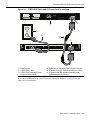
Connect one end of the C2RPS‐POE (shown in Figure 2‐5) to the Redundant Power Supply connector on the switch device. Then connect the other end to the Redundant Power Supply connector at the rear of the C2RPS‐POE as shown in Figure 2‐6 and Figure 2‐7.
2.
Connect a standard AC power cord to the AC input power connector on the C2RPS‐POE shown in Figure 2‐6, then plug the AC power cord into the main AC power outlet.
3.
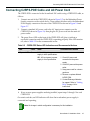
The green Power LED on the front of the C2RPS‐POE will glow to indicate a successful connection and the C2RPS‐POE is operating properly. If the LED remains off, refer to Table 2‐2 for the recommended action.
Table 2-2
C2RPS-POE Status LED Indications and Recommended Actions
LED
Color
State
Recommended Action
AC power LED
Green
Solid - AC input to power
supply is within specifications.
None
Off - AC input power to power
supply is out of specification.
1. Check AC power cord
connection to the power
supply.
2. Check AC power at the power
outlet.
3. Swap power cord for a known
good one.
4. Remove or replace affected
N-POE PSM.
5. Contact Enterasys Networks
for support. Refer to “Getting Help” on page 1-4 for instructions.
4.
If two or more power supplies are being installed, repeat steps 1 through 3 for each C2RPS‐POE.
On certain switches, an LED indicator will show that a redundant power supply is connected and operating.
.
Note: No change in switch configuration is necessary for this installation.
SecureStack C2 Installation Guide
2-7