1
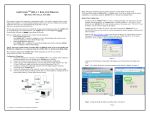
Barracuda Control Server - Quick Start Guide The Barracuda Control Server enables administrators to monitor and configure multiple Barracuda Networks products from a single console. Through the web interface, you can check the health of all connected devices, run reports that are generated by gathering data from all the devices, and assign roles with varied permissions to different types of users. Getting Started This guide provides you with setup instructions for the Barracuda Control Server. We recommend reading these instructions fully before starting the setup. To begin setting up your Barracuda Control Server, you need the following: Barracuda Control Server, AC power cord, Ethernet cables (included) VGA monitor (recommended) USB keyboard (recommended) Physical Installation To install the Barracuda Control Server: 1. Fasten the Barracuda Control Server to a 19-inch rack or place it in a stable location. 2. Connect a CAT5 or CAT6 Ethernet cable from your network switch to the Ethernet port on the back of the Barracuda Control Server. 3. Connect a standard VGA monitor, USB keyboard, and an AC power cord to the Barracuda Control Server. Note: Immediately after connecting an AC power cord to the unit, it may power ON for a few seconds and then power OFF. This is because the unit is designed to automatically return to a powered ON state in the event of a power outage. 4. Press the POWER button on the front panel to turn the unit on. Configure IP Address and Network Settings If you have a monitor connected, the Barracuda Control Server initially displays the Boot Menu; once fully booted, the Administrative Console login prompt displays. To begin the configuration, log in using the Barracuda Control Server Administrator Account: 1. Log in to the Administrative Console using the admin login admin/admin. 2. Configure the IP Address, Subnet Mask, Default Gateway, Primary DNS Server, and Secondary DNS Server as appropriate for your network. 3. Save your changes. If you do not have a monitor and keyboard, you can set the IP using the RESET button on the front panel. Press and hold the RESET button per the following table: IP address Press and hold RESET for… 192.168.200.200 5 seconds 192.168.1.200 8 seconds 10.1.1.200 12 seconds Note: Barracuda devices you wish to manage through the Barracuda Control Server must have a network path between the two devices and at least one of the following ports available to communicate between the devices: port 80, 8000, 23557, or 48320. Open Firewall Ports If your Barracuda Control Server is located behind a corporate firewall, you may need to open ports 1194 and ports 5120-5129 outbound for both TCP and UDP to allow communication between the Barracuda Control Server and the Internet. These ports are used to transfer data either to the Barracuda Control Server or to another Barracuda Networks appliance over the Internet. To restrict outbound network traffic on these ports, contact Barracuda Networks Technical Support for a list of the IP addresses to allow. Verify and Configure Access from the Web Interface Use a computer with a web browser connected to the same network as the Barracuda Control Server, and follow these steps: 1. In the browser address bar, enter http:// followed by the Barracuda Control Server IP address, followed by the default Web Interface HTTP Port (:8000). For example, if you configured the Barracuda Control Server with an IP address of 192.168.200.200, you would enter the following: http://192.168.200.200:8000 2. Log in to the Barracuda Control Server web interface using the Barracuda Control Server Administrator Account, admin/admin. 3. Go to the CLOUD CONTROL > IP Configuration page, and perform the following steps: Verify the values for IP Address, Subnet Mask, and Default Gateway. Verify the values for Primary and Secondary DNS Server. You can optionally enter the Proxy Server details. Enter the Default Domain. For example, <yourdomainname>.com. 4. Click any of the Save Changes buttons to save the entered information. Barracuda Control Server Barracuda Control Server - Quick Start Guide Product Activation Verify that your Energize Updates subscription is activated on your Barracuda Control Server by going to the CLOUD CONTROL > Status page. Under Subscription Status, make sure the Energize Updates subscription is Current. If the Energize Updates status is Not Activated, click the activation link to go to the Barracuda Networks Product Activation page and complete activation of your subscriptions. Connect a Barracuda Networks Device to the Barracuda Control Server You can connect one or more Barracuda Networks products to a Barracuda Control Server. 1. Log in to the Barracuda Control Server web interface as the Barracuda Control Server Account Admin (this is the account created in step 9). 2. Go to the CLOUD CONTROL > Connect Products page, and follow the steps in the web interface for each device you wish to connect. Change the Barracuda Control Server Administrator Account Password To avoid unauthorized use, we recommend you change the default administrator password to a more secure password. You can only change the administrator password for the web interface. You cannot change the password for the Administrative Console; this is accessible only via the keyboard which you can disconnect at any time. 1. Go to CLOUD CONTROL > My Account, and enter your old and new passwords. 2. Click Save Password. Create Barracuda Control Server Users Log in to the Barracuda Control Server web interface as the Barracuda Control Server Account Admin to create and manage users. 1. Go to the CLOUD CONTROL > User Management page, and in the Create User section, enter the user email address, and select the preferred time zone. 2. From the Role drop-down menu, select from the following options: View Status only – User can view connected device statistics on the CLOUD CONTROL > Status page. View Reports, Logs, and Status only – User can view connected device statistics on the CLOUD CONTROL > Status page, and track events on the CLOUD CONTROL > Audit Log page. All Actions – Use this role to create a Barracuda Control Server administrator account; user can create users and assign permissions, connect devices, view device status, and view tasks and task errors. Account Admin – Use this role to create a Barracuda Control Server account admin; user can configure and manage the Barracuda Control Server, update security definitions, and view tasks and task errors. 3. In the Access list you specify to which devices the user has access; note that the Account Admin role always has access to all connected devices. 4. Click Create User to add the new user. The user displays in the User View table, and an email is sent to the user’s email address with their login credentials. Update the Firmware 1. Go to ADVANCED > Firmware Update to check for the latest firmware updates. If there are none available, skip to Step 9. 2. Click the Download Now button located next to the firmware version you wish to install. To view download progress, click the Refresh button. When the download is complete, the Refresh button is replaced by an Apply Now button. To avoid damaging the unit, do not power OFF during a firmware update or download. 3. Click the Apply Now button to apply the firmware. This takes a few minutes to complete. Note: Read the Release Notes to learn about enhancements and new features. It is good practice to verify settings, as new features may be included with the firmware update. Create the Barracuda Control Server Account Administrator The Barracuda Control Server Account Admin creates users and connects devices. 1. Log in to the web interface as the Barracuda Control Server Administrator (admin/admin), and go to CLOUD CONTROL > Account Management. 2. In the Account Creation section, enter the account admin name and administrator email address, and select the preferred time zone for the account. 3. A confirmation email containing the login credentials is sent to the email address entered above. Use these credentials to log into the web interface. Additional documentation, including an Administrator’s Guide, is available at: http://techlib.barracuda.com/x/BCSOverview Contact and Copyright Information Barracuda Networks, Inc. 3175 S. Winchester Blvd, Campbell, CA 95008 USA phone: 408.342.5400 fax: 408.342.1061 www.barracuda.com Copyright 2004-2013 Barracuda Networks, Inc. All rights reserved. Use of this product and this manual is subject to license. Information in this document is subject to change without notice. Barracuda Control Server is a trademark of Barracuda Networks, Inc. All other brand and product names mentioned in this document are registered trademarks or trademarks of their respective holders. The Software supplied with this Product is provided under license from Barracuda Networks, Inc. and other licensors, and certain of the programs included in the Software may be provided under the GNU General Public License (GPL) or the Lesser General Public License (LGPL). In accordance with the terms of the GPL and LGPL, you may request a copy of the relevant source code. This offer is valid for up to three years from the date of original purchase of the Product. For terms of use for this product, please visit http://techlib.barracuda.com/x/BCSWarrantyLicense (Limited Warranty and License) in the Barracuda TechLibrary v1.x-121102-03-1023sk Barracuda Control Server