1
Version 8.2
SeaMarks
a.k.a. LoranGPS
By Andren Software Co.
Contents
I. INTRODUCTION
5
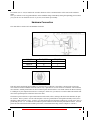
1. What can the SeaMarks program do? ....................................................................................5
2. Requirements .........................................................................................................................6
II. SETTING UP THE PROGRAM
7
1. Installation .............................................................................................................................7
1.1 Upgrading ..............................................................................................................7
1.2 Getting Help ..........................................................................................................8
1.3 Installing on a MAC with Crossover .....................................................................8
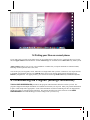
1.4 Putting your files on a smart phone. ......................................................................9
2. Personalizing the Program (Setting Preferences)...................................................................9
III USING THE PROGRAM
12
1. Introduction..........................................................................................................................12
2. Learning to Use the Program ...............................................................................................12
3. Building your own files........................................................................................................13
4. Editing your files..................................................................................................................13
5. Reorganizing your data ........................................................................................................14
6. Changing how the numbers are displayed............................................................................14
7. Showing the waypoints on a chart .......................................................................................14
8. Making Maps .......................................................................................................................14
9. Setting up to print your book ...............................................................................................15
10. Converting from Loran to GPS and back...........................................................................15
11. Calibrating the Conversions...............................................................................................15
12. Getting Waypoints to/from your GPS................................................................................16
13. Getting Routes and Tracks from your GPS........................................................................16
14. Planning a Trip or Route....................................................................................................16
15. Showing range and bearing................................................................................................16
16. Setting the Range/Bearing reference..................................................................................16
IV Menu Choices
17
1. The Main Menu....................................................................................................................17
2. The NOAA chart Menu........................................................................................................18
V. Additional Information
19
1. What Are ASF Correction Factors? .....................................................................................19
2 Calibrating the Conversions..................................................................................................20
3. How to Scale and Manage Maps..........................................................................................28
4. How to Import a File Using Excel .......................................................................................29
5. Where Did the Formulas come from? ..................................................................................31
6. Register Your Copy .............................................................................................................31
7. Tips and Tricks .................................................................................................................... 31
8. Error messages..................................................................................................................... 33
VI. Menu Reference
34
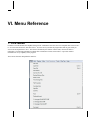
1. FILE MENU ........................................................................................................................ 34
1.1 New File .............................................................................................................. 35
1.2 Open File
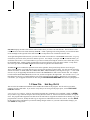
Hot Key Ctrl-O .............................................................................. 35
1.3 Save File
Hot Key Ctrl-S................................................................................ 36
1.4 Save File As......................................................................................................... 37
1.5 Save as Old Version ............................................................................................ 37
1.6 Backup/Restore Files........................................................................................... 37
1.7 Delete A File........................................................................................................ 38
1.8 Find Missing Files ............................................................................................... 38
1.9 File Properties...................................................................................................... 38
1.10 Combine Files.................................................................................................... 39
1.11 Split File ............................................................................................................ 39
1.12 Sort File ............................................................................................................. 40
1.13 Print File
Hot Key Ctrl-P.............................................................................. 41
1.14 Printing Format.................................................................................................. 41
1.15 Last Three Files Opened.................................................................................... 43
1.16 Quit or Close
Hot Key Ctrl-Q....................................................................... 43
2. Edit Menu ............................................................................................................................ 43
2.1 Cut
Hot Key Ctrl-X ....................................................................................... 43
2.2 Copy
Hot Key Ctrl-C.................................................................................... 43
2.3 Paste
Hot Key Ctrl-V ................................................................................. 44
2.4 Add Waypoints
Hot Key Ctrl-A.................................................................... 44
2.5 Delete Waypoints ................................................................................................ 47
2.6 Find
Hot Key Ctrl-F ....................................................................................... 47
2.7 Replace
Hot Key Ctrl-H..................................................................... 48
2.8 Find Next
Hot Key Ctrl-N............................................................................... 48
2.9 Find Duplicates Hot Key Ctrl-D ........................................................................ 48
2.10 Find Duplicated Names ..................................................................................... 49
3. DISPLAY MENU................................................................................................................ 49
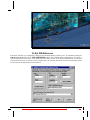
3.1 DISPLAY WITH TDs & L/L Hot Key Ctrl-T..................................................... 50
3.2 Display with L/L & R/B Hot Key Ctrl-L ......................................................... 51
3.3 Display with User Style Hot Key Ctrl-U ......................................................... 51
3.4 Set User Style ...................................................................................................... 51
3.5 Display Tracks..................................................................................................... 51
3.6 Display on (Simple) Chart
Hot Key Ctrl-G .................................................... 51
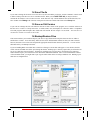
3.7 Display on NOAA Chart ..................................................................................... 52
3.8 Display on Google Earth ..................................................................................... 54
3.9 Set R/B Reference ............................................................................................... 55
3.10 Number Formats................................................................................................ 56
4. Map Menu............................................................................................................................ 56
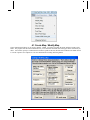
4.1 Create Map / Modify Map ................................................................................... 57
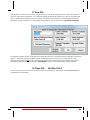
4.2 View Map ............................................................................................................ 58
4.3 Show All Maps .................................................................................................... 59
4.4 Delete a Map ....................................................................................................... 59
4.5 Print Map............................................................................................................. 60
4.6 Batch Print Maps ................................................................................................. 60
4.7 Create a KML loran grid ..................................................................................... 60
4.8 Mapping Options ................................................................................................. 62
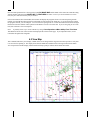
5. Chart Operations Menu........................................................................................................ 63
SeaMarks manual
•3
5.1 Chart Whole File (Reset) .....................................................................................64
5.2 Center Chart on A Waypoint ...............................................................................64
5.3 Select New Chart Center .....................................................................................64
5.4 Select Area (To Expand) .....................................................................................64
5.5 Zoom 2X 1/2X 5X 1/5X
Hot Keys F3 F4 F5 F6..........................................65
5.6 Identify Waypoint (On Chart)..............................................................................65
5.7 Create A Map from This Chart ............................................................................65
5.8 Print This Chart ...................................................................................................65
5.9 Coastline ..............................................................................................................65
5.10 Features (Add Features).....................................................................................65
5.11 Track File (Add Tracks) ....................................................................................66
5.12 Route File (Add Routes) ....................................................................................66
5.13 Track Plotting ....................................................................................................66
5.14 Charting Options................................................................................................69
6. Tools Menu ..........................................................................................................................70
6.1 User Preferences ..................................................................................................71
6.2 Calibrate Conversions..........................................................................................79
6.3 Recalculate Lat/Lon.............................................................................................81
6.4 Convert to Loran..................................................................................................81
6.5 Re Sequence Date Code.......................................................................................81
6.6 Upload/Download GPS (using a cable) ...............................................................82
6.7 Import Waypoints ................................................................................................99
6.8 Import Routes ....................................................................................................113
6.9 Import Tracks ....................................................................................................113
6.10 Export Waypoints ............................................................................................115
6.11 Export Routes ..................................................................................................121
6.12 Export Tracks ..................................................................................................122
6.13 Tag Waypoints.................................................................................................122
6.14 Swap/Fill Fields ...............................................................................................122
6.15 Color All Waypoints........................................................................................123
6.16 Other Boat Position .........................................................................................123
6.17 Harvest Sonar Log Files ..................................................................................124
7. Plan Trip Menu ..................................................................................................................124
7.1 New Trip............................................................................................................125
7.2 Continue Trip.....................................................................................................125
7.3 Save Trip ...........................................................................................................125
7.4 Print Trip ...........................................................................................................126
7.5 Quit Trip Plan ....................................................................................................126
8. HELP MENU Hot Key F1 ................................................................................................126
8.1 Contents .............................................................................................................126
8.2 About this program............................................................................................126
8.3 View Readme File .............................................................................................126
8.4 Read-Print Manual.............................................................................................126
8.5 Check for Updates .............................................................................................126
I. INTRODUCTION
1. What can the SeaMarks program do?
This computer program helps you organize your fishing spot data (waypoints, a.k.a. readings or marks) accumulated
over many years and many trips. It also converts Loran TDs to GPS and offers the best conversion accuracy available.
You can update and print a new book of waypoints whenever you need to. It has routines for organizing, displaying,
printing, plotting, and planning that will make your wealth of data work better for you. It will import and export data to
your GPS easily so that you can move waypoints and routes from one brand to another and have a hard copy of the data
in the GPS. While the program supports Loran data, the Loran features can be hidden if desired. The program has
recently been re-branded from LoranGPS to SeaMarks to stress its GPS centric evolution. Some of the features of the
program are:
Import/export files compatible with GPS data cards to transfer waypoints and some tracks between your GPS
and PC. Includes C-Map, Garmin, Furuno, Humminbird, Raymarine, NorthStar, Simrad, Navman,
Lowrance, Raytheon, Sitex, Std. Horizon, and others. Also import/export files from other programs
like Coastal Explorer, Humminbird PC, Raytech Planner, PC-WindPlot, C-Map’s PC-Planner, OziExplorer, Maptech, Mapsource, HomePort, Nobeltec, Loran Locator, Offshore Hunter, Text, CSV,
Fugawi, Gardown, G7toWin, PCX-5, GDM6, GPSU, GPSbabel, EasyGPS, MaxSea and others.
Upload and download the waypoints stored in a variety of GPS units via cable connection. Currently handling
Garmin, Lowrance, Eagle, Furuno, and NorthStar. Cable not supplied.
Conversion - The program can convert waypoints from any Loran chain including old A and C chains to
Lat/Lon (GPS) and can convert GPS waypoints to Loran TDs. You can precision calibrate the
conversions for the highest possible accuracy by training it on good local data. It handles both the old
and the new versions of Loran chains 9960 and 8790 to account for timing changes introduced 1/17/07.
Storage - Stores waypoints in files of up to 32,000 waypoints. Each waypoint includes fields for Name,
Latitude and Longitude, Loran TDs, Range, Bearing, Rating Depth, Description, Icon, Date Code,
Comments, and Color.
Display by list or chart - Displays file data on the screen in list (spreadsheet) form with Lat/Lon, Loran TDs,
and/or Range/ bearing along with the rest of the waypoint data. Also displays the file data graphically
(plots) on the screen as simple charts with Lat/Lon lines, Loran lines, waypoints, and a coastline. You
can also display and print on NOAA charts of the BSB/KAP or NOS/GEO formats. You can export
KML files to display your points, routes, and tracks on Google Earth.
Organizing - You can reorder the file by sorting waypoints on any field. Double clicking on a column header
will sort the file by that field. For more complex sorting, a menu item is available.
SeaMarks manual
I. INTRODUCTION • 5
Search/Replace - Rapidly find waypoints by key words, phrases, or numbers. Replace numbers, words, or
phrases easily
Reduce duplicates - Identifies duplicate and near duplicate waypoints so that they may be combined or
eliminated.
Mapping - You can create maps of specific areas that you want to print every time you re-work your book.
Maps can be made for any size area and with or without Loran or Lat/Lon lines. Maps are saved as
map files for ready retrieval.
Printing - You can specify which data fields to print and in what order on a printed list. You can also print
maps along with lists of the waypoints that fall within the borders of the map.
Split/Combine - Large files can be split into smaller files or small files can be combined into larger files. Files
can be split along Lat/Lon, Loran, Range/Bearing, or waypoint number boundaries.
Plan Trips - You can plan trips by selecting waypoints from the file. Shows the range and bearing from each
point to the next.
Track Plot - You can plot your present position on the screen and see where you are and have been. Requires a
serial cable (not supplied) connecting your GPS to the PC.
Offered by: Andren Software Co. [email protected]
906 S. Ramona Ave., Indialantic, FL. 32903-3435
All rights reserved. Copyright 1986 to present. This printing done Apr 2015
Warranty: This software is warranted to perform as described. If you find errors in the program or a defective disk, the
disk will be replaced. Customer assistance is available at (321)-725-4115 generally 9 to 5, but occasionally at other
times too.
The author and programmer is a retired aerospace engineer and has been an avid diver since 1972. In his diving
activities, it has been important to have accurate location information and to be able to work with large number of
waypoints to see what is close by and how good it is. This has been the main reason for the development of the program.
The program has been continually upgraded from the time of its first sale in July of 1986. We are responsive to your
needs and suggestions.
Carl Andren, the creator of this program is a member of the Institute of Navigation (ION), the International Loran
Association (ILA), and the Institute of Electrical and Electronic Engineers (IEEE). He holds 26 patents in electronics
engineering including 5 in the technology known as WiFi.
2. Requirements
The program runs on Windows 95, 98 NT, 2K, XP, Vista, Milenium, Windows 7, and Windows 8. Any computer
capable of at least running Windows 95 and having a screen resolution of at least 800 by 600 meets the requirements to
handle the program. It might run on Intel based MACs under CodeWeavers' Crossover program but has some issues
with the latest OS.
In this manual, words other than titles in bold Arial font generally refer to menu items to select, buttons to push, or text
boxes to fill. Menu navigation is represented by the > symbol as in: Edit>Add Waypoints.
This manual was created with two philosophies. The first 5 chapters are written with the thought: "I want to do
something, what buttons do I push?". The 6th chapter is written with the thought: "if I push this button, what happens?".
The first part is an attempt to cover the most common questions out of an unbounded set. The 6th chapter is an
explanation of what each program routine does (a reference).
II. SETTING UP THE PROGRAM
1. Installation
Insert the program disk in the CD-ROM drive or in a USB port if on a flash memory device. If it does not self-start, do
the following: Go to the START menu and open the Computer. Locate the CD, DVD, or USB drive and open it. Locate
the AndrenSetup8 application and double click it.
AndrenSetup8 will create a folder called: C:\LoranGPS and automatically install the program files in it. You, of course,
have the option of installing the program in another drive or folder such as D:\Program Files\LoranGPS. Not burying it
several levels down simplifies support calls. Additionally, the NOAA chart reader cannot handle blanks in the path to
the charts, so the above example would create a problem. Further, Windows Vista and 7 have limitations on where files
can be written to based on permissions. To avoid these issues, we suggest you use the default installation path
Once the installation is complete, a new program group called "AndrenSoftware" is added to the Programs section of the
WINDOWS' START MENU and an icon is placed on the desktop. Leave the CD (or USB flash) in the drive during the
first running of the program so that it can fetch charts and other files that were not loaded by the installer.
Run the new program by double clicking the blue and green Earth icon on the desktop. When it first runs, the program
will alert you that the User Preferences have not been set. Select Yes and change any of the preferences to your
settings. After the PRINTOUT HEADER is changed, you will no longer get this alert. See chapter 2 for details on
personalizing the program.
1.1 Upgrading
If you are upgrading from an earlier version of SeaMarks (or LoranGPS), this will replace some program files and might
require re-inputting user preferences. You might be required to uninstall the original version, but don’t if it does not ask
you to. Doing so will not, however, remove or replace your data files.
If you are upgrading from the really old DOS version of the program, the installation will not remove the DOS forms of
the LORAN program (as it was called then) and associated waypoints files, but will leave them in their original folder
(that is normally C:\Loran). When you exit User Preferences, (used for personalizing the program), it will look for
DOS version files in C:\Loran and will ask if you want to batch update them at that time. After you are satisfied that all
files have been transferred and your data and maps are safely converted, saved, and backed up, you can delete the
C:\Loran folder and everything in it to save some disk space and reduce clutter.
SeaMarks manual
II. SETTING UP THE PROGRAM • 7
1.2 Getting Help
The help system is available at any time by pressing key F1. The help system is derived from this manual and should be
consulted whenever you have questions as it is easier to navigate. You can also print the complete manual from the copy
in the program folder via the HELP menu.
1.3 Installing on a MAC with Crossover
The SeaMarks program may run on an Intel based MAC under CodeWeaver's Crossover Program. However, with the
latest versions of the OS and Crossover, the installation is problematic. First, get the trial version and install Crossover
(Impersonator). You can follow the instructions in:
http://www.codeweavers.com/support/wiki/mac/mactutorial/unsupported_install_file which are summarized below.
First, create a "bottle". The bottle is a container for the SeaMarks program that keeps it isolated from the MAC
operating system and makes it think it is running in Windows. Crossover is not a virtual Windows environment, but a
translator so you do not need to buy a legal copy of Windows. When you insert a Windows created CD, Crossover will
offer to Install the Disc for you. You will be installing an "unsupported application". Click on "Install" to open up the
Crossover Software installer. You'll see that Crossover has identified the CD and will use it as the installer. Now, scroll
down on the list of Applications, and highlight "Other Application" by clicking on it.
Crossover will automatically name the bottle with the name of the identified CD. If you'd like to change the name of the
bottle so you can more easily remember what is installed, click on "Will install into a new winXP bottle" and change the
name in the field under "New Bottle Name". You'll likely want to give the bottle the name: SeaMarks. Click on
"Install" in the lower-right corner to Proceed. Crossover will first create the bottle, and then run the Program's installer.
If all goes well, you'll soon see the installer menu for the SeaMarks program itself. Follow the installation steps as you
would on a Windows machine, keeping all of the defaults in place. If, for instance, the installer asks you about installing
files into "C:\LoranGPS", don't change anything. Crossover will create a "C:\LoranGPS folder", to satisfy the Program's
installer.
When the installation is complete, click on the "done" that your SeaMarks program offers. Crossover should then report
that the installation is complete. Click on its' "Done". You should now have the blue and green Earth Icon on the
desktop and be able to run the program
Why do they call it a “bottle” when “container” would be better? Well they based it on an earlier version called Wine,
that's why.
The alternative to Crossover is an emulator. Some full emulators include Parallels, VMWare, Virtual Box, or Boot
Camp/dual booting. Those all require you to purchase a copy of Windows. The cheapest solution is often to buy an
older PC laptop to run it.
1.4 Putting your files on a smart phone.
If you want to take your files of waypoints out to sea on a mobile device, there are ways. Export the file as a CSV file
and use Apple Numbers described below. Similar Android apps are available such as Office Suite 7 by Mobi systems.
.
Apple Numbers makes it easy to view your spreadsheets. Numbers lets you import documents in common formats,
including comma-separated-value (CSV) files.
You can also put your waypoints, routes, and tracks on Google Earth when you have a connection. Just export the files
to the KML form and have them on your Android phone when you run Google Earth using the Google Play app:
KMLZ by Wrightrocket. For Apple products, you could use the iTunes app: KML Viewer by NextBusinessSystems. .
2. Personalizing the Program (Setting Preferences)
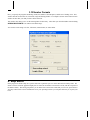
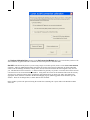
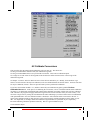
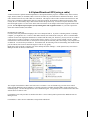
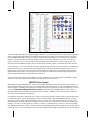
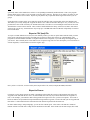
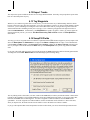
TOOLS>USER PREFERENCES personalizes the program with information about the area that you fish. The
program is shipped with sample information for a similar area based on your zip code. Enter your personal information
in place of this sample where appropriate. Some of this information is used for initializing new files or imported files
and the rest applies to general program operations. This section describes some of the selections on the USER
PREFERENCES screen and the things you need to change when you first set up.
SeaMarks manual
II. SETTING UP THE PROGRAM • 9
2.1 Printout HEADER: Enter the header for all the pages of your book printed by the program. If you don’t
change what it initially says; the program will continue to nag you to set User Preferences.
2.2 Center Latitude/Longitude: Enter the general area you fish in. The program needs to know the general
location of your working area in order to correctly do Loran to Lat/Lon conversions and to check for errors in data entry.
Why, you ask? Well, in general, there are two or more valid solutions to the equations for a given set of Loran numbers.
That is, the Loran lines can cross in more than one location, so the same Loran numbers can exist in two widely
separated locations. To compute the right solution you need to give it an initial guess. For the center, pick a point in the
area you fish and enter the approximate Latitude and Longitude. Use positive numbers for N and W and negative for S
and E. Yes, that is contrary to international standards for longitude. You can enter Lat/Lon numbers in any of several
forms:
•
DD.DDD
degrees (and fractions)
•
DDMM.MM or: DD MM.MM degrees, minutes with or without a space or dash
•
DD MM SS.SS
degrees, minutes, seconds with two spaces or dashes
2.3 Inlet Latitude, Longitude and, Name: Enter the name and location of a frequently used inlet for use as
a reference point in Range and Bearing calculations.
2.4 Hide Loran Features
If you don't want to see Loran based features, then push this button. It hides all Loran information, to simplify the
display. It then makes the next two settings disappear.
2.5 (Loran) Chain Choices: The program needs to know what Loran chains you will be using; both to check
your entries and to do the calculations. Typically, the installation is pre set with the appropriate chains for the section of
the country you are in. See the reference chapter to get more details on programming chains if you are in another part of
the world or you are going to take a trip far from home.
2.6 Set Favorite (Loran) Chain: The Loran Chain number is an artificially selected number from 1 to 8 that
only has meaning to this program. On the chain spreadsheet of the User Preferences window, click on the row of the
Loran chain you will use most frequently. This will highlight it in red. It will be the default chain choice for new files,
but each file can have its' own favorite.
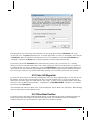
2.7 SAVE SETTINGS, and OK, DONE save the preferences and exit. If you mess up and want to reset to the
original values or if the User Preferences file is corrupt, push RESTORE SETTINGS. This will open a dialog where
you can find the original file on the CD and reset to those default settings.
On exiting this screen the first time, the program will check the CD (or USB) for chart files and waypoint files it can
move into the program folder. The CD contains a selection of NOAA charts you may need. If you don't want to load up
the hard drive with charts you may not need, then you can always fetch the ones you want later with the
File>backup/restore menu item.
SeaMarks manual
II. SETTING UP THE PROGRAM • 11
III USING THE PROGRAM
1. Introduction
You will mainly use the program to create and maintain a book of waypoints (readings) containing your marine fishing
navigation information. It comes with examples of the files you will set up for your book. This chapter gives
information on how you can start your own files and work with them. Additionally, it can help you manage the
waypoints in your GPS and/or move them from one brand to another.
2. Learning to Use the Program
In order to do anything useful with the program you must first create a new file, open an existing data file, or
import data from another document (or from a GPS). The files: TEST_File.DBF and TEST.MAP are available to
help you learn and become familiar with the features of the program. The program is set to open the test file when you
initially start up. If no file is displayed, select FILE>OPEN FILE and then choose TEST_File.DBF. Once the file is
open, the program will initially display the test file with its bogus waypoints in the spreadsheet mode. This quick tour
will show you many of the features of the program.
1.
Scroll through the file and try editing some of the waypoints and try other program functions such
as EDIT>Add Waypoints. Add waypoints in the vicinity of the ones in the file.
2.
Double click on the spreadsheet column header where it says LON to sort by longitude.
3.
Select DISPLAY>Display on Chart. This will create a simple chart of the waypoints
4.
Select CHART OPERATIONS>Zoom>2X. Then push the up arrow to pan the display.
5.
Select CHART OPERATIONS>Select Area. Then position the cursor on the corner of an area
of interest and depress the mouse button. Hold down the left mouse button while dragging open a
band encircling the points of interest. When you release the mouse button, it will zoom and pan
the display to show you the area inside the rectangle, filling the screen.
6.
Choose File>Printing Format. Push Preview to see how it might look when printed. Try
changing something on Printing Format and look at the preview again.
7.
Return to the spreadsheet display by clicking Display>Display User Style. Try double
clicking on the column header for each column to see it sort the data.
8.
Select Display on NOAA chart and pick the test NOAA chart to show the Test file on.
9.
Try Chart Operations>Center chart on waypoint #? And pick waypoint 10. This will pan
the chart to center on that waypoint.
10. Go through the various menus and try all the operations that you might use. Don't be shy, if you
mess up, nothing valuable is lost since the test file is all bogus data.
3. Building your own files
To start your own file, select FILE>NEW FILE. Each new file will inherit properties from the User Preferences, but
you can change them to suit the needs of this new file. Give the file a name and change the other properties as needed
and push OK. Next, use EDIT>ADD WAYPOINTS to put in waypoints. On this screen, you have the choice of putting
them in as Loran, as GPS, or both. Then just type in the data you want to put into each waypoint. They are saved to disk
as you enter them. The program will do its best to decipher your input and fit it to the desired information. If it has a
problem with an entry, it will show you the difficulty that it is having. If you are just trying to work outside the bounds
of your normal area, ignore the message, but if not, read it and try to see just what is wrong. .
You can enter Lat/Lon numbers in any one of four distinct forms. Use positive numbers for N and W and negative for S
and E. For example, the following are all equivalent and valid:
•
28.9873
degrees (DD.DDDD)
•
2859.238 or: 28 59.238
degrees, minutes (DDMM.MMM)
•
28 59 14.28
degrees, minutes, seconds (DD MM SS.SS)
You can use dashes in place of the spaces if you wish. If the program sees a number with two spaces it
will assume that it is the last type. A common mistake is to leave out the periods that are not
prominent on the GPS's display. Unfortunately, you cannot do that here. So, if you put in a number
like: 28 59 238, the program will complain that there are more than 60 seconds in the number as it will
think the 238 is seconds. It might, however, accept 28 59 001 as valid when it is not, so use the
accepted forms.
The most common form of GPS display is the third one (28 59.238). I like the second one since it is more compact.
You have choices for entering some other characteristics of the waypoint such as the name, color, the date code, depth,
Icon, and a symbol to represent the waypoint. Use the function keys F2 through F10 to type common words or phrases.
These can be programmed by you. You can also set the program to skip over fields you don’t use frequently with the Set
Field Preferences button.
4. Editing your files
The file, once created can be edited easily on screen in the spreadsheet. Just move the mouse cursor to the entry to be
edited and double click to place the cursor where you want it. You may have to delete or backspace over information
already there.
Some of the information is computed and cannot be edited unless you want to change the character of the waypoint. If,
for example, you want to correct the Latitude of a waypoint originally entered as Loran, then you must know the right
Latitude or you wouldn't be doing that. In that case, you go ahead and edit the Lat/Lon and that will turn the waypoint
into a calibration waypoint where both Loran and Lat/Lon are assumed correct as entered. No further calculations will
be performed on those waypoints except for figuring range and bearing. Range and Bearing cannot be edited as they are
based on the reference point. To change that, go to: Display> Set Range/Bearing Reference.
SeaMarks manual
III USING THE PROGRAM • 13
5. Reorganizing your data
The program will sort on any column when you double click on the column header. Double clicking again will reverse
the sort. For more complex sorts, check out File>Sort File. You can also use File>Combine Files or File>Split
File to make up different groupings.
After sorting the data, you can purge or merge duplicates with Edit>Find Duplicates. It will scan the file and show
which waypoints have other waypoints very close by.
6. Changing how the numbers are displayed
There are many different ways to describe Latitude and Longitude. They can be in degrees only, in degrees and minutes
or degrees, minutes and seconds. Most GPSs default to degrees and minutes. The program has a Display>Number
Formatting screen that lets you pick how your numbers will be displayed. Even though you pick one of these forms
for display, the program stores the information internally in a standard form. You can enter data in any of the other
forms and it will be accepted and converted to the standard form.
Range can be in feet, statute miles, nautical miles, or kilometers. If the numbering or distance formats are not the way
you want them, change them. If the range is set for feet and the number is too big to display, the program will show –1.
You can also set the length of the GPS Name field here.
7. Showing the waypoints on a chart
Once you have some waypoints in the file, you can display them on a chart. Use Display> Display on Chart,
Display on NOAA chart, or Display on Google Earth. Charts can either be a simple chart created by the
program, a raster digitized NOAA chart, or Google Earth. The program will scale a simple chart big enough to show all
the waypoints on the screen or will show a NOAA chart at a nominal zoom level. Google Earth will display a zoom
level sufficient to show all your points.
Use the Pan and Zoom capabilities to make the chart show just the area you want to see. There are several ways to both
pan and zoom. To pan, you can use the cursor control keys to move the viewpoint up, down, left, right for the simple
chart or the scroll bars for the NOAA chart. If your keyboard has a number keypad, you can use the peripheral keys (all
but 5 and 0) to pan in 8 different directions. You can also make where you click the cursor the center of the chart or pick
a specific waypoint to center on. Try the selections on the Chart Operations Menu to see what are available. When
working from a large-scale chart, Select Area is one of the more useful tools in that, you can pick a specific smaller
area and, in effect, pan and zoom at the same time. Another tool is Identify Waypoint that, when clicked near the
waypoint, will show some of the waypoint's data at the bottom of the screen. What it shows is based on the spreadsheet
display choice.
Select Chart Operations>Coastline and remove the coastline from the simple chart. You can also use Chart
Operations>Charting Options to select or deselect what is shown on the chart such as Lat/Lon lines, Range/Bearing
lines, or Loran lines.
8. Making Maps
For our (Andren Software's) convenience, we make the distinction that charts are for the moment and maps are
permanent even though they may show the same thing. The difference is that you will save maps on the disk so they will
be the same every time you print your book. A good practice is to create (with Map>Create Map) one overall map
with the waypoints as dots to see the overall reef layouts. Then make a sequence of maps with the waypoints as numbers
or names that slightly overlap and show all the area in a scale of perhaps 10 minutes on a side. Finally, make maps that
detail the concentrated reef areas on a scale of 1 to 2 minutes on a side. These might be even more overlapped to avoid
missing any points.
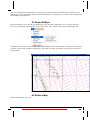
An easy way to get started with maps is to pan and zoom a chart to show what you want on the map and then use Chart
Operations>Make this chart into a Map. This brings you to the Create Map screen with the map borders already
determined. Keep in mind that the screen is landscape orientation and the map will likely be portrait orientation.
For convenience, you can show the outlines of all your maps on the screen or paper at the same time with Map>Show
All Maps>Show all in Folder. This will let you see where your coverage may be lacking and helps you find a
specific map you may be looking for
9. Setting up to print your book
To begin making a book of your fishing spots, you need to plan how your data is to be organized. You could put
everything in one huge file or split it up into zone or regional files based on which inlet you would use for the area.
Alternatively, you can split the file on reef lines or depth zones such as: 60 ft reefs, 90 ft reefs, etc. Then you can
organize the files by use of the File>Split or File>Combine capabilities to make the individual files.
Next, you would make a set of maps to best display the data for each file in your book. To make printing the maps
easier, the program allows batch map printing from a list (see reference, chapter VI). Make a separate list for each
waypoint file. Finally, print the listings and maps from the lists. Remember that the printed page has its own
organization and does not necessarily follow the way you set up the screen display. Use File>Printing Format to
arrange how your data will be placed on the page and use File>Printing Format>Print Preview to verify that it will
print the way you want it.
10. Converting from Loran to GPS and back
The program automatically converts Loran waypoints (TDs) to GPS (Lat/Lon) as they are added to a file. In the event
that it cannot, the usual reasons are that the number is mistyped or the waypoint is very far from the center Lat/Lon.
During data entry, if the program can't convert a waypoint, it may bring up a warning that something is wrong with the
waypoint and show you a typical value it is comparing against. Once the problem has been corrected, the Lat/Lon
should appear in the spreadsheet display as each waypoint is entered. The first Display option under the Display menu
selection shows TDs and LL (loran and GPS) and is the ideal choice while entering loran data.
If waypoints are entered as Lat/Lon, they are automatically converted to the appropriate Loran numbers if the check box
on the ADD WAYPOINTS screen is checked. If you enter waypoints as Lat/Lon and they are not converted to TDs and
you later want to convert them, use the TOOLS>CONVERT To Loran (to any Loran chain) routine.
11. Calibrating the Conversions
Converting Loran to Latitude and Longitude involves complex geometry that the computer can handle with great
precision. The difficulty is that the Loran waypoints, while stable and repeatable, are not accurate in a geographical
sense. They can be as much as a half-mile off from where they should be based on the distance to the Loran stations and
the speed of light. In the 1980s the US government published tables of correction factors (called ASFs) to fix this so that
their maps could be shown with the corrected Loran lines on them. The program has the full set of those tables built-in,
but they are only good for about 250 ft of accuracy. These tables cover only 7 US loran chains and only over offshore
waters and the Great Lakes.
To get closer to the repeatable accuracy that we experienced with Loran, the tables can be improved by calibration.
Some areas have been already calibrated through use of customer supplied data. You can do this yourself by training
SeaMarks manual
III USING THE PROGRAM • 15
the program on local data. Just enter waypoints where you know both the correct Loran and Lat/Lon information. Be
sure that this is from a known source that used a Loran and a GPS on the same spot. Published data is questionable
unless the provider guarantees that real hardware was used to collect the data and that it was not itself a conversion. We
have seen many lists on the Internet that contained poorly converted Lat/Lon information. Loran sets provided very poor
conversions except maybe for Northstar units.
Once these calibration waypoints are in your data file, use Tools>Calibrate Conversions. It gives you the option of
either calibrating the government tables or using the calibration data directly (single ASF per file). See the chapter VI
Reference section for more information on this.
12. Getting Waypoints to/from your GPS
If you have a GPS that uses a data card for charts, chances are it also allows you to save your waypoints and tracks to a
card. With a writeable card in the GPS, use its menus to save your valuable information to the card. Then put the card in
a card reader attached to the PC and use Tools>Import Waypoints and select the appropriate GPS model. This will
then import those waypoints into the program and create a new file to hold them. You can then combine that new file
with any you already have and purge out duplicates. You can reverse the procedure with Tools>Export Waypoints to
put your waypoints into the GPS. If your GPS uses a proprietary card for which you cannot find a reader, consult us.
13. Getting Routes and Tracks from your GPS
You can use the above scheme for Furuno, Garmin, Lowrance, and Raymarine GPSs to retrieve route or track
information. In limited cases, you can also load routes into the GPS, but not tracks.
14. Planning a Trip or Route
In the Trip Planner mode, the screen is split into two spreadsheets. The upper one shows the source file and lower one,
the trip plan. You just click on waypoints on the file spreadsheet and they will be placed on the trip spreadsheet. You
can also type in the waypoint numbers and they will be placed on the trip plan. In the trip planning mode, the range and
bearing is from one point to the next unlike the regular mode where it is all points to the reference point.
15. Showing range and bearing
Range and bearing is normally shown from each waypoint to the inlet or reference point. The program allows you to
double click on the range or bearing of any point to make that the reference point. This makes it easy to find the range
from that point to all others.
16. Setting the Range/Bearing reference
Whenever range and bearing is shown in the spreadsheet, the reference point for the calculation must be known. Initially
it will be either the one in the file preferences or the last reference point used. You can set a new R/B reference from
Display>Set R/B reference. This form has places to enter the reference point as Loran, Lat/Lon, or a waypoint
number. Alternatively, you can pick one from a list of already saved reference points. Lastly, you can set it directly on
the spreadsheet by double clicking on any waypoint's range or bearing making that waypoint the reference point.
IV Menu Choices
1. The Main Menu
FILE
EDIT
DISPLAY
New File
Cut
Display
with
TDs_L/L
Create Map
Chart
Whole File
(reset)
User
Preferences
Open File
Copy
Display
with
L/L_R/B
Modify map
Center
Chart On
Waypoint
Calibrate
Continue
Conversions Trip
Save File
Paste
Display
with User
Style
View Map
Select New
Chart
Center
Recalculate
Lat/Lon
Save Trip
View
Readme
Save File
As
Add
Waypoints
Set User
Style
Show all
Maps
Zoom
Convert to
Loran
Print Trip
View/Print
manual
Save
as an old
version
Delete
Waypoint
Display
Simple
Chart
Delete a
Map
Select Area
ReSequence
Date Code
Quit
Planning
Check for
updates
Backup/Res
tore Files
Find
Display on
NOAA
chart
Print Map
Identify
Waypoint
Upload/Do
wnload GPS
Delete a
File
Replace
Display on
Google
Earth
Batch Print
Maps
Make Chart
Into a Map
Import
Waypoints
Find
Missing
Files
Find Next
Set Range
Bearing
Reference
Create a
KML loran
grid
Print This
Chart
Import
Routes
File
Properties
Find
duplicates
Number
Formats
Mapping
Options
Coastlines
Import
Tracks
Combine
Files
Find
Duplicated
Names
Features
Export
Waypoints
Routes
Export
Routes
Split File
SeaMarks manual
MAPS
CHART
OPS
TOOLS
PLAN TRIP HELP
New Trip
Contents
About this
program
IV Menu Choices • 17
Sort File
Tracks
Tag
Waypoints
Print
Track
Plotting
Swap/Fill
Fields
Printing
Format
Charting
Options
Other Boat
Position
Last 3 files
loaded
Color all
Waypoints
Quit
Harvest
Sonar Log
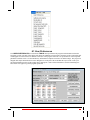
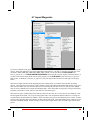
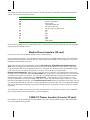
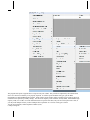
Most of the routines of this program perform work on the data files you create from your own numbers. Program
routines and functions are controlled from the main window that displays the MENU at the top of the screen along with a
spreadsheet or chart that displays the waypoints in the file you have open. The MENU choices are diagrammed in the
table above.
The top row of the MENU table shows the menu headings and the following rows are the drop down choices.
In order to do anything useful with the program you must first open an existing data file, create a new one,
import one, or download one. When the program is started, it will attempt to open the last file you worked on. If
it cannot, it will have you find a file to open.
See chapter VI for the Menu Choices where you will find a description of how each menu choice works. This is a great
reference to better understand the options like importing and exporting or uploading and downloading.
2. The NOAA chart Menu
When you choose Display on NOAA Chart, you will get a new window with it's own menu bar. Many of the
operations here are identical or similar to the menu choices on the Main Menu. Both the main screen and the NOAA
screen can be active at the same time. However the program can get confused if you work on the simple chart and the
NOAA chart alternatively while both are open.
A selection of NOAA charts are shipped with the CD, but can also be downloaded free off the Internet from
http://www.ngdc.noaa.gov/mgg/bathymetry/maps/nos_intro.html.
The chart types that work with this program are known as BSB/KAP or NOS/GEO.
The NOAA chart display consists of the digitized chart and overlays added by this program. If the chart is scrolled, the
overlays can sometimes get smeared, so a Reset Chart menu item is available to clear up the chart. This reset function is
also useful if you add new waypoints to the file while the NOAA chart is being displayed.
V. Additional Information
1. What Are ASF Correction Factors?
ASFs (Additional Secondary Factors) are correction factors used in the Loran to Lat/Lon conversions to make it more
accurate. They compensate for the fact that radio propagation over land and over water will distort the Loran signals as
they travel to you. This distortion can be as much as + 5 microseconds and can cause the Loran to Lat/Lon conversions
to be very inaccurate. The ASF tables created by the government in the 1980s assumed the land features then existing.
Much coastal development has taken place since then and the new structures effect the accuracy of Loran signals. The
program has the ability to upgrade the government tables by using calibration waypoints to teach the program what
corrections are necessary.
When using the program to convert Loran numbers using calibrated ASF tables, it is possible to achieve an accuracy of
better than 0.2 microseconds for "C" waypoints (about 100 ft.) and 2 microseconds for old "A" numbers (about 1000 ft.).
Keep in mind, that, the old "A" numbers were never very accurate to begin with and the calculations do not improve on
that accuracy even if they show lots of decimal places.
Where do you get the ASF numbers? First, the program has a built in table of ASFs derived from government tables.
These tables are reasonably accurate, and can provide an accuracy of around 250-ft. They were derived in the early
1980's before the availability of GPS so they contain lots of educated guesswork. Also, the tables are not available for
all Loran chains. ASF tables calculated from your own calibration waypoints are much better and achieve an accuracy of
better than 100-ft in most cases (but no better than the original Loran repeatability).
Land based calibration waypoints are not desirable since Loran signals are distorted near shore and are strongly
influenced by overhead power lines, buildings and bridges. A Differential GPS (DGPS) or WAAS waypoint is the best
source of the Lat/Lon part of a reference waypoint, whereas a standard GPS waypoint has about the same repeatable
accuracy as Loran in the better cases.
When comparing the Loran to LAT/LON conversions of your GPS or other sources with the program you may see
differences. Only if they are using the same ASFs and the same formulas will they be in close agreement. Also keep in
mind that various Loran brands did not always agree with one another and might differ by as much as 0.2 microseconds.
If the program comes pre-calibrated to one specific Loran, it might require more calibration to make it better agree with
your Loran.
SeaMarks manual
V. Additional Information • 19
2 Calibrating the Conversions
The program uses calibration waypoints to achieve the best accuracy in Loran to Lat/Lon conversions. It has the full set
of Government Defense Mapping Agency (DMA) Additional Secondary Factor (ASF) tables that are stored in 5-minute
(5-n-mile) increments. These tables have been derived from the printed books for the chains: 5930, 5990, 7960, 7980,
8970, 9940, and 9960. They were scanned into the computer and processed by optical character recognition (OCR). Be
advised that there may have been some errors in this process even though we were very careful in examining the tables
after the OCR process. There is a feature available during the calibration process to examine them. They are all that is
available, and their accuracy is only about 250 ft. You may get better accuracy since the program has been precalibrated for areas where customers have donated appropriate data to us. Keep in mind that there are two sets of station
parameters for chains 9960 and 8970. They are carried in the program as, for example, 9960b (for before 1/17/07) and
9960a (for after 1/17/07). The government made a timing change on that date. Calibrating with the wrong set will put
you off by about 400 ft. Only one set of ASFs is currently held, so make sure your data is entered with the right versions
of these chains. That is, enter your old (pre-2007) data with 9960b and any newer measured calibration data with 9960a.
There are three optional calculation methods used in the program. Calculation method 2 uses these DMA tables as-is
in the conversion calculation. Using these tables will provide about 250 ft of conversion accuracy compared to up to
1500 ft without using any ASFs. Of course, calibration does not effect conversions using this method.
To get even better accuracy, the program has the capability to learn from your reference waypoints and use them to
either calibrate the DMA tables or calculate a new set of ASF values to use. These are called calculation methods 1
(and 3 explained later). To do calibration, you need to enter waypoints taken offshore with both a GPS and a Loran on
the same spot or get this data from someone else. These simultaneous waypoints of Loran and GPS are the ‘truth’ by
which you will calibrate the program and also check to see that it is converting the waypoints correctly.
You can enter this calibration data into the program as new waypoints using both Loran and Lat/Lon or you can just
correct existing waypoints. For the latter, you correct the Lat/Lon on the spreadsheet, which then promotes that
waypoint to calibration status. In either of these procedures, you will be asked where you got the Lat/Lon. If it was from
a Differential GPS (DGPS) or WAAS, it will be treated with greatest respect and given a high quality factor. If it came
from a less accurate source, a lower quality factor will be assigned to it. Calibration waypoints will never have
conversions done on them unless you demote them to non-calibration status.
A two-digit chain number identifies calibration waypoints where the leading digit is assigned based on the source. For
example, a chain number of 96 indicates that the waypoint is a calibration waypoint using a DGPS or WAAS and Loran
chain 6. Generally, the lower the leading digit, the less the program trusts the data. Changing the chain number back to
a one-digit number (such as 6) demotes the waypoint to non-calibration status and indicates that loran chain 6 is being
used as the source data. It could also be changed to 0 to indicate that GPS data was entered.
When you push the Tools>Calibrate Conversions button, several operations are performed. The calibration data is
first scanned for errors. The ASFs of all the calibration waypoints are calculated. Then the program calculates an
average of the ASFs for each Loran slave station for all the calibration waypoints weighted by the quality factor. If any
of the ASFs is in gross disagreement with the average value, that waypoint is brought to your attention for possible
demotion. All demoted waypoints are ignored in the calibration process. They are usually demoted to be loran
waypoints.
As a part of the calibration process, a file that contains all the calibration waypoints is created and maintained. It will
contain all the calibration waypoints of all the files you have calibrated. Therefore, it will apply calibration waypoints
from one file to another if they are in the vicinity. If you suspect that this file has gotten corrupt or contains waypoints
you no longer want in the calibration process, you are given the option to erase the old calibration file (Calib~ASF.DBF)
and begin anew. You can also open it and edit it directly to delete questionable points.
Calculation Method 1 uses each of the calibration waypoints to adjust the DMA table values near them to achieve
perfection. The influence of each calibration waypoints falls off with distance, so that distant ASF values will not get
adjusted as much. The influence extends to at least 40 miles. This procedure creates a user adjusted ASF file called
"ASFuser.bin" that contains the calibrated tables. Once the tables have been adjusted, the program recalculates all the
TD to LL conversions in the file using the new tables and uses the calibrated tables for all future conversions. To apply
the calibrated tables to other files previously converted with the old tables, open them and use Tools>Recalculate LL.
If you are using calculation method 3 for conversions, the government tables are ignored and a single ASF value is
applied across the whole area. For this, the average ASFs calculated above are used to recalculate all the conversions in
the file and the process is finished. No updates are made to the user-calibrated tables in this case. This method is useful
where the ASF do not vary much over the area in question and you only have calibration points in one small part of the
area. It is necessary to use this method if your data is outside the areas covered by the tables. The tables only cover the
North American continent, that is, coastal USA out to about 120 miles. They do not cover Canada, Central and South
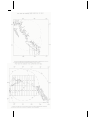
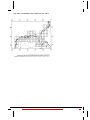
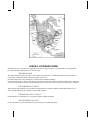
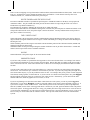
America, Australia, Africa, Europe, or Asia. Below are the coverage areas for all the Loran chains covered by the
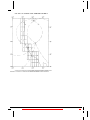
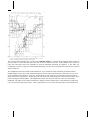
Defense Mapping Agency (DMA) tables.
SeaMarks manual
V. Additional Information • 21
SeaMarks manual
V. Additional Information • 23
SeaMarks manual
V. Additional Information • 25
The versions of this program before 5.0 only used calculation method 3. Examine the government (DMA) tables for
your area and see if all of the ASF factors are more or less the same over the area. This technique does very well in
some areas and insures that even waypoints far from the calibration waypoints are adjusted. If the ASFs vary
considerably over the coverage area, then consider splitting up your files to cover smaller areas that can have the same
ASF over that area.
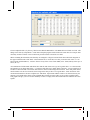
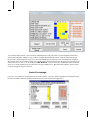
The Calibration selection screen has a button that allows you to examine the ASFs of both the government and user
calibrated tables for your area. This will better inform you as to the ASF values that will be used and to give you a feel
for the variability of the values over your area. In some areas, the ASF values are very uniform across the area and a
single value will be a good choice. In other areas, the ASF values vary widely from place to place and you will be much
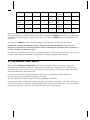
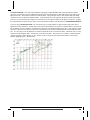
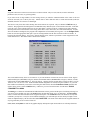
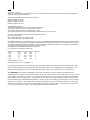
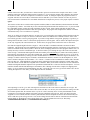
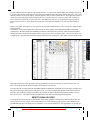
better off using the calibrated tables. The example below shows one such area where the values are not uniformly
distributed. The tables are in 5-minute increments (5 minutes is about 5 nautical miles). This table shows a jump from
0.47 to 0.56 microseconds in just 5 miles. That’s a potential error of over 100-ft if the same ASF is used for both areas.
The user-adjusted table is, by the way, filled-in more than the DMA tables. The DMA tables are blank over land. This
filling-in was done by extrapolation. It was done to help the program avoid a kink in the Loran lines for a map or chart
when they extend over land. It was not meant to provide accurate conversions over land.
When examining the ASF tables, note that they are arranged in 1-degree Lon/Lat blocks where the block designator is
the upper left-hand corner of the block. This means that to see 74 20.0W, 39 35.0N, you need to look at the +75 +40
block (round up both numbers). You have choices of any of the 7 basic Loran GRIs (7930 - 9960) and any of the up to 4
slaves (W - Z).
An examination of all the DMA ASF tables show that the ASF factors never get to be greater than +/-5.5 microseconds
and generally never change more than +/-1.5 microseconds from one 5 minute block to the next. A more normal case is
an ASF of 2 microseconds or less and no more than 0.2 microseconds change block to block. If the ASF pattern shows
much variation over the area of interest, then a single ASF value per file is not a good choice. Some areas show wild
variations and must have the more complete user ASF tables. Experiment with the results to see which best suits your
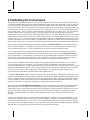
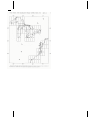
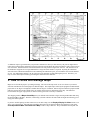
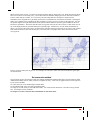
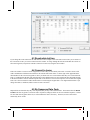
situation. The graphic below shows some Canadian data on ASFs in an area where we do not have complete tables.
This graphic will give you a feel for the variability of ASFs. It amply shows how much land areas influence the Loran
signals.
SeaMarks manual
V. Additional Information • 27
A calibration report is generated when you perform a calibration to show you what accuracy the process might achieve.
It does this by taking all the calibration waypoints in the file and calculating the Lat/Lon from the Loran as if the Lat/Lon
was not known. Then the distance from the calculated to the real position is figured for each one. The distances for all
the calibration waypoints are averaged and both the average and worst distance is reported. By doing the calibration
with each of the calibration methods above and examining the calibration report, you can find the most accurate method
for you. For mathematical stability, not all of the perceived calibration is applied during the process. Therefore, you
may see some minor improvement by performing the calibration more than once.
3. How to Scale and Manage Maps
Maps are sized to fill the paper to your margin settings. The scale of the map can be set to cover the area you want to
show but remember the screen and paper are different shapes. The simple maps created by the program are Mid Latitude
projections so one degree of longitude is smaller than one degree of Latitude. NOAA maps use Mercator projections that
make the spacing between the Latitude lines vary slightly between the top and bottom of the map. The difference
between these two types of projections is minor over the typical area covered by a fisherman.
The mapping routine in Maps>Create Map uses your default center Latitude to figure the map width rather than using
the actual middle of the map. Therefore, all the maps you make will have the same width to height ratio allowing you to
easily paste them together.
If you have trouble figuring out what Lat/Lon to use to make a map, use the Display>Display On Chart feature to see
where your waypoints are. Pan and zoom around the chart until you are satisfied with the area displayed. Then select
Chart Operations>Make This Chart into A Map to make a map of that area. Keep in mind that the map that will
be created may be about twice as tall as the screen (unless you use landscape orientation) and may show more waypoints.
Also use the MAP>Show All Maps feature. It shows all your saved maps as outlines on one chart. From this you can
see where more maps are needed or where you need to make adjustments to maps to get the best coverage.
If you try to make a map of an area that encompasses one of the Loran stations being used, or if the lines are highly
curved, the Loran to Lat/Lon computations may fail, which means that the map will have some missing Loran lines.
You will be able to see this when you Map>View Map. Changing chains or map areas may rectify the situation.
4. How to Import a File Using Excel
The program comes with many capable importing routines, but it can't handle all possible situations. Microsoft's
EXCEL is an excellent tool for importing and exporting between the program and arbitrary text and formatted files like
found on the Internet. What you need to do in Excel is reformat the information into the right sort of data and save the
file as "CSV (comma delimited) (*.CSV)". If the description fields have commas then replace them with something else
like dashes. Having extra commas in a CSV file will cause the waypoint data to be read incorrectly.
1.
Open the source data in Excel
2.
Start by making sure the latitude and longitude data (if available) is in the right format. Some data
on the Internet separates the E/W and N/S indicators and/or the degree and minute data into
different columns. It is necessary for this numeric data (degrees and minutes) to be in two
adjacent columns for latitude and longitude. The acceptable formats for Lat/Lon are listed
elsewhere in this document. If the degree and minute data is in separate columns, that needs to be
fixed. One way to accomplish this is to create two new columns and fill them with the degree data
plus the minute data divided by 60. You do this by placing the cursor in the first cell and typing
"=". Then click the degrees column (in the same row) followed by "+", click the minutes column
(in the same row) followed by "/" followed by "60". Then push "Enter". The E/W and N/S stuff
is not necessary, so if it is in separate columns, that is no problem unless it is between the latitude
and longitude columns. The latitude and longitude columns must be adjacent with latitude first.
3.
If the data is in Loran, the preferred format is to have the loran numbers such that column 1 is the
first number we will call TD1. The second column is TD2, and any other data is likewise in its
own column(s). There should be no extraneous data breaking this pattern. There should be no
blank rows or any rows with any other data except maybe the first row can have column headers
like: TD1, TD2, Name, Description, Source, etc. Excel is very good at propagating data into other
rows. For example, if you want the data to be named as a numerical sequence, you could set
numbers in column 3 as 001, 002, 003. Then select all 3 rows of column 3 and look for the small
square dot at the lower right cormer of the selection box. Grab that dot and pull it down to fill the
rest of the column with sucessive numbers. Then, later after sorting the data by TD1 or TD2, you
can return it the original order by sorting on this column. If you don't use the leading zeros, the
sort on that column will be screwy like: 1,10,100,1000,11,110,1100, etc.
4.
When you are done, highlight all the columns used and choose Data>Sort and sort on the column
containing TD1 (or Lat). Scan the list to eliminate duplicates and find major errors. Use
Edit>Delete to get rid of rows you highlited. The delete key will not get rid of the row, just
remove the data from it. Edit any numbers that fall at either end of the column that indicate data
entry errors. These will show up if the first 1 or 2 digits are very different from the other
waypoints. Unfortunately, this will not help if less significant digits are wrong. Do the same for
TD2 (or Lon). Always make sure that you highlight all columns containing data before sorting as
you can scramble the data into a useless mess where the TD1 column is sorted, but not the TD2
column.
SeaMarks manual
V. Additional Information • 29
5.
If you are given shorthand data like: 345.6, 654,3 (in Loran) that means that the fisherman knew
that the leading two digits were easily guessed. Think of dates in years. If I give you the year of
my kid's birth and say '05, then you know it is 2005. If I said '87, you will be sure that I am
wrong. So, you need to know the usual range of the first and second number digits. Off Sebastian
Inlet, FL, the loran numbers will be like 43600.0, 61926.0 or the GPS numbers will be 28 12.345
and 80 12.345. It is unlikely that I would ever see other than 43 for the first two digits of the TD1
and either 61 or 62 for the TD2.
6.
Once you have a list, check to see that there are no commas in the list as you will be exporting it to
a CSV text format and an extra comma would miss align the data for that waypoint. Use
Edit>replace to replace commas with something else like periods. I often see data from
customers where a few of the loran or lat/lon numbers have commas instead of periods. Save the
file to the C:\LoranGPS folder for ease of finding it and save it as CSV or comma separated.
7.
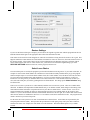
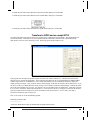
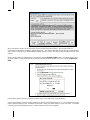
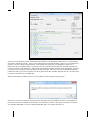
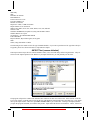
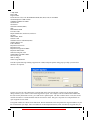
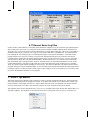
Once you have the CSV formatted file, use SeaMarks>Tools>Import Waypoints>text, comma
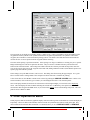
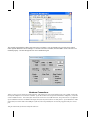
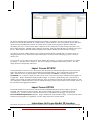
delimited. Then you have to find the file and set up the import as in the dialog shown below. The
first line of the file is displayed so that you can refer to it for deciding what fields go in what
order. When you have identified all the fields in the file, import it. You will be asked to identify
the chain number of the loran data. You should now see the data on the screen, possibly with GPS
numbers. If some or all GPS numbers are 0.0, then check File>File Properties to make sure the
center latitude and longitude are appropriate for the data being imported. If so, then fix them and
use Tools>Recalculate LL to fill in the GPS data.
8.
Save the file, giving it a new name if desired.
If you still have trouble with conversion of your files, a conversion service is available at low cost. Several import
routines have been developed for special file organizations, so we should be able to easily convert your database into the
right form by using one of these programs. E-mail or call for information.
5. Where Did the Formulas come from?
The program uses computational algorithms derived from a program written for the Navy by A. C. Campbell of the
Geodesy Division of the Hydrographic Surveys Department, Naval Oceanographic Office in 1962. The program used an
inverse routine for hyperbolic navigation developed by Emanuel Sodano. The program performs hyperbolic
trigonometric calculations on an oblate spheroid based on the WGS-84 measurements of the Earth's size and shape. The
Campbell algorithms are those used by the Defense Mapping Agency and NOAA. This conversion routine requires an
estimate of the initial geographic position (Center Lat/Lon) for Loran to geographic conversion. The estimate should be
within about 50 miles of the points converted, to insure converging on the right solution as the Loran lines can cross in 2
places. Where two solutions exist nearby, as is the case near the Loran stations, the equations may not reach a solution
and will return an answer of zero. This will require that the center Lat/Lon be set even closer to the right solution.
NOAA has a free program called POSAID on their web site that uses the same formulas as this program. It is a DOS
command line program and not very convenient to use and does not have ASFs built in.
In order for the program to compute the LAT/LON of a given Loran waypoint, the position of the Loran stations must be
known. This data is contained in a file that is accessed through the User Preferences routine. It selects those needed
for your choice of Loran chains. The file contains all stations reported to the author by the US Coast Guard and
Megapulse Inc. which includes all old A and C stations as well as stations in foreign countries. For the US, loran
stations are currently out of service.
6. Register Your Copy
Thank you for buying the SeaMarks program, we hope you enjoy working with it. If the program’s opening screen has
your name and address in it, you are registered with us. Otherwise simply write down the information on who you are
and where you bought it and send it by regular mail (or e-mail it to [email protected]). The information we need is
name, address, email address, and phone number, where you bought it and the serial number that is on the opening
screen.
Registering will insure that you are notified of any updates or problems found. Upgrades will be available at a nominal
price to registered users. Notices can only be sent to users we have addresses for, so let us know where you are, and
keep in touch when you move.
An Internet WEB site is available at: http://www.andren.com. The web site will have the latest information on the
program as well as news on updates as appropriate. Download-able free updates for bug fixes and minor changes are
also available on the web site under program support. Generally you are entitled to free updates for 2 years after
purchasing the program. You can easily check for updates via: Help>Check for Updates.
7. Tips and Tricks
Since the program added three new fields in version 7.0 and another in version 8.0, you may need to fill them if you are
upgrading. To fill the name field, there is a selection: Tools>Swap/Fill Fields. This allows you to specify how you
SeaMarks manual
V. Additional Information • 31
want the fields filled. If nothing is specified for the Name field, it will be linked to the waypoint number. This linking
allows you to name some of the waypoints and leave the rest linked. The way linking works is that unless you enter a
name in the Name field, it behaves just like the number column on the left side of the spreadsheet. If you put in a Name
(even if the name is a number), thereafter the Name sticks to that waypoint. As an old V5 or V6 file is opened, the Icon
field is set to "x" and the depth field is left blank. If you earlier put the depth into the Rating field, you can now swap
these two fields.
If you get a file of waypoints from a friend, you can Tools>Tag or Tools>Color All of his waypoints prior to
combining them into your file. This makes it easier to identify them.
If you later want to take them back out after blending them in, you can File>Sort by color or TAG and then File>Split
the file by waypoint number.
If you fish in the Northeast US, take a look at our web site and read the selection in the FAQ called "It's not your Loran".
This will alert you to important changes in the Loran system potentially effecting your numbers by 400 ft or so.
Basically, on Jan 17, 2007, the Government changed the timing of the 9960 and 8970 chains by about 0.5 microseconds,
claiming that this was an improvement. Some of my northern customers have also indicated that they experienced
summer/winter variations in their loran waypoints. Apparently the change from green foliage to no foliage and snow can
affect the loran signal delay.
Make a cheat sheet for the function keys. Cut a long narrow sheet of paper and put the definition of each of the F2
through F10 keys on it. Better yet, make 2, one for general operations and one for the Edit>Add Waypoints quick
typing aids.
If you accidentally delete a waypoint in a file that is not numerically or alphabetically sorted and want to restore it to the
same place it was, do one of the following. Add the waypoint and give it the missing date code and then File>Sort by
Date Code. Alternatively, File>Split the file by waypoint number at the point you want to add the waypoint. Then
Edit>Add the waypoint to the first part and finally File>Combine the second part with it.
To make a graphic of where your maps are, use MAP>Show-All-Maps. You can print this graphic.
Remember, it is important to keep a record of all the data you have, even the dud ledges. Give them a low rating, and
then, when you accidentally come across them in the future, you will have something on them. Otherwise, you may be
constantly rediscovering them and wasting time and fishing effort.
If you are uploading a file to a GPS, leave some waypoint memory empty so you can add instant finds. You can also
make your inlet(s) and fog course from the inlet to the dock the first or last few entries in the uploaded file by
appropriately naming those points. That way, navigating home is easier. Most GPSs sort the name column
alphabetically. Leading 0s keep the number sorting the way you want it. If you make the inlet "0000" that will make it
the first point.
Put the spots you ran across but did not fish or dive into the GPS waypoint memory. That way, when you are in the area,
you will see them on the plot screen and may have time to check them out better. Make a hard copy of the stuff you
uploaded to the GPS and keep that in your book. Alternatively, the program allows you to make the GPS display look
very much like the printed output. Just make sure that the file version in the GPS is the same as you printed in your
book. That way, you synchronize the stuff you upload to the GPS to match your book so that you can scan the book for
the points you see on the chart plotter and find out what is near and how good it is.
If you import a file and the name column is not what you would like, there are ways to handle that. In the
Tools>Change/Fill fields menu, you will find salvation. When you export a file to a GPS and the name field is
linked to the waypoint number, what you get back when you re-import the file from the GPS is fixed numbers, but,
possibly, without the leading zero. If you sort the file by name, those waypoints that are fixed numbers or names will
be clustered and you can split the file to separate it into named waypoints, numbered waypoints and linked waypoints.
Then you can operate on these files separately with Change/Fill fields and re-combine them later.
8. Error messages
This is a list of common Windows generated error messages that you should not see unless the programmer did not
anticipate these error conditions and handle them adequately. They basically mean that a program bug has been found
and should be reported to the company.
SeaMarks manual
1.
Input past end of file.
This means that the program read past the end
of a file before it finished trying to input data. That is, it thought there
was more data in the file than there really was.
2.
Subscript out of range. The programmer did not allow enough space
in some array variable to handle all the possible elements the program
encountered.
3.
Overflow. A number got too big for a fixed point variable. This
means the wrong type of variable was used (a short integer instead of a
long integer).
4.
Invalid procedure call.
mistake.
5.
Type Mismatch.
The programmer made a coding mistake using
the wrong type of variable.
6.
There are some other errors that can be attributed to either operator
error or program error like:
7.
Path/file access error or Path not found. The location of a file cannot
be accessed for some reason. Either the path that was pointed to was
not accessible, or the file name had reserved characters like: / ? * in it.
Windows does not let you save files to some locations.
8.
Permission denied. The operating system is not allowing you to save
a file to that location. Either you are not logged on as administrator or
you are attempting to save something to a denied system folder or a
read-only folder (like a CD).
The programmer made a coding
V. Additional Information • 33
VI. Menu Reference
1. FILE MENU
From here on in this manual, the emphasis changes from: "What menu item do I select to accomplish what I want to do?"
to: "If I select this menu item, what does it do?". It's easier to tell you what the program does than to guess what you
want to do and explain how to do it. The former is bounded by the number of menu items, whereas the latter is
unbounded. The following information explains what each button or menu selection does. It provides detailed
information on every capability of the program.
These menu selections manipulate the data files.
1.1 New File
This command is used to create a new file. Each file can cover a different geographical area so it may have different
values for some reference parameters. As a minimum, change the name from "Untitled" to a name of your choice and
verify or change the file properties before proceeding. The initial new file properties are taken from the Tools>User
Preferences for your convenience. You can change this information now, or do it later using File>File Properties.
The magnetic compass variation is optional and is entered the same way as Longitude with West as positive and East as
negative. If used, this will make compass bearings read magnetic instead of true course. With a GPS for course
following, most people will not use this. You can get the center Lat/Lon and variation from a NOAA map or from a
companion program accessed by pressing the “Run MagVar” button. It opens the magnetic variation program.
1.2 Open File
Hot Key Ctrl-O
You need to open (load) a file any time you want to work on it or display it. You will get a standard WINDOWS file
open dialog box as shown here.
SeaMarks manual
VI. Menu Reference • 35
File name displays the name of the file that will be loaded when you select a file and click OK. The box above it will
contain the list of files in the folder shown by: Look in:. If that is pointing to the wrong location, you can click the little
inverted triangle on the right side of the white look-in bar to drop down a list of locations to choose from.
To navigate through the folder structure, you click on the folder icons in the box or the Look in selection box. To go up
one directory level click on the yellow box with the up arrow. For example, to navigate to the C:\LoranGPS folder, you
would first click on the C: icon in the window to go to the root folder, then using the scroll bar, move down until you see
the LoranGPS folder. Double clicking on that folder will open it and show you the files in the window. It only shows
files of the type shown in the Files of type selection box that is right above the OPEN button.
The Files of type box contains the expansion arrow on the right that, when pressed, drops down a list of file types.
These selections allow you to load other file types as long as the program recognizes them. You can currently open files
with the extensions of: ADM, GDB, GPX, HWR, MPS, RWF, USR, and XML by selecting files of type *.*. You would
also use it if you are upgrading from the DOS versions of the PROGRAM or want to work on track files. For example,
to load a DOS LORAN PROGRAM file, first be sure you have navigated to the right folder. For versions 2.0 to 3.5, you
then change the file type to [*.DT0] and those types of files will appear in the window. Alternatively, for upgrading
convenience, you can upgrade all old files at once using the FILE>BACKUP/RESTORE menu choice in paragraph 1.6.
1.3 Save File
Hot Key Ctrl-S
This saves the file in dBase III format that is the standard file format for the program. The file will be saved in the
currently used drive and folder. If you need to verify that you are saving it in the proper place, use the FILE>SAVE
FILE AS command.
A note on files on a computer. Files are stored on the hard disk drive; nominally in C:\LoranGPS\. When you OPEN a
file you make a copy of that file and put it into memory (RAM) to work on. It still exists on the hard disk in its original
form. The program adds waypoints to the disk file at the same time as waypoints are added to the in-memory copy. The
program doesn’t, however, modify the disk copy as waypoints are edited/deleted or the file is sorted. You must SAVE
the file after it has been modified if you want the editing changes retained. If you want to discard those changes, just
don’t SAVE the changed file.
1.4 Save File As
If you want to change the file name or save the file to any drive and folder you choose, use this command. It can be used
to make a backup of the file or to save it in another format. When you use SAVE FILE AS, you may be asked to
confirm the file format to "save as" Data or Track. Track files have only 3 fields and Route files are like data files, but
have "STRT" in the Rating field of the first route point for each route and the route name in the Group field.
1.5 Save as Old Version
If you want to exchange this file with someone who has an older version of the program, save it with this selection so
that the new to version 8.1 Group field or the 7.0 fields (Name, Icon, and Depth) are removed to make it compatible.
The older program didn't anticipate these fields and will consider the file corrupt if it sees them. You can save as a
version 5.0 to 6.9 file or a version 7.0 to 8.0 file.
1.6 Backup/Restore Files
This selection allows you to make backups of your files or copy all data and/or map files from one drive or folder to
another drive or folder. To use this utility, make sure the source and destination folders are what you want to transfer
between, then select one or more files and push the appropriate transfer button shown by the arrows. You can use the
Shift and Ctrl keys for multiple selections.
If you are handling DOS version data files a check box offering to convert them will appear. If it is checked, the files
will be converted to DBF files (latest style) during the transfer. Backing up to a CD may require that you format the CD
for use as a flash drive first in windows. Alternatively, Windows may copy the files to be backed up to a temporary
folder and then require you to burn them to the disk with an additional command. Since a CD can hold all the contents
of the LoranGPS folder, you might want to just copy the whole folder to the CD using a Windows tool. Backing up to a
flash drive is straightforward.
SeaMarks manual
VI. Menu Reference • 37
1.7 Delete A File
Allows you to delete files from the disk one by one, including the one currently open. This will show a standard file
selection dialog. Select a file to delete by double clicking on it or select it and push the Open (yes, it's not intuitive)
button to delete it and then confirm the deletion.
1.8 Find Missing Files
Allows you to find files you have misplaced. It will locate and let you open all data files that it finds in the target drive
or folder. It will search all sub folders for files with the DBF (or other) extension. It may find other program's dBase
files too, so you cannot necessarily open all the files it finds. For MAP files, it will direct you to note the file location
and open it with MAP>VIEW MAP.
1.9 File Properties
Each file has properties such as the inlet and the location of the area center that you entered when you set it up as a new
file. They are kept in record 0 of the DBF file. This dialog lets you edit those properties. Changing the stuff in:
Tools>User Preferences does not effect these file properties except when you are exiting that routine and you
confirm that you want to change the current file too.
1.10 Combine Files
Combines another file with one already opened. The new file will be appended to the end of the open file and the
combined file's 'properties' will be those of the first file. You will probably want to sort the file and purge or merge
duplicates after combining.
1.11 Split File
You can split files into two parts based on boundaries you set. The boundaries are Lat/Lon, Loran TDs, Range/Bearing,
or record numbers.
You specify an area with upper, lower, left and right borders and the program then separates the file into inside and
outside (the borders) waypoints. Each (inside or outside) part can be saved on the disk under its own name or discarded.
This routine can split overly large files into zone files or break out certain groups of waypoints. The file that is open is
SeaMarks manual
VI. Menu Reference • 39
left unchanged and remains open. If you want to ‘Cherry Pick’ records, consider using the Trip Planner. That function
allows you to pick random records and save them as a file.
1.12 Sort File
While you can sort a file by simply double clicking on the column header, there are cases where you want more control
on how the sort is performed. The file can be sorted by any column of the spreadsheet as shown below.
You have the choice of either using this window or just double clicking on the column header to sort the file. This
dialog is more complete, however. Ascending sorts put the smallest number at the top of the list. When sorting by
double clicking on the header, the second time reverses the sort. Unlike some data base programs, these sorts are
permanent; that is, there is no undo other than to sort again the original way.
Sorting on text fields is done alphabetically based on the following precedence of characters:
!"#$%&'()*+,-./0123456789:;<=>?@abcdefghijklmnopqrstuvwxyz[\]^_`
ABCDEFGHIJKLMOPQRSTUVWXYZ{|~
Note that the first character of the above list is a space. To insure that your sorts perform as expected on a column like
the Rating column, you should insure that all numbers are right justified. Ignoring punctuation marks, spaces have the
lowest value followed by the numbers, lower case letters and then upper case letters. Thus, if I may use periods to
represent spaces, the following are true for text sorting:
.999 is less than 1...
...2 is less than 0001
zulu is less than Able
If two waypoints are alike or equal on the first sort key, the second key is used to break the tie. On numeric fields such
as range and bearing, the sort may be done on the full number (that has decimal places that are not displayed). Thus,
they might look identical, when they are not.
The TAG is the last 2 to 4 (user selectable) characters in the description. To return a file to its original order, you might
try sorting by Date Code. You can sort a file many ways, but the copy on the disk is unchanged until you save the file.
So, to abandon a sorted file you have not saved, just re-open the file on the disk.
The Name column will sort by the above rules, so 10 will preceede 2 as it begins with a lower number. To avoid this,
use leading zeros. That is, 002 is definately less than 010.
1.13 Print File
Hot Key Ctrl-P
This selection lets you to print the waypoints in spreadsheet form. The printing dialog box gives you a chance to set
some basic printing parameters relating to how the material is printed. It also includes a button to select a WINDOWS
PRINTER SETUP dialog that presumably allows you to choose which printer to print on. This does not always work,
so be sure to set up the desired printer as your default printer. To change what is printed, use PRINTING FORMAT
below. Remember, the fields printed and their order follow the Printing Format shown below, not the display format.
This is necessary since you cannot horizontally scroll the printed page like you can the display nor is the screen the same
size and shape as the page. You can print landscape if you want more data per line but you still can't get all 14 columns
on a single line.
1.14 Printing Format
Here you can specify the fields (columns) to be printed and their order. You can also select standard or bold font, grid
lines and Black and White or Colors.
You can select any combination of fields to print. If the Comments field is selected, the printout will take an extra line
per waypoint as this field has 90 characters. Some other combinations or a large font will result in two or three line
printing, so watch the indicator to see how much of the width of the page is used and how many waypoints per page are
possible. Clicking on field names in the left or right box and then pushing the Add or Remove buttons selects fields to
print. After the field selection is completed, the program will space out the fields on the paper to even out the white
space.
The page margins for printing can be set in this window and they will influence the fit of the fields chosen. If the bottom
margin is not big enough in Portrait mode or the right margin in Landscape mode, some of the printing may spill over to
another page. So if you get two or more pages for each one you expected, increase the bottom or right margin value to
about 1". What happens is that as the page information is sent to the printer in layers, any layer that strays beyond the
bottom of the printable area will cause the printer to issue a page feed. The printer cannot back up to finish the job on
the original page, so it simply prints the rest on another page. This will not show up on the print preview, however.
SeaMarks manual
VI. Menu Reference • 41
You can also choose either the line spacing or the number of waypoints per page. The program will try to fit as
many waypoints on the page as possible given the font size, the line spacing, the orientation, and the field choices. If
you do not like the number of waypoints per page it comes up with, you can set it to another number and the program
will adjust the line spacing to accommodate you. Bold font will slightly increase the font size, so you may have to
readjust the number of waypoints per page after any font changes. You can also select grid lines on the paper just
like shown on the screen.
The PRINT PREVIEW feature allows you to see how the choices you have made effect the look of the printed page.
The red borderline you see on the preview shows where the printable edges are. If your text goes over this line, it may
be clipped off and not printed. If the text goes over the bottom line, it will cause an extra page to be printed with just a
few lines. Note that this line is only an estimate and may not represent exactly what your printer will do, so keep your
text away from the red line. Push CLOSE to exit PRINT PREVIEW and return to the printing setup window. Close
this dialog and select PRINT when you are ready to print.
Once you have completed optimizing the printing settings, save them by pushing the SAVE SETTINGS button. The
R/B reference point is not saved with these settings but will not change from what was shown until you change it
elsewhere.
1.15 Last Three Files Opened
The last three files you opened are displayed near the bottom of the File menu. To reopen any one, click on its' file name
in this list. The program automatically opens the top one (most recent) whenever it is run. If it can't find that one, it will
show an Open-File dialog. That's usually because you moved the file or you pulled out the card it was on.
1.16 Quit or Close
Hot Key Ctrl-Q
Quits the program. If the open file has been added to, combined, or imported, the program may ask if you want to save
it. If the file has just been edited, it may not ask, so be sure to save the edited file.
2. Edit Menu
This menu group performs editing of the file contents. Proficient users learn the standard CUT, COPY and PASTE Hot
keys that are common to all WINDOWS applications.
2.1 Cut
Hot Key Ctrl-X
This will cut and remove a highlighted selection in a spreadsheet cell or entry box. The item cut is placed on the
WINDOWS clipboard for pasting in another location if desired.
2.2 Copy
Hot Key Ctrl-C
This will copy the selected item but not remove it. The copied item is placed on the Windows clipboard to be pasted
elsewhere.
SeaMarks manual
VI. Menu Reference • 43
2.3 Paste
Hot Key Ctrl-V
You can paste items from the Windows clipboard into single cells or any entry box.
2.4 Add Waypoints
Hot Key Ctrl-A
You can start this ADD WAYPOINTS dialog by one of three ways: from the EDIT menu, the hot key, or by just
clicking on the spreadsheet in the row below the last waypoint (the row with the dashes).
If Loran Features have been hidden, the screen will look like:
If you want to suppress or un-suppress loran features or change the way the form behaves, use the Set Field Preferences
button. This opens the form below for setting the way the name field behaves and allows you to hide or show most of
the fields. It also lets you skip over fields that you are not going to enter data into while typing in new waypoints. This
is a convenience that allows you to keep your hands on the keyboard and not use the mouse while minimizing
keystrokes. Along this line, the program has been designed to allow you to just type away without the need to use the
mouse except to fix mistakes. The Enter or TAB keys are used to move from one entry box to the next.
There are 14 fields you can put data into. Most are text fields and some need explanation. The Rating field is 4
characters for you to make some judgment as to how good the spot is for whatever you want do. Rating has a
secondary use and that is to indicate the start of a route or track in the case where this file is for those uses. The
Description field is 32 characters so that it will not take up too much of a page. The Name field is for use in the GPS
and can be between 6 and 16 characters set elsewhere. Icon is also for use in the GPS or your own maps and charts. The
Comments field can use up to 90 characters as that is what will fit on one line of letter size paper. It is not often
printed out or sent to a GPS, but can be. Some of the newer GPS types allow a user to group waypoints. If you have a
large number of waypoints, grouping is a good way to manage them in the GPS. There is a field for the Group name for
each waypoint. This is useful with not only waypoints, but routes and tracks too. In these cases, the Group field is used
for the route or track name.
If you have show Loran Features enabled, the Adding Waypoints screen looks like:
You may enter your waypoints into the currently open file as either Loran TDs or Lat/Lon or both by selecting one of
the radio buttons at the top of the window. When entering waypoints as both Loran and Lat/Lon, the program will
want to know the source of the Lat/Lon information. Waypoints entered as both are considered calibration
SeaMarks manual
VI. Menu Reference • 45
waypoints and Loran to Lat/Lon conversions are not done on them. They are used, instead, to derive calibration
parameters (and, of course, as good waypoints).
If you enter an out of range number, an alert message shows you what the estimated number at the center of the area
would be and asks you to check your entry. Entries that are more than 200 miles or 1000 microseconds (both user
definable) from the "area center" are challenged.
The first two entry boxes have titles showing what Loran stations are expected. They are dimmed if Lat/Lon entry is
selected. The program has been designed to accommodate many different styles of Loran and Lat/Lon data. If the data
can be fit to any of the available Lat/Lon styles or Loran chains, it will be accepted. Common errors such as missing
decimal points in the Loran numbers or the wrong chain choice will, in most cases, be rectified automatically. In cases
where the number is ambiguous, the program will complain that it can't identify the waypoint. Use the Change Chain
button to select the appropriate chain pair if you are entering numbers not the same as shown on the box headers. It
brings up the following dialog. You can see, from the display below, what are representative Loran waypoints for each
of the chain choices. The chosen chain is shown in the window.
The second and third entry boxes are for Lat/Lon. If you enter numbers in LAT/LON, use one of three forms: degrees
and decimal degrees (DD.DDD) or degrees, minutes and decimal minutes (DDMM.MM) or degrees, minutes, seconds
and decimal seconds (DDD MM SS.S). Thus 126 degrees, 7 minutes and 30 seconds north is written as either: 126.125,
12607.50, 126 7.50, or 126 7 30.0. South Latitudes and East longitudes are entered as negative numbers. If you want
these numbers automatically converted to Loran using the chain shown, check the Convert to Loran checkbox that
appears when you have selected Lat/Lon entry. Otherwise, you can convert them later from the menu TOOLS
>CONVERT TO LORAN.
The Rating is a 4-character field intended to hold information on how good or bad the spot is for fishing or diving, but
you can use it for anything you want. The Name field is the GPS short name of 6 to 16 characters. The Description
field is 32 characters and is intended for the waypoint description. The Comments field is 90 characters for any other
comments you may have. It may be used to indicate what dates you visited this spot or how much you caught. These
fields sort alphabetically by the rules described under SORT FILE. The name will be linked to the waypoint number for
any waypoints that you do not enter a name for.
Color, Icon, and Symbol are used for the graphics display and import/export modes and are set with drop-down lists.
The Color selections are limited to those in the drop-down list and are carried in the file as the first letter of the color
name. Any keyboard character can be used for the Symbol in addition to the ones available from the drop-down list.
Symbol is a holdover from previous versions where the program did not have an Icon selection.
The Datecode is normally set to the present date. The numerical extension gives you the total number of waypoints
entered for that date. You can change the Datecode and it will then increment from the new setting as you add
waypoints.
You can elect to have a typing sound indicating acceptance of each waypoint. This sound tells you where you are when
you are not watching the screen. Remember that you can enter multiple waypoints completely from the keyboard
(without touching the mouse). Just use the <enter> or <tab> key to move through the fields.
The computer's function keys from F2 to F10 can be programmed to hold common phrases or words to use when
entering data into the various fields. Pushing the Program Function Keys button at the bottom of the window allows
you to program them. For example, loran or Lat/Lon data often has the first several characters the same. They can be
programmed on the function keys if you find that handy.
Push Next Waypoint to go to the next waypoint or OK, Done to exit this routine. The program will save each new
waypoint to the disk at this time, so that when you are done or if you suffer a power failure, all the waypoints are safely
stored away.
The Set field preferences button opens a form for setting the way the fields behave, that is, it allows you to hide or
show several of the fields. It also lets you skip over fields that you are not going to enter data into while typing in new
waypoints. This is a convenience that allows you to keep your hands on the keyboard and not use the mouse while
minimizing keystrokes. See screen shot above.
2.5 Delete Waypoints
Select (highlight) the waypoint by clicking on any one of its fields before using this menu item. Alternatively, you can
DELETE a waypoint by clicking on the waypoint number in the left most column of the spreadsheet. The program
always asks you to confirm your deletion, as, once it is done, it cannot be undone except by abandoning this version of
the file and reloading the one from the disk. That is, deletions only happen to the copy in memory and not to the one on
the hard drives. To save the edited version, you must save the file when you are done.
2.6 Find
Hot Key Ctrl-F
FIND locates a match to what you enter in the first box of the dialog shown below. It looks in the field (column)
selected by the second box. The search field choices can be a specific column or any column. It will find the first
instance of that sequence of characters in the field(s) in the current file. It will then scroll to and show that waypoint
highlighted with a yellow background. To continue searching for the next instance, use FIND NEXT. The FIND
routine ignores case unless the MATCH CASE checkbox is checked. .
SeaMarks manual
VI. Menu Reference • 47
2.7 Replace
Hot Key Ctrl-H
REPLACE lets you do a global search-and-replace or individual replaces in almost any field. For example, if an
imported file has a certain icon translated to something you do not like, you can change all instances of that icon to a
different one.
2.8 Find Next
Hot Key Ctrl-N
FIND NEXT (or Find Again) advances the FIND routine or the FIND DUPLICATES routine. A right mouse click will
also advance the finder in Find Duplicates mode.
2.9 Find Duplicates Hot Key Ctrl-D
This routine finds waypoints that are essentially (but not necessarily exactly) the same. The program looks for duplicate
waypoints starting at the beginning of the file. It compares each waypoint to the next 10 waypoints in the TD1, TD2,
Lat, and Lon fields. If any waypoints have less than 0.02 minutes difference (user selectable) in both of the Lat/Lon
fields, or 0.15 (user selectable) microseconds of difference in both TD fields they will be considered duplicates. The
routine will scroll the file to put those waypoints near the middle of the screen and highlight them. You can then edit or
delete them. Marking or unmarking a waypoint for deletion only requires left mouse clicking on the number of the
waypoint in the left-hand column. Since the program does not scan the entire file for comparison to any given waypoint,
it is necessary for you to make sure the file is pre-sorted by either Lat, Lon or Loran TDs. If the program finds any
exact duplicates during its search, it will delete them automatically. You will see blanked waypoints if this happens.
Exact duplicates are alike in every way. To continue searching, use the Edit>FIND NEXT routine or right mouse click
on the spreadsheet. The left/right mouse click technique makes it much faster to delete waypoints and advance to the
next find.
You will see in the header, the words: “[Duplicate search ON]”when duplicate search is active. It is active until finished
or canceled. Normally, no marked waypoints are actually deleted until the routine has gone through the whole file and
reports no more duplicates found. However, if you have a large file and have to leave the job before it is finished, you
get the chance to save the changes as you exit. Just select Find Duplicates again to uncheck the selection. A dialog will
appear giving you 3 choices. They are: Exit and delete the waypoints already marked, Exit without deleting anything, or
Cancel (don’t Exit).
To change the duplicates search criterion, go to TOOLS >USER PREFERENCES >Set Duplicates. Here you can
set the thresholds for near duplicates and the criterion for exact matches.
2.10 Find Duplicated Names
Most GPSs will not tolerate duplicated names. They will only keep one of each name, so some waypoints can get lost if
you are exporting a file to the GPS. This routine will identify which, if any, names are duplicated and let you change
them. Names that are linked to the record numbers are inherently not duplicated. If, however, you enter fixed numbers
for some names, then there exists the possibility that there will be duplicates that are not noted as such. To avoid this,
use numbers that cannot be the same as linked waypoints. One example is that linked names will be passed to the GPS
with 4 or 5 digits like 0001. Therefore, if you want to name a waypoint with 3 digits like 001, that is OK. To make the
job easier, sort the file by Name first. That will place all the duplicated names together (except those linked to record
numbers). The routine runs from the first name to the last, (ignoring linked names) every time it runs. It has to do this
since your fixing of a duplication by changing the name may create a new duplication.
3. DISPLAY MENU
The selections in this menu control the way the data is displayed on the screen. It could be called View. There are three
predefined spreadsheet formats; one user specified spreadsheet format, one basic graphical format and one NOAA chart
format. If Loran features are hidden, related formats will be too.
SeaMarks manual
VI. Menu Reference • 49
3.1 DISPLAY WITH TDs & L/L Hot Key Ctrl-T
This command puts the waypoints on a spreadsheet with columns and rows. This display has the Loran TDs occupying
the 2nd and 3rd columns and the Latitude and Longitude occupying the 4th and 5th columns. Normally, the information
will extend off the right side of the screen and require horizontal scrolling to see it all. In this display mode, the Range
and Bearing fields are to the extreme right.
The information on the display can be edited by double clicking on the appropriate cell and doing normal editing. All
normal windows type editing can be performed along with cut, copy, and paste. Block selections, however, are not
allowed.
The information in your file can be edited using routine WINDOWS editing. As it is set up, all fields on the screen are
full of either text or space characters. Editing is done in the insert mode, so you have to delete characters or spaces in
order to add new ones. If it seems like the program is not letting you edit something, try highlighting, deleting or
backspacing to remove what's there.
You can adjust the spreadsheet column widths to hide columns you don’t want to display. To do this, place the cursor in
the title row on a vertical column borderline (watch for the cursor to change to a new shape). Then hold down the mouse
key and drag the column border to its new position. You can also reorder the columns by dragging the column label to
another position with the mouse. These techniques are not permanent, so changing the display mode will reset the fields
to their default order and widths. You can, however, capture and use this new column organization by selecting
DISPLAY >SET USER STYLE.
A horizontal scroll bar is available to see the information that is off the screen. Normally, there is not enough room to
display all the fields.
You cannot edit computed information such as Range, and Bearing. If you want to edit the Lat/Lon of a waypoint
entered as Loran, the program will ask you if you want to make this a calibration waypoint and, if so, where you got the
data. See Chapter IV sections 1-3 for more details.
The chain column (label Ch) is intended to let you know the origin of the TDs or Lat/Lon. You may have entered a
mixture of waypoints in several chains as well as L/L and converted the whole file to another chain. A negative chain
number lets you know that the waypoint has been converted and what from. Lat/Lon is assigned chain 0 and loran
chains are 1 through 8. If the chain number is a two-digit number then that waypoint is a calibration waypoint. The first
digit indicates the origin or quality of the Lat/Lon and the second indicates the Loran chain.
The Color column (label Cl) contains a single letter that is the first character of the color name. Colors are light and
dark: Red, Green, Blue, Yellow, Cyan, Magenta, Orange, Gray, and, of course, black (indicated with a Blank so as not to
be confused with Blue).
To change a Symbol (in the Symbol column) (label Sy) to a character that is not one of the keyboard characters, you can
paste one from another waypoint or from the Windows' CHARACTER MAP in the ACCESSORIES group of
START>PROGRAMS. Use the SYSTEM font selection and copy the appropriate symbol. Keep in mind the global
search and replace function for wholesale changes. The Symbol column is a hold over from earlier versions that did not
have an Icon column.
The Group column is for use when transferring waypoints or routes to a GPS. Modern GPSs can handle thousands of
waypoints, so to help manage them, some allow the user to group the waypoints into folders. This field holds the names
of those folders.
3.2 Display with L/L & R/B
Hot Key Ctrl-L
This display style has Latitude and Longitude occupying the 2nd and 3rd columns and has Range and Bearing to the
Inlet reference point occupying the 4th and 5th columns. Loran information is displayed in the last two columns. The
chain number lets you know whether the data was originally Loran TDs or Lat/Lon.
3.3 Display with User Style
Hot Key Ctrl-U
If you have set a user style with DISPLAY> SET USER STYLE, this command uses that display form.
3.4 Set User Style
This command allows you to capture a display style you have created by column moving and re-sizing. You rearrange
the columns and set the column widths to your liking. Click on the column header and drag it to another position to reorder columns. Click on the right hand column separator and drag it to resize the column width. When you are satisfied,
use this selection to capture your preferred style for use with the DISPLAY WITH USER STYLE command. This style
will be saved with your USER PREFERENCES.
3.5 Display Tracks
This display style has only 3 columns, Latitude, Longitude, and a column that flags the start of track segments.
3.6 Display on (Simple) Chart
Hot Key Ctrl-G
This command displays a simple chart of the waypoints on the screen. For the purposes of the program, a simple chart is
defined as an ad-hoc graphical representation of the file area as opposed to a copy of a NOAA chart. The simple chart
starts with a blank sheet to which are added layers that may have Lat/Lon lines, Loran lines,
Range/Bearing lines, waypoints, a coastline, tracks, routes, etc. You select the layers with CHART OPERATIONS>
CHARTING OPTIONS. The program first tries fitting all the waypoints in the file on the screen. This can sometimes
backfire if one of your points is in Nepal. That happens if you get the sign of the longitude wrong. Once you have made
sure that all your points are in the same region, it should give you a good chart. The simple chart shows an uncluttered
view of your data. Contrasted to that is the NOAA charting that uses a digitized official paper NOAA chart. NOAA
charts cannot be zoomed or panned infinitely like the simple charts can, and are cluttered with data that may obscure
your waypoints. Bathymetric charts are even more cluttered.
When displaying a chart, the CHART OPERATIONS menu is enabled and you can pick operations from it. You can
also use the right mouse button to bring up this menu. Panning can be done by using the cursor control keys; the number
keys, or by using the SELECT A NEW CHART CENTER menu item. The number keypad method of panning
assumes you have a number keypad. These allow you to pan in 8 directions. For example, the number 7 key moves the
SeaMarks manual
VI. Menu Reference • 51
focus up and to the left simultaneously. You can also use CENTER THE CHART ON A WAYPOINT to pan the map
to show or find a particular waypoint. This is very handy if you are zoomed way in and get lost.
Zooming in or out by factors of 2 or 5 can be done with the ZOOM command or by using the hot keys F3 to F6. See the
CHART OPERATIONS>ZOOM sub section for more details.
Coastlines are contained in files on the hard disk. To show a coastline on the chart, select COASTLINE from the
CHART OPERATIONS menu and select one of the choices presented. Picking a higher resolution than needed will
slow down plotting, so as the program zooms out, it will pick lower resolution coastlines as appropriate. Selecting
COASTLINE>REMOVE will remove the coastline.
To control how the chart is displayed see CHARTING OPTIONS in the CHART OPERATIONS menu. This allows
you to select or deselect layers of the chart.
3.7 Display on NOAA Chart
The types of charts that may be displayed with this selection are the BSB/KAP or NOS/GEO formats from the National
Ocean Service. These may be obtained from the Andren Software Co. or from the free NOAA site:
http://www.nauticalcharts.noaa.gov/mcd/Raster/index.htm and a selection is normally shipped on the distribution media.
The first window is for chart selection assuming you have some charts to display. If you know that you have added
charts and they do not show, then push the Rebuild Catalog button.
You can sort this display by single clicking on a column header. Columns accessed by scrolling to the right contain the
chart upper left and lower right Lat/Lon for reference. This allows you to find a chart based on the area it covers instead
of just using the name or number.
The old Maptech Company supplied the utility used to display the NOAA charts to the Andren Software Co. with the
understanding that no support would accompany it. It has a few quirks that have been worked around, but one that
remains is that the charts will not open if the path to the charts has a space. That is, a path such as: C:\Program
Files\SeaMarks\11474.kap will not work. If such a path is chosen, the program will inform you of the problem and abort
loading. Charts do not need to be in the LoranGPS folder, so you can have a charts folder as long as the path to it does
not contain a space character.
Once a chart is chosen either by double clicking on it or by selecting it and pressing OPEN CHART, a new window
displays the chart. This charting capability follows many of the characteristics of the simple charting capability but is
constrained to certain zoom levels and a given graphical area. Nonetheless, the program can add features selectively to
the chart such as additional Lat/Lon lines or Loran lines and, of course, your waypoints.
SeaMarks manual
VI. Menu Reference • 53
The chart displaying utility has another quirk in that if landscape orientation is chosen for printing by the program, it will
not do it. However, if the printer is set to landscape directly, that is, in the printer dialog, it will.
3.8 Display on Google Earth
Google Earth (GE) takes files with the extension KML and displays them at a zoom level sufficient to show all the
points. In this mode, you must be connected to the Internet, both for GE and the Icon file on our web site. The programs
saves a file with the KML extension in your choice of location, like the desktop, and invites you to open it with GE. If
your smart phone can do GE, then you can copy the file to it and display it there too.
3.9 Set R/B Reference
This choice will allow you to temporarily change the current Range/Bearing reference point. To permanently change the
R/B reference point for the file use FILE PROPERTIES instead. This command opens a dialog that lets you specify a
reference point in one of four ways. It can be any Lat/Lon or TDs you enter, or any waypoint from the file, or from a list
of stored reference points. If you enter a new reference point, you can put it into the list of reference points that can later
be selected from the drop down list as shown below.
SeaMarks manual
VI. Menu Reference • 55
3.10 Number Formats
Here, you specify the program's numbering format, the number of decimal places, and the use of leading zeros. This
window has tabs for the Lat/Lon, Loran TDs, range and bearing formats. An example is shown on the bottom of each
window to show how you what you have chosen will look.
This window also allows you to set the warning limits for data entry. These alert you when the number entered during
ADDING WAYPOINTS is not within a reasonable range.
You can also set the range to be feet, kilometers, nautical miles, or statute miles.
4. Map Menu
In the program we define a map as a specific chart area to print that you save on the disk and can recall by name. We
define a chart as an ad-hoc graphical display that is created as needed but is not named or saved (with the exception of
the NOAA charts). This menu group allows you to define an area and create a MAP that you can view, print and save.
You may want to make a series of MAPs that cover your operating area that you will print each time you re-print your
book.
4.1 Create Map / Modify Map
These commands will allow you to create or modify a MAP. You fill in or modify the name and three borders of the
MAP. The program will fill in the fourth border for you to insure that the MAP will fit the paper in the orientation you
chose. You can also specify a coastline and/or a Features (points of interest) file that will be linked to the MAP when it
is viewed or printed. See chapter IV.3 for more information on scaling and sizing MAPs.
SeaMarks manual
VI. Menu Reference • 57
Once the MAP parameters have been specified, push OK MAKE MAP and the MAP will be stored in a MAP file along
with the borders and associated COASTLINE and FEATURES file names. Even if you do not intend to use Loran
lines, they are created in case they may be needed.
Unless Loran features have been hidden, the window will display the program's choice of Loran line spacing and the
number of Loran TD lines that will appear on the MAP for each station of the chain pair. If you do not like the spacing
the program selected, you can change it. You can enter line spacing from 0.1 to more than 1000 microseconds as long as
this doesn't cause the number of lines printed on the MAP to exceed 35 for either TD. If you are not going to use Loran
lines, this selection is of no consequence.
Note: A possibly easier way to create a MAP is by using: Chart Operations >Make A Map From This Chart.
This MAP will be the size of the area that was displayed but scaled to fit the page. If you adjust the borders, it will
recalculate the right border longitude.
4.2 View Map
This command will allow you to display a MAP on the screen along with the waypoints from the open file to verify that
it is correct before printing it. The display shows that the MAP has boundaries and a Loran grid scaled for the MAP.
You can pan and zoom this display, but the MAP will always print just what is shown inside the borders.
Since you can pan and zoom this display, you can see the size and extent of the Loran lines grid (if used) that is saved
with the MAP. The area that will be printed is bordered in dark lines. You can also see if you have some waypoints that
missed falling in the printed area.
4.3 Show All Maps
This selection allows you to show all your MAPs on the screen as outlines with names to see if you have missed any
areas or to find the name of the MAP that covers a specific area. Once enabled, it also works when printing a chart.
All MAP files in the selected list or working folder will be displayed on the chart if possible. If this does not show maps
you know you have, then it might be pointed to the wrong folder. Do: Map>View Map to set and verify it is pointed to
the right folder.
4.4 Delete a Map
Deletes selected MAPs one by one.
SeaMarks manual
VI. Menu Reference • 59
4.5 Print Map
You can select one or more MAPs to print with this command. The MAP will be combined with the currently open
waypoints file to make the printed MAP. MAPs are created with either portrait or landscape printing and will print that
way.
You can select multiple MAPs by holding down the Ctrl key while clicking on the MAP names to print (a standard
WINDOWS technique). To select a block of MAP names, hold down the Shift key and click on the first and last MAP
names to include in the block.
When you print MAPs, they are also displayed on the screen to verify what is being printed.
4.6 Batch Print Maps
You can create and select lists of MAPs to batch print. A MAP list may, for example, be created for each waypoints file.
This way, you can print all the MAPs that correspond to that file using one command. Use the MAP>CREATE BATCH
LIST routine as in the following example:
4.7 Create a KML loran grid
Should you want to display a loran grid for a given area on Google Earth, this will create a KML file to do that. You can
have as many KML files open in GE as you want, so you can show your waypoints, routes and tracks on a loran grid
with this capability. If the grid is not big enough, you can create overlapping grids to display on GE.
The Auto Name option makes a file name based on the upper left Lat/Lon and line spacing selected.
. Note that the grid will not be trimmed to the borders of the specified area, but will encompass that area.
SeaMarks manual
VI. Menu Reference • 61
4.8 Mapping Options
There are several options for printing the MAP such as font size and the use of Lat/Lon lines, Loran lines, or
Range/Bearing lines. The Mapping Options window is shown below.
The waypoints can be displayed as numbers, names, symbols, icons, or dots. The numbers are the list numbers in the
waypoint file and the symbols are the symbols entered in the waypoints' Symbol field. If no symbol is entered for a
waypoint, the list number is used instead when plotting symbols. The Name is the GPS short name and asterisks are
used for the dots. Icons are printed with the waypoint number following.
The Lat/Lon line spacing is specified in minutes. If the spacing is too large or small due to zooming, they are re-spaced.
Range and bearing lines can also be placed on the chart. They are relative to the R/B reference point shown in the
bottom of the selection window. The bearing lines radiate out from the reference point and the range lines encircle it.
You can also specify that a list of the waypoints associated with (falling within the borders of) this MAP be printed on a
separate page after a MAP is printed.
These settings (except for R/B reference) can be saved. This dialog also allows setting the page margins. It’s a good
idea to set these before creating MAPs so the computer will know what area is available for printing.
Colors for the lines on the CHART or MAP can be selected by pushing the CHOOSE COLORS button. On the color
selection window, click on the line type or feature you want changed and select a color from the palette.
Since some laptop monitors do not show the colored lines well in bright sunlight, you can also de-select displaying
colors. This will display all colors as Black including the colored lines. Additionally, some printers do not show the
colored lines dark enough in the B&W mode, so you can deselect printing colors on the Printing Setup form. This will
print all colors as Black on White.
5. Chart Operations Menu
In this program, charts are defined as graphical displays with lines and waypoints on them that are created and displayed
temporarily. These are different from MAPs, which are based on a predefined area and are stored on the disk. This
menu column deals with both charts and MAPs. It is dimmed unless you are in DISPLAY CHART or VIEW MAP
SeaMarks manual
VI. Menu Reference • 63
modes. When in this mode, the viewpoint can be panned (left/right, up/down) with the cursor control keys. For more
precise panning control, use some of the other CHART OPERATIONS routines like SELECT AREA.
5.1 Chart Whole File (Reset)
When the DISPLAY CHART mode is first selected, the chart is scaled to fit all of the waypoints on the screen. After
extensive zooming and panning, you may get lost and want to start over, so use this to restart. If the file contains some
points far removed from the rest, the chart will show a very large area. Points with 0.00 Lat/Lon are not included on the
chart. However, some imported files might have waypoints in the wrong hemisphere. Sort the file by latitude and then
by longitude to find the points that are far from the rest. They will be at one end of the file or the other. An alternative
to this mode is below.
5.2 Center Chart on A Waypoint
This command will allow you to specify the waypoint to center the chart around. It is especially useful if you have
panned and zoomed and lost track of a waypoint you wanted to see.
5.3 Select New Chart Center
This command will allow you to click on a spot on the chart to make it the new center. The cursor will change to crossed
arrows to let you know it is in this mode.
5.4 Select Area (To Expand)
This is one of the most useful navigation commands. If you want to expand a portion of the screen to fill the whole
screen, you can use this. In this mode, you get a diagonal double headed arrow. Depress the mouse button on one corner
of the area you wish to expand and drag open a 'rubber band' enclosing the area. When you release the mouse button, the
area chosen will be expanded to fill the screen. The 'rubber band' has the same width/height ratio as the screen.
5.5 Zoom 2X 1/2X 5X 1/5X
Hot Keys F3 F4 F5 F6
These functions allow you to zoom in and out in ratios of 2 or 5. Learn these hot keys as they are very useful.
5.6 Identify Waypoint (On Chart)
The Identify Waypoint command will print the description of a waypoint on the bottom line of the display with Loran or
Lat/Lon depending on your display mode. You click on (or near) a waypoint on the screen. The cursor will change to
cross hairs to let you know it is in this mode. Click on the upper left corner of the bounding rectangle of the waypoint
name.
5.7 Create A Map from This Chart
An easy way to make a MAP of a certain area is to zoom and pan the chart display until the waypoints you want are
displayed on the screen. Then you use this command to make a MAP for that area. The CREATE MAP window will
open with the MAP borders already determined. After the MAP is made, you are returned to the chart screen. To view
the MAP you just created, select VIEW MAP. Keep in mind that, in portrait print mode, the paper is taller than the
screen for the same width. The MAP area will therefore include some waypoints that were above and below the screen.
Landscape orientation will better match the typical screen display in area.
5.8 Print This Chart
This command prints what you see on the screen but the area printed may be taller and narrower than the area displayed
because of the different shapes of the paper and screen. The printout will be titled: “Instant Plot”.
5.9 Coastline
Coastlines will be put on all charts unless canceled by REMOVE COASTLINE. The coastline files are organized as
US only or World Wide in two resolutions each. The program will attempt to pick the appropriate coastline for the area
displayed. If you are plotting outside the US, you will need to use the world coastlines and if in the US you can use
either. The resolution of the US only coastlines are higher than the world coastlines. If showing a large area, plotting
the highest resolution would slow the screen refresh. Therefore, the program will automatically reduce the resolution if
you zoom way out. Normally, the program starts with coastlines enabled.
In order for the coastlines to plot, the coastline files must be in the LoranGPS folder. They are the four large files with
.CSR extensions.
5.10 Features (Add Features)
This file type could be called Points Of Interest (POI) and is intended to mark your maps and charts with names of points
you want on most maps. Note: With the inclusion of the new Name field, a Features file becomes less necessary. I
create names for some of my waypoints and leave the rest linked to the row number. However, you can create a Features
file that works for several files. If you want to identify features or POI such as reefs, wrecks, buoys, and inlets with
symbols or names, you can create a Features file and use it with all your MAPs and charts. A Features file is formatted
like a regular waypoint file but with special characteristics. For each waypoint in this file you enter a symbol or a name
(in the Description field). To remove or disable Features from your charts, choose REMOVE. A Features file can be
used in conjunction with any waypoint file.
To put one of the symbols on a chart or MAP, you put the ASCII value of the symbol in the RATING field of the
Features file. The various symbols that can be put on the MAP and their ASCII (or ANSI) value are shown in the
SeaMarks manual
VI. Menu Reference • 65
CHARACTER MAP that is a WINDOWS accessory. Be sure to use SYSTEM as the font for this function. Do not use
the characters from 0 to 32, as they are reserved for commands instead of characters. To put labels on the MAP, you
leave the RATING field blank and put the labels you want in the DESCRIPTION field. One features file should
suffice for all your MAPs, but you can have as many as you like. The features are displayed on the MAP with the upper
left-hand corner at the point determined by its’ Lat/Lon. This may place it over a similar waypoint in the waypoint file.
5.11 Track File (Add Tracks)
Tracks are linked points that show the trail of your travels like cookie crumbs. This command will display a list of saved
TRACK files for you to choose from. The TRACK file chosen will be put on all charts from then on. To disable or
remove TRACKS, choose REMOVE. A track file has the extension .DBT.
A TRACK file has only three fields (Latitude, Longitude, and Rating (containing the word: STRT) and can alternatively
be opened and displayed on the spreadsheet for editing if desired. You can make a track file out of any waypoint file if
desired by File>Save-File-As and setting Save as Type to Track file. For example, you can make a file of a day’s
fishing (possibly from your sonar log) and then save that as a track file. That will allow you to plot a line between the
points you visited in the order you visited them. Another use is to outline restricted areas like the Oculina Bank. One
more point is needed than the number of corners in the figure. For example, a square needs 5 points, as the stop point is
the same as the start point. Setting the start of a line by typing STRT in the Rating field delineates multiple tracks.
Therefore, you can use the TRACKS capability to put various line drawings on the graphical display by creating pseudo
Track files.
5.12 Route File (Add Routes)
Routes are linked points that are created from waypoints or imported from a GPS. This command will display a list of
saved files for you to choose from. The ROUTE file chosen will be put on all charts from then on. To disable or remove
ROUTES, choose REMOVE. A Route file has the extension .DBF, the same as a waypoints file. You can easily make
routes by using the Trip Planner to select existing waypoints as points in the route
You can make a Route file out of any waypoint file if desired by inserting the word "STRT" in the rating column at the
start of each route segment. This breaks the line at this point.
5.13 Track Plotting
Introduction
This feature uses your GPS to supply your present position to the program for track plotting. It uses the NMEA-183
serial interface that is available with most GPS receivers and connects to the computer with a cable that you supply.
Check your equipment manual for the proper connections. The cable should be connected to a COM port on your PC.
This is often complicated by lack of a serial (COM) port on the PC necessitating a USB to serial converter. Track
Plotting is like your Chart Plotter displays, but with the features this program offers.
Choosing TRACK PLOTTING opens the Track Plotting control panel.
Data Connection
Your first choice is which computer data COM port to use. When you push the SET Com Port button, the following
window is shown. Select the COM port you think the cable is connected to. On an older desktop PC start with COM 1
and try others if that doesn't work. The other COM port parameters can be set to NMEA standards or to custom settings
if your GPS is not standard. If you have no serial port on your computer, you will need a serial to USB converter device.
Determining the COM port
For Windows XP, the following works for determining what number COM port the USB to serial converter has been
assigned. This can vary greatly.
Right mouse click on the My Computer icon on the desktop and select "Manage". Under System Tools, select Device
Manager and look for Ports (COM & LPT). For Windows 7 use: Start>Control Panel>Device
Management>Ports.(COM & LPT).
SeaMarks manual
VI. Menu Reference • 67
The example shows that the USB to serial converter is on COM 6. You can alternatively get to this from: Control
Panel>System>Hardware>Device Manager. If no Ports selection is available, then the USB to serial converter is not
installed properly. Go back through the new device installation again.
Hardware Connections
There are two types of connectors used on the PC. The old style is 9 pin serial and the newer one is USB. Look at the
back of the computer to see which is available. If you do not have a serial port but instead have USB ports, you need a
serial to USB converter. You cannot just connect the serial wires to a USB connector; the protocols are very different.
If your GPS does not have an NMEA-183 output, then you may not be able to use this feature. If your GPS has a USB
output and you connect that to the USB port of the PC, that will probably not work as the program looks for a serial
port.
The pin connections for the PC end of the cable are:
Function:
Data:
Ground:
DB-9 pin
3
5
The pin connections for the GPS end of the cable can generally be found in the manual for that equipment.
Once communications is established with your GPS, you will see the NMEA sentence traffic in the
COMMUNICATIONS TEST window within the TRACK PLOTTING window. The sentences that start with either
$LCGLL, $GPGLL, $LCRMC, or $GPRMC will be the ones used for plotting. The GPS usually outputs these sentences
once per second. You may need to set your GPS into the right mode to output the NMEA-183 sentences. Check its
manual for how to do this. If your GPS gives you a choice of NMEA 183-1.5 or 2.0, use the 2.0 as this will give you
more digits of precision.
Operation
You can choose to plot points at intervals of 1 second to 300 seconds or at distance intervals of 60 feet to 10 miles. In
the latter mode, a new position is plotted only if you get more than this distance from the last point plotted. The track
plot length (memory) can be set from 10 to 30000 points and letting it wrap around when filled can reuse the track
memory. While the track is being plotted, the Lat/Lon and the width of the display in miles are displayed on the top of
the screen. If the GPS has not found or loses the signals and has no data, this display area will say "no Lat/Lon
available".
The track style can be a series of dots, dots with a line connecting the dots, a line only, or no track, just the present
position symbol.
You can select FOLLOW BOAT where a symbol representing the boat's position is centered in the graphic screen. The
screen is re-centered on your present position if the track gets more than 10% away from the center. If you want to view
some other area, turn off following, then pan and zoom as needed. All normal graphics features are available while
plotting. You will normally want to zoom in from the original display setting to show the track in more detail.
You can revisit the TRACK PLOTTING control panel while plotting without disturbing the plotting process. Certain
operations, however, will interrupt plotting momentarily. The file opening dialog box, for example, will divert the
computers' attention from plotting. Screen savers can also suspend program operation and thus plotting. There may be
up to 3 seconds of delay in resuming plotting if it is interrupted. To erase the present plot and begin anew, push START
NEW PLOT.
While in the track plotting mode, the IDENTIFY WAYPOINT function will not only identify any waypoint on the
screen, it will also calculate your range and bearing to it. The program will find the nearest waypoint to the spot you
clicked on and give you the range and bearing from your present position to it.
You can save the track to a file if desired. It will be put into a track file (*.DBT) that can be later examined, edited, or
presented as points or as a track. To display a saved track, select TRACKS from the CHART OPERATIONS menu.
You can save the present boat position by pushing the SAVE THIS SPOT button on the TRACK PLOTTING Control
Panel. This will show the ADDING WAYPOINTS dialog and allow you to name the spot and give more details if
desired. This waypoint is then added to the file being displayed. Push OK, DONE to finish to return to plotting.
5.14 Charting Options
Sets some optional parameters for Charts and MAPs. It allows you to specify how points are displayed, the font size, the
Loran or Lat/Lon line presence and spacing and a choice of range and bearing lines. Changing chart settings may change
the corresponding MAP settings. That is, Charting options and Mapping options are somewhat linked.
SeaMarks manual
VI. Menu Reference • 69
If you select LORAN LINES, two more choices become visible, LABEL LORAN LINES and the CHAIN that will be
displayed. You can change the chain choice by pushing the SET CHAIN button and the chart will then be re displayed
in the new chain. When zooming out you will eventually get to the point where the lines are not completely displayed
due to limitations in the algorithm and the geometry of the Loran lines.
Colors for the lines on the CHART or MAP can be selected by pushing the CHOOSE COLORS button. On the color
selection window, click on the line type or feature you want changed and select from the palette.
Since some laptops do not show the colored lines well in bright light, you can de-select colors. This will display all
colors as black. Additionally, some B&W printers do not show the colored lines dark enough, so you can de-select
colors for printing. Finally, for night viewing, you can invert the colors to show white on black.
6. Tools Menu
6.1 User Preferences
The USER PREFERENCES screen under the TOOLS menu personalizes the program with information about the
areas that you fish. The title of this dialog will change to SeaMarks User Preferences and some of the Loran based stuff
will disappear if Loran features are disabled. Each user of the program will need to set up defaults for some important
parameters with this screen. See the introductory information in chapter II section 2 for initial settings. The program is
shipped with sample information for an area thought to be in the part of the world that the buyer resides. Enter your
personal information in place of this sample where appropriate. Some of this information is used for initializing new
files and the rest applies to general program operations.
SeaMarks manual
VI. Menu Reference • 71
One of the main settings in User Preferences is the center Lat/Lon and Loran chains. Even if you do not expect to use
Loran, it is better to set it up in case you get a list of data from someone that is in Loran. However, you can set Hide all
Loran features and not be bothered with them. The setting of a center Lat/Lon gives the program a general idea as to
where your fishing area is. From that, it can make up representative Loran waypoints to check your data entries against
and to help find the appropriate Loran chains to use. Why you ask? Well, in general, there are two or more valid
solutions to the equations for a given set of Loran numbers. That is, the same Loran numbers can exist in two widely
separated locations. To compute the right solution you need to give it an initial guess.
You can enter Lat/Lon numbers in any one of four distinct forms. Use positive numbers for N and W and negative for S
and E. For example, the following are all equivalent and valid:
28.9873
degrees
2859.238 or: 28 59.238
degrees, minutes
28 59 14.28
degrees, minutes, seconds
If it bothers you that there are many ways to express Latitude and Longitude, think of the many ways we express time.
Half past ten, ten thirty, 30 minutes ‘til eleven, 30 minutes and 0 seconds after 10 PM, and so on. With the exception of
the 12/24 hours versus 90/180 degrees, converting the numbers between versions is the same.
You can use dashes in place of the spaces if you wish. If the program sees a number with two spaces or dashes it will
assume that it is the last type. A number with one space or a number that exceeds 60 will be interpreted to be the second
row form. A common mistake is to leave out the periods, which are not prominent on the GPS's display. Unfortunately,
you cannot do that here. So, if you put in a number like: 28 59 238, the program will think it is degrees, minutes,
seconds and will complain that there are more than 60 seconds in the number. Did you mean 59.238 minutes or did you
mean 59 minutes and 23.8 seconds? It might, however, accept 28 59 001 as valid when it is not, so use the accepted
forms. Another issue comes up if you live in Great Britain. There, you could have a longitude of 0001.456 (1.456
minutes W) since you are near the Prime Meridian. This might be confused with 01.456 (1.456 degrees W) since the
leading zeros on a number are often ignored. In this case, I would suggest setting the program for Degrees and fractional
Degrees (DD.DDDD).
The most common form of GPS display is the second one on the second row (28 59.238) and this one has a period. I
like the first one on the second row since it is more compact. Keep in mind that the international standard is that E
longitudes are positive and W are negative, the reverse of what this program uses. The reason is that the vast majority of
our customers are in W longitudes.
Previously, in chapter III, you should have set the Printout HEADER, Center Lat/Lon and Inlet Name and Lat/Lon.
Some of the options not covered there are
Set Number Formats
See Display>Number Formats
Set Duplicates
The duplicates searching routines can be programmed here. Duplicate searching is done on a sorted file since, for speed,
the routine only checks the next 10 waypoints in the list for duplicates. You can also set what is considered an exact
duplicate for automatic deletion.
Restore Settings
If your User Preferences data gets corrupted, you can restore the original copy that came with the program from the CD.
Push this button and navigate to the appropriate drive where this information is held.
This routine is also useful if a form disappears or cannot be accessed due to being moved off screen too far to grab. This
happens sometimes if dual monitors are used and then one monitor is removed. In this case, the form locations can be on
the missing monitor. This routine removes all saved form information in the Windows "Registry" and starts with all
forms centered on the main screen. If this was the case, you do not need to reload the original settings, just select
RESTORE SETTINGS and then cancel out, exit the program, and start over.
Select Loran Chains
The Loran chain pairs are used by the program to perform all calculations involving Loran. If you reside in SE USA, an
example of custom Loran chain numbers for central West Coast Florida is initially installed when you get the program.
Similar example setups are used for the North Atlantic coast, the Central Atlantic coast, The West Gulf coast, the West
US coast, Hawaii, the Mediterranean, and Scandinavia. If you are not using obsolete Loran chains or you have no
intention of ever using Loran, you should be able to leave this selection as is. If the default selection is not what you
need, select the chain pairs you need by pushing the Select Chains Button. This brings up the Chain Selection dialog
box shown later.
There were 23 Loran C systems active or discontinued, and there were 64 Loran A systems. These are available in the
chain file. In addition, the Department of Homeland Security, in its' infinite wisdom, made changes to the timing of the
9960 and 8970 chains such that it is important to know if your data was taken before 1/17/2007 or after. Two sets of
station information are available for these two chains and the user has to keep in mind which one he needs for what
numbers. If you are faced with this situation, and the default chain choices are not right, do a custom chain selection and
make the first instance of 9960bXY be the before 1/17/07 and the second one be 9960aXY for after. The program shows
which is which but you need to keep track.
For the USA, the Loran system covers most of North America as shown below. Loran chains are represented by the
Group Repetition Interval (GRI). This represents the period between radio pulse groups sent by the master and slave
stations in the chain. For example, the 7980 chain covers the Southeast. This chain radiates pulses every 0.07980
seconds.
SeaMarks manual
VI. Menu Reference • 73
LORAN-C COVERAGE GUIDE
Anomalies do exist in certain areas regarding the selection of a pair of stations. Local knowledge may suggest that a
pair, other than those indicated below, is the better pair.
THE GREAT LAKES
The 9960 chain gives the best coverage in Lake Ontario and in Lake Erie. 9960W and 9960Z is the preferred pair in
Lake Ontario. 9960Y and 9960Z is the preferred pair in Lake Erie.
8970X and 8970Y is the only reliable pair for Lake Superior and Lake Michigan.
Lake Huron falls in the coverage area of both the Great Lakes Chain (8970) and the Northeast Chain (9960). 8970X and
8970Y is the preferred pair but the 9960W and 9960Y pair also provides strong coverage in the southern part of the lake.
THE NORTHEAST US COAST
The preferred coastal LORAN-C pair from the Canadian Border to Nantucket Island is 9960W and 9960X, close to
shore. 9960W and 9960Y give reliable coverage further offshore.
THE MID-ATLANTIC US COAST
From Nantucket to Cape Hatteras, NC, the preferred pair is 9960X and 9960Y.
THE SOUTHEAST US COAST
From Cape Hatteras to Fort Lauderdale, Fla. the preferred pair is 7980Y and 7980Z.
There is some overlapping coverage between the Northeast chain (9960) and the Southeast Chain (7980). South of Cape
Fear, N.C. to Brunswick, Georgia, 9960X and 9960Y can be used offshore. Closer inshore from Cape Fear to St.
Catherine's Island, GA., 7980Y and 7980Z is the preferred pair.
SOUTH FLORIDA AND THE GULF COAST
From Fort Lauderdale around to Cape Sable the preferred pair is 7980W and 7980Z For the Keys, most people used
7980W and 7980Y. The pair 7980W and 7980Y provide the most reliable coverage along the entire west coast of
Florida from Cape Sable to Panama City.
From Panama City to Mobile, Alabama, the preferred pair is 7980X and 7980Y.
In the western Gulf of Mexico from Mobile to Grangeville, Louisiana, the preferred pairs are 7980W and 7980X. From
Grangeville to Brownsville Texas, the preferred pair is 9610Y and 9610Z. You may find data taken in non preferred
pairs, but it will have less accuracy.
THE US WEST COAST
5990Y and 5990Z is the preferred pair from the Canadian Border along the Washington State Coast down to about 44
degrees latitude (along the Northern Coast of Oregon). 5990X and 5990Z give a strong fix further off the Washington
and Oregon Coast.
Off the southern portion of the Oregon Coast and the extreme northern portion of the California coastline, 9940W and
9940X provide the best intersections.
9940W and 9940Y are the preferred pair along the northern California Coast to just below San Francisco. 9940X and
9940Y is the best pair off the coast of southern California.
HAWAII
4990X and 4990Y is the preferred pair for all central Pacific islands.
OBSOLETE CHAINS
If you have really old data, it is possible that the waypoints are from a now obsolete chain. For example, from 1966 to
1978, the East and South East US was covered by the 9930 chain. Data on this chain is available in the program and it
can be converted to Lat/Lon. Some other obsolete loran C chains are lost in antiquity and insufficient data is available
for them.
You only need a small subset of the Loran station data to use. Most users need only one station chain (pair) and some
need several. You can choose up to 8 chains to work with at any one time. If you are only using GPS, you might select
some Loran chains anyway, as you may need them sooner or later. For example, many users get lists of Loran waypoints
from friends, retiring captains, or off the Internet. If you are unsure as to which Loran chain pairs to use, push Suggest
and the program will suggest some for you based on your center Lat/Lon. Alternatively, you can ask someone more
familiar with Loran, check the graphics on our web site, or call us.
If you are not planning to use obsolete Loran chains or more than one Loran system, you can use just the suggested
chain choices. If you choose Suggest, you will be presented with the closest Loran system and asked to approve it. A
system is for example: "9940, US West Coast". Loran station systems are also referred to by their Group Repetition
Intervals (or GRIs) such as 9940. If the suggested choice is not the one you want, push NO and the routine will pick the
next nearest system. If all suggested choices are wrong, you probably have the wrong center Lat/Lon. If all else fails or
you need special combinations, you will need to do custom chain selection. Special combinations occur if you are in an
area served by two Loran chains such as in North Carolina. The Cape Fear loran station serves both 7980 and 9960
systems.
SeaMarks manual
VI. Menu Reference • 75
To do custom chain selection, you need to know something about Loran. The Loran C system designates master/slave
station sets by the names: Whiskey, X-ray, Yankee, and Zulu (and occasionally Victor). These are abbreviated to just
the first letter. Each master/slave set gives you one Loran number and you need a pair of Loran numbers to navigate by.
We will call such a pair of numbers a chain. For custom Loran C chain selection click on the check boxes of a pair (2) of
master/slave sets (V, W, X, Y, or Z) and then push OK, Next Pair. You can select up to 8 chains that will be numbered
from 1 to 8. On the graphic above, the yellow boxes are the available slaves. Blue means not available. Chains #0 and
#9 are pre-assigned to represent Lat/Lon.
Loran A coverage
If you have very old lists of waypoints that use the Loran A chains, you need to pick the appropriate A station pairs from
the next screen that is shown by pushing the 'Show Loran A Chains' button in the figure above.
While selecting Loran A pairs, you check two station sets rather than two master/slave sets. While the Loran A chains
have been out of service for many years, you will still find some fishermen hanging on to their old books of numbers.
Loran A chains only gave 1000 ft. or so of accuracy and converting them does not improve on that accuracy.
Nonetheless, these waypoints are a potentially useful source of information on reef and wreck locations. Selecting the
right Loran A stations can be a challenge in many locations if you have no clue as to what are the right ones. You can
set up what might be the right stations based on the station locations and then check the typical numbers on the User
Preferences spreadsheet. This shows what the Loran A waypoints will be at the center Lat/Lon. If this comes close to
any of the displayed choices, then that station pair is probably right. Alternatively, once the chains and stations are
chosen, you can plot a file with Loran C waypoints in the right area and select Loran lines in one of the Loran A chains.
This will show how those lines run and may give you a better idea. The graphic below shows the Loran A station
coverage areas.
Loran A used two station pairs to get a fix. For example, for Clearwater on the west coast of Florida, the typical pick
was 3H0 and 3H1.
Set conversion method
The conversion process from Loran to GPS uses complex mathematical formulas that require correction factors called
Additional Secondary Factors (ASFs) to achieve acceptable accuracy. These may be applied in the conversion process
by one of three methods:
Use ASF values out of user calibrated government tables
Use uncalibrated ASF values out of the government tables
Use single set of ASF values per file rather than a table. You would use this when there is no table coverage for that
area. An example is in the Caribbean.
See chapter V sections 1 and 2 for more information on what these mean.
SeaMarks manual
VI. Menu Reference • 77
The Perform Calibration Now selection on the Set Conversion Method dialog is to be used when you have a file
with calibration waypoints and want to calibrate the conversion process or calculate ASFs.
Set ASFs: This button only shows if you are using a single set of ASFs per file (choice 3 in the Conversion Methods
selection). ASFs are Additional Secondary Factors that are used in conversions to compensate for the fact that land
features such as buildings, mountains, swamps, lakes, deserts, and such will distort the Loran signals as they travel to
you. This distortion can be as much as + 5 microseconds but is generally very stable. It can cause the Loran to Lat/Lon
conversions to be less accurate than they should be. Using ASFs will correct for the distortion and restore the accuracy.
You have two options for setting ASFs. Push the Set ASFs button and, if you know your ASFs, enter them in the
appropriate boxes, otherwise set them to the Defense Mapping Agency (DMA suggested values that show up in the
window. These can be changed later, as better data becomes available.
In this window you have the option of setting the current file's (assuming one is open) ASFs to the Default or DMA
values too.
6.2 Calibrate Conversions
This procedure first determines which calibrations style best suits you. The choices are:
Use the government tables calibrated with your calibration waypoints.
Use the government DMA tables as-is to perform the conversions. This is the no calibration option.
Use a single set of ASF values for all waypoints in the file based on either an entered value or the average of the
calibration waypoints.
See chapter V section 1 and 2 for details on how to chose the best method for you. Initially, chose method 1 to get
started. Several areas have already been calibrated, so the user-calibrated tables are the best choice. For those areas that
are not pre-calibrated, choices 1 and 2 are equivalent until you have performed a calibration.
If you have chosen either method 1 or 3, and have entered all your calibration waypoints, push the Perform
Calibration Now Button. In the process of calibrating the conversions, a file is created that contains all the calibration
waypoints. It is called Calib~ASF.dbf and will contain all the calibration waypoints of all the files you have calibrated
with. Therefore, the program will apply calibration waypoints from one file to another if they are in the vicinity. You
can chose to begin anew by erasing the old calibration file while calibrating if you believe that it has been contaminated
with questionable data. Once the calibration routine is finished, it will recalculate all the conversions in the file. A
report on the calibration results is then generated. This report can supply valuable information on the quality of your
data. You might find, for example, that all the calibration waypoints taken on a particular day are suspiciously
inaccurate indicating a hardware problem on that day. Here is a typical calibration report.
St. Pete Calibration Report
SeaMarks manual
VI. Menu Reference • 79
02-03-2010 16:17:26
This report is made every time you calibrate conversions. It contains information on the extents of the area covered by the calibration
Waypoints and the calibration data found.
The area that calibration was performed over is bounded by:
Maximum Latitude: 29 35.104
Minimum Latitude: 29 24.338
Maximum Longitude: 84 42.09
Minimum Longitude: 84 29.33
CONVERSION ACCURACY
At the center of the area considered, for the 2 primary slave stations;
The spacing of 7980 W lines per 0.1 microseconds is: 102 feet
The spacing of 7980 Y lines per 0.1 microseconds is: 52 feet
You cannot expect better accuracy than half the larger of these distances in the conversions.
First Pass. If some Waypoints are removed from the calibration process,
there will be another pass.
Slave: 7980 W Mean ASF: 0.56, Variance: 0.054
Slave: 7980 Y Mean ASF: 0.61, Variance: 0.106
The calibration Waypoints are now used to judge the accuracy of the calibration and subsequent conversions. Each calibration Waypoint
is converted to Lat&Lon using only the TDs and the calculated Lat&Lons are compared to the actuals. A miss distance is then found for
each Waypoint and all miss distances are averaged. The worst case miss is also reported. Next, the loran numbers are calculated from
the Lat&Lon for each Waypoint and compared to the real loran numbers.
The following are the individual miss distances and TD errors.
Look at the end for the average and peak miss.
Distance Error
28 ft.
110 ft.
87 ft.
90 ft.
45 ft.
@Bearing TD1 error TD2 error Waypoint #
75
-0.02
0.02
1
283
0.06
-0.16
2
82
-0.07
0.09
3
63
-0.08
0.04
4
81
-0.03
0.04
6
Average distance error: 72 ft.
Peak Distance Error: 110 ft. on Waypoint #: 2
In examining the report above, I note that point 2 is diametrically opposite the other 4 points that seem clustered. That
looks a little bit suspicious. The optimal solution is when all the points scatter randomly in bearing and distance. You
might consider throwing that one (#2) out and calibrating again. However, the results above are acceptable as is.
The Calibration selection screen additionally allows you to examine the ASFs of both the government and user
adjusted tables for your area. This will better inform you as to the ASF values that will be used and to give you a feel for
the variability of the values over your area. In some areas, the ASF values are very uniform across the area and a single
value (method 3) will be a good choice. In other areas, the ASF values vary widely from place to place and you will be
better off using the user-calibrated tables (method 1). If there seems to be no table page for the point you are converting,
you have to use method 3. The example below for West Lake Huron shows an area where the values are not uniformly
distributed. The tables are in 5-minute increments that equate to about 5 nautical miles. This table shows a jump from 2.5 to -1.0 microseconds in 5 miles. That could introduce a half-mile potential error.
6.3 Recalculate Lat/Lon
If you change the center Lat/Lon or the ASF factors in a file or import a file from some source where you are unsure of
the conversion accuracy of Loran to Lat/Lon use this routine. It will go through the file and recalculate the Lat/Lon of
all Loran waypoints (except those entered as Lat/Lon or Loran+LL) using the current ASFs.
6.4 Convert to Loran
This is the routine to convert Lat/Lon waypoints to Loran if they are not already converted. It can also convert a file
with a combination of different Loran chains to all with the same Loran chain. A minus sign will be appended to the
chain number of the converted waypoints to show you which ones were converted and what they were converted from.
Thus, a -0 indicates that the data was derived from Lat/Lon and the TDs were convereted from that Waypoints already
in the desired chain as well as calibration points will not be affected. The conversion process can overwrite the original
TDs so save the converted file under another name to avoid losing the original data. You might need them later if you
change the ASFs (or calibrate) and do a more accurate conversion.
6.5 Re Sequence Date Code
Imported files are dated the day they were imported, and you may want a different date. This routine takes the DATE
CODE of the first waypoint as a reference and re-sequences (changes) all the rest to be in numerical sequence. If there
are more than 999 waypoints in the file, it will increment the date as necessary. Therefore, 07/04/13-999 will be
followed by 07/05/13-001.
SeaMarks manual
VI. Menu Reference • 81
6.6 Upload/Download GPS (using a cable)
A limited selection of upload/download capabilities is incorporated into the program. It handles many older Lowrance,
Eagle, Furuno, Garmin, or NorthStar, GPSs. There are two basic ways to transfer data to and from most GPSs. Serial
cable connection was the way older GPSs were interfaced. This requires a direct cable connection between the PC and
GPS. This is sometimes complicated by lack of a serial port on the PC necessitating a USB to serial converter. More
recently the use of the memory chip or data card has become the preferred way, as it does not require that the PC and
GPS be brought together. It is also easier and in some cases allows at-sea changes in the loaded waypoints without a PC
present. See the import/export chapters (6.7/8) on doing data card waypoint transfers. If you want to pursue the
direct cable transfer method, read further.
Determining the COM port
For nearly all recently manufactured laptops, there is no COM port built in. If you have a docking station or a desktop
computer, you might have one. Look for a male DB9 connector, that would be the serial port. There is a female DB15
connector for the VGA display that should not be confused with the serial port. Therefore, you may need to use a USB to
serial converter to make a COM port. Not all of these seem to work so, if you can, get one with HL-340 on it. While
USB stands for Universal Serial Port, it cannot just be wired up like an old serial port as the voltages, rates, and protocols
are different. You need a chip to translate it. For Windows XP, the following works for determining what number COM
port the USB to serial converter has been assigned. This can vary greatly.
Right mouse click on the My Computer icon on the desktop and select "Manage". Under System Tools, select Device
Manager and look for Ports (COM & LPT) .
The example shows that the USB to serial converter is on COM 6. You can alternatively get to this from: Control
Panel>System>Hardware>Device Manager. If no Ports selection is available, then the USB to serial converter is not
installed properly. Go back through the new device installation again. You generally have to install software that came
with the device to make it work.
For Windows Vista: The procedure is similar to that above: Start>Control_Panel>System>Tasks>Hardware>Device
Manager>Ports
For Windows 7: Start> Devices and Printers>Unspecified>USB-Serial.
Lowrance/Eagle
When Lowrance/Eagle Upload/Download is selected, a window is displayed that allows you to initialize
communications with the GPS, get product information, and upload/download waypoints, routes, plot trails, and icons.
The icons and waypoints can be downloaded as standard data files, the routes as trip plans, and the plot trails as tracks.
In the GPS, icons are waypoints that you have saved as icons as opposed to waypoints. Some other brands might call
these Marks.
The first step in connecting with the GPS is setting the port and communications speed. Be sure that the data cable is
connected and the GPS is set into the right mode. It may be necessary to turn off NMEA output, disconnect any
differential receiver and turn off DGPS activity. Write down the original configuration and settings so that you can
restore them later.
Go to the GPS's System Setup screen and set the Com settings to 19200 baud, 8 bits, and no parity. Then, from the
Upload/Download window, set the COM port to the PC serial port that you have connected the data cable to and set the
baud rate to 19200. Note; if a rate of 19200 does not work, try lower settings at both ends.
Push the Initialize button and the program should connect (as shown by the word "Initialized" on the Status line) and the
product ID should be displayed. At this point, you are in control. If you close this window, you have to reinitialize the
connection to the GPS if you again open it.
SeaMarks manual
VI. Menu Reference • 83
The Lowrance window will have information as to how many waypoints the specific GPS can store and so forth. For
upload and download, the program places the Lat/Lon information in Lat/Lon field and the 8 to 10-character waypoint
name in the NAME and DESCRIPTION fields. The first step you take should be to download whatever is in the GPS'
memory to a file so that it can be saved, you can see what type of information is available, and see how an upload file
should be configured. You can then reorganize this file or create another to upload to the GPS. There are four tabbed
pages to the Upload/Download window that allow you to look at waypoints, plot trails, icons, and routes. Waypoints and
icons are translated to data files, routes to trip plans, and plot trails to track files.
Remember several points about the GPS. First, it is desirable to leave some empty waypoints in the GPS for on-the-spot
waypoint saving. Indeed, one of the useful operations for the program for Lowrance is to erase a block (or all) of the
waypoints to clear the way for more on-the-spot waypoint saving.
Second, all waypoints are put in numerical order just like in the program. This means that they can have duplicate names
unlike some other brands of GPS. Third, the Program will upload as many waypoints as you have in the file up to the
maximum storage available. Also, if you want some specific points in the GPS in specific locations, put them in the file.
For example, it might be useful to use WPT-002 for a navigate-to setting and WPT-001 for the inlet. They are easily
available when the unit is first turned on. When you download the GPS, you will notice that some waypoints are blank.
To upload a file like that, you either need blank waypoints in your file, or you need to put junk waypoints there and later
erase them using the Delete Waypoints operation.
In order to download a route and make it into a trip plan, the waypoints must first be downloaded from the GPS since the
route depends on the numbered waypoints. That is, a route is a sequence of waypoint numbers, so the waypoints must
correspond to the route. When you are done, you can examine the route from the Trip Planner. You can also save it or
print it from there.
Furuno (NavNet)
Serial cable connection was the way older GPSs were interfaced. This requires a direct cable connection between the PC
and GPS. This is sometimes complicated by lack of a serial port on the PC necessitating a USB to serial converter.
More recently the use of the memory chip or data card has become the preferred way, as it does not require that the PC
and GPS be brought together. It is also easier and in some cases allows at-sea changes in the loaded waypoints without a
PC present. See the import/export chapter on doing data card waypoint transfers.
Waypoint transfer from a Furuno GPS to PC for the GP30 line of products must be done via serial cable (7 pin cable
(Furuno part # 000-145-612) to serial connector). You may have to solder on the serial connector to make this cable.
Use the Furuno loader supplied with SeaMarks to effect the transfer. It creates a file in the TXT form that can be
imported/exported. The file is created by the Write OZI button. If you look in the file, it has “DMX” as a field in every
record.
Waypoint transfer from a Furuno GP1650/1850, Furuno NavNet, or GP7000 to PC can be done via serial cable or by
utilizing a memory data card in either FP or SD format. The GP1650/1850 cable is a 7 pin cable (Furuno part # 000136-730) to serial connector. There is a pre-made cable FUR-DWN-CBL. The Furuno NavNet and GP7000 cable is a 7
pin cable (Furuno part # 000-154-028) to serial connector. There is also a pre-made cable NET-DWN-CBL)
To make the hardware connection to your computer from your GP32, you should follow the wiring instructions in your
operator's manual. If you have lost your manual, it is available on Furuno's web site under manuals and documents.
There isn't a pre-made cable made for the GP32 because the serial connector must be wired to your existing power/data
cable. Purchase a DB9 female connector from an electronics store.
Wiring instructions
1. Make sure the parts to be soldered are clean and dry. Wiring should be stripped to appropriate lengths to ensure
proper fit into the connector. If the serial connector already has wires attached, use appropriate wire to wire connectors
for the assembly as opposed to soldering the connections. Refer to the GPS's manual for wiring of the data cable.
2. Solder the power/data cable's Data Out to the Receive Data (RxD) pin 2 of the DB9.
3. Solder the power/data cable's Data In to the Transmit Data (TxD) pin 3 of the DB9.
4. Solder the power/data cable's Ground to the Signal Ground (SG) pin 5 of the DB9.
Transfers to GP30 series except GP33
The GP30 and similar units operate as slaves in a master/slave communications relationship. This means that the PC
controls the transfer. This transfer uses the companion Furuno loader that is found in Tools>Upload/Download
GPS>Furuno or the one in the following section. This brings up the Furuno loader screen.
This program was developed for the Ozi Explorer and not by the Andren Software Co. Thanks to the OZI folks for
allowing it to be used for this application. After connecting the GPS to the PC set such GPS things as NMEA PORT1
with the output format set to NMEA0183 Ver2.0. Make sure that the port can communicate both ways (input and
output) and not just output. Now, on the PC in the Furuno program, set the Port to what the GPS is connected to. If you
are unsure of this, try to Read GPS with various settings. Once a GPS is found and communicating, it will fill the blank
part of the form with data it is receiving. You may have to go to the GPS to tell it to transfer data. I don't have a Furuno
to try it on or I would have filled in the example above. If your PC does not have a serial port (it looks like the monitor
port, but is male instead of female) then you need a USB to serial converter device. To see where your GPS is
connected, read the first part of chapter 6.6.
Now, we are ready to use the downloader program.
Download (from the GPS)
----------------------- Select the "Read GP30" button to download the waypoints from the GPS.
SeaMarks manual
VI. Menu Reference • 85
- Select the Datum you are using with the GP30; normally WGS84.
- Select the "Write Ozi" button to save these to an Ozi import/export file (Furuno DMX).
-SeaMarks can import this file (it is in the Furuno DMX format).
The option is in the Tools>Import Waypoints>Furuno DMX menu
Upload (to the GPS)
------------------- Create a file with SeaMarks and export the waypoints into Furuno DMX format.
- The Option is on the Tools>Export Waypoints>Furuno DMX menu
- In the Furuno software select the "Read Ozi" button to load the DMX file.
-You should see the waypoints in the window that look like the waypoints downloaded from the GPS. They look like:
$PFEC,GPwpl,2416.674,N,08130.002,E,4',NICE LEDGE ,A,,,,
- Select the "Write GP30" button to upload these waypoints to the GPS.
See the import/export section for additional information on naming conventions for Furuno and how to do the transfers
via a memory card.
Transfers to Furuno GP32, 33, 37, GP1650/1850
Navionics, Raychart 425, and Simrad CP31
The GP32 and similar units operate as masters in a master/slave communication. These GPSs can send to a PC by
themselves, but need some software in the PC to receive the data. They can communicate with SeaMarks with the
Download Furuno GP32 menu item. This brings up the NMEA communications page as shown below. You have to set
the model of the GPS and the COM port. See the early part of this chapter on setting the port if a serial to USB converter
has been employed. You might also have to set the Baud rate if it does not agree with your GPS's manual. Once
communications is established, you will see NMEA 183 sentences on the display. They are sent once per second, so
there should be plenty of action as seen in the figure below. If no activity is seen, press the Recycle Port button. That
should get it started if it is on the right port and at the right rate.
Downloading PC from GPS
From the GPS's viewpoint it is uploading to the PC. The basic idea is to set up the slave (PC) to accept the messages
from the GPS and then tell the master (GPS) to send waypoint list sentences instead of tracking sentences. You begin
by pushing the Start Receiving button that zeros the file length and instructs the program to only process the waypoint
list. That is, the once per second sentences will stop while the PC waits for waypoints.
To start the transmission, follow the instructions found in the Furuno GP33 manual. After you get to stage 5 shown
below, you press yes and the GPS will stop sending navigation messages and will begin sending waypoints to the
Program.
The last step in the above dialog is important. The data is fetched in 256 byte packets and the last waypoints may not fill
the last packet. OK-ing the completion message restarts the normal tracking data flow and fills the packet needed to
process the last few waypoints. Then you can push the Finish Receiving button in SeaMarks. The screen should look
like the one below.
SeaMarks manual
VI. Menu Reference • 87
Most of the Furuno models use the proprietary sentences shown in the above display. The acronym stands for
"Proprietary Furuno Electric Company, GPS WayPoint List". The GP1650, Raychart 725, Raynav 300, and the Simrad
CP31 will use non-proprietary, standard NMEA $GPwpl sentences. That is, they will not have the $PFEC in front of the
sentence.
Reverse the procedure for sending points to the GPS but using the Upload to GPS button. The GPS should be set up
as below so that it is ready for the transfer. Follow the instructions below through step 5 prior to pressing Upload to
GPS.
Following the transfer, check the Waypoint list in the GPS to verify that all the waypoints made it.
For the earliest models, the name length is limited to 6 characters and the descriptions to 16. Later models like the GP33
allow 8 character names but only 13 character descriptions. Check your GPS's manual to verify your limits. You should
not send waypoints with duplicate names to a GPS as that may result in lost waypoints.
Garmin
The newest handheld Garmins like the 78SC come with a USB cable and when plugged into a PC, look like a removable
drive. Therefore, they can be treated just like a USB memory stick for transfer of data in and out. That is, you don’t use
this Upload/Download menu choice, but instead use the Import/Export menu. Navigate to the Garmin/GPX folder and
Import the GPX file into SeaMarks or export one from SeaMarks to the GPS directly.
Note: The utility called pcGarmin was created by Ron Whatley and updated until 2004 when he died. Therefore, this
utuility may not handle Garmin software changes beyond 2004. Most notably, the ability to download waypoints from
the newer Garmins such as the GPSmap 498 may not work. Alternatively, Garmin has software called Homeport or
Mapsource that can handle the transfer.
An alternative for these Garmins is the use of a chip to handle the waypoints via import and export routines. For those
customers that have a Garmin with the original proprietary Garmin chip and who do not have the appropriate chip reader,
Andren Software has one. Contact us for help with this. While we don't want to loan out the reader, we can get your
data on or off your card if you send it to us.
For those Garmin models that do the normal cable transfer, here is how to proceed. In the Garmin GPS, set the mode to
GRMN/GRMN or Garmin Data Transfer proprietary protocol. For Garmin interchange set the speed to 9600 baud. The
program will attempt to find the right COM port automatically. It should try to initialize immediately and will show the
results on the screen. For example, it will show the Product Identification (ID), a description of the GPS, the current
Lat/Lon/altitude, the estimated position error, the date, and the time. Some of these may not be present if the GPS has
not locked on to the satellites. If it fails to communicate at all, a message to that effect will be displayed. If the
communications parameters need to be changed, there is a menu item in the upper left corner of the pcGarmin screen
called Comm Settings. This will allow you to set the port and baud rate and to make a diagnostic log of all
communications. For USB operation, the Comm port should be set to USB unless you are using a USB to serial
converter. See the first part of this chapter to find out what Comm port it is using. Once communications is
accomplished, the GPS identification will be displayed and traffic will be evident in the window.
SeaMarks manual
VI. Menu Reference • 89
You have several functions to choose from but the first should to be Get Waypoints so that whatever is stored currently
in the GPS is backed up to the PC. Then you can send Waypoints to the GPS assuming you have set up a suitable file to
upload (i.e. the one currently being displayed). In the Garmin, the waypoints are put in alphabetic order, so it is
important to not have duplicate names. If you do not erase all waypoints from the GPS first, uploaded waypoints will
overwrite waypoints of the same name. The program will attempt to eliminate duplicates in the uploaded file, but it does
not check to see if a waypoint of the same name is already in the GPS. Therefore, it is best to download all waypoints,
combine this with any you want to upload, erase all waypoints in the GPS, and then upload the new file. See notes in the
Lowrance section above for more handy tips.
When the downloader is finished it saves a file to the hard drivfe and a message will pop up like:
Since the PC can not know when the download is done, this dialog will cause SeaMarks to wait for your signal that is
now OK to read the file creaded by the downloader. You will then be routed to a file open screen where you will look
for: Garmin2Cmarks.DBF. If you see Cmarks2garmin.DBF, that is for a transfer the other way.
The rest of this section is from a Garmin document: pcwiring.pdf.
GARMIN offers PC Interface Cables for almost all of its' GPS units.
If you do not have a suitable cable, follow these instructions.
GARMIN GPS to PC Wiring Instructions
Introduction:
This document will outline the basics for connecting most GARMIN GPS receivers to a PC serial connector for data
transfer. Since the GPS needs to both send and receive information from your PC, the data connection will consist of
three wires: Transmit Data (TxD), Receive Data (RxD), and Signal Ground (SG). The SG wire is common for both
power and data grounding.
Supplies:
Serial connector—Most PCs on the market use a standard 9 pin male serial port, also referred to as a DB9. Don’t
confuse this with external monitor port that is a DB15 female. You will need to obtain the appropriate DB9 female
connector to connect your computer. Most electronic or computer supply stores should carry this item. If your computer
does not have a serial port, get and install a serial to USB converter.
GPS Power/Data cable—If not standard equipment supplied with your receiver, may be purchased from GARMIN or
a GARMIN dealer.
Soldering iron and solder
Optional items you may need or use:
DC power source—Check with GARMIN, a GARMIN dealer, or an electronics supply store. You can usually use a
‘power brick’ that is capable of 12 VDC and at least 1 Amp.
Alternatively, a cigarette lighter adapter for supplying power to GPS from a vehicle. Check with an automotive or
electronic supply store.
Wire strippers/cutters
Multimeter—Handy for testing the connections when completed.
Cautions:
Be certain all cables are disconnected from the GPS unit, PC, and/or power supplies before soldering.
If you do not wish to perform the soldering/wiring steps, please seek the assistance or services of an electronics
repair/service shop or comparable professional.
When soldering, be sure to observe all safety methods and wear the proper protective equipment.
If you are supplying external power to your GPS, be sure to observe the proper voltage ranges for your unit. Failure to
do so may result in damage to your GPS! PCs do NOT generate the proper DC voltage to power a GPS unit.
Assembly Steps:
1. Make sure the parts to be soldered are clean and dry. Wiring should be stripped to appropriate lengths to ensure
proper fit into the connector. If the serial connector already has wires attached, use appropriate wire to wire connectors
for the assembly as opposed to soldering the connections.
2. Refer to the wiring diagram below that applies to your GPS unit’s type of interface connector.
3. Solder the power/data cable Data Out to the Receive Data (RxD) pin 2 of the DB9.
4. Solder the power/data cable Data In to the Transmit Data (TxD) pin 3 of the DB9.
SeaMarks manual
VI. Menu Reference • 91
5. Solder the power/data cable Ground to the Signal Ground (SG) pin 5 of the DB9.
Note: If you are also supplying external power to the GPS, you will need to split the GPS Ground wire and attach it to
both the PC Signal Ground (SG) pin and the negative (-) portion of your power source. The Ground is common to both
power and data. Also, connect the positive (+) power lead to the positive side of your power source at this time. For the
voltage ranges & fuse amperages of your GPS unit, please consult the owner’s manual specifications.
Once the connections are soldered:
Connect the power/data cable to the GPS and connect the serial connector to the serial port on the back of your
computer. The cable assembly should now be ready to transfer data between your GPS and PC.
If you are having problems, try checking the following:
Make sure all cables are plugged in firmly.
Check the continuity of the cable connections (use a Multimeter or continuity checker).
Make sure the serial port on the PC is enabled and not in use by another device.
Check that the interface on the GPS is set properly in order to transfer data.
If problems persist, you may want to refer to the GPS User’s Guide or contact your PC maker for assistance. If you are
still having problems, please contact GARMIN Customer Service.
Connecting a DGPS, GPS and PC:
SeaMarks manual
VI. Menu Reference • 93
The wiring will be the same, with one exception. The GPS will only accept data input from one device at a time, but can
output data to no more than 3 devices simultaneously. Since the DGPS and PC both need to utilize 2-way
communication with the GPS, it is necessary to wire the GPS to only output data to the PC or install a SPDT (Single
Throw, Double Pole) switch. This will allow you to alternate the input to the GPS between the PC and DGPS data
outputs. This will allow you to still upload data to the GPS from the PC, but will disable the DGPS during data transfer.
Once switched back to data input from the DGPS, the GPS will resume receiving DGPS corrections and only output data
to the PC. See the following wiring diagram for a sample of how to accomplish this:
For Macintosh users:
GARMIN does not support Macintosh computers at this time and does not have Macintosh software or connectors
available. We apologize for any inconvenience this causes you. Information for wiring a GARMIN GPS to a DIN-8
connector is provided as a courtesy to Macintosh users. It is possible to run PC based software on Macintosh by using a
PC emulator program. Macintosh systems normally utilize a female 8 pin DIN-8 port on the back of the computer.
For wiring a DIN8 to a power/data cable, refer to the above instructions, with the following exceptions:
Solder the power/data cable Data Out to the Receive Data (RxD) pin 5 of the DIN8
Solder the power/data cable Data In to the Transmit Data (TxD) pin 3 of the DIN8
Solder the power/data cable Ground to the Signal Ground (SG) pin 4 of the DIN8.
Northstar
This support utility is available to upload and download Northstar GPSs. You also have the option of using NorthStar's
own loader (DB_LOAD). If you use DB_LOAD.EXE, use the SeaMarks import/export routines to get the file created
by it.
Introduction
The NorthStar loader is intended to upload and download waypoint files to and from NorthStar GPSs like the 941/951
and maybe the 961. It may work on the 6000i also. It is a module that is used by the SeaMarks program as a utility and
is normally loaded as a support file during installation. It can create a dBase III style file of the downloaded waypoints
in the format of the SeaMarks program. It can also take such a file and upload it to the NorthStar. This utility can also
be used independently from the SeaMarks program to enable upload and download of the NorthStar to a universally
recognized file format (dBase III). You need a WA215 interface cable to connect the NorthStar to the PC. Call your
NorthStar dealer if you need one.
Rules
The Northstar stores waypoints by NAME in alphabetical order. Names are the search key for the Northstar. This
means that no two NAMEs can be the same. NAMEs are 6 characters long and follow certain rules.
Saved waypoints' NAMEs begin with a dash and have a specific description generated by the unit
NAMEs that are only 4 characters long are associated with saved routes.
If, on uploading, the NAMES are linked to the waypoint numbers, the Northstar loader utility will create NAMEs that
are the waypoint number in your list. I.e. 001, 002, 002,…….999
This will keep the waypoints in the same order as your printed list and look good on the display.
If there are residual waypoints in the Northstar, the waypoint numbers will start at that number and increment upwards
from there. You might have to set the NAMES in the program to avoid duplicates. It is better to download what you
have in the GPS and combine it with your new data for uploading. That way, you can erase all the points in the GPS
before uploading and be sure there are no duplicates.
SeaMarks manual
VI. Menu Reference • 95
All names and descriptions must be in upper case. The utility will convert them if they are not. Characters not available
from the NorthStar's keyboard are removed before uploading to the NorthStar to avoid problems.
The uploader will use the first 16 characters of the description as the waypoint description.
The downloader will store the avoidance radius as the next 6 characters of the Comments field. On uploading, if the data
in the Comments field is a number from 0.01 to 1.00, it will use that as the avoidance radius.
The NorthStar does not report icons associated with the waypoint to the utility, so they are lost in the translation.
Instructions:
The NorthStar must be set up to see the proper communications port. Remember to record any changes you make to the
configuration so that you can undo them later to restore the GPS to its original configuration.
Push the star (*) key enough times to see the User Customization tab
Push the Port Setup Options tab and go to the RS232 Setup; edit
Set the RS232 port to Copy Port 1 and use 4800 or 9600 baud.
Connect the interface cable to the computer’s serial port or to the serial to USB converter.
Run the NorthStar Loader Utility
The NorthStar utility starts when called from the SeaMarks program's Tools>Upload/Download>NorthStar
selection. You normally enter as either uploading or downloading. Keep in mind, which one you used as the NorthStar
loader does not know or care, but the subsequent actions by the SeaMarks program depend on it.
Select the COM port. On old desktop computers, the mouse is on COM1 unless it uses a PS-2 mouse so try COM2 too.
If you are suing a USB to serial converter, it will often be found on COM4. If you cannot figure out what COM port the
device is on, then you need to run the Windows' Device Manager and check the Port settings.
The very first step should be to verify that communications is established by pushing the test communications button.
If all is well, the utility will read the software version from the Northstar and report it in the activity window. If the
communications is not established, then try other communications settings until it is.
Then download what is in the NorthStar to save it. You will see the download activity and a done indication. This
utility then creates a file called "north2logps.dbf" and then waits for further instructions. Quit the NorthStar loader to
return to the SeaMarks program. You will get a dialog that asks if the NorthStar loader is finished. Assuming it is done,
push OK and the program will open that new file and display it.
For Downloading from the Northstar to the PC:
The steps of operation are as follows: First the program halts and calls the NorthStar loader utility. The NorthStar loader
utility reads the waypoints from the GPS and creates a file called: north2logps.dbf. Then the user quits the NorthStar
loader and control returns to the program, which then reads the file and makes it the current file. The program instructs
you to wait until the NorthStar loader is finished so that the file will be fully prepared for loading. You should "Save
As" the file to a different name after you are done.
If any of the waypoints were stored as a Loran number set the Loran Chain for the program. The Loran Chain is an
artificially selected number from 1 to 8 that only has meaning to the SeaMarks program.
For Uploading from the PC to the Northstar:
The steps of operation are as follows: First the program saves the current file to the disk as: logps2north.dbf. It then
pauses and calls the NorthStar loader utility. The NorthStar loader utility reads the file and writes the waypoints to the
GPS. Then the user quits the NorthStar loader and control returns to the program.
You may either clear the waypoint storage and add all new waypoints or just add more waypoints (ADD/REPLACE) to
what is already there. Remember that if any of the new waypoints have identical NAMES to the existing ones, the old
one will be replaced.
You can upload the waypoints as Loran or Lat/Lon by checking the box. If you upload as Loran, the Northstar will
calculate the Lat/Lon itself and that may differ slightly from the program's conversion. If you upload as Lat/Lon, the
process will use the program’s value for the Lat/Lon.
When uploading as Loran, the Northstar needs to be informed of the GRI of the Loran numbers. Set the GRI to the
appropriate number. For example, the Southeast US uses GRI number 7980.
If a number (0.01 to 1.00) is found in the second 6 characters of the Comments field it will be used as the avoidance
radius.
Note: you will not see the waypoint indicator on the NorthStar change immediately during the uploading process unless
you cycle the view to refresh the screen. If you wait, it will catch up eventually.
Hardware Connection
The data cable to connect a PC and NorthStar looks like:
COLOR
RED
GREEN
TAN
WA215 PIN
18
16
17
DB-9 PIN
2
3
5
This cable can be purchased form NorthStar or constructed by a technician. Note that it is not necessary to have the
exact connector for the NorthStar end of the cable as only 3 pins that are in a row need to be connected. The technician
can construct a suitable partial connector from connector parts that will suffice. You cannot connect the WA215 directly
to a USB port if your computer does not have a serial port. In this case, you must use a serial to USB converter that will
convert the speed and protocol from one form to the other.
The WA535 power cable has a 3 pin round connector with a notch, where, looking at the back of the machine, the pins
are as below. Pin 2 is positive 10 to 40 volts and pins 1 and 3 are ground and are tied together internally. That is, there
should be 0 ohms between 1 and 3. As above, you don't necessarily need the actual connector if you can wire to pin 1 as
ground and pin 2 as +12. A technician can construct a partial connector from connector parts that will suffice. You can
power the unit on the banch with a suitable power brick (a transformer delivering at least 1 amp at 12 volts DC.)
SeaMarks manual
VI. Menu Reference • 97
Raymarine, Raynav, Raychart and similar series
For this import use the Furuno GP32 importer but modified with the following instructions. From Chart mode press
enter and then using the trackpad left/right, select Waypoints, then Waypoint List. Then select Wpt/Route Transfer and
finally Send Waypoints. This applies to Raychart 425, HSB, L755, L760, Rannav 300 and others. Generally, only
Lat/Lon and name are transferred this way.
Other GPSs using HyperTerminal
You can upload and download some GPSs (like Furuno) with a standard terminal utility such as HyperTerminal found in
the Windows Start>Programs>Accessories>Communications folder in Windows XP. You can also dounload this
program from the Andren.com website on the Product Support>Other Downloads page. This will let the GPS do the
work and create a file on the PC or read a file into the GPS. Normally, this file would be a NMEA 183 formatted file
that can be imported and exported by the program. Furuno saves a PFEC file that can be opened in the Furuno Import
Waypoints selection. To see what file type it is, first download what is in the GPS and test the various import routines to
see what works. Then you will know what type of file to export for uploading. To see if it is a NMEA file, open it in
Windows Notepad. If it is a NMEA file, it will consist of lines starting with a $ sign, some characters like GPGLL, and
then data like Lat/Lon, and other stuff. Note that the Furuno GP32 importer/exporter function is an attempt to make a
simpler transfer mechanism, so try that first.
A typical NMEA file line typical of Simrad and Raymarine units looks like:
$GPGLL,001,1,WRK001,DESTROYER
,0,,,0,2427.950,N,08132.350,W,
A Furuno PFEC file will look like:
$PFEC,GPwpl,2427.950,N,08132.350,W, WRK001,B,@qDESTROYER
A NorthStar PNTI file looks like:
$PNTI,001,1,WRK001,DESTROYER
,0,,,0, 2427.950,N,08132.350,W,
,A,,,,
6.7 Import Waypoints
If you have a database of waypoints in some form and want to import it into the program, use one of the routines in this
section. These files might have come from reading data cards written by your GPS. If you have a file with one of the
extensions: ADM, GDB, GPX, HWR, MPS, RWF, USR, or XML you can open them with FILE>OPEN with
Files_of_type set to *.* or TOOLS>IMPORT WAYPOINTS which will call one of the import routines that follow. If
you have a file from the legacy DOS versions of the program, use the FILE>OPEN routine with Files_of_type set to
DOS version. In Windows 7, the Files_of_type box is just to the right of the File Name box and right over the Open
button.
Most of these import routines will be importing from low capacity SD or CF cards that can be picked up on Ebay
cheaply. Get and use the lowest capacity cards available, as many older GPSs cannot handle high capacity cards (over 2
GB). For some GPSs, only one file can be placed on a card because the file name is fixed, so you may need multiple
cards if you have multiple files to import from multiple GPSs. Some older GPSs use proprietary card types that require
proprietary card readers. Check with us if your GPS uses one of these types.
Most of the file types exchanged between a GPS and a data card are binary files. These files are not readable by a textbased program like Notepad. All you get is hieroglyphics with a few recognizable characters thrown in. Usually, the
waypoint names and descriptions are readable. None of the binary file types are documented by their creators, so it has
been my task to decipher them well enough to be able read and write them. This understanding is not complete, but it is
functional. Handling multiple variants is tough, so I have tried to import all that I have seen, but export only the most
generic.
SeaMarks manual
VI. Menu Reference • 99
One of the stumbling blocks to transferring waypoints between brands has been the handling of icons. They do not have
a standard set. Many brands have icons of no use to fishermen, so some of those I have translated as best as possible to
useful icons in the SeaMarks set. Garmin, for example, has a large number of icons for many uses other than marine, so
most of them are converted to a default choice like "X".
If you have an Eagle, Furuno, Garmin, Lowrance, Navman, NorthStar, Sea-Nav, Simrad, Sitex, Standard Horizon, or
Raymarine GPS, you should be able to use the built-in upload/download or import/export capability of the program in
lieu of using another program to upload and download the GPS. Most new GPSs have the ability to load and save the
waypoints as files onto a data card of the SD, mini-SD, MMC, and CF varieties. Older GPSs may have used Furuno
Proprietary (FP), C-card, or Garmin Proprietary cards. These require special card readers usually only available from the
GPS manufacturer, if at all. I have these two for one time transfers. The program has import/export utilities to handle
most of these files. The following list shows the GPS formats known to be compatible with this program. Most are
identified by the 3 character name extensions.
GPS Track Plotters:
C-Map XML or userimg.bin for any GPS that uses C-Map cards
Eagle USR
Furuno GP30 or GP33 series serial cable connection files
Furuno TXT with a DMX field
Furuno GD-185 MRK file set
Furuno NavNet 1 PNTI
Furuno NavNet 2 RAT/ROU or BIN file extensions
Furuno NavNet VX-2-3D CSV
Furuno GP1870F PNT
Furuno Time Zero Touch TZD
Garmin GPX, GDB, MPS, USERDATA.ADM
Humminbird HWR
Lowrance USR, WS1
Northstar NMEA PNTI or USERIMG.BIN
Northstar 941/951 serial cable connection files (DAT)
Northstar M series
Navman 8xxx
Raytheon NMEA WPL
Raymarine C/E series, archive.fsh
Raymarine TXT
Raymarine Waypoint File RWF
Simrad USERIMG.BIN C-Map style
Simrad USR, XML
Sitex USERIMG.BIN
Standard Horizon NMEA WPL
Using this capability, you can move your waypoints between brands and models when upgrading your GPS. An attempt
is made to match Icons between brands, but satisfaction cannot be guaranteed.
If, however, you are trying to work with another program or data source to import or export data, this list shows other the
programs that handle waypoints and that the LoranGPS program can exchange data with
Programs and file types
pure text in CSV format with selectable fields as maybe from Excel
C-Map PC Planner
EasyGPS *.GPX
Fugawi *.FWP
Garmin PCX5
Gardown10, *.txt
G7TOWIN, *.txt, *.WPT
GPSUtility
GPX
HomePort for Garmin
Humminbird PC
Loran Locator LX or AX
Lowrance GDM6, LS1
MaxSea (for Furuno)
Mapsource *.MPS, *.GDB for Garmin
Maptech marks.rec or mark32.txt
NMEA GLL, RMC, GGA, GLC, WPL, RMA, CLF, NTI, and FEC
Nobeltec ONF
Northstar WinDBLoad (nswptldr.exe), DB_UNLOD.EXE *.PNTI
Offshore Hunter text export
Ozi-Explorer *.TXT WITH DMX FIELD
P-SEA WindPlot
Raytech Planner, Raytech Navigator, PCwaypoint
XML
Others; using GPS Babel or GPSU
The following are the details on each file type SeaMarks handles. If you come up with an new file type that is likely to
be popular, please let us know and send a us representative sample.
IMPORT Text (comma delimited)
This import routine accepts files in Comma Delimited Value (CSV) form with many different organizations. They are
selected via the Import Options screen: Whenever you import from Excel, you will probably use this form.
The program will open the comma or tab delimited files and show the first line on the screen. If the first line of the file
is not a row of data, you might want to first edit the file with Windows Notepad and remove non-data rows. They might
mess up the import routine. Otherwise, push Show Another Line to get to a data line. Looking at the displayed data,
you pick the program fields that you want the data put into. Input data fields must be accounted for. That is, if there are
SeaMarks manual
VI. Menu Reference • 101
8 fields in the source data, you must have 8 fields selected to put it into as shown in the example screen above. Some
fields like Lat/Lon are inherently doubles and are counted as 2. If you count the commas, there should be one less than
the number of fields. The above example has 5 commas for 6 fields. If, during the import, the program encounters a
waypoint with more or fewer fields, it will announce the fact and allow you to make a decision as to how to proceed.
Files created in Excel sometimes have extra blank fields that do not impact the process, so the proper response would be
Ignore.
The structure of these files is called comma separated variables (CSV) or comma delimited, which means that all fields
are separated by commas. Text fields may be also enclosed with quotation marks but don't have to be. If your text fields
have embedded commas, replace them with something else like periods. Extra commas will shift the data for that
waypoint into inappropriate fields that could mess up the import. The program will complain if the number of commas
encountered on any row is not what it was expecting.
There are 15 fields you can import data into. In some cases, you will find there is no suitable field for the data in the file,
so options are available to 'skip it' or mark it as ‘unknown’ and let it be added to the Comments column. Some of the
newer GPS types allow a user to group waypoints. If you have a large number of waypoints, grouping is a good way to
manage them in the GPS. There is a field for the group name for each waypoint. This is useful in the import and export
of not only waypoints, but routes and tracks too. In these cases, the group field is used for the route or track name.
Note that the longitude might be shown as negative. This is OK and is a standard worldwide convention for West
longitudes. This program uses a non-standard plus sign for West longitudes since the vast majority of our customers are
in the USA and this avoids extra keystrokes. However, when exchanging data between other programs and this one, it is
usually necessary to use the conventional sign. A check box allows you to change the sign if the source uses the other
choice for sign. If the latitude and longitude include non-number parts other than degree, minute and second symbols or
N/S indicators, the program may not be able to handle that. Separate degree and minute fields are a no-no. You can fix
them using Microsoft Excel by creating two extra columns that have a formula to combine the degrees and minutes. For
example, if column A has the Degrees of latitude, column B has the minutes, column C has the hemisphere, etc., then
insert a column G and put in G1 the formula: "=A1 + B1/60". Column G must be formatted for numbers with 5 decimal
places for this case. Then highlight G1 and grab the lower right hand corner and drag it down the column, filling in the
rest of the column. Do the same for Longitude with a column H. When you are done with this, the two new columns for
latitude and longitude should be adjacent in the spreadsheet with latitude first. Then Save the file and import it. You can
mark the columns with the individual degrees and minutes, like A through F in the above example, for skipping in the
import. If you are using Excel for manipulating your data, you will do a Save-As to a Type-of-File called a CSV file for
creating the import file. Once done, you can import the file into SeaMarks.
After importing a Text file, go to: File>File Properties and make sure the center Lat/Lon (and inlet) are set right. The
program will take an estimate of the center if there is Lat/Lon data, or it will use your User Preferences setting, but if the
file contains spurious data, the estimate can be very far off. I have seen many cases of a stray South latitude or East
Longitude in a USA based list and that will greatly effect the calculated center Lat/Lon. If the user did not clear the
waypoints in a new Garmin, then there will be a point in Kansas at their headquarters and ones in Taiwan and Italy too.
Those could mess up the average Lat/Lon. You can also change the file name if desired. If the data was loran and the
Lat/Lon fields (or TD fields) are zero or wrong, don't worry, you can calculate the Lat/Lon (or TDs) using
Tools>Recalculate Lat/Lon (or Tools>Convert to Loran) later.
Import C-Map files
Many GPSs use C-Map cartography and those usually save files to a chart card in C-Map format. For those units that
use C-Map cartography (Furuno GP-7000, Furuno NavNet 1&2, Navman 8xxx, Northstar M series, and Sitex), you can
use this program to import/export waypoints to them. For those units using an SD card, the import/export routines will
read or write the data to the card. The file is named userimg.bin and is a binary file with the capability of having
multiple (up to 60) sub files within the same file. The import routine will show the multiple sub files, if they exist, and
allow you to select one or more to import. Each time you save your waypoints to the card with the GPS or PC-Planner,
it creates a new sub file. On exporting from the SeaMarks program, however, only one sub file will be exported. That
is, it will delete those earlier sub files. If your unit uses the proprietary C-card (or FP) data card, then you will have to
use the C-Map software: PC-Planner and its associated card reader to read and write the files. Suitable, non-proprietary
readers can not be found for FP or C-cards. FP card readers are hard to find, but we have one. If you need an FP or Ccard read one time, we can handle that if you mail us the card. For more information on using PC-Planner, see the 3rd
sub paragraph of the Import Furuno paragraph below.
IMPORT Fugawi text
The program can import the files exported by the Fugawi utility in pure text format.
Import Furuno/OziExplorer TXT with DMX field
The program can import the TXT WITH DMX FIELD file that OziExplorer or the Furuno downloader exports. This is
a file that is downloaded from the Furuno GP30 series by the companion Furuno utility.
Import Furuno (Navnet 2)
There are several choices for Furuno transfers. For all new units like the NavNet 2 or 3 series, you would use the SD
card transfer. Using an SD card is easy as you may insert it directly into any SD card reader. Many laptops come with a
built-in SD card reader. The Furuno NN2 GPS will read or write two files on the card named: "GP1650B.RAT" and
"GP1650B.ROU. These are the default file names. One contains the waypoint names and the other the waypoints and
routes. These can be directly imported into the program. If, for any reason, you have problems with this import routine,
you can use the free software: MaxSea Planner available from Furuno dealers (but not on the Internet). This program
(MS-P) will import the RAT/ROU files and export a GPX file with the data. Then that GPX file can be
imported/exported via the GPX import/export routines. NavNet 3D import is explained a little later.
To use an FP (Furuno Proprietary) card (as opposed to a C-Card, an SD card, or a CF card) you must use the C-Map PC
Planner software and gray (not orange) card reader to read and write the card. It uses a proprietary format not recognized
by a PC without the C-Map driver and no universal card reader fits the FP card. Unfortunately, unless you already have
the gray FP card reader, your chances of finding one to buy are almost nil. Furuno stopped producing them way back.
However, we have one and some blank cards too. So, if you have a one time need to transfer data to or from an old
Furuno NavNet1, give us a call and maybe we can help do the transfer.
If your GPS uses an NC card (Navnet proprietary), you are probably out of luck on using the card transfer method. This
card is more obsolete than the FP card and the reader to connect it to a PC is almost impossible to obtain. The
GP1650WF and 1650WDF Navionics units used these cards. Furuno lists an 000-148-719 item that might be a NC card
reader for $295 but an Internet search did not list any sellers. Again, we have one for helping customers, if needed.
Your best bet with this unit is the serial cable transfer method previously described.
If you use the Furuno and a terminal program (like HyperTerminal) or the companion Furuno loader, you will get a file
saved on disk that is a TXT form with either a DMX organization or a PFEC organization. These are text files that can
be imported by this program.
Instructions for the Furuno GP1650 NavNet 2 units.
SeaMarks manual
VI. Menu Reference • 103
To load data into a data card from a NavNet VX2 use the following string of commands. B stands for Button, SK for
soft key, and T stands for track ball or rocker.
Key
B
SK
SK
SK
SK
T
SK
T
SK
SK
B
B
B
name
Menu
System Configuration
Data Transfer
Upload/Download data
Save data to data card
Dn, Dn to turn waypoints "ON"
Edit
Up
Enter
Save
Enter
Enter
Menu button
Do the same for loading, but choose Load instead of Save. Once the files are on the card, just put it into the card reader
and import the file with this selection.
MaxSea Planner transfers (SD card)
If you need or want to use the MaxSea Planner software, do the following:
First, set up the device identity. Go to the Route menu and pick Device Upload/Download. Then select Configuration
and pick the last transfer protocol: Furuno SD Card. Finally, push Next and Finish. Now the software is set to do all
uploading and downloading via the card.
To read what is on the card (download GPS) go again to Route>Device_Upload/Download>Download from
GPS. This will bring up a screen that allows you to show it where the SD card is in a browse window. Open up My
Computer and then click on Secure Digital storage device. Then push OK. The data from the GPS should then appear
on the screen if you are scrolled to the right area. You can see a list of the data by using the menus:
Display>Center>Waypoints. Don't ask why. Verify that your waypoints have been captured either on the map or
the listing. Now, use the menu commands: Route>Export and you get a Save As screen that allows you to save the file
as a GPX file in a location of your choice. Put it into the C:\LoranGPS folder with an appropriate name like: "Furunodownload-070831.GPX". In the program go to File>Open File. Change the Files-of-Type to all files (*.*). The
Furuno file should show up and you can double click on it to open it. The TDs columns will be unfilled. If you want
them filled with computed Loran TDs, go to Tools>Convert to Loran and pick the appropriate Loran chain. You can
now combine this data with any other file if you want and otherwise manage the data. If you are not planning to change
what is in the GPS, then I would suggest you print the listings and charts of this data so you have a hard copy of what is
in the GPS.
You can take any program file and export it to a GPX file format and reverse the above procedure. Keep in mind how
many waypoints will fit into the GPS and how you want it organized.
C-MAP PC Planner transfers (C-card or FP card)
In PC-Planner we use the File Manager function under the File menu. This form shows two panel pairs with transfer
arrows between them as shown below.
We can set each panel to the appropriate location to do a transfer. For example, the above figure shows us ready to
transfer a file from the SD card to the PC_Planner memory (internal database). Once in PC-Planner, the file then can be
exported to the LoranGPS folder in the PC as an XML file for import into the program or shifted to an SD card
(assuming it was on a C-Card) for direct import. XML files for PC_Planner have a unique naming convention. They
have a name followed by .UP.XML where UP means User Points. Multi_UP means that there are multiple Icon types in
the file. XML stands for eXtensible Markup Language and is similar to HTML as used for Internet web pages.
Once files are in the PC_Planner memory, they can then be transferred back to the SD card or C-card for export. In
navigating on this screen, a folder with two dots following it is an old style shortcut meaning go up one level in the
directory tree.
If you go to the "View" option on the tool bar on PC Planner, then "settings", you will see several options a.) Generic,
b.) Furuno, c.) GP-7000, and d.) NavNet 2. The correct settings may depend on what model you have. This will
change the Icon set and possibly other items
Import Furuno GP1870F
The Furuno GP1670/1870 series uses a file structure with file names like: File0001.PNT that are text files with a twist.
Some of the numbers are in a textual representation of hexadecimal numbers. The overall structure looks a bit like
XML. This unit can store 30,000 waypoints. The maximum length of the Name is 12 characters and of the
Comments is 64. You have a choice of 8 colors and 16 icons. Colors and icons will be translated to the program's set
as applicable. . Keep in mind that the names should be unique. If you have a maximum large file, it can take 10s of
minutes to do a transfer from GPS to/from the SD card. There are parameters in the file such as depth, bottom type, fish
sizes, temperature, and date-time that are not user editable and only get in the waypoint when it is saved while you are on
the spot and have the appropriate transducer.
Import Furuno GP7000
The Furuno GP7000 uses a file structure with the file name USERIMG.BIN (developed by C-Map) as previously
described. This unit can store 2000 waypoints. The maximum length of the Name is 12 characters and for the
Comments is 13. You have a choice of 8 colors and 16 icons. For the SD and CF card types, you can use the
Furuno>GP7000 import/export capability. Keep in mind that the names should be unique. Colors and icons will be
translated to the program's set as applicable. See the C-Map section above for more details.
Instructions for Furuno NavNet 3D transfers.
The NavNet 3D units have different software from the NavNet 2 machines, but they do use SD cards for data transfers.
SeaMarks manual
VI. Menu Reference • 105
The menu arrangement of this model is somewhat different from previous models. Going from recollection, here is the
sequence of operations to get your data saved to the SD card. Push the Menu button. This brings up a list of icons on
the left side of the screen one of which is File. Use the rotary knob to scroll to the File icon and then push the knob to
select it. This opens a screen with options like Export Points and Routes. To save your waypoints select this one and
you should get another screen that says: "an SD card has been found in slot A or B, do you want to use it?". Use the
rotary knob to select YES and push the knob to do it. Then, you get a screen wanting a name for the file. You use the
knob to select letters or numbers for the file name by the rotate/press technique. Once you have completed the file name,
press the knob another time. This should cause the GPS to save all the waypoints, routes, and tracks to the card in a set
of 4 or 5 files. I did not notice any indicator of progress or finality, so wait a minute or so before removing the card from
the machine and putting it into your PC.
With the program, use: TOOLS>IMPORT WAYPOINTS>FURUNO>FURUNO NAVNET 3D SD CARD. This
should get you a file opening dialog that is looking for a *_wpt.csv file where * represents the name you gave it.
Navigate to the SD card drive and the file you saved should show up. Select your file and it should open and be
displayed. Note that there are 4 files in the set and all 4 should be on the card. The others are for tracks, routes, and
group names.
The Icons in the GPS are currently not exactly converted to program icons as they use a different set and are very hard to
read in most cases.
Naming conventions
Many but not all models of Furuno use the following naming conventions. The name in the GPS might only be allowed
to be 6 characters long (except GP7000) and there can be no duplicates. Newer units will allow longer names and
greater numbers of points. The only allowed characters are those that can be entered from the keyboard of the GPS.
These include the numbers and upper case letters. The only punctuation allowed is the hyphen, the underscore, and the
pound sign. With these facts in mind, the program will go through a file and make sure there are no duplicates, replacing
any non-allowed characters by allowed ones. Spaces, for example are filled with hyphens.
If the file to be exported is longer than will fit in the GPS, it can be split on exporting. As an example, my 80 Ft reefs
file is 2563 waypoints and only 1000 might fit in a particular model. So, I split it as the first 950 in one file, the middle
950 in another and the last 950 in a third. This gives me about a 200-waypoint overlap between files and leaves 50
waypoints free for at-sea capture of new spots. So, you ask, how can I put these three files on the SD card if they are all
named the same? The answer is to load three or more cards. Then label the cards as to their contents. These cards can
be pretty small and therefore cheap as the files are small. Old camera cards will do. By the way, I have heard that
certain older Furunos only accept 128 MB or smaller cards. These are no longer sold retail, but you can probably buy
them on Ebay. If your GPS model allows you to name the files, then you can put multiple files on one card. A 128-MB
card can hold about 120 files of 1000 waypoints each.
Problems
John McWhite discovered an issue with the Furuno VX2 GPS plotters. They will not transfer the total number of
waypoints written to a chip. There is no pattern to it as they have tested multiple units. Everything is right on the chip,
and the conversions made by the program work in other 1650 and 1850 units. It seems those VX2 units running
software versions ending in 07 have this transfer issue. If you have this problem, check Furuno for an upgrade to a
version ending in 08 or later.
Another thing to note is the limited name length. If you have named your waypoints with names longer than the GPS
can handle, the names will be truncated. This may create duplicate names, so later waypoints will overwrite earlier ones
in the import process. This will result in fewer waypoints being loaded than expected. To cure this will require that you
reduce the name lengths to what the GPS can handle and then check and fix duplicates.
The NavNet 3D models sometimes lock up requiring a reboot when doing complex operations. In addition, they do not
have obvious indications of completion for some file transfer or waypoint deletion operations.
Instructions for Furuno Time Zero Touch transfers.
The Time Zero units have different software from the NavNet 2 and 3D machines, but they do use SD cards for data
transfers. The unit can hold up to 30,000 waypoints, about the same as this program. They can save the file as either
their native format TZD, GPX, or CSV. All three are handled by this program. There may be differences in how icons
and colors are handled, so the native TZD format is preferred as it is specific to this unit.
IMPORT Garmin
Garmin Import offers 5 ways to import waypoints for data off memory cards or from various programs that can handle
Garmin data. For recent marine GPSs, you would use the USERDATA.ADM style in one of three versions. For older
GPSs that use a proprietary data card, you will have to deal with Garmin’s Mapsource or Homeport software and reader.
For old data files you might have acquired, you can use one of the other importers. They handle files with the
extensions: MPS, GDB, WPT, and CSV. However, not all files with WPT or CSV extensions are Garmin files.
The newest handheld Garmins like the 78SC come with a USB cable and when plugged into a PC, look like a removable
drive. Therefore, they can be treated just like a USB memory stick for transfer of data in and out. Use the Import GPX
menu item and navigate to the X:\Garmin\GPX folder and Import the GPX file into SeaMarks or export one from
SeaMarks to the GPS directly.
Most Garmin track plotters and combo units use an SD card for maps and data transfer. This makes it very easy to get
your data into and out of a Garmin. Garmin stores waypoints by name, so no two names can be alike. To get waypoints
from Garmin GPS to PC:
1. In GPS save waypoints to the SD card by: Home>Information>User Data>Data
Transfer>Card>Save to Card
2. Remove card from GPS and insert into PC card reader
3. In SeaMarks, go to Tools>Import Waypoints>Garmin>Garmin USERDATA.ADM
4. Navigate to the SD card, open the Garmin folder and then the UserData subfolder to get at the file.
5. Then fetch the file and you are done.
By the way, some Garmin GPSs like the 4208 do not display the Comments field even though it is included in the file
imported. It may also not export the Icons. Some of the Garmin units allow a choice of file names, so you can have
several files on one chip and can then change out the waypoints at sea. Those that do not allow you to name the file will
insist on having the file named "USERDATA.ADM".
Important: Exporting a Garmin ADM file from the GPS is a desirable step in initializing the SD card for later importing
into the GPS. The GPS sets up the folder structure needed and also writes a file that identifies the GPS model and also
the software model for the ADM file. The SeaMarks program can also initialize the card, but it will identify the GPS
model as a default GPS. This has not seemed to effect transfers.
The program can also read and write the GDB files found on some CF data cards, but you will need a CF (Compact
Flash) card reader on your computer. They can be easily purchased from stores handling computer stuff.
If your Garmin uses the Garmin proprietary card like shown below, you have to use the Garmin Mapsource program and
associated card reader. No universal card reader exists that will handle these long, narrow cards. Even if you have the
Garmin card reader, its 'driver' software will not identify it to the computer as a drive, so plugging it in will have no
observable effect. The only thing that will talk with the Garmin card reader is Mapsource (possibly HomePort). In this
mode, you transfer the data to Mapsource, then save it as a MPS or GDB file, and import that into this program. Do the
reverse to get it back into the GPS. The proprietary Garmin card and reader are pictured below and more detailed
instructions follow. If you do not have this Garmin proprietary card and reader, contact us as we may be able to help
with a one time transfer.
SeaMarks manual
VI. Menu Reference • 107
IMPORT Garmin Mapsource or HomePort
Some people prefer to use Mapsource or Homeport by Garmin to upload and download their receivers. If you have the
Garmin proprietary card type, then this is a necessity. In Mapsource, the menu items are: Transfer>Send to Device
or Transfer>Receive from Device. In HomePort, any ADM files on the SD card should show up in the "devices"
column on the left. Once you see that the ADM file you want is there, just drag and drop it into the "Library" part of the
left column. If you want or have to use Mapsource (or HomePort) to do the upload/download, the program can
read/write files that work with them. That is, you can save GPX, MPS, or GDB files with them (using Save As or
Export) that the program can import/export.
Garmin has an older program called PCX5 (PC software kit) that could download and upload a variety of old Garmin
GPS receivers. The program can read and write these PCX5 waypoint (and GPX) files and Mapsource can also read
PCX5 (and GPX) files. So, to get files from the program to Mapsource or HomePort, just export them as GDB or GPX
waypoint format and then open them in Mapsource or HomePort (Hint, use: Files of Type).
IMPORT GPX
This is a GPS eXchange format found on the Internet. Garmin, for one, has embraced this form in their Mapsource
program. You can import/export data in this format. The files are textual and can be read and edited. Just make sure
that you follow the structure of the GPX format.
The newest handheld Garmins like the 78SC come with a USB cable and when plugged into a PC, look like a removable
drive. Therefore, they can be treated just like a USB memory stick for transfer of data in and out in GPX format.
Navigate to the X:\Garmin\GPX folder and Import the GPX file(s) into SeaMarks or export one from SeaMarks to the
GPS directly. Once you have the file loaded and want to save it, make sure that you change the save-as folder back to
c:\lorangps or it will save the SeaMarks formatted file in the GPS instead of in your computer.
IMPORT Humminbird
If your Humminbird uses an SD card, then use the Humminbird HWR format import/export. The file will be named
data.hwr and be in a folder named matrix on the card. That is; it will be found at something like: E:\matrix\data.hwr.
If it uses the C-Map cartridge, you can use the C-Map importer for this transfer.
IMPORT KML
KML files are intended for display on Google Earth and can contain waypoint information. This utility will read the file
and extract any point information such as Name and Lat/Lon.
IMPORT Lowrance/Eagle/Simrad
The program will handle the *.USR files found on the SD data cards of Navico group GPSs using a *.USR file. In the
pre HDS GPS, you go to the System Setup menu and select Transfer-My-Files. Transfer the file in memory to the SD
card. It normally gets named 'data.usr' but you can change that to any name you want. Once the contents of the GPS are
on the card, you remove it and insert it into the card reader of your PC. All you have to do then is Open the file or
Import the file with the program. It will get converted and you can combine the data with your other information. To
open a USR file with the Open menu, change the Files-of-Type to all files (*.*) and then find the file and open it. If the
Loran TD columns are not filled in and you want them to be, you can do so by selecting Tools>Convert to Loran.
Color is not carried in versions 2 or 3 and depth is not carried in version 2. Version 5 files are read too, but not written.
Lowrance HDS units have a different way of doing business. To export a file from the HDS, press the Pages key and go
to the Waypoints, Routes, and Trails page. Pick the Files sub page and then: Waypoints, Routes, and Trails. Select User
data file version 4 (or one of the others). Select the memory card you want to put the file on. Then either pick a name or
create a new name and export it from the GPS to the card. Version 4 files have 7 choices of colors and 70 choices of
icons. Since this program only uses 36 icons, some of the HDS icons, like deer tracks that are not targeted to marine
interests, result in no icon. Some others are used that don’t correspond to SeaMarks icons, but is the closest thing to
them.
Below is the graphic showing the V2, V3, and V4 icons used and a translation table. Some of these icons support colors
and other do not.
The numbers in the second column refer to the order shown in the graphic on the right and the numbers in the third
column refer to the order found in the SeaMarks spreadsheet in the drop down icon menu. Thus, the icon in the HDS
column will result in the icon in the SeMks column. Icons not used were left off these tables. Of course the choices are
a judgment call. Note that both of the tables starting at the Red Cross are identical. These tables work in both directions.
Exporting is the reverse of this procedure, but you get additional choices for how many to export. That's in case you
have more in the file than the GPS can handle. See the Export section below.
Lowrance also has an old program called GPS Data Manager (GDM6) that can handle many of the legacy machines and
the program can import and export the USR files it needs. If you have an older GPS that this routine will not work on,
Lowrance, has an obsolete program called WS-1 (PC interface kit) that can download and upload the older variety of
their GPS receivers. This import routine can read the WS-1 files and extract the waypoint information.
IMPORT LORAN LOCATOR
The program also imports The files of the obsolete and no longer available LORAN LOCATOR program in either the
(LX) version or the (AX) version. The old files will have one of the following types of names: LOCATION.DAT or:
LX50BOOK.DAT where the [DAT] may be replaced by 3 user specified characters. The field structure of LX and AX
SeaMarks manual
VI. Menu Reference • 109
files does not match the program's so some liberties are taken in the translation. If the imported file's Lat/Lon fields are
zero, use Tools>Recalculate Lat/Lon. Make sure the File Properties are OK by checking File>File Properties.
IMPORT MAPTECH & NAV PRO
The program will import the MARKS.REC files of RESOLUTION MAPPING's NAV PRO and MAPTECH programs.
The Cap'n program fits into this category.
IMPORT NMEA 183
NMEA (National Marine Electronics Association) standard sentence structures, GCL, GLL, GGA, WPL, RMA, CLF,
RMC, and PNTI from standard Loran and GPS receivers have navigation information that is of interest. The last one is a
proprietary format from NorthStar's DB_UNLOD.EXE. If these data outputs are downloaded into a file, that file can be
imported into the program.
IMPORT Nobeltec ONF
The Nobeltec ONF or Open Navigation Format is handled by this routine. It gathers Marks and MOBs from the file and
makes them into waypoints.
IMPORT Northstar
One NMEA proprietary sentence structure "PNTI" is output and input by NorthStar's WinDBload or DB_UNLOD (a
DOS program) and by the 6000I series of chart plotters. These files can be imported into the program. Those Northstar
units that use C-Map cartography can use the C-Map transfer method described earlier.
IMPORT NorthStar M series
This unit is basically a Navman GPS that is re-branded. For those units using an SD card, the import/export routines will
read or write the data to the card. The file is named USERIMG.BIN and is a binary file developed by C-Map with the
capability of having multiple (up to 60) sub files within the same file. These sub files are basically older versions of the
data. The import routine will show the multiple sub files, if they exist, and allow you to select one or more to import.
Each time you save your waypoints to the card in the GPS, it creates a new sub file. On exporting from this program,
only one sub file will be exported. That is, it will delete those earlier sub files. So, save your original file if anything
interesting might be in it.
IMPORT Offshore Hunter's export
Offshore Hunter exports a text file with a fixed spacing format. The program can handle that with this menu item.
IMPORT P-SEA WINPLOT
The program will import the MARKPNTS.DAT files of RADAR COMMUNICATION's P-Sea WinPlot program. It
places the first 32 bytes of the 71-byte description into the DESCRIPTION field and the rest into the COMMENTS
field. It places four parameters, comma delimited, after the description in the COMMENTS field. These are the RBon,
Symbol, and two numbers (MkJ1 and MkJ2) that are in the file. You need not be overly concerned with the five
parameters following the description as they can be fixed in the P-SEA program if needed. The color white is shown as
dark gray.
IMPORT Raytheon and Standard Horizon
One NMEA standard sentence structure "WPL" is output and input by Raytheon and Standard Horizon GPS receivers
when using a terminal program. If these data outputs are downloaded to a file, then that file can be imported into the
program. The basic data is Lat/Lon and is placed into the L/L fields. The waypoint name is put into the NAME field.
You might need to use a terminal program like HyperTerminal in the Windows>Accessories>Communications shortcut
folder to do the downloading.
IMPORT Raymarine
Raymarine has its' own proprietary file format that is named "Archive.fsh". The program can import/export that file
structure. Since all files exported by a GPS may be called "Archive.fsh", you may need to get several cards if you have
more than one file. Fortunately, small capacity cards like 128 MB are sufficient. If your GPS allows you to name the
exported file, then you can place many files on one card. You use TOOLS>Import Waypoints> Raymarine>C/E
series format>Waypoints to import these files.
If the GPS was set up with multiple groups (folders), you may get some duplicate waypoints as they might have been
located in different groups. You can later do the duplicate search to find duplicates and near duplicates that you had
entered into the GPS. On exporting to the GPS you will only get your groups as long as they are identified in the Group
column.
Raymarine includes deleted waypoints and folders (Groups) in the file exported by the GPS. The program will ask you
if you want to include these in the import. They will be identified in the Comments column as "Deleted" and in the
Group column with the group name.
If for some reason you cannot get this program to import the file, Raymarine has a free utility on their web site available
to registered users called RayTech Planner. Use the RayTech Planner Utility to export a RWF file. In RayTech, Select
File> Import/Export Routes and Waypoints> Export to File> Export to Raymarine Waypoint File to save
as a file in the Raymarine Waypoint style. This file will probably be saved in the C:\Program
Files\Raymarine\Raymarine RayTech Navigator\Archive folder. Alternatively, it might be saved to: C:\Archive. Then
use the TOOLS>Import Waypoints> Raymarine RWF to import the file. You will have to navigate to where the
file is to get it. See the export section that follows for more details.
Warning. Be very careful with Raytech Planner. All waypoints are imported into it as unlocked. What this means is
that if you click a waypoint on the plot screen with the mouse cursor, it will move to follow the mouse. This strange
behavior was designed in and intended to allow you to easily move points around. Nice, if you are setting up a sailing
racecourse, but, disaster for a fisherman. There are two ways to lock all the points while using this tool. First is to open
each and every point and lock it. The second is to exit Raytech and find: C:\Program Files\Raymarine\Raymarine
RayTech Navigator\marks.dat and open it with Notepad. Then do a global search and replace of Locked=0 with
Locked=1. Save the file and open RayTech and all points currently displayed will be locked. If you import another file,
then it will again default to all unlocked. Feel free to send a nasty-gram to Raymarine about this serious problem in their
software.
IMPORT Raymarine TXT
The older Raymarine PC Waypoint Utility's tab delimited text file version of their Excel file can be handled by this
routine.
IMPORT Simrad, Sitex, or Standard Horizon
Since Simrad, like Lowrance, and NorthStar has been taken over by Navico, many of its units use the Lowrance USR
format for their waypoint and track files. For those files see the Lowrance instructions.
The icon mix is different from Lowrance as shown below.
SeaMarks manual
VI. Menu Reference • 111
To the extent that these units use C-Map cartography, like Sitex, you can use this program to import/export waypoints to
them. For those units using an SD card, the import/export routines will read or write the data to the card. The file is
named USERIMG.BIN and is a binary file with the capability of having multiple (up to 60) older sub files within the
same file. The import routine will show the multiple sub files, if they exist, and allow you to select one or more to
import. Each time you save your waypoints to the card with the GPS or PC-Planner, it creates a new sub file. On
exporting from the SeaMarks program, only one sub file will be exported. That is, it will delete those earlier sub files.
If your card type is C-card, you will need to use the C-Map PC-Planner software access the data card. You would most
likely choose the "generic" setting, which does change the looks of the file on the chart background (icons, etc.). For
importing, have the PC-Planner software read the card and then save an XML file in a convenient location and then
import that into this program. For exporting, convert your data from a DBF format to XML using the program, then
open it with PC Planner and write the finalized file to the card.
If your card type is FP or NC you are probably out of luck. Readers for these cards are mostly unobtainable. Andren
Software Co. has one of each that can be used to read those chips if they are sent to us.
IMPORT Other Formats
Through the use of the GPSbabel utility, a large variety of GPS data formats can be converted from one to another. Of
these, the GPX format is a good one to use to get the data into or out of the program. A copy of GPSbabel is included
with the program. GPS Babel is an open source software program free to anyone to use and is user supported. To use it,
you select Tools>Import Waypoints>Other Formats. This brings up the GPSBabel GUI-2 screen. There is a
zipped ReadMe file on the CD that has instructions if you need them. GPSbabel is not marine oriented, so it does not
have many of the translations you might need.
For GPS units that use the C-Map proprietary C-cards, you need the PC-Planner software and its’ associated card reader
to read and write these cards in their proprietary format. I do know that for Simrad and Standard Horizon, you must
choose the "generic" setting, which does change the looks of the file on the chart background (icons, etc.). Sitex and
Humminbird will most likely take the same setting. If you go to the "View" option on the tool bar on PC Planner, then
"settings", you will see several options a.) Generic, b.) Furuno, c.) GP-7000, and d.) NavNet 2. The correct settings
may depend on what model you have. Whatever works for downloading the data from the card to the PC should work in
the other direction. You would normally convert data from a DBF format to XML using SeaMarks, then open it with PC
Planner and write the finalized file to whatever card is required. It might not be the best way of doing things but it does
work. PC Planner can get a little screwy at times though.
If you have a program called Coastal Explorer by Rose Point Navigation Systems, data can be exchanged. It can import
and export some of the file structures described above. You might use GPX, Nobeltec ONF, or Lowrance USR files to
transfer data back and forth.
6.8 Import Routes
The program can import a selection of GPS routes, but not from as many GPS types as it can import Waypoints. Once
you have imported a route file, make sure that it is saved with the DBF extension. Route files have 14 columns just like
Waypoint files. They consist of the ordered list of points that constitute a Route. Do not sort the Route file as that
destroys the order. Each new route in the file starts with a “STRT” in the Rating field and generally the route name in
the Group field. You can open your Route file as either a display of the points on a spreadsheet or chart, a display of
the Route lines on a chart or both on a chart. To display it on a chart with lines and points, display the Route on a chart,
then go to: Chart Operations>Route file>Add Routes and pick the same file. You can also open the file as if it
was a waypoint file and edit it. That is, you can split the Routes into section files, delete/adjust bad points or Routes, or
just examine the raw Route data. If you accidentally sort the file, destroying the order, sorting on the DateCode might
restore it.
Furuno Nav-Net 3D files come as a set of 4 files with a CSV extension. They are pure text and can be edited if you
know what you are doing. You need all 4 files available to import Routes as 2 or 3 contain the data needed. NorthStar
routes are contained in a text file that contains $PNTI sentences. It might have a TXT, DAT, or CSV extension.
6.9 Import Tracks
The program can import a selection of GPS tracks, but not from as many GPS types as it can Waypoints. Once you have
imported a track file, make sure that it is saved with the DBT extension. Track files have only 3 columns for Lat/Lon
and Rating (Start). Then, you can open your waypoint file, display it on a chart and add tracks from: Chart
Operations>Track file>Add Tracks. You can also open the file as if it was a waypoint file and edit it. That is, you
SeaMarks manual
VI. Menu Reference • 113
can split the track into section files, delete bad points, or just examine the track raw data. Do not sort the file, as that will
destroy the order.
Import C-Map tracks
Some GPSs use C-Map cartography and have C-Map formatted files for transfer. This routine takes track information
from a GP7000, NavNet 1 & 2, Navman 8xxx, Northstar M series, Sitex, and Fish-12 GPSs. Use Tools>Import
Tracks>C-Map userimg.bin and navigate to where the file can be found and import it.
Import Furuno NavNet2 tracks
The file that can be imported is normally named: "GP1650B.TRK". Use Tools>Import Tracks>Furuno NavNet
and navigate to where the file can be found and import it.
Import Garmin USERDATA.ADM tracks
The USERDATA.ADM file, found in the SD card in the Garmin/UserData folder, has both waypoint data and track data.
This routine extracts just the track data. Use Tools>Import Tracks>Garmin ADM and navigate to where the file
can be found and import it.
Import GPX tracks
Some Garmin hand-held GPSs output the GPX style file. Others may as well. This routine takes track information from
a GPX file. Use Tools>Import Tracks>GPX and navigate to where the file can be found and import it.
Import Humminbird 000.ht tracks
Humminbird exports multiple files to the MMC/SD card. The waypoints are in an HWR file and the tracks are in files
variously labeled 000.ht, 001.ht, etc. There are as many of these files as separate tracks. To get the tracks, Use
Tools>Import Tracks>Humminbird .ht and navigate to where the file can be found and import it.
Import Lowrance .USR tracks
Navico related GPSs like Lowrance, Eagle, and Simrad that use the USR file format have track information that can be
extracted. Use Tools>Import Tracks>Lowrance USR and navigate to where the file can be found and import it.
Import Raymarine Archive.fsh tracks
The Raymarine C/E series of GPSs have a file called "archive.fsh”. If you have exported your file to a data card, the
track information can be extracted by this routine. Use Tools>Import Tracks>Raymarine Archive.fsh and
navigate to where the file can be found and import it.
6.10 Export Waypoints
SeaMarks manual
VI. Menu Reference • 115
The program will export waypoint files to a chip for entry into a GPS. They can also be imported by the routines listed
above as a check to see that they were properly exported. It will not export all NMEA file types, just the WPL
(WayPoint List) and NorthStar PNTI varieties. Most of these export routines will be exporting to low capacity SD or CF
cards that can be picked up on Ebay cheaply. Get the lowest capacity cards available, as many GPSs, cannot handle high
capacity cards (over 2 GB). For some GPSs that insist on a specific file name, only one file can be placed on a card, so
you may need multiple cards if you have multiple files to upload at sea. The list of file types is below.
Text in various formats, comma separated variable (CSV)
C-Map userimg.bin
C-Map XML
Eagle USR
Fugawi TEXT
Furuno NavNet CSV, TXT WITH DMX FIELD, BIN, PNT, TZD, or RAT/ROU
Garmin/Mapsource GDB or MPS
GARMIN USERDATA.ADM
Garmin PCX5
Gardown10
GOOGLE EARTH (KML)
GPX
Humminbird HWR
Lowrance USR
Maptech Marks.dat, marks32.txt, marks.rec
Navman
NMEA WPL, PNTI
Nobeltec ONF
Northstar M series and 6000I (PNTI)
Offshore Hunter text
P-SEA WinPlot
Raymarine Archive.fsh
Raymarine TXT
Raymarine Waypoint File RWF
Raytheon NMEA WPL
Simrad userimg.bin, USR
Standard Horizon NMEA WPL
Sitex userimg.bin
XML (C-Map)
Others using GPS Babel
In all the exports that target loading waypoints into a GPS, an Export Options dialog pops up to help you select how
much is to be exported.
In some cases, the file will contain more waypoints than can be stored in the GPS. In this case, the Export Options
dialog will allow you to select a subset of the waypoints to export. For example, if the file contains 2500 numbers but
the GPS can only hold 1000 at a time; you could create 3 upload exports. The first would be from 1 to 950, the second
could be from 800 to 1750 and the third could be from 1550 to 2500. This gives 150 points of overlap and allows 50
open waypoints for new finds.
If waypoint numbers are chosen for the GPS name, then the GPS names will correspond to the waypoint numbers in your
list of 2500 and on your maps. Since most GPSs do not allow duplicated names, make sure that any waypoint that you
SeaMarks manual
VI. Menu Reference • 117
specifically name with a number does not have a corresponding automatically numbered name. That is, the program
assigns names such as "0001" to any waypoint you do not enter a name for. Therefore if you name a waypoint you can
use "001" or "W0001" but not "0001". By the way, Raymarine may require that names begin with a letter if you use
groups.
Some GPSs like Lowrance allow you to name the export file and have many exported files on the same SD data card.
That allows you to easily change the waypoint file while at sea. Others do not allow this option. So, you ask, how can I
put these three files on the card if they are all named the same? The answer is to load multiple cards with one file each.
Then label the cards as to their contents. These cards are small and therefore cheap, as the files are small. Old camera
cards will do. By the way, certain Furunos only accept up to 128-MB cards and an 8 GB card will probably not work in
most current GPSs.
Export a CSV (text) File
To export a comma delimited text (CSV) file in an arbitrary format; you first set up the format with the fields you want
in the export using the Export Choices form that pops up when you choose this export type. Internationally, other
programs use the international standard of a negative number for W Longitude, so you can change the longitude sign if
you need to. This is actually more correct than our use of a positive sign, but since the vast majority of our customers are
at West longitudes, it was decided to not use the negative sign.
Once you have a CSV file, it can be read by Excel, Open Office Calc, Word, Notepad, WordPad, and others.
Export to Furuno
For Furuno, see the import section for details. Depending on the model, this export to GPS operation will replace all
waypoints in the GPS with the new ones. In some models, this is the only way to delete more than one waypoint at a
time. If for example, you wanted to delete all waypoints but not put in new ones, you have two options. You can do a
hard reset and lose all personalized setup information along with the waypoints, or load a file with just one waypoint and
then delete it. Other models like the GP1870F allow full deletion of points from the Points List.
On those models using C-Map cartography, you can use the C-MAP export. This creates a file that the C-MAP PC
Planner software can load onto a C-Map card for insertion into the GPS. If the model uses Navionics maps, these cards
come in three flavors, so you have to have the card reader that accepts your card. If the Furuno uses an FP or NC card
you will probably have to forgo using the export method as card readers for these cards are no longer made. Andren
Software Co. has one FP card reader (gray color) we can use to put your points onto a card for a one-time exercise. The
same applies for a C-card, although C-Card readers (orange color) are readily available. .
Exporting to some like the GP1870F erases all that was in the machine, so make sure you have backed it up.
Export to Garmin
For Garmin exporting, assuming you don't want to use the direct upload/download capability, and your GPS uses a
memory card, you would use the USERDATA.ADM feature. Initializing the card in the GPS is a desirable step for
later exporting to the GPS. The GPS sets up the folder structure needed and also writes a file that identifies the GPS
model and the software model for the ADM file.
You export to the SD card into a folder called: UserData that is a subfolder to the Garmin folder. That is, the folder
structure looks like "E:\Garmin\Userdata\userdata.adm". The program will set up this folder structure if the card does
not have it. You get 3 choices for the export, version 0, 1 or 2. This is in order of development of this structure. You
can try all three to see which best works in your GPS. Name them Userdata0, etc. These files are directly compatible
with most Garmins that use the SD card for storage. If the GPS uses the proprietary Garmin card, (long, skinny, and
with a handle) then you will probably need to use the Garmin Mapsource or HomePort program and the associated card
reader to access the card. In that case export your file to a GDB, or GPX file. These files can be imported into
Mapsource to be loaded into the GPS. HomePort can be used to craft ADM files for the Garmin if none of the ones in
this program work. Just drag and drop a file from the Library to the Devices list in the left column. Garmins are moving
to mini SD cards, so you might need to use one of those. You can get an adapter that converts a mini SD to a regular SD
size.
The newest handheld Garmins like the 78SC come with a USB cable and when plugged into a PC, look like a removable
drive. Therefore, they can be treated just like a USB memory stick for transfer of data in and out in GPX format.
Navigate to the E:\Garmin\GPX folder and Export a GPX file from SeaMarks to the GPS directly.
Export to Google Earth (KML)
Google Earth accepts a KML encoded file and displays it at an appropriate scale. This utility will write a file with point
information such as Name, icon, and Lat/Lon. When using this feature, the program will place the file wherever you
want and ask you to open it in Google Earth. Google Earth is fun to use and puts your data in better perspective than
NOAA charts. However, Google Earth is not generally accessible offshore, so you still need to use your track plotter or
printed maps when fishing.
Export to Humminbird
For Humminbird exporting, you need to be sure that the file is named data.hwr and is placed in a folder on the SD card
named matrix. That is, it should be something like E:\matrix\data.hwr. This means that you can have only 1 file per
card. If your data exceeds the capability of 1 file, then you need multiple cards. They can be very small capacity cards
as less than 1 MB is needed for a file.
Export to Lowrance/Eagle/Simrad
For Lowrance/Eagle and some Simrads you can create USR files to write to an MMC/SD card. The card can hold many
of these files for uploading at sea. You get a choice of versions 2, 3, 4 & 5. Version 2 does not handle depths, 2 and 3
do not handle colors, and version 5 (the newest) may not work in older units. V4 and V5 are intended for the HDS units
(I think). See the icon match-up in the Import Lowrance section.
To import a file to an HDS that you have exported from SeaMarks, press the Pages key and go to Waypoints, Routes,
and Trails page. Pick the Files sub page and then one of the data cards. Then pick the file you want to import from the
card. These files have 7 choices of colors and 70 choices of icons. Since this program only uses 36 icons, some of the
HDS icons, like deer tracks (that are not targeted to marine interests) result in no icon. As this program has 36 icons
SeaMarks manual
VI. Menu Reference • 119
targeted at marine interests and fewer than 36 of the GPSs icons are, some non-marine icons are used to represent marine
ones.
You may want to delete all the waypoints in the GPS prior to importing the file. To delete waypoints, select Waypoints,
Routes, Trails on the Waypoints, Routes, Trails page. Then press Menu to get the delete files dialog. If you do not
delete files, then any new waypoint that has the same Name as one already in the HDS will get a –2 added to the Name.
Export to Northstar
The M series and the 6000i series use different file structures. Both are available. You can also export to NorthStar’s
own DOS or Windows program and have it upload the GPS. The 6000I and the WinDBload use a structure that is a text
file like an NMEA file, but specific to NorthStar as indicated by a $PNTI prefix to all sentences.
Export to Raymarine
If the GPS was set up with multiple folders, on exporting to the GPS you will only get your folders as long as they are
identified in the GROUP column. Each waypoint must have a group name else it is put into the My Waypoints group.
Your Raymarine may require that all Names begin with a letter.
Export to Raymarine via RayTech Navigator
If you can't for some reason use the built-in Raymarine C/E-series exporter then proceed as follows. Once the file to be
exported is loaded, go to Tools>Export File>Raymarine>RWF. This will first bring up a screen to name the
resulting file. It is best if you save this file to the folder: C:\Archive under the name "archive.rwf". Then you get the
Export Options screen. Here, you select how many waypoints you want to export (assuming the file holds more than the
Raymarine can hold). Once this is done, the file is exported to where the RayTech Navigator can get it. Open RayTech
Navigator and start with the File menu. Choose Import/Export Routes and Waypoints. Then select Import from >
Import from Raymarine Waypoint file. This should bring up the appropriate screen showing the file just created. Select
and load that file. Now it is in RayTech Navigator and you can use its' Import/Export function again to save the file to
the data card as C/E-Series or whatever is appropriate.
Warning. Be very careful with RayTech Planner. All waypoints are imported into it as unlocked. What this means is
that if you click on a waypoint on the plot screen with the mouse cursor, it will move to follow the mouse. This strange
behavior was designed in and intended to allow racing sailors to easily move points around to set up a course. However,
for fisherman, this can be a disaster. So, stay away from the waypoints with the mouse cursor. There are two ways to
lock all the points while using this tool. First is to open each and every point and lock it. The second is to exit RayTech
and find: C:\Program Files\Raymarine\Raymarine RayTech Navigator\marks.dat and open it as a text file. Then do a
global search and replace Locked=0 with Locked=1. You can do the same with Show=0 and Show=1 if you wish. Save
the file and open RayTech and all points currently loaded will be locked and shown on the chart.
Export to Sitex
If your Sitex uses the C-Map userimg.bin file style, you can use the export to C-map. There may be some differences in
icons compared to what you set up.
Export to others
For other formats, you might be able to use the GPSbabel utility. This handles a large variety of GPS data formats
(mainly land based) and can convert any one to another. Of these, the GPX format is a good one to use to get the data
into the program. A copy of GPSbabel is included with the program although you might want to check for upgrades.
GPS Babel is an open source software program free to anyone to use and is user supported. To use it, you select
Tools>Export File>Other Formats. This brings up the GPSBabel GUI screen. There is a zipped ReadMe file on
the CD that has instructions if you need them. GPSBabel is not marine oriented, so it does not have many of the
translations you might need.
6.11 Export Routes
A limited selection of exports are available for some GPSs and Google Earth (GE). Currently only Garmin ADM, GPX,
Furuno NN3, Furuno GP1870, and KML formats are supported. These handle GPS file transfer support and Google
Earth. The GE export makes a line showing the route(s) derived from a routes file. If you want the route points
identified with names and icons in GE, then export the routes file also as a KML waypoint file and open both KML files
in GE.
You can make a routes file by using the Trip Planner. This allows you to pick points out of a waypoints file that will
constitute the routes. Put “STRT” in the rating field for the first point in each route (can be done after making the trip
plan). That tells the software that this is the beginning of a route. Put the name you want for the route into the group
field of the route points and the route description also in the description field of the first point. The file can have up to
200 routes with as many as 1000 points in a route. Just be sure that your GPS can handle the number of routes, the
number of points in each route, and the total number of route points. While the routes file in SeaMarks may have many
fields, only Lat/Lon, Name, and Description might be imported by the GPS. In some cases the Route takes the
name and description of the first point.
A special note for Furuno GP1870 routes. This model Furuno imports waypoints and routes in the same file (one with a
PNT extension). Whenever you import a file to the GPS, all the existing points in the GPS are erased. Therefore, to do
this successfully, you need to format a file with this in mind. One way to do this is to create a waypoint file and a trip or
route file and then combine them (with the waypoints first). If you do not want to change the waypoints already in the
GPS, then save them to the card, import them into SeaMarks, and then combine the routes file with this file before
exporting the file as a routes file back to the card. There can be no more than 50 routes in this file. The points in the
routes can have the same names as the waypoints as this GPS keeps track of them by index numbers that will be assigned
while exporting. Each Route takes the group and description of the first point in it (which has “STRT” in the rating
column).
SeaMarks manual
VI. Menu Reference • 121
6.12 Export Tracks
The only tracks export available at this time are for Google Earth and GPX. Generally, most people don't export tracks
back to a GPS chart plotter anyway.
6.13 Tag Waypoints
Whenever you combine waypoints from several sources, you will want some way of differentiating which are which
because some sources may have bad waypoints. If you are typing them in yourself, you can give them distinctive names.
If however, you are combining an existing file from a friend, this routine will let you tag all the waypoints in that file
with his initials before combining it with yours. The tag is a 2 or 3 character group placed at the right end of the 32
character DESCRIPTION. An alternative is to COLOR ALL the friend’s waypoints. If later, you want to delete the
friends points from your file, you can use: File Sort File>sort by TAG or Color and then use File>Split File to
delete them.
6.14 Swap/Fill Fields
You may get a file of waypoints from a friend that is organized with the TD columns swapped or you may import a file
where the Description and Comments are swapped or the Name or Group fields are empty. This command will
swap the TD1 and TD2 columns or the Description and Comments columns or the Depth and Rating columns in the
file. If you import a file and the GPS short name ends up in the description field, you can copy that to the Name
field.
If you open a file made with a previous version of this program, the Name field will be linked to the Waypoint number.
To change that use the FILL Name Field selection that brings up the following dialog.
The way linking works is that unless you enter a name in the Name field, it behaves just like the number column on the
left side of the spreadsheet. The program handles this by having a blank name in the field. If you put in a name, then,
thereafter, the Name sticks to that waypoint. To return a waypoint to a linked condition, erase the Name on the
spreadsheet. To set all waypoints to a linked condition, use the second button on the form above. Most of the time,
when you import a file, the names become fixed at whatever was in the GPS even if that is a number.
If you get a file imported that needs Group names but does not have them, you can use the Fill Group Field selection.
This dialog allows you to fill a range of Group names or to move group names from the Comments field. In the
versions prior to 8.1, the group field did not exist. To capture group names, we used ‘Loc=Groupname’ as the first part
of Comments. When you pick the first selection above, the ‘Loc=Groupname’ is removed from Comments and
‘Groupname’ is placed in the Group field. Exporting waypoints to Furuno NN3D will also do this.
If you import a file and the Comments field is filled with stuff you don’t want, you can clear it out. A warning
message is used to prevent inadvertent erasure of lots of data. Should you wish to reverse this process your options are
to re-import the file or re-open it. Alternatively, you can use Edit>Replace to remove some stuff without clearing the
whole field. In some cases SeaMarks will put things like the GUID or Globaly Unique ID in the comments field so it is
there for an export. However, if no GUID is found when exporting, a new one will be generated for each waypoint.
6.15 Color All Waypoints
If you get a file from someone else and want to distinguish it from yours on the graphical display; you can color all with
this function. It sets the color of all waypoints in the file to one of the available colors. You type in the first letter to
represent the color where upper case is dark and lower case is light. To remove colors from all waypoints, choose None
as the color. This sets them to black (B is Blue). An alternative is to TAG WAYPOINTS. This puts a 2 or 3 character
tag at the end of the Description.
Your non-Black color choices are: Blue, Green, Cyan, Red, Magenta, Yellow, White, Gray, and Orange. White and light
yellow are inadvisable, but some GPSs like white.
6.16 Other Boat Position
If you have a radar or other range and bearing finder aboard, you can determine the position of another boat from your
position and the range and bearing to the other boat using this routine. The calculated bearing uses the Magnetic
Compass Variation if set in the File Properties. Make that 0.0 if you want true bearing.
SeaMarks manual
VI. Menu Reference • 123
6.17 Harvest Sonar Log Files
Some Lowrance combo GPSs have a recording sonar that has the capability to log (save) all their sonar (depth recorder)
data to a data card. This creates a very large file on the card (for example 250 MB) containing all the sonar data for a
whole day's trip. You can use the free Lowrance SonarViewer to replay all this sonar data. This gives you the ability to
find all the places where you passed over a ledge or wreck and save that data to a SeaMarks file. You might not have
been watching the screen when going over something interesting, but it is captured nonetheless. On the date of this
printing, SonarViewer version 2.1.2 allows you to play back and adjust the settings of any Lowrance sonar log file
recorded with the combo GPS. By pausing and hovering the cursor over the trace in the viewer, you get a pop-up box
with the Lat/Lon, depth, date, time, and sounding number. Without the harvester, you would have to write down this
data and manually type it into the program. However, the SonarViewer can output chart information to a text file in a
comma-delimited form. This data is not the sonar trace itself, but the data in the pop-up window for every sounding.
There are typically around 100,000 soundings in an 8-hour log. The Sonar Log Harvester can read this file and create a
waypoint when given only the sounding number. It notes the GPS reported speed and calculates the ledge height while it
is doing the capture. For this operation is useful to have a large computer screen or two monitors so you can more easily
go between the SeaMarks and Sonar Viewer programs.
7. Plan Trip Menu
This menu selection is for planning a trip or setting up a route by selecting waypoints from the file. This trip plan will
show range and bearing from one waypoint to the next. A trip plan is like a Route in your GPS in that it consists of an
ordered sequence of waypoints from your list. Unlike a Route, this plan can be saved and then it is divorced from the
file it was created from. In a GPS, a route becomes corrupt if one of the waypoints in the route is deleted.
This capability can be used to make Route files. If you save it, you might want to make the file name indicate that it is a
Trip Plan or a Route. This capability is also useful to break out a few waypoints from a file to give to someone else.
7.1 New Trip
This command resets the trip counter to zero and splits the screen into two spreadsheets. The upper sheet contains the
waypoints in your file. The lower spreadsheet is the trip plan and shows the waypoints constituting the trip (or route).
You can add waypoints to the trip in one of two ways. One way is to click on a waypoint on the upper sheet and it will
be repeated on the lower sheet as the next trip point. The other way is to type the waypoint number in the Number
column of the trip sheet below the last trip point. Once you hit enter, the waypoint is copied to the trip sheet. The range
and bearing columns on the trip sheet will display R/B from one point to the next, so the starting point’s R&B are always
zero.
To delete a waypoint from the trip sheet, click on its number in the left column as you would to delete a waypoint
normally. There is no insert capability, so if you mess up, back up and redo.
7.2 Continue Trip
If you planned a trip and then quit, the trip is still in memory unless you made changes to the file it was based on or
loaded another file. This command will let you resume trip planning where you left off.
7.3 Save Trip
After a trip is planned, you can save it as a file on the disk to refer to later. This file will afterwards will lose its trip
characteristics and behave as a regular data file. That is, instead of being a sequence of waypoint numbers is becomes a
sequence of waypoints. You cannot import it back as a trip. You might want to make the file name indicate that it is a
Trip Plan or a Route.
SeaMarks manual
VI. Menu Reference • 125
7.4 Print Trip
If you want to print the trip, this command will print it with the present printing settings, but the range and bearing will
be from one point to the next rather than all points to one point as in the regular printout. Be sure that R/B is one of the
printing selections if you want it on the printout. The printed plan will also have the total mileage.
7.5 Quit Trip Plan
This command returns you to the normal display modes and turns off the trip mode. Your trip is saved in memory unless
you change the file it is based on. A trip plan is like a Route and it consists of an ordered sequence of waypoint
numbers. Changing the underlying waypoint numbers corrupts the trip; so it is canceled.
8. HELP MENU
Hot Key F1
8.1 Contents
On line help is available with this selection or Hot Key F1. The topic that comes up may not be the one you were asking
for help on, but once in the help system, you can navigate to any subject easily.
8.2 About this program
Displays information on the version of the program that you are using as well as the contact address for Andren Software
Co.
8.3 View Readme File
Opens the ReadMe file in Windows Notepad. It contains information that could be useful at installation.
8.4 Read-Print Manual
Opens this manual in Adobe Acrobat reader and lets you read or print it. If you do not have Adobe Reader installed,
then you need to install it or this menu selection will do nothing.
8.5 Check for Updates
This opens a copy of Internet Explorer pointed to the Andren Software site's Updates page so you can see if a newer
update is available and if so, allows you to download it. Remember, free updates are available for a period of 2 years
from date of purchase and after that, you must pay for an upgrade. The update is a zipped file with a few files that may
have changed over the preceding 2 years. Close the program after downloading the update but before installing the
update. Windows will not allow you to replace a program while it is running
A paid upgrade is a whole new installation package that insures that you have all the files needed.
INDEX
accuracy, conversion...........................................................................................................................................................78
add readings ...................................................................................................................................................................44
alert message.......................................................................................................................................................................46
algorithms ...........................................................................................................................................................................31
Android................................................................................................................................................................................9
ascending ............................................................................................................................................................................40
ASF correction factors........................................................................................................................................................19
ASFs..................................................................................................................................................................................78
assistance ..............................................................................................................................................................................6
B&W ..................................................................................................................................................................................63
backspacing ........................................................................................................................................................................50
backup.................................................................................................................................................................................37
bearing ...............................................................................................................................................................................50
bold font ...........................................................................................................................................................................42
borders ................................................................................................................................................................................39
Calculation method...........................................................................................................................................................20
calibrate conversions ...................................................................................................................................................16
Calibrating the Conversions ...............................................................................................................................................15
calibration .........................................................................................................................................................13, 20, 45, 80
center ..................................................................................................................................................................................10
center the chart....................................................................................................................................................................64
chain selection ...............................................................................................................................................................73
chains..................................................................................................................................................................................10
challenged...........................................................................................................................................................................46
change chain...................................................................................................................................................................46
Chart Center, new............................................................................................................................................................51
chart operations.............................................................................................................................................................64
chart, simple........................................................................................................................................................................51
charting options.............................................................................................................................................................51
choose colors .................................................................................................................................................................63
Coastal Explorer ...............................................................................................................................................................113
Color ..................................................................................................................................................................................46
Color All ...................................................................................................................................................................32, 123
com port ...........................................................................................................................................................................67
combine files...................................................................................................................................................................6, 39
comments...........................................................................................................................................................................46
Comments field .........................................................................................................................................................41, 44
connectors...........................................................................................................................................................................68
conversion.............................................................................................................................................................................5
conversion methods ............................................................................................................................................................77
Convert to Loran ................................................................................................................................................15, 46, 81
Converting.........................................................................................................................................................................15
custom chains .....................................................................................................................................................................76
datecode .............................................................................................................................................................................47
Defense Mapping Agency ..................................................................................................................................................20
Defense Mapping Agency ..................................................................................................................................................78
delete file ............................................................................................................................................................................38
delete readings...............................................................................................................................................................47
description .........................................................................................................................................................................46
Description field ..............................................................................................................................................................44
display.................................................................................................................................................................................49
DOS. Old OS ........................................................................................................................................................................7
SeaMarks manual
VI. Menu Reference • 127
Download..............................................................................................................................................................................5
duplicate..............................................................................................................................................................................48
duplicates ..............................................................................................................................................................................6
duplicates setting ................................................................................................................................................................72
Eagle/Lowrance ..................................................................................................................................................................83
edit menu ............................................................................................................................................................................43
editing .................................................................................................................................................................................13
exact duplicates .................................................................................................................................................................49
Excel ...................................................................................................................................................................................29
expand.................................................................................................................................................................................64
export ................................................................................................................................................................................116
favorite chain ......................................................................................................................................................................10
files of type.........................................................................................................................................................................36
find next............................................................................................................................................................................47
find, menu ........................................................................................................................................................................47
Follow Boat .......................................................................................................................................................................69
Fugawi ..............................................................................................................................................................................103
function keys...................................................................................................................................................................47
Furuno...............................................................................................................................................................................103
Garmin ................................................................................................................................................................................89
government tables .........................................................................................................................................................77, 79
GP1670/1870 ....................................................................................................................................................................105
GP7000 .....................................................................................................................................................................103, 105
GPX files ..........................................................................................................................................................................108
grid lines...........................................................................................................................................................................42
Group field ........................................................................................................................................................................44
HARVEST........................................................................................................................................................................124
header..................................................................................................................................................................................10
identify reading...................................................................................................................................................................65
import ..........................................................................................................................................................................12, 99
Import File.........................................................................................................................................................................16
Import/Export .......................................................................................................................................................................5
initializing .............................................................................................................................................................................9
inlet, reference ....................................................................................................................................................................10
Input past end of file ...........................................................................................................................................................33
Invalid procedure call .........................................................................................................................................................33
KML files .................................................................................................................................................................108, 121
learn to use..........................................................................................................................................................................12
line spacing .....................................................................................................................................................................42
Loran A...............................................................................................................................................................................76
Loran C ...............................................................................................................................................................................76
Loran Locator ...................................................................................................................................................................109
loran stations.......................................................................................................................................................................46
loran to GPS........................................................................................................................................................................15
LoranGPS .............................................................................................................................................................................7
MagVar..............................................................................................................................................................................35
Manual, Read/Print ...........................................................................................................................................................126
map, create..........................................................................................................................................................................57
map, create from chart .................................................................................................................................................65
map, define .........................................................................................................................................................................56
map, modify........................................................................................................................................................................57
maps, create ..........................................................................................................................................................................6
Maptech ............................................................................................................................................................................110
master/slave ........................................................................................................................................................................76
menu ...................................................................................................................................................................................18
Mercator .............................................................................................................................................................................28
merge files ............................................................................................................................................................................6
mobile device........................................................................................................................................................................9
Name field .........................................................................................................................................................................44
Nav Pro.............................................................................................................................................................................110
NavNet 3D................................................................................................................................................................105, 107
night viewing ......................................................................................................................................................................70
NMEA 183 .................................................................................................................................................................69, 110
number formats...................................................................................................................................................................56
number formatting.........................................................................................................................................................14
open file ..............................................................................................................................................................................35
organizing .............................................................................................................................................................................5
other boat ..........................................................................................................................................................................123
Overflow.............................................................................................................................................................................33
Path not found.....................................................................................................................................................................33
Path/file access error...........................................................................................................................................................33
Permission denied...............................................................................................................................................................33
plan trips ...............................................................................................................................................................................6
Plot points.............................................................................................................................................................................5
Preferences ...................................................................................................................................................................13, 16
Print Preview.....................................................................................................................................................................42
print, file .............................................................................................................................................................................41
printing .................................................................................................................................................................................6
printing setup ......................................................................................................................................................................41
properties ............................................................................................................................................................................13
P-Sea Windplot.................................................................................................................................................................110
Quit the program.................................................................................................................................................................43
R/B reference................................................................................................................................................................16, 55
range ..................................................................................................................................................................................50
rating..................................................................................................................................................................................46
Rating field .......................................................................................................................................................................44
Raytheon...........................................................................................................................................................................110
recalculate...........................................................................................................................................................................81
requirements .........................................................................................................................................................................6
resequence ..........................................................................................................................................................................81
restore .................................................................................................................................................................................37
restore settings ....................................................................................................................................................................73
Routes .................................................................................................................................................................................66
save as..............................................................................................................................................................................37
save as old version..............................................................................................................................................................37
save file...............................................................................................................................................................................36
Save This Spot .................................................................................................................................................................69
search....................................................................................................................................................................................6
smart phone ..........................................................................................................................................................................9
SonarViewer .....................................................................................................................................................................124
sort file............................................................................................................................................................................5, 40
sound..................................................................................................................................................................................47
split file...............................................................................................................................................................................39
SeaMarks manual
VI. Menu Reference • 129
Split file ................................................................................................................................................................................6
Subscript out of range .........................................................................................................................................................33
swap fields ........................................................................................................................................................................122
Swap/Fill Fields ..............................................................................................................................................................31
symbol ................................................................................................................................................................................51
tag waypoints ....................................................................................................................................................................122
Tips and Tricks ...................................................................................................................................................................31
TITLE ..................................................................................................................................................................................7
track files ............................................................................................................................................................................66
Track Plot .......................................................................................................................................................................6, 66
Tracks .................................................................................................................................................................................16
trip plan.............................................................................................................................................................................124
Type Mismatch. ..................................................................................................................................................................33
upgrading ..............................................................................................................................................................................7
Upload ..................................................................................................................................................................................5
upload/download.................................................................................................................................................................82
user adjusted ASF table ......................................................................................................................................................27
User Preferences ...................................................................................................................................................7, 9, 71
user style..........................................................................................................................................................................51
USR file............................................................................................................................................................................108
warranty ................................................................................................................................................................................6
Waypoints ...........................................................................................................................................................................16
zoom............................................................................................................................................................................52, 65