1
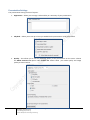
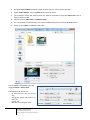
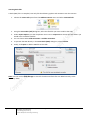
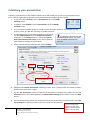
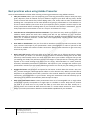
3. Using the Import Video dialog box, select the video file you want to add to the slide.
4. Under Import Options, select a Quality option from the menu.
5. You could also change the slide on which the video is imported by using the Import On menu to
select a different slide.
6. Choose between Slide Video and Sidebar Video.
7. You can preview the video directly in the Import Video dialog box by selecting Preview option.
8. Finally click on Open to embed the video file.
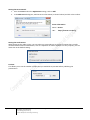
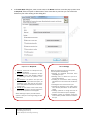
You can edit the embedded video clip
using the Insert > Video > Edit.
This Editing mode allows you:
- to trim the start and end of the
clip;
- change the effects like Fade-in or
Fade-out,
- Speed, and
- the time of starting the video
16
Engaging learners through interactive presentations: Using Adobe Presenter (Breeze)
Educational Technology Team
email: [email protected]
Centre for Development of Teaching and Learning