1
Base Unit manual
5/22/02
4:43 PM
Page 7
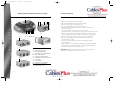
Installing PowerCore Devices
How do I install a PowerCore Device?
U S E R S
G U I D E
1
2
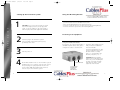
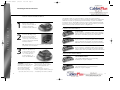
Remove the cap from
the top of the PowerCore
System or previously
installed PowerCore Device.
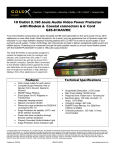
The GoldX PowerCore System and devices feature the patent-pending
PowerCore™. The PowerCore™ is an internal 12V, 4.7Amp power transformer
within the PowerCore System that provides 56 Watts of power for multiple
PowerCore devices. All GoldX PowerCore devices feature a DC Plug and a DC
Jack in the center of the unit to pass power up to the next device, as needed.
Note all of the possible PowerCore device configurations:
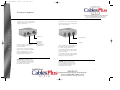
PowerCore™ Powered Devices
4 PORT USB HUB
Insert the DC Plug on the
bottom of the PowerCore
Device into the DC Jack
on the top of the PowerCore
System or previously installed
PowerCore Device.
TIP: Aligning the backs of the PowerCore System and
peripherals eases installation.
3
How does the PowerCore System work?
That’s it. The device is
now installed onto the
PowerCore System. If
it is a PowerCore™
powered device, at
least one LED will be on.
Please review the configuration guide on the following
page to determine the amount of PowerCore USB Hubs
that can be used within your specific environment.
3 PORT FIREWIRE HUB
Please review the configuration guide on the following
page to determine the amount of PowerCore FireWire
Hubs that can be used within your specific environment.
10/100 ETHERNET SWITCH
Please review the configuration guide on the following
page to determine the amount of PowerCore Ethernet
Switches that can be used within your specific environment.
USB Powered PowerCore Devices
USB BROADBAND ADAPTER
The USB Broadband Adapter is powered by
the USB port on your computer.
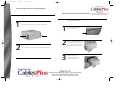
WARNING: The PowerCore
• Do not touch the DC Jack on an
System passes electricity through
active PowerCore System or Device.
the PowerCore to PowerCore
• Do not spill any liquid into the
devices that require power.
PowerCore slots.
Please note the following
• Do not remove the cap from a
• Do not insert any foreign
PowerCore System or Device unless you
objects into the PowerCore slots. are installing a new PowerCore Device.
12
USB PORT REPLICATOR
The USB Port Replicator is powered by the
USB port on your computer.
13