1
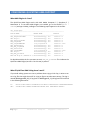
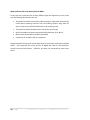
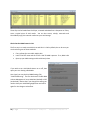
HOW DO I USE QUICKTIME AMA? AMA allows you to ‘link’ to the original QuickTime movie without making a copy of it inside an Avid storage system. If the QuickTime movie is on an external drive, then you can link to it and play and edit with it immediately. This capability can save storage space, as you don’t need to make a second copy of a movie which is already on your system. It can save time as there is no delay caused by importing the movie. It provides you with another way to quickly preview media before using it. Depending on the movie format however, playback performance may be slightly poorer than if you were to import the movie and convert it to an Avid format. If you experience poor performance with a QuickTime movie, try importing it (or transcoding it) to fix the problem. Linking to QuickTime files can also allow you more flexibility in how you organize, manage and maintain your movie files. Pre-rendered animations can be kept in their original libraries, and if they are updated (within certain limitations) they will update automatically in any program which links to them. Making the QuickTime AMA link Check that the AMA feature is ON Decide where you want your clips to appear in your Project. Select a BIN if linking FILES, check your AMA settings if linking a VOLUME (folder). Link individual clips using the menu item FILE > LINK TO AMA FILE(S)… Alternatively, use FILE > LINK TO AMA VOLUME to navigate to and select a folder full of QuickTime’s. New clips appear in a bin, one for each QuickTime file. The clips are Yellow to indicate they are a live link to external media. For convenience the QuickTime movie name becomes the clip name – with the “.mov” extension removed. 11 | P a g e ©2010 Paul Sampson [email protected]