1
Quadro Manual I: Installation Guide
Copyright and Trademarks
Copyright © 2006 Epygi Technologies, Ltd. All Rights Reserved. Quadro is a registered trademark of Epygi Technologies,
Ltd. Microsoft, Windows, and the Windows logo are registered trademarks of Microsoft Corporation. All other trademarks
and brand names are the property of their respective proprietors.
Limited Warranty
Epygi Technologies, Ltd. (‘Epygi’) warrants to the original end-user purchaser every Quadro to be free from physical defects in material and workmanship under normal use for a period of one (1) year from the date of purchase (proof of purchase required). If Epygi receives notice of such defects, Epygi, at its discretion, will repair or replace products that prove
to be defective.
This warranty shall not apply to defects caused by (i) failure to follow Epygi’s installation, operation or maintenance instructions; (ii) external power sources such as a power line, telephone line, or connected equipment; (iii) Products that
have been serviced or modified by a party other than Epygi or an authorized Epygi service center; (iv) Products that have
had their original manufacturer’s serial numbers altered, defaced, or deleted.
In no event shall Epygi’s liability exceed the price paid for the product from direct, indirect, special, incidental, or consequential damages resulting from the use of the product, its accompanying software, or its documentation. Epygi offers no
refunds for its products. Epygi makes no warranty or representation, expressed, implied, or statutory, with respect to its
products or the contents or use of this documentation and all accompanying software, and specifically disclaims its quality, performance, merchantability, or fitness for any particular purpose.
Return Policy
If the product proves to be defective during this warranty period, call the Epygi Customer Support at (972) 692-1166 in order to obtain a Return Material Authorization (RMA) Number. Registered users also may access Epygi’s Technical Support (www.epygi.com; ‘Support’) to send their RMA request. Please have your proof of purchase on hand when contacting
us. When returning a product, mark the Return Authorization Number clearly on the outside of the package and include
your original proof of purchase. Return requests cannot be processed without proof of purchase. Customers are responsible for shipping and handling charges when shipping to Epygi.
Epygi or its service center will use commercially reasonable efforts to ship a replacement Product within ten (10) working
days after receipt of the returned product. Actual delivery times may vary depending on the customer’s location.
Epygi reserves the right to revise or update its products, pricing, software, or documentation without obligation to notify
any individual or entity. Please direct all inquiries to:
Epygi Technologies, Ltd., Two Legacy Town Center, 6900 North Dallas Parkway, Suite 850, Plano, Texas 75024
Notice to Users
This Installation Guide in whole or in part, may not be reproduced, translated, or reduced to any machine-readable form
without prior written approval.
Epygi provides no warranty with regard to this Installation Guide or other information contained herein and hereby expressly disclaims any implied warranties of merchantability or fitness for any particular purpose with regards to this manual or such other information. In no event shall Epygi be liable for any incidental, consequential, or special damages,
whether based on tort, contract, or otherwise, arising out of or in connection with this manual or other information contained herein or the use thereof.
FCC Statement (Part 15) Class B
The Epygi Quadro has been tested and found to comply with the limits for a class B digital device, pursuant to Part 15 of
the FCC Rules. These limits are designed to provide reasonable protection against harmful interference in a residential
installation. This equipment generates, uses, and can radiate radio frequency energy and, if not installed and used according to the instructions, may cause harmful interference to radio communications. However, there is no guarantee that
interference will not occur in a particular installation. If this equipment does cause harmful interference to radio or television reception, which is found by turning the equipment off and on, the user is encouraged to try to correct the interference by one or more of the aforementioned measures.
Electrical Safety Advisory
To reduce the risk of damaging power surges, we recommend you install a quality AC surge suppressor in the AC outlet
from which the Quadro is powered.
Industry Canada Statement
This product meets the applicable Industry Canada technical specifications.
Safety Information
Before using the Quadro, please review and ensure the following safety instructions are adhered to:
•
•
•
•
•
•
•
•
•
To prevent fire or shock hazard, do not expose your Quadro to rain or moisture.
To avoid electrical shock, do not open the Quadro. Refer servicing to qualified personnel only.
Never install wiring during a lightning storm.
Never install telephone jacks in wet locations unless the jack is specified for wet locations.
Never touch un-insulated telephone wire or terminals unless the telephone line has been disconnected at the network interface.
Use caution when installing or modifying cable or telephone lines.
Avoid using your Quadro during an electrical storm.
Do not use your Quadro or telephone to report a gas leak in the vicinity of the leak.
An electrical outlet should be as close as possible to the unit and easily accessible.
QuadroCS (SW Version 3.1.x)
Quadro Manual I: Installation Guide
Emergency Services
The Quadro SIP Services are intended to function as a secondary telephone service. These services are made available
through the Internet and therefore are dependent upon a constant source of electricity and network availability. In the
event of a power outage, the Quadro SIP Service will automatically be disabled. User understands that in the event of a
power or network outage, the Quadro SIP Service will not support 911 emergency services and further that such services
will only be available via the user's regular telephone line not connected to the Quadro. User further acknowledges that
any interruption in the supply or delivery of electricity or network availability is beyond Epygi's control and that Epygi shall
have no responsibility for losses arising from such interruption.
QuadroCS (SW Version 3.1.x)
Quadro Manual I: Installation Guide
Table of Contents
Manual I: Installation Guide
About This Installation Guide ........................................................ 5
Requirements ............................................................................. 5
Hardware Overview ..................................................................... 6
QuadroCS Rear Panel .............................................................................6
QuadroCS Front Panel LEDs ....................................................................7
Step 1: Installing the QuadroCS .................................................... 8
Networking Overview .............................................................................8
WAN Connection Options ........................................................................9
Connecting the Hardware ..................................................................... 10
Step 2: Configuring the QuadroCS............................................... 12
Step 2.1: Logging in to QuadroCS ......................................................... 13
Step 2.2: System Configuration Wizard .................................................. 14
System Configuration .....................................................................................14
DHCP Settings for the LAN Interface .................................................................15
Regional Settings ...........................................................................................15
Finishing the System Configuration Wizard ........................................................16
Step 2.3: Internet Configuration Wizard ................................................. 18
Uplink Configuration .......................................................................................19
WAN IP Configuration .....................................................................................20
PPP Settings... ..............................................................................................21
WAN Interface Configuration ...........................................................................22
DNS Settings . ..............................................................................................22
Finishing the Internet Configuration Wizard........................................................23
Step 2.4: Firewall Configuration ............................................................ 24
Step 3: Registering on Epygi’s Technical Support........................... 25
Step 4: Registering a Conference on Epygi’s SIP Server ................. 27
Step 5: Configuring a Conference on the QuadroCS ....................... 29
Appendix: PC DHCP Settings ...................................................... 33
Appendix: Changing the Admin Password ..................................... 35
Manual II: see Administrator's Guide
Describes detailed all the menus available for administrators only
Manual III: see Moderator's Guide
Describes detailed all the menus available for moderators and further, it includes all the call codes at a glance
QuadroCS (SW Version 3.1.x)
Quadro Manual I: Installation Guide
About This Installation Guide
About This Installation Guide
This Installation Guide explains the installation and basic configuration of the QuadroCS
Conference Server. It gives step-by-step instructions to connect the device properly to the
Internet and to attach a PC for administration and configuration. It also describes the basic
configuration of a conference.
Step 1: Installing the QuadroCS explains connection of cables and devices to the
QuadroCS.
Step 2: Configuring the QuadroCS describes the configuration steps necessary to integrate the QuadroCS into your network environment.
Please Note: The QuadroCS configuration described in this Installation Guide explains basic networking configurations. For more complex network environments,
please refer to the QuadroCS Administrator's Manual.
Step 3: Registering on Epygi’s Technical Support
Before a QuadroCS conference can be registered on the Epygi SIP server, you must
be registered with Epygi Technical Support. This section shows you how to gain access to the Epygi Technical Support Center and the Epygi SIP Server. If no SIP registration is needed, skip to Step 5.
Step 4: Registering a Conference on Epygi’s SIP Server explains how to register a SIP
conference.
Step 5: Configuring a Conference on the QuadroCS describes how a conference is set
up on the QuadroCS
Appendix: PC DHCP Settings explains how to configure your PC to access the
QuadroCS configuration GUI.
Appendix: Changing the Admin Password explains how to change the default administrator password.
QuadroCS (SW Version 3.1.x)
5
Quadro Manual I: Installation Guide
Requirements
Requirements
•
•
•
•
•
•
One 120/240 VAC power outlet in close proximity to the Quadro.
One RJ-45 Ethernet 10/100 broadband Internet connection.
One CAT 5 Ethernet cable with an RJ-45 connector to connect to the Quadro LAN
port
One PC with a 10Mbps or a 10/100 Mbit/s Ethernet card or adapter installed.
TCP/IP network protocol installed on each PC.
For optimal results, Internet Explorer 5.5 or higher, or Netscape Navigator 4.7 or
higher are recommended.
Please Note: The QuadroCS is shipped with one straight RJ-45 CAT 5 cable. If the LAN
connector of the QuadroCS is to be connected to a hub or switch, a crossover cable may
be required.
QuadroCS (SW Version 3.1.x)
5
Quadro Manual I: Installation Guide
Hardware Overview
Hardware Overview
QuadroCS Rear Panel
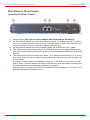
Fig. I-1: QuadroCS Rear Panels
1
2
3
4
5
Power socket. Use only the power adapter delivered with the QuadroCS.
RJ-45 socket to attach the Local Area Network (LAN) via an Ethernet CAT 5 cable. If
a PC is connected directly to this socket, a straight cable is used. If an Ethernet hub,
router or switch is used, a crossover cable may be required.
RJ-45 socket to attach the Internet Uplink (WAN) via an Ethernet CAT 5 cable.
The USB socket enables connectivity of USB flash memory providing additional storage space for recorded conferences. Refer to the Administrator Manual for supported
devices.
The Reset button may be used in two ways: (1) to initiate a normal reset, (2) or a factory reset. A normal reset is executed by pressing the Reset button with a paper clip
for an instant.
Pressing the reset button and holding it down for 7 seconds or more will execute a
factory reset. This will restore the factory defaults and clear all settings including the
IP address and the administration password you entered.
Please Note: A Factory Reset forces the default LAN IP address of 172.30.0.1 and
default administrator password of 19.
QuadroCS (SW Version 3.1.x)
6
Quadro Manual I: Installation Guide
Hardware Overview
QuadroCS Front Panel LEDs
Fig. I-2:QuadroCS Front Panel LEDs
Busy
green
Status of CPU
off: No power
on or blinking: Normal activity
2
Info
yellow
System information
on: device is booting
off: no information
blinking: an event occurred, details specified in the
System Event section of the Management interface
3
Fault
red
System status
on device is booting/ error
off: no error
blinking: system unusable
USB
green
Status of the USB interface
on: USB memory device installed correctly
off: No USB memory device found
5
LAN
green
Status of the LAN interface
on: link ok
off: no link
flickering: traffic on the link
6
WAN
green
Status of the WAN interface
on: link ok
off: no link
flickering: traffic on the link
1
4
7
8
green
green
not used
not used
LED Indication during a firmware update
A firmware update is indicated by the red (Fault) and yellow (Info) LED. Both will blink simultaneously for about five minutes while the firmware is updated. The QuadroCS will then
re-boot automatically showing the boot LED sequence.
LED Indication during a boot sequence
A boot sequence is indicated as follows: The red Fault LED will glow for a few seconds,
then the yellow Info LED will glow for another four or five minutes while the green Busy
LED is blinking. Once the Info LED is off, the boot sequence has been completed successfully.
QuadroCS (SW Version 3.1.x)
7
Quadro Manual I: Installation Guide
Step 1: Installing the QuadroCS
Step 1: Installing the QuadroCS
Networking Overview
To establish a connection between the Internet and your local area network (LAN), a separate access router is needed. The Quadro products are an excellent choice for this function.
The QuadroCS can serve as an access router for a single PC used during configuration,
but it is not recommended to be used as the primary Internet access router for your company’s LAN. The QuadroCS has one LAN port that can be connected to Ethernet hubs and
switches on the LAN allowing more devices to reach the QuadroCS for configuration.
Every device within an IP network requires a unique IP address to identify itself. Since the
QuadroCS connects to both the LAN and the WAN, it has to be part of both networks, and
must have two IP addresses: one for the WAN side and one for the LAN side. The
QuadroCS’s integrated firewall/NAT functionality will hide the LAN IP address from the
WAN (Internet) side.
There are two ways of assigning an IP address: statically or dynamically. The Quadro CS
can be configured with a static IP address on the WAN interface. You also can use a DHCP
server-assigned IP address on the WAN side.
Please Note: A DHCP client is a piece of software that requests an IP address from a
DHCP server. A DHCP server assigns on request a unique IP address to a device. The
Quadro, like many routers, acts as a DHCP client on its WAN interface and as a DHCP
server on its LAN interface.
The QuadroCS must be visible to the Internet to receive and send VoIP calls. When the
QuadroCS is placed in a private network, typically behind existing routers, it will by default
attempt to pass through the NAT of this router with its STUN (Simple Traversal of UDP over
NAT) feature. STUN will work without user configuration with the majority of the basic
routers. In some scenarios, port forwarding on the router is required to make the QuadroCS
accessible to other Quadro devices and the Epygi SIP Server on the Internet. The recommended configuration option is to connect the QuadroCS directly to the Internet eliminating
the need to traverse the local NAT firewall.
QuadroCS (SW Version 3.1.x)
8
Quadro Manual I: Installation Guide
Step 1: Installing the QuadroCS
WAN Connection Options
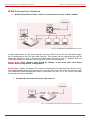
•
QuadroCS behind a router, which is connected to a cable or DSL modem.
Fig. I-3: Configuration: QuadroCS behind a router
In this configuration, the IP router typically acts as a DHCP server for the LAN and assigns
the IP addresses to the PCs and other devices. The Quadro can be connected through its
WAN port directly to one of the router's LAN ports and will get an IP address from the
router. By default, the Quadro acts as a DHCP client on the WAN port.
Please Note: Since Quadro uses STUN by default, it will work with most basic
routers without any further configuration.
Please Note: Initially, the Admin PC must be connected to the QuadroCS’s LAN port to access Web Management of the QuadroCS. Later, this PC can be moved to the router’s LAN.
The QuadroCS Web Management can be accessed from any PC in the router LAN after
the Quadro firewall is disabled.
•
QuadroCS connected directly to the Internet
Fig. I-4: Configuration: QuadroCS connected directly to the Internet
QuadroCS (SW Version 3.1.x)
9
Quadro Manual I: Installation Guide
Step 1: Installing the QuadroCS
Connecting the Hardware
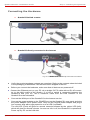
•
QuadroCS behind a router
Fig. I-5: Installation: QuadroCS behind a router
•
QuadroCS directly connected to the Internet
Fig. I-6: Installation: QuadroCS directly connected to the Internet
•
•
•
•
•
Verify the product package contents are complete. Refer to the contents sheet included
in the packaging to determine if all the items were shipped in the box.
Before you connect the hardware, make sure that all devices are powered off.
Connect the Ethernet port on your PC via a straight CAT 5 cable with an RJ-45 connector to the LAN socket of the Quadro. If a hub or switch is connected between the
QuadroCS and your PC, use a crossover cable from the LAN interface of the
QuadroCS to the hub/switch.
Connect the WAN port of the QuadroCS to the Internet service.
Connect the power adapter to the POWER port on the QuadroCS’s rear panel and plug
the power adapter into a power outlet. Only use the original power adapter and plug it
into a power strip with surge protection or to a UPS if available.
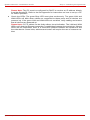
The red LED (Fault) will glow for several seconds followed by the yellow LED (Info),
which will glow for several minutes. As soon as Info is off, the QuadroCS is operational.
Power up any PC on the LAN side.
QuadroCS (SW Version 3.1.x)
10
Quadro Manual I: Installation Guide
Step 1: Installing the QuadroCS
Please Note: The PC must be configured for DHCP to receive an IP address directly
from the QuadroCS. Refer to the first Appendix for instructions on how to set up a PC
for DHCP operation.
•
Check the LEDs: The green Busy LED must glow continuously. The green LAN and
WAN LEDs will blink when cables are connected to these ports and all devices are
powered up. If the green LAN and WAN LEDs do not blink, verify cabling and ensure
that all devices are powered up.
Please Note: CAT 5 cables can be faulty without visual indication. The LAN and WAN
LEDs verify that the Ethernet connection is established between the end points. If these
LEDs are not illuminated, there is a connection problem between the QuadroCS and
the other device. Some hubs, switches and routers will require the use of crossover cables.
QuadroCS (SW Version 3.1.x)
11
Quadro Manual I: Installation Guide
Step 2: Configuring the QuadroCS
Step 2: Configuring the QuadroCS
The QuadroCS does not require further network
configuration in two cases:
•
•
The QuadroCS is connected behind a basic router that is
compatible with the QuadroCS’s implementation of STUN
The QuadroCS is connected directly to the Internet and
your ISP supports DHCP. There are no other router devices
between the QuadroCS and the DSL or cable modem and you
get the IP address assigned automatically by the ISP.
Your QuadroCS is now connected properly to the Internet. You may customize the following settings
•
•
•
•
LAN Settings - if you want to enter a unique name for the QuadroCS
Regional Settings it is important that you properly configure your country and
time zone settings.
WAN IP Settings
If your WAN uplink is static IP or DHCP you will need to know whether DHCP is
supported or not.
If DHCP is not supported, you need to know the WAN IP address, the subnet
mask, the IP address of the default gateway and the IP address of the Domain
Name Server (DNS).
Your ISP should have provided you with this information when you installed
your Internet access. Otherwise, you will need to contact your ISP to request it.
Firewall - if your QuadroCS is connected behind a router, disable the
QuadroCS’s firewall to make it easily accessible for management.
To customize the settings, connect a PC to the QuadroCS's LAN port, log in and complete
the Basic Configuration as described in step 2.1 and 2.2.
QuadroCS (SW Version 3.1.x)
12
Reviewed QUIG by Thomas/Isolde
Step 2.2: Basic Configuration
Step 2.1: Logging in to QuadroCS
•
•
•
Start a browser (MS Internet Explorer, Netscape, Opera) on a PC connected to
the LAN port.
Enter http://172.30.0.1 (QuadroCS’s default LAN IP address) into the address
field.
The Login page of the QuadroCS will be displayed (see picture below).
Fig. I-7: Login page
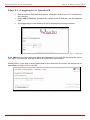
Enter admin as the Username and 19 as the Password to log in as the administrator. Once
you log in, you will enter into the QuadroCS Conference Server Menu.
Please Note: If you enter a wrong password and/or username five times, the device will be
unavailable for login for five minutes.
Fig. I-8:Conference Server Management page
QuadroCS (SW Version 3.1.x)
13
Reviewed QUIG by Thomas/Isolde
Step 2.2: Basic Configuration
Step 2.2: System Configuration Wizard
Select the System Configuration Wizard from the System menu. The System Configuration Wizard is a tool for the administrator to define the Quadro's Local Area Network settings and to specify regional configuration settings to make Quadro operational in its LAN.
The System Configuration Wizard must be run upon Quadro first startup.
For the basic configuration, some pages in this wizard may be skipped and left default for
the basic configuration.
Please Note: It is strongly recommended that factory default settings are left unchanged if
their meanings are not completely understandable to the party administrating the Quadro.
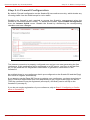
System Configuration
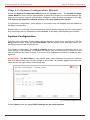
The first page of System Configuration Wizard shows all items to be configured. Click the
Next button to start. Enter into the Host Name field the unique name (top right corner, under Epygi logo) for the Quadro device.
For a basic configuration, the LAN IP address does not need to be changed, but if you
must change it (for example, to integrate the device into an existing LAN), record the new
LAN IP address and have it handy. You’ll need it for subsequent access to Quadro’s management.
Please Note: The Host Name is very useful when many Quadro's are part of a network
and one administrator has remote access to all of them. All Quadro pages show the hostname on the top right corner under Epygi logo.
Fig. I-9: System Configuration page
Clicking Next shows the page DHCP Settings for the LAN Interface.
QuadroCS (SW Version 3.1.x)
14
Reviewed QUIG by Thomas/Isolde
Step 2.2: Basic Configuration
DHCP Settings for the LAN Interface
If the DHCP server is enabled, the Quadro will automatically assign dynamic IP addresses
to the stations connected to its LAN port.
If you didn’t change the default LAN IP address of the Quadro, you also may leave the default values for the IP Address Range. Make sure your connected LAN devices belong to
the same network as the LAN port of your Quadro.
Please Note: Make sure there is only one DHCP server on the LAN, otherwise, unpredictable network behavior can occur.
Fig. I-10: DHCP Settings for the LAN Interface page
Click on Next to display the Regional Settings page.
Regional Settings
If your Quadro is located outside of the United States, it is important to properly configure
your line connections to the PSTN in your location.
Fig. I-11: Regional Settings page
QuadroCS (SW Version 3.1.x)
15
Reviewed QUIG by Thomas/Isolde
Step 2.2: Basic Configuration
Proper configuration of Regional Settings is important for the functionality of the voice subsystem. The Regional Settings determine the proper telephony parameters on the LINE
(ISDN) and PHONE ports of the Quadro for the specified country. Select the country where
the Quadro is located. If you do not find your country in the list, pick the closest in your
timezone.
The Quadro obtains the correct time automatically over the Internet from a time server. If
you are not located in the US/Central standard time zone, you will need to change the
Timezone to your region.
Click on Next to display the Summary Page.
Finishing the System Configuration Wizard
Fig. I-12: System Configuration Wizard finishing page
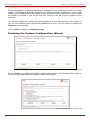
Click on Finish to complete the System Configuration Wizard. The Quadro will then stop internal functions and apply the changes made in the Wizard.
Fig. I-13: Wizard Execution Progress page
QuadroCS (SW Version 3.1.x)
16
Reviewed QUIG by Thomas/Isolde
Step 2.2: Basic Configuration
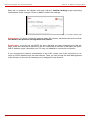
After this is complete, the Quadro will reply with the Confirm Settings page requesting
confirmation of the changes. Press on OK to confirm the settings.
Fig. I-14: Confirm Settings page
Please Note: you must confirm the settings within 20 minutes, otherwise the device will revert back to the previous configuration and reboot.
Please Note: If you do not use DHCP for your LAN and you have changed your LAN settings, make sure that the IP address of the PC connected to Quadro is still within the specified IP address range, otherwise your PC may not establish a connection to Quadro.
If you changed the network configuration of the LAN, restart your LAN connection to receive a new IP address from the new network. Then you can access the Web Management
of the Quadro on the new IP address you’ve assigned to the Quadro.
QuadroCS (SW Version 3.1.x)
17
Reviewed QUIG by Thomas/Isolde
Step 2.2: Basic Configuration
Step 2.3: Internet Configuration Wizard
Open the Internet Configuration Wizard by selecting the corresponding menu item on the
System menu. The Internet Configuration Wizard is a tool for the administrator to configure the WAN settings and to adjust Quadro's connectivity in the global network. It must be
run if Quadro is desired to be connected to the Internet.
The page Getting Started will be displayed:
Fig. I-15: Internet Configuration Wizard
This first page of the Internet Configuration Wizard is for informational purposes only and
lists the items to be configured, Click on the Next button for the Uplink Configuration
page.
Before configuring the WAN port to the Internet, you need to get the following information
from your internet service provider:
• Bandwidth - how much is available upstream and downstream?
• WAN IP Configuration - is DHCP supported? If yes, no more information is needed. If
DHCP is not supported, the following data is needed: the WAN IP address, the subnet mask, the IP address of the standard gateway and the IP address of the Domain
Name Server (DNS).
• MAC address - needed when the ISP requires a specific MAC address for the WAN.
Additionally, for Point-to-Point Protocol over Ethernet (PPPoE) WAN interface, you need to
get the following information from your internet service provider:
• PPP
Configuration - does your ISP use a dynamic or fixed WAN IP address? If the
WAN IP address is dynamic, no more information is needed. If the WAN IP address
is fixed, you will have to enter it.
• Authentication
- does your ISP require authentication? If authentication is required,
information about the corresponding method (PAP, CHAP or MSCHAP) is needed including the username and password of the PPPoE account.
QuadroCS (SW Version 3.1.x)
18
Reviewed QUIG by Thomas/Isolde
Step 2.2: Basic Configuration
This information will be needed to be inserted in the Internet Configuration Wizard.
Uplink Configuration
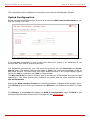
Select the desired WAN Interface Protocol and enter the WAN Interface Bandwidth to assure the quality of IP calls.
Fig. I-16: Uplink Configuration
If the available bandwidth is used to the point where the quality of an additional IP call
would suffer, then new IP calls are rejected.
The bandwidth provided by your ISP must be specified for both Upstream and Downstream fields. The default entry in both fields is 10000, the maximum bandwidth of the 10
MB uplink module. For basic DSL and cable modem service in the United States, typical
values are 300 for Upstream and 1500 for Downstream.
The Min Data Rate text field is used to specify the amount of bandwidth reserved for data
applications. The value entered here needs to be smaller that the value specified for Upstream Bandwidth.
Specify the WAN Interface Protocol by choosing between available WAN interface protocols: PPPoE (Point to Point over Ethernet) and Ethernet. Use Ethernet for DHCP or static
IP.
For Ethernet, clicking Next will display the WAN IP Configuration page. If PPPoE is the
selected WAN Interface Protocol, the next page will be PPP Settings.
QuadroCS (SW Version 3.1.x)
19
Reviewed QUIG by Thomas/Isolde
Step 2.2: Basic Configuration
WAN IP Configuration
Your Internet Service Provider (ISP) should provide this information.
•
•
Assign automatically via DHCP - The parameters are set automatically by the ISP.
This is common with cable modem and DSL service.
Assign Manually requires the administrator to enter the external IP Address, the corresponding Subnet Mask, and the IP address of the Standard Gateway. This is
common when you have a static IP address with your ISP.
Fig. I-17: WAN IP Configuration page
Click on Next to display the WAN Interface Configuration page.
QuadroCS (SW Version 3.1.x)
20
Reviewed QUIG by Thomas/Isolde
Step 2.2: Basic Configuration
PPP Settings
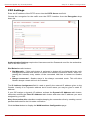
Enter the IP address of the PPTP server into the PPTP Server text field.
Choose the encryption for the traffic over the PPTP interface from the Encryption drop
down list.
Fig. I-18: PPP/PPTP Configuration page
Authentication Settings require the Username and the Password used for the authentication on the ISP server.
Dial Behavior radio buttons:
•
•
Dial Manually - if this radio button is activated, a button will be displayed in the main
management window that serves to switch the Internet connection on/off. When accessing the Internet, every station of the connected LAN has to connect to Quadro
first.
Always connected - Quadro stays in the always connected mode. This will allow
Quadro always remain online in the network.
The IP Address Assignment field is used to specify the external IP address given to the
Quadro. Usually it is a dynamic address but in some cases you may be given a static IP
address.
If your ISP assigns a dynamic IP address, activate the Dynamic IP Address radio button,
otherwise activate the Fixed IP Address radio button and enter the IP address you were
assigned by your ISP.
Keep Connection alive checkbox enables keeping the connection alive by sending control
packets dedicated for the link state verification.
Click the Next button to display the WAN Interface Configuration page.
QuadroCS (SW Version 3.1.x)
21
Reviewed QUIG by Thomas/Isolde
Step 2.2: Basic Configuration
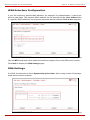
WAN Interface Configuration
If your ISP requires a specific MAC address, (for example, for authentication), it can be entered on this page. The required MAC address can be entered into the User defined field.
If a specific MAC address is not required, leave the default selection This device selected.
Fig. I-19: WAN Interface Configuration page
Use the MTU drop down list to select the maximum packet size on the Ethernet (in bytes).
Click Next to display the DNS Settings page.
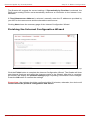
DNS Settings
For DNS, the selection is set to Dynamically by Provider. When using a static IP address,
fixed values must be entered.
Fig. I-20: DNS Settings page
QuadroCS (SW Version 3.1.x)
22
Reviewed QUIG by Thomas/Isolde
Step 2.2: Basic Configuration
The Quadro will suggest the correct settings. If Dynamically by Provider is selected, the
DNS server settings will be set automatically whenever a connection to the Internet is established.
If Fixed Nameserver Address is selected, manually enter the IP addresses provided by
your ISP for the name server and the alternative name server.
Clicking Next shows the summary page of the Internet Configuration Wizard.
Finishing the Internet Configuration Wizard
Fig. I-21: Internet Configuration Wizard Summary page
Click the Finish button to complete the Internet Configuration Wizard. The Quadro will then
stop internal functions and apply the changes made in the Wizard. After this is complete,
the Quadro will display the Confirm Settings page requesting confirmation of the changes.
Press the OK button to confirm the settings.
Please Note: the settings should be confirmed within 20 minutes; otherwise, the device will
revert back to the previous configuration and reboot.
QuadroCS (SW Version 3.1.x)
23
Reviewed QUIG by Thomas/Isolde
Step 2.2: Basic Configuration
Step 2.4: Firewall Configuration
By default, Firewall configuration on the QuadroCS has medium security, which denies any
incoming traffic from the WAN except for voice traffic.
Disabling the firewall is only required to access the Quadro’s management when the
Quadro is connected behind a router. To disable the firewall, open Firewall Configuration
from the Internet Uplink menu. Disable the firewall by deselecting the corresponding
checkbox and save changes.
Fig. I-22: Firewall Configuration page
The Internet connection is properly configured now and you can start generating the first
conference. If this conference will be registered on a SIP server, you have to do that first,
as you will need the SIP Registration information to generate a conference on the
QuadroCS.
As a default there is one conference that is pre-configured on the QuadroCS and the Epygi
SIP server to register automatically.
If you want to use the Epygi SIP Server to register your conference, you have to register at
Epygi Technical Support first (see next step below) to get a login to the Epygi SIP server.
Then the conference may be registered (see step 4) and finally can be set up on the
QuadroCS (see step 5).
If you do not require registration of your conference, skip to Step 5: Configuring a Conference on QuadroCS.
QuadroCS (SW Version 3.1.x)
24
Quadro Manual I: Installation Guide
Step 3: Registering on the Epygi's Technical Support
Step 3: Registering on Epygi’s Technical Support
It is recommended that you register your Quadro on the Epygi Technical Support web
page. Registration will give you access to the Technical Support Database. There, you can
send requests concerning technical problems as well as refer to the frequently asked questions. In addition, the technical support page allows users to download new firmware,
manuals and other information. You can access the support section only if you are registered. Additionally, registration at Epygi’s Technical Support web page gives you the username and password to login to the Epygi SIP Server.
To register, you need to know the serial number of your Quadro, which you will find on
Quadro’s bottom label and its purchase date. Next, open the Epygi home page
(www.epygi.com), select Support and click on Registration Form. The online registration
page will appear:
QuadroCS (SW Version 3.1.x)
25
Quadro Manual I: Installation Guide
Step 3: Registering on the Epygi's Technical Support
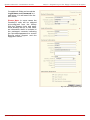
Complete all fields and record the
Login Name and Password in a
safe place. You will need it for the
SIP server.
Please Note: In some cases the
QuadroCS units will be shipped
pre-configured from the factory
with the Support login and password already set-up. In this case,
an information sheet is included in
the packaged contents indicating
the username/password to access
Epygi’s online Support and the
Epygi SIP Server.
Fig. I-23: Online Registration page
QuadroCS (SW Version 3.1.x)
26
Quadro Manual I: Installation Guide
Step 4: Registering a Conference on Epygi's SIP Server
Step 4: Registering a Conference on Epygi’s SIP
Server
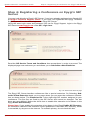
You may login directly to Epygi’s SIP Server, if you have already registered your QuadroCS
at Epygi’s Technical Support Center. If you have not registered with Epygi Technical
Support, you will not be able to login to the Epygi SIP Server.
Using the same login name and password you use for Epygi Support, login to the Epygi
SIP Server at www.epygi.com under SIP, Login here.
Fig. I-24: SIP Services Login page
Read the SIP Service Terms and Conditions then accept them in order to proceed. The
displayed page now welcomes you and allows you to Subscribe a New Extension.
Fig. I-25: SIP Services welcome page
The Epygi SIP Server handles conferences like a special extension. So Selecting Subscribe a New Extension leads you to a page where you can enter the conference information as shown below. The Extension No. is the eight digit SIP number assigned to your
conference. The first five are fixed by the SIP Server and cannot be changed. The last
three are user defined. Notice the check box to enable this extension to be shown in the
Epygi Public SIP Directory.
Please Note: If you enable this extension to be shown in the Epygi Public SIP Directory,
all information related to this extension will be published in the Public SIP Directory, which
is accessible, by anyone on the Internet. To maintain privacy, do not check this box.
QuadroCS (SW Version 3.1.x)
27
Quadro Manual I: Installation Guide
Step 4: Registering a Conference on Epygi's SIP Server
Fig. I-26: SIP Services Add New Extension page
The Authentication password is used to validate the entry and must match the password
entered on the Quadro at a later time. Make sure to record the name, Authentication Password and SIP extension number so you can enter them into the Quadro later.
Save will store the entered information and conclude the basic SIP registration. The following page will be displayed:
Fig. I-27: SIP Services; Your Extension page
This table shows unreg. in the Stat. column. This entry will change to reg. as soon as the
needed settings for the conference in the QuadroCS are complete and the conference successfully registers on the SIP Server.
Now that the SIP server knows about the conference, the conference may be set up in the
QuadroCS. Once they are entered in the QuadroCS, they will be registered and can then
be used.
QuadroCS (SW Version 3.1.x)
28
Quadro Manual I: Installation Guide
Step 5: Configuring a Conference on the QuadroCS
Step 5: Configuring a Conference on the
QuadroCS
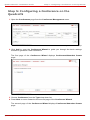
1. Open the Conferences page from the Conference Management menu.
Fig. I-28: Conferences page
2. Click Add to open the Conference Wizard to guide you through the basic settings
needed to generate a new conference.
The first page of the Conference Wizard displays Conference/Attendant Create
page.
3. Choose Conference from the Type drop down list.
4. Press Next to move forward to the second page of the Conference Wizard.
The second page of the Conference Wizard displays Conference/Attendant Create
page.
QuadroCS (SW Version 3.1.x)
29
Quadro Manual I: Installation Guide
Step 5: Configuring a Conference on the QuadroCS
Fig. I-29: Conference General Settings page
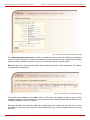
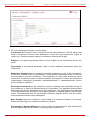
5. Fill in the following information on this page:
Conference ID is used to enter a unique ID for the call conference. This ID will be also
used in Conference Server's Auto Attendant to reach the local conference. Digits allowed only. System prevents adding a conference starting with 0 digit.
Subject is an optional parameter where a brief subject of the conference can be entered.
Description is an optional parameter used to insert additional information about the
conference.
Moderator Password can be entered to provide moderator access to the conference.
It has to be entered twice for confirmation. The password inserted here will be used by
the moderator to join the conference. The moderator can dial codes during the active
conference as well as access conference specific GUI pages to control the conference
(view/change conference properties, activate/deactivate it, start/stop/resume record,
view conference statistics).
Participant Password can be entered to require a password for participant access to
the conference. It has to be entered twice for confirmation. The password entered here
should be used by the participant to join the conference. The participant can participate
in the conference only according to the rights (speaker or listener) granted by the moderator. The participant also can access the conference specific GUI to view the conference properties and the other participants.
Max. Duration sets the conference to be limited to a maximum duration (in minutes).
Leave the field empty for unlimited conference duration.
Percentage of System Memory is used to select the percentage of total QuadroCS’s
memory space that can be used for recording of this conference.
QuadroCS (SW Version 3.1.x)
30
Quadro Manual I: Installation Guide
Step 5: Configuring a Conference on the QuadroCS
Enable Routing Mode checkbox enables direct access to the Quadro’s internal routing
tables when dialing out to a participant during a conference. When this checkbox is selected, any dialed number will be parsed through Call Routing Table (see Manual II Adiministrator’s Guide).
Leave Active checkbox will keep conference active, even if all participants have left it.
6. Press Next to move forward to the second page of the Conference Wizard.
The third page of the Conference Wizard displays Conference SIP Registration Settings page. The settings on this page need to be configured if the conference is dedicated to be registered on a SIP server (see Step 4: Registering a Conference on
Epygi’s SIP Server).
Fig. I-30: Conference SIP Registration Settings page
7. Fill in the following information on this page:
Registration User Name text field requires a user name for conference registration on
the SIP server. The registration user name needs to be unique on the SIP server and is
used to reach the conference over the SIP network.
Registration Password is the password for the registration on the SIP server. It must
be confirmed in the Confirm Registration Password text field.
Registration SIP Server indicates the host address of the SIP server. The field is not
limited regarding symbol usage and length. It can be either an IP address (ex:
192.168.0.26) or a host address (ex: sip.epygi.com).
Registration SIP Port indicates the host port number to connect to the SIP server. The
SIP server port may only contain digit values. If the SIP server port is not specified, the
QuadroCS will access the SIP server through the default port of 5060.
Registration on SIP Server enables the conference ID to be registered on the SIP
server.
QuadroCS (SW Version 3.1.x)
31
Quadro Manual I: Installation Guide
Step 5: Configuring a Conference on the QuadroCS
8. Press Finish to create a conference with the provided settings.
Please Note: You may also duplicate an existing conference using its common settings
(like participants, scheduling options, SIP registration settings and other configuration settings). To do so, select a corresponding conference from the table and press Duplicate
functional button. Configuration Wizard will start where common settings of the original
conference will be already set up.
QuadroCS (SW Version 3.1.x)
32
Quadro Manual I: Installation Guide
Appendix: PC DHCP Settings
Appendix: PC DHCP Settings
The QuadroCS has a DHCP server on its LAN interface that provides DHCP IP addresses
to devices connected to the LAN. This appendix describes how to configure Windows PCs
for DHCP. The PC used to access the Quadro must meet the following conditions:
•
•
TCP/IP network protocol must be installed.
DHCP must be activated to request the IP address automatically.
Please Note: If your PC is already configured for DHCP, then simply power it on. Verify the
LAN LED is lit. If not, check the cable connections.
Follow the instructions below to install TCP/IP and enable DHCP functionality:
TCP/IP and DHCP under Windows 2000/Windows XP
Windows 2000 and Windows XP PCs with Ethernet cards or adapters normally are configured with a TCP/IP network connection by default. Nothing additional needs to be installed.
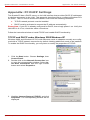
To enable the DHCP functionality, you may have to modify the properties of TCP/IP:
1. Click the Start button. Choose Settings, then
Control Panel.
2. Double-click on the Network Connection icon
to open the corresponding window. Select Local Area Connection with the right mouse
button and select Properties.
3. Highlight Internet Protocol (TCP/IP) and click
Properties. The corresponding window will be
displayed.
QuadroCS (SW Version 3.1.x)
33
Quadro Manual I: Installation Guide
4.
Select Obtain an IP address automatically, then click on Advanced.
.
5.
6.
You will see the entry DHCP Enabled.
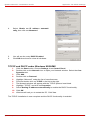
Click OK three times to close all windows.
Appendix: PC DHCP Settings
TCP/IP and DHCP under Windows 95/98/ME
1.
2.
Click the Start button. Choose Settings, then Control Panel.
Double-click on the Network icon to open your Network window. Select the Configuration tab.
3. Click Add.
4. Double-click on Protocol.
5. Highlight “Microsoft” under the list of manufacturers.
6. Find and double-click on TCP/IP in the list to the right.
7. The Network window will appear with the TCP/IP protocol now listed.
8. Highlight “TCP/IP” and click on Properties.
9. Select Getting IP address automatically to enable the DHCP functionality.
10. Click OK.
11. Windows will ask you to restart the PC. Click Yes.
The TCP/IP installation is now complete and the DHCP functionality is enabled.
QuadroCS (SW Version 3.1.x)
34
Quadro Manual I: Installation Guide
Appendix: Changing the Administrator's Password
Appendix: Changing the Admin Password
For security reasons, it is recommended that you change the default admin password. The
username of the administrator (admin) cannot be changed.
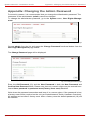
To change the administrator password, go to the System menu, User Rights Management.
Fig. I-31: User Right Management page
Choose admin from the list and press the Change Password functional button from the
User Right Management page toolbar.
The Change Password page will be displayed.
Fig. I-32: Change Password page
Enter the Old Password (19) and the New Password in both the New Password and
Confirm New Password fields. Please note that only numeric digits may be entered here.
Leave Store password in persistent area (Factory reset save) disabled.
Write down the password somewhere and keep it in a secure place. If the password is lost,
a factory reset will be required on the unit (see Administrator's Guide, Hardware Overview).
All settings are lost after a factory reset. After a factory reset the default password (19) will
be restored.
QuadroCS (SW Version 3.1.x)
35
Quadro Manual I: Installation Guide
Appendix E - Checking the Connections
Copyright 2003 - 2006
Epygi Technologies, Ltd.
All rights reserved
QIG-QUADRO-03-04
QuadroCS (SW Version 3.1.x)
36