1
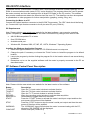
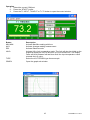
RS-232 PC Interface The Model 421509 Thermometer is supplied with a sophisticated Windows® software package on CDROM. A communications cable (meter to PC) is also supplied. The program allows the user to operate the meter remotely and view the readings from all three LCD fields on the PC monitor. The software also permits measurement data to be stored as text files on a PC. The data files can then be exported to spreadsheet or other programs for further manipulation (graphing, sorting, filing, etc.). Connecting the Meter to a PC Connect the Optical Interface connector to the 421509 Thermometer. The “IR2” label should be facing up. Connect the 9-pin female connector to the 9-pin serial PC port (COM1-4). PC Requirements Note: Please visit the www.extech.com website for the latest software, user manuals, operating system compatibility, etc., as requirements and other information may changes from time to time. 486-33 IBM compatible PC or better One CD-ROM drive Available serial port. Windows 98, Windows 2000, NT, ME, XP, VISTA, Windows 7 Operating System Installing the Windows Application Program 1. Place the supplied software CD in the PC CD-ROM drive and run setup.exe 2. Change the path if necessary or choose the “Finish” button to install the program to its default location. 3. Launch the program by double clicking the program file in the location where it was saved during installation. 4. Remember not to run the supplied software until the meter is properly connected to the PC as described earlier. PC Software Control Panel Description Note: Please visit the www.extech.com website for the latest version of the software. Button T1 INPUT T2 INPUT T1-T2 RECORD READ DATA START STOP WORKING COM PORT Description Open the T1 input control window to activate function Open the T2 input control window to activate function Open the T1-T2 control window to activate function Open the recording control window to activate data acquisition Downloads the logged data from the meter Press the “START” button to activate the meter’s serial port output and then the auto-power-off function will be disabled. Press the “STOP” button to stop the meter’s serial port output and then the autopower-off function will be enabled. The “WORKING” sign will blink when the meter is communicating with the PC, otherwise “RS-232ERR” will be displayed. Select serial port (COM1 to 4) 9 421509-EN v2.3 07/13