1
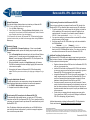
Barracuda SSL VPN - Quick Start Guide Activate Subscriptions Verify that the Energize Updates feature is activated on your Barracuda SSL VPN – this is required to enable further configuration. 1. Go to the Basic > Status page. 2. Under Subscription Status, if Energize Updates is Not Activated, click the activation link to be redirected to the Barracuda Networks Product Activation page. Complete activation of your subscription(s). If it is connected to the Internet, the Barracuda SSL VPN automatically updates its activation status after you reload the browser page when viewing the Basic > Status page. Update the Firmware Go to the ADVANCED > Firmware Update page. If there is a new Latest General Release available, perform the following steps to update the system firmware: 1. Click the Download Now button located next to the Latest General Release firmware version. To view the progress of the download progress, click Refresh. To avoid damaging the Barracuda SSL VPN, do not power off the system during an update or download 2. When the download is complete, click Apply Now to apply the firmware. Click OK to acknowledge the reboot message. Applying the firmware takes a few minutes to complete. 3. After applying the firmware, the Barracuda SSL VPN will automatically reboot. When the system comes back up, the login page is displayed. Log in again. Change the Administrator Password To avoid unauthorized use, we recommend you change the password for the default Appliance Administrator web interface to a more secure password. 1. Go to BASIC > Administration to change your password. 2. Complete the rest of the fields on this page. Route Incoming SSL Connections to the Barracuda SSL VPN To take advantage of all available features, you must route HTTPS incoming connections on port 443 to the Barracuda SSL VPN. This is typically achieved by configuring your corporate firewall to port forward SSL connections directly to the Barracuda SSL VPN. Note: The Appliance Administrator web interface ports on 8000/8443 will also need similar port forward configurations if you intend to manage the appliance from outside the corporate network. Verify Incoming Connections to the Barracuda SSL VPN Once you have configured your corporate firewall to route SSL through to the Barracuda SSL VPN, you should be able to accept incoming SSL connections. 1. To test the connection, use a web browser from the Internet (not inside the LAN) to establish an SSL connection to the external IP address of your corporate firewall. For example, if your firewall’s external IP address is 192.168.1.1, direct your browser to: https://192.168.1.1 2. If you receive a warning in your browser about an untrusted SSL certificate, accept the warning to load the page. 3. On the login page for the SSL VPN interface, log in with the credentials for the VPN administrator: Username: ssladmin Password: ssladmin 4. You will now be successfully logged in as the VPN administrator, and taken directly to the SSL VPN Management Interface. From here you can set up accounts and other resources for users of the Barracuda SSL VPN. Additional Post-Setup Configuration Items Your Barracuda SSL VPN should now be able to accept incoming connections from the Internet. However, the following additional steps should be performed to fully complete the initial configuration: Register a hostname with your DNS server for the Barracuda SSL VPN, such as: sslvpn.example.com Install an SSL certificate on the Barracuda SSL VPN for the hostname, to ensure your users can confirm that they are connecting to a genuine Barracuda SSL VPN that is registered to your organization. Integrate the Barracuda SSL VPN with your existing user database. To cleanly integrate with your environment, the Barracuda SSL VPN can read in user accounts and authenticate against a number of different databases, including Microsoft Active Directory and LDAP. Grant users access to resources using the policy framework. Create a number of policies that best represent your organization's structure and then link resources and users. Users that are not part of the policy are denied access while those that are part of the policy are allowed access to these resources. Further refine your access policies by managing user access rights. If your network uses a DMZ, you may wish to configure the Barracuda SSL VPN in this topology for greater security. Additional documentation, including the Barracuda SSL VPN Administrator’s Guide, can be found at http://www.barracuda.com/documentation. Contact and Copyright Information Barracuda Networks, Inc. 3175 S. Winchester Blvd, Campbell, CA 95008 USA phone: 408.342.5400 fax: 408.342.1061 www.barracuda.com Copyright 2004-2012 Barracuda Networks, Inc. All rights reserved. Use of this product and this manual is subject to license. Information in this document is subject to change without notice. Barracuda SSL VPN is a trademark of Barracuda Networks, Inc. All other brand and product names mentioned in this document are registered trademarks or trademarks of their respective holders. 21-120118-mb Barracuda SSL VPN