1
Application note
Using TwinCAT with the MicroFlex e150
AN00203-001
System manager
manager (TwinCAT hardware setup)
If TwinCAT is installed on your PC you should see an icon in the notification area like this
click the icon and select System Manager to launch the application (It can also be
launched by going to Programs>TwinCAT System>TwinCAT System Manager).
If you have used TwinCAT System Manager before it will open up your last project, go to File>New to start a new project.
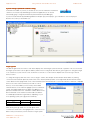
Below is the screen you should then see:
Target system
The bottom right hand corner of the screen above displays the current target system and mode of operation. This one shows that
the target system is the local PC (plus its address) and that it is in Config mode. We will now go through how to change the target
to an actual PLC, if you don’t have a PLC and want to use the PC as a soft PLC then skip this next section and go to the I/O
devices section.
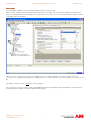
To change the target system click on the ‘Choose target…’ button, this will open another window which will list any existing
connections that have been previously made. Click on the ‘Search (Ethernet)’ button on the right hand side then the ‘Broadcast
search’ button in the top right hand corner of the next window, this will tell TwinCAT to search the network for TwinCAT compatible
devices. Once the search is finished you should see a list of
devices, one of these will be your PC and any others will be
TwinCAT devices on the network. Highlight your PLC named CXxxxxxx, the number will be the last 6 digits of the MAC-ID 1 as
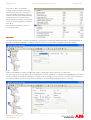
printed on the label of the PLC. Click the IP address button in the
bottom left hand corner and then click the ‘Add route’ button.
You will be presented with a login window, depending on your
PLC operating system your login password will vary:
Operating system
Windows CE
Windows Embedded
User name
Administrator
Administrator
Password
None (blank)
‘1’
After entering the login detail an ‘X’ should appear in the
‘Connected’ column next to the highlighted PLC. Click the ‘close’
button and you should see your PLC listed as a target system.
ABB Motion control products
www.abbmotion.com
2