1
Application note
Using TwinCAT with the MicroFlex e150
AN00203-001
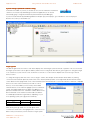
Highlight the PLC and click OK. You should now see the previous TwinCAT screen (above) but the info in the bottom right hand
corner will indicate you are connected to the PLC in config mode. If you have any problems with these steps please refer to the
TwinCAT documentation or contact Beckhoff for technical support.
I/O devices
At this point you should have the MicroFlex e150 drive connected to your PLC or soft PLC EtherCAT port with a suitable EtherCAT
cable (EtherCAT uses a straight through type Ethernet cable). With either your soft PLC or actual PLC selected as the target system
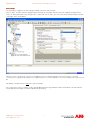
you now need to highlight ‘I/O Devices’ listed in the tree on the left hand side of the screen, right click on this and select ‘Scan
Devices’. Click ‘OK’ to confirm that not all devices may be found automatically and then you should see the dialog box:
If you have any additional I/O devices on your PLC or soft PLC you may see them listed here too. Ensure the correct EtherCAT
device is ticked.
Click ‘OK’ and then ‘Yes’ to scan for boxes. Scanning for boxes will
find devices connected to the EtherCAT network. When the
MicroFlex e150 EtherCAT drive is found you will see the message
shown on the right. Click ‘Yes’ to append the axis to the NCConfiguration within TwinCAT. If you do not have the correct ESI file
for the MicroFlex e150 saved in the TwinCAT directory (as
previously described) then you will not see this message. You will
also not see a drive or axis listed as shown below and will only see an entry named ‘Box 1’ under I/O devices. You will need to save
the ESI file as described in the previous section and re-work through this application note to this point.
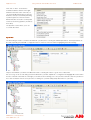
Finally click ‘No’ to not activate Free Run mode. Your TwinCAT System Manager screen should now look like the one below
showing you your MicroFlex e150 and an axis linked to this drive.
Axis
Drive
ABB Motion control products
www.abbmotion.com
3