1
AMS Suite: Intelligent Device Manager
Installation Guide
NOVEMBER 2013
Note
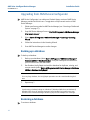
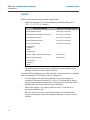
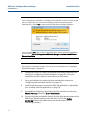
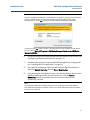
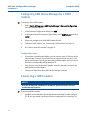
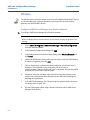
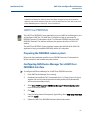
If you are installing on a Windows 7 or Windows Server 2008 PC, and User Account Control
(UAC) is enabled, the User Account Control dialog (similar to below) displays after
rebooting the PC. Select Yes to continue with the AMS Device Manager installation.
If you do not click Yes within 2 minutes, the dialog closes and to complete the installation
you must select Start > All Programs > AMS Device Manager > Continue the AMS Device
Manager installation.
Note
All licensing for a distributed system is done on the Server Plus Station (see “Licensing a
Distributed System” on page 57).
52
6.
Configure the Server Plus Station to recognize each station connected in the
system (see “Configuring a Distributed System” on page 58). This step is
essential for the other stations to access the Server Plus Station.
7.
Set up and configure the system interfaces needed on this station (see
“Configuring communication interfaces” on page 73).
8.
Install the latest versions of any licensed SNAP-ON applications, if appropriate
(see “Installing SNAP-ON applications” on page 58).
9.
Open AMS Device Manager, right-click each of the network icons and select
Rebuild Hierarchy followed by Scan > New Devices.
10.
If you are using the Alert Monitor feature, click the Alert Monitor button on the
AMS Device Manager toolbar to open the Alert List. Click the Station
Monitoring button in the toolbar and ensure that the station you are
monitoring is checked.