1
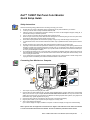
Monitor Controls and Indicators
1 2
A
B
C
A,B
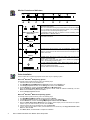
VIDEO Input Indicators and
Select button
B,C
D
E
F
G
Use this button to select between two different video signals that may be
connected to your monitor.
Video 1 is for use with an analog input, while Video 2 is for use with a digital
input. An indicator light glows green below the number (1 or 2) indicating
which input is active on the flat panel display screen.
A confirmation dialog will also be flashed on-screen indicating either
'ANALOG INPUT' or 'DIGITAL INPUT'.
Use these buttons to adjust (decrease/increase ranges) items in the OSD,
and to select sub-menus.
buttons
C
Use this button to activate automatic setup and adjustment.
Auto adjust
Use these buttons with the OSD to move the (highlighted) selection within
menus; to select sub-menu items; and to make adjustments on various
selections. These buttons are also direct access buttons for the Brightness and
Contrast control menu.
D,E
buttons
F
MENU
G
The MENU button opens the on-screen menu (OSD), exits from menus and
sub-menus, and exits the OSD.
Use this button to open the OSD system and to activate the highlighted
function. See Accessing the Menu System.
The power indicator lights steady green, steady amber, blinking amber, or
blinking green / amber to indicate the power management state of the
monitor. See Power-saving modes.
The Power button turns the monitor on and off.
Power Indicator & Power Button
Driver Installation
Use the monitor CD to install the appropriate monitor driver for your operating system.
Microsoft® Windows® XP Operating System
To manually install or update the driver, perform the following steps:
1. Insert the monitor CD into the CD-ROM drive.
2. Click StartÆ
ÆControl PanelÆ
Æ Appearance & Themes and then click the Display icon.
3. In the Display Properties window, click the Settings tab, and then click Advanced.
4. Click the Monitor tab, and then click PropertiesÆ
Æ Driver tabÆ
Æ Update Driver.
5. When the Hardware Update Wizard dialog box appears, choose “Install the software automatically,” and click
Next> and then Finish to complete the installation.
6. Close the Display Properties window.
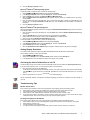
Microsoft® Windows® Millennium Operating System
To manually install or update the driver, perform the following steps:
1. Click StartÆ
ÆSettingsÆ
ÆControl Panel and then double-click Display.
2. In the Display Properties window, click the Settings tab, and then click Advanced.
3. Click the Monitor tab, and then click ChangeÆ
ÆSpecify the location of the driverÆ
ÆNext.
4. When the Update Device Driver Wizard dialog box appears, select "Display a list of all the drivers in a specific
location, so you can select the driver you want," and click Next>.
5. Insert the monitor CD into the CD-ROM drive, then click Have Disk.
6. Type d:\ (change the drive letter to match your CD-ROM drive if it is not drive D) in the Copy manufacturer's files
from: box, then click OK.
7. Click Next>, Next>, and then Finish to complete the installation.
2
Dell™ 1900FP Flat Panel Color Monitor Quick Setup Guide