1
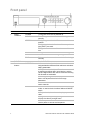
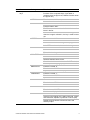
No.
Name
Setting
Function Description
4
Composite
keys
SHIFT
Switch between the numeric or letter input and
functions of the composite keys. (Input letter or
numbers when the light is out; Realize functions when
the light is red.)
1/MENU
Enter the numeral “1”
Access the main menu interface.
2/ABC/F1
Enter the numeral “2”.
Enter the letters “ABC”.
The F1 button when used in a list field will select all
items in the list.
In PTZ Control mode, it will turn on/off PTZ light and
when the image is zoomed in, the key is used to zoom
out.
3/DEF/F2
Enter the numeral “3”.
Enter the letters “DEF”.
The F2 button is used to change the tab pages.
In the PTZ control mode, it zooms in the image.
4/GHI/ESC
Enter the numeral “4”.
Enter the letters “GHI”.
Exit and back to the previous menu.
5/JKL/EDIT
Enter the numeral “5”.
Enter the letters “JKL”.
Delete characters before cursor.
Check the checkbox and select the ON/OFF switch;
Start/stop record clipping in playback.
6/MNO/PLAY
Enter the numeral “6”.
Enter the letters “MNO”.
Playback, for direct access to playback interface.
7/PQRS/REC
Enter the numeral “7”.
Enter the letters “PQRS”.
Open the manual record interface.
8/TUV/PTZ
Enter the numeral “8”.
Enter the letters “TUV”.
Access the PTZ control interface.
9/WXYZ/PREV
Enter the numeral “9”.
Enter the letters “WXYZ”.
Multi-channel display in live view.
0/A
Enter the numeral “0”.
Shift the input methods in the editing text field. (Upper
and lowercase, alphabet, symbols or numeric input).
Double press the button to switch the main and
auxiliary output.
ClareVision Network Video Recorder Installation Guide
5